
Every OnlyFans creator has a workspace: a header with the creator's name and the Enable AI switch, then ten tabs. Seven are included with any license (Overview, Fans, Fan Lists, Medias, Scripts, Schedules, Settings) and three need Premium (Nudges, Welcome Messages, Telegram Notifications). This page tells you what each tab is for, what you do there and in which order to visit them when you set a creator up. Each tab has its own detailed article.
Where to find it
Creators board, Open workspace on the card, or one of the Quick access shortcuts under the card. The address is /creators/[creatorId], and each tab is a ?tab= value, so you can bookmark a tab. Go back to creators returns to the board.

Tabs are hidden when your member account lacks the matching permission ("View Fans tab", "View Fan Lists tab", "View Medias tab", "View Scripts tab", "View Schedules tab", "View Settings tab", "View Nudges tab", "View Telegram Notifications tab"). Premium tabs are visible with a Basic license but show a "Premium Feature Locked" card instead of their content.
The tabs at a glance
| Tab | What it holds | You go there to | Article |
|---|---|---|---|
| Overview | KPIs of the last 7 days, revenue chart, Creator health, Jump to | Check the creator's state in ten seconds | Overview tab |
| Fans | One row per fan the AI met, with Scripts used and a per-fan AI switch | Find a fan, open his conversation, pause the AI on him | Fans list |
| Fan Lists | Your OnlyFans lists, marked Active or Excluded | Decide who the AI may answer | Fan lists |
| Medias | The vault lists you synced, with a description per media | Give the AI the content it can sell and tell it what each file shows | Media library |
| Scripts | Folders and scripts, with Active and First flags | Build the scenes the AI sells | What a script is |
| Schedules | Weekly grid of timeslots and the Schedule Automation switch | Run the AI only at certain hours | Schedules |
| Settings | Details, Add infos, Behavior, Strategies | Define who the creator is and how the AI behaves | Settings |
| Nudges (Premium) | Re-engagement messages when a fan comes back online | Catch fans the moment they reconnect | Nudges |
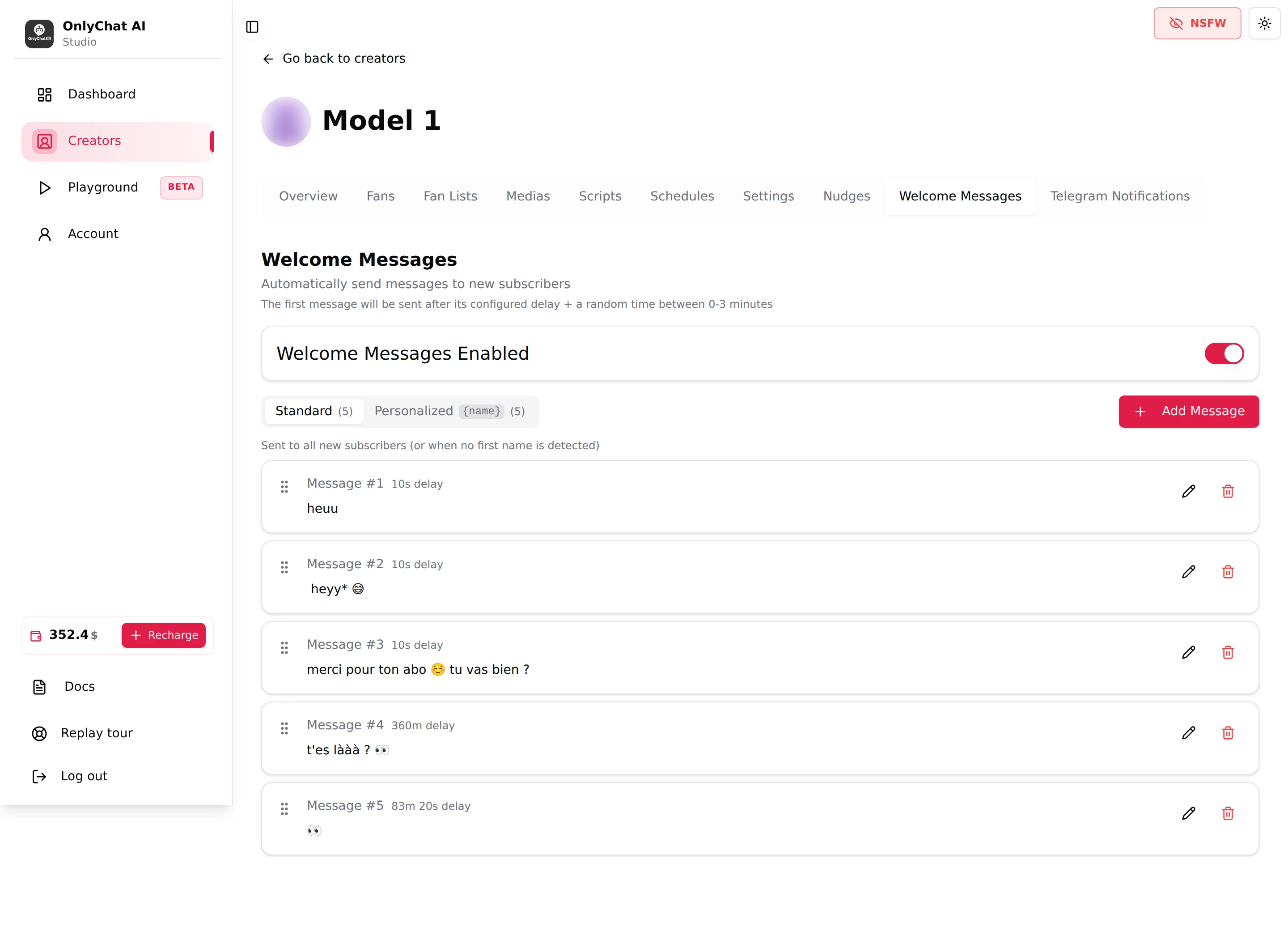
| Welcome Messages (Premium) | Standard and Personalized sequences for new subscribers | Greet new fans automatically | Welcome messages |
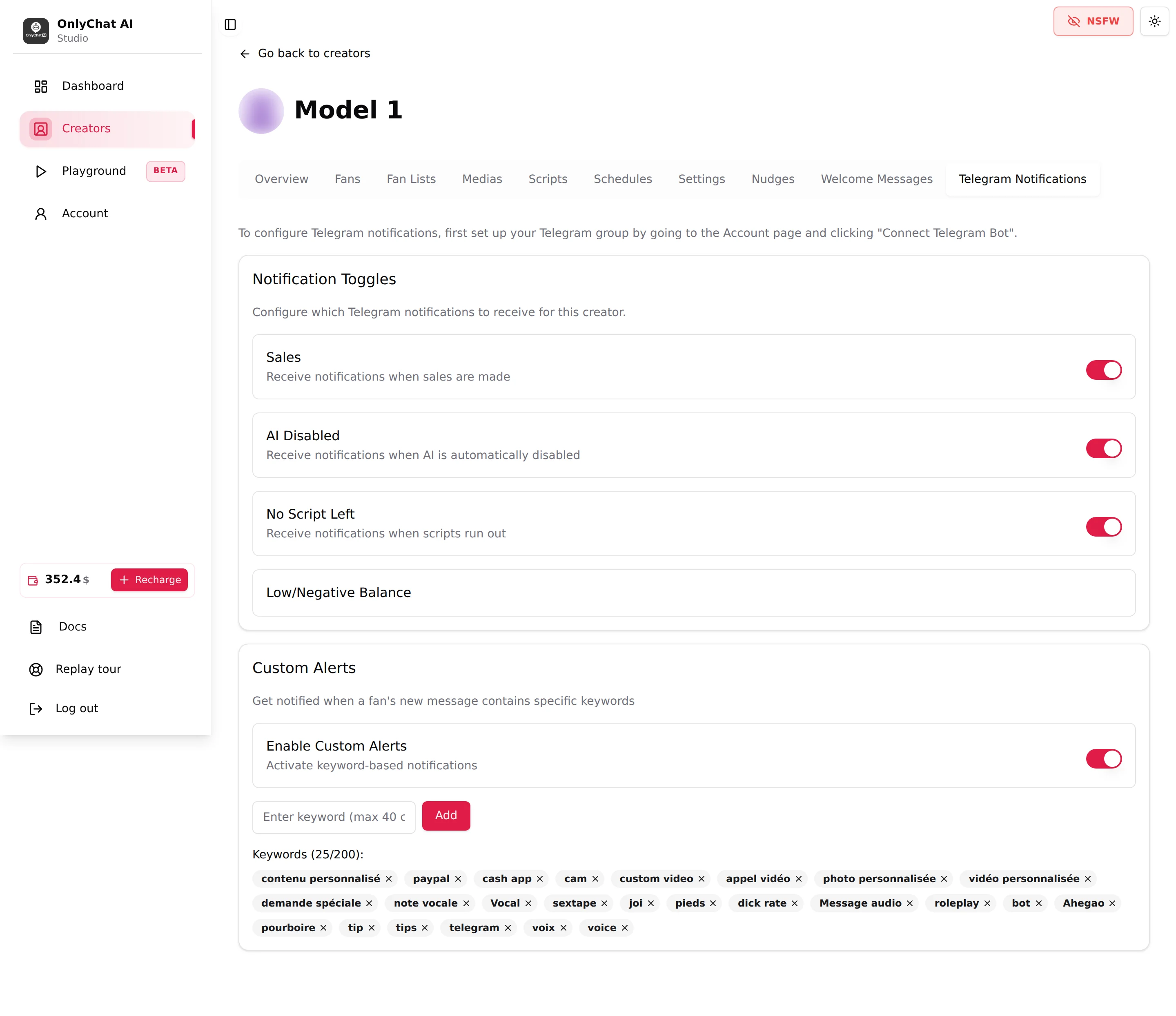
| Telegram Notifications (Premium) | Sales, AI Disabled, No Script Left toggles and custom keywords | Get alerts in your Telegram group | Telegram alerts |
Overview
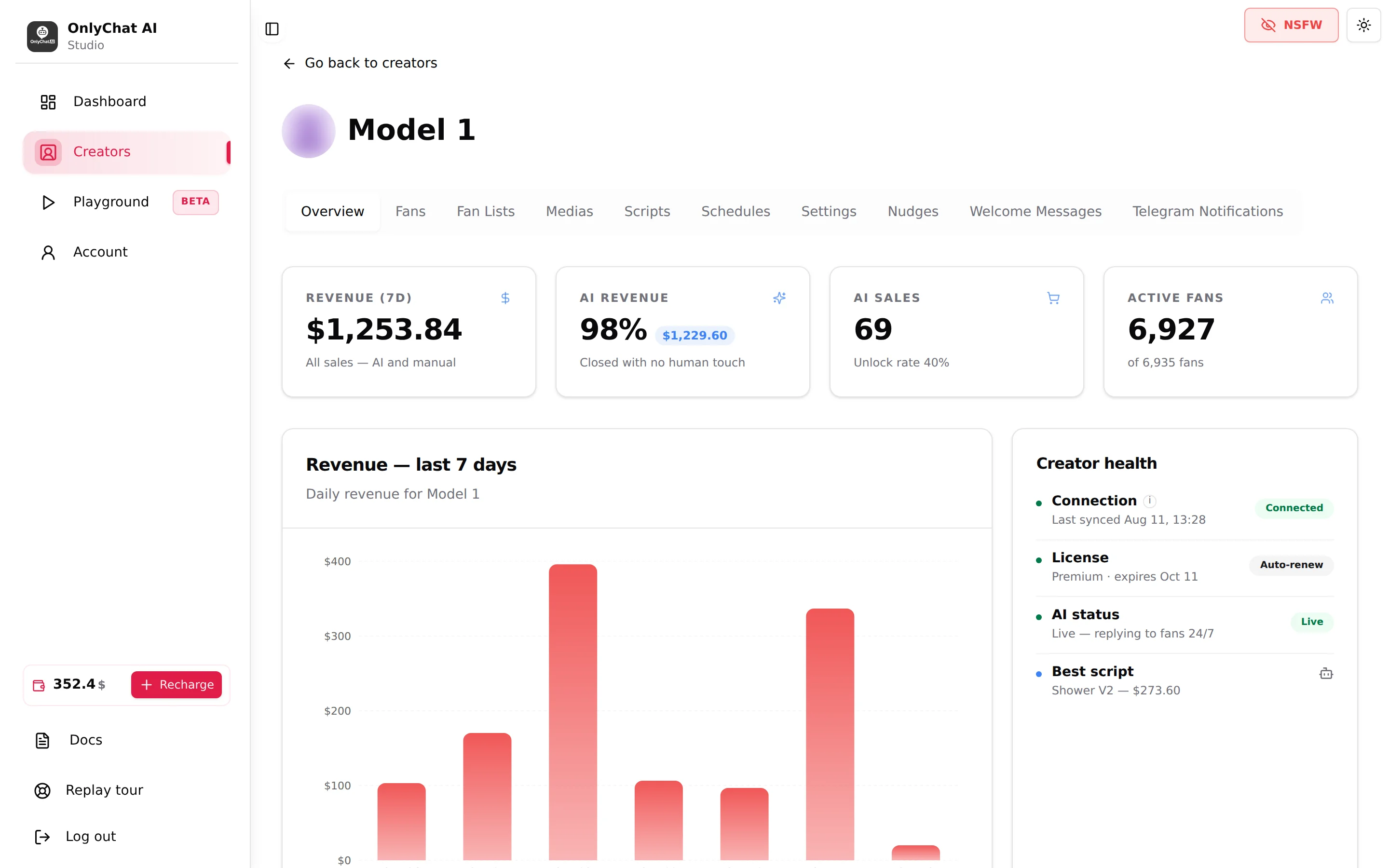
The first tab, and the one to open every morning. Four KPI cards for the last 7 days (Revenue (7d), AI revenue, AI sales with the unlock rate, Active fans), the chart "Revenue, last 7 days", the Creator health card (Connection, License, AI status, Best script) and the Jump to shortcuts to every other tab.
Fans
"One row per fan the AI has crossed paths with at least once." Columns Name, Username, Created at, Scripts used ("x / y", red when the fan has seen every script), Enable AI (the per-fan switch), plus Note and Tags buttons with Premium. A search field "Filter by name or username...", a Filter by tags select (Premium) and the bulk Enable AI for all / Disable AI for all buttons. Clicking a row opens the fan's conversation, where you can read every message and write yourself. See Fan conversation.
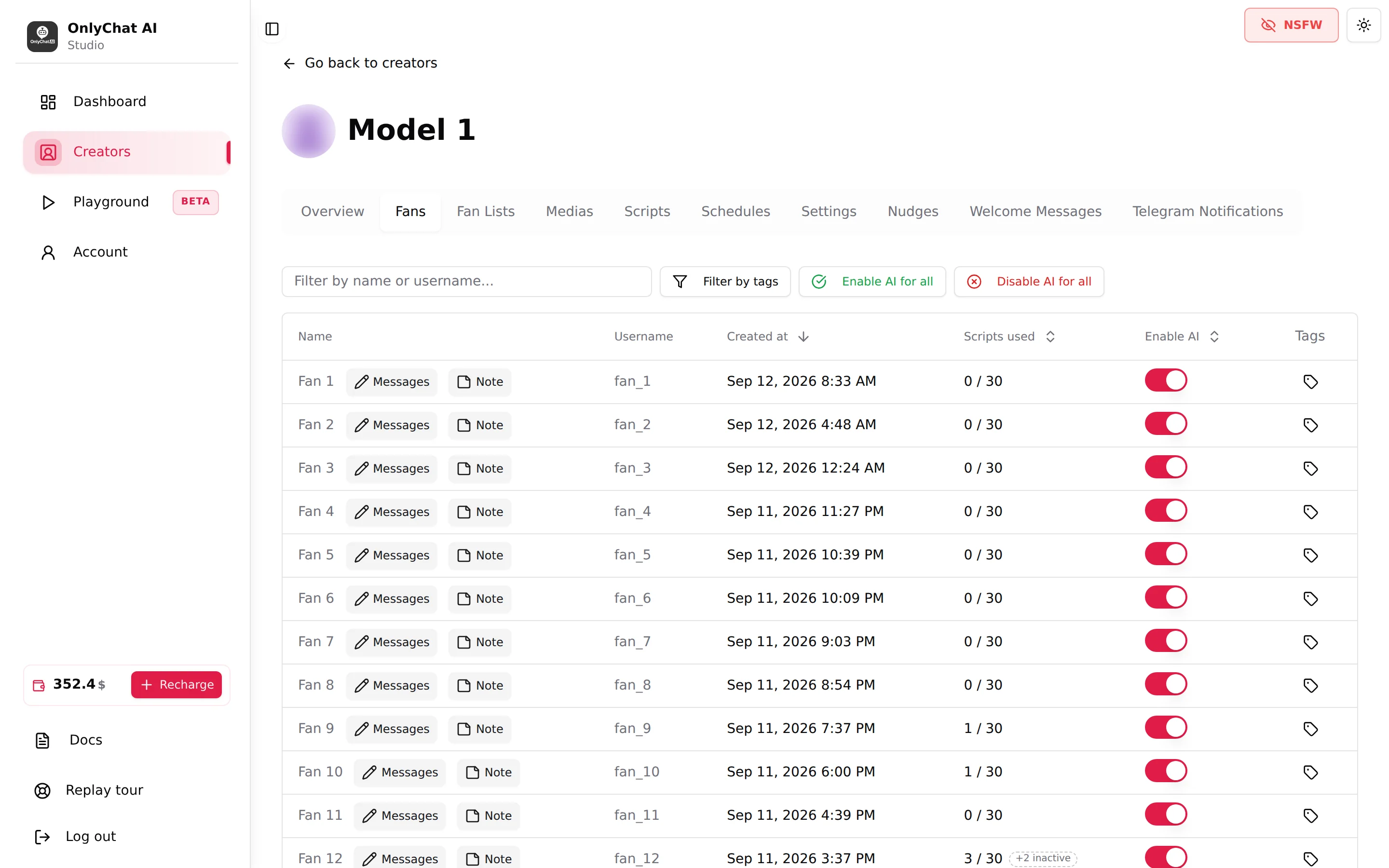
The tour reminds you of the split: the Fans tab shows who the AI met; "Who the AI may answer is decided on the Fan Lists tab."
Fan Lists
"Lists come from OnlyFans. We never store which fan belongs to which list": membership is checked live before every reply, so you do not have to re-import after moving fans around. You import the lists once (Import fan lists), refresh them with Update lists, and sort them into Active lists ("The AI is allowed to answer fans in these lists.") and Excluded lists ("Fans here are never answered, even if they sit in an active list."). The rule is printed on the tab: "The AI replies only to fans in at least one Active list and in no Excluded list, exclusion always wins." Bulk buttons: Activate all lists, Exclude all lists.
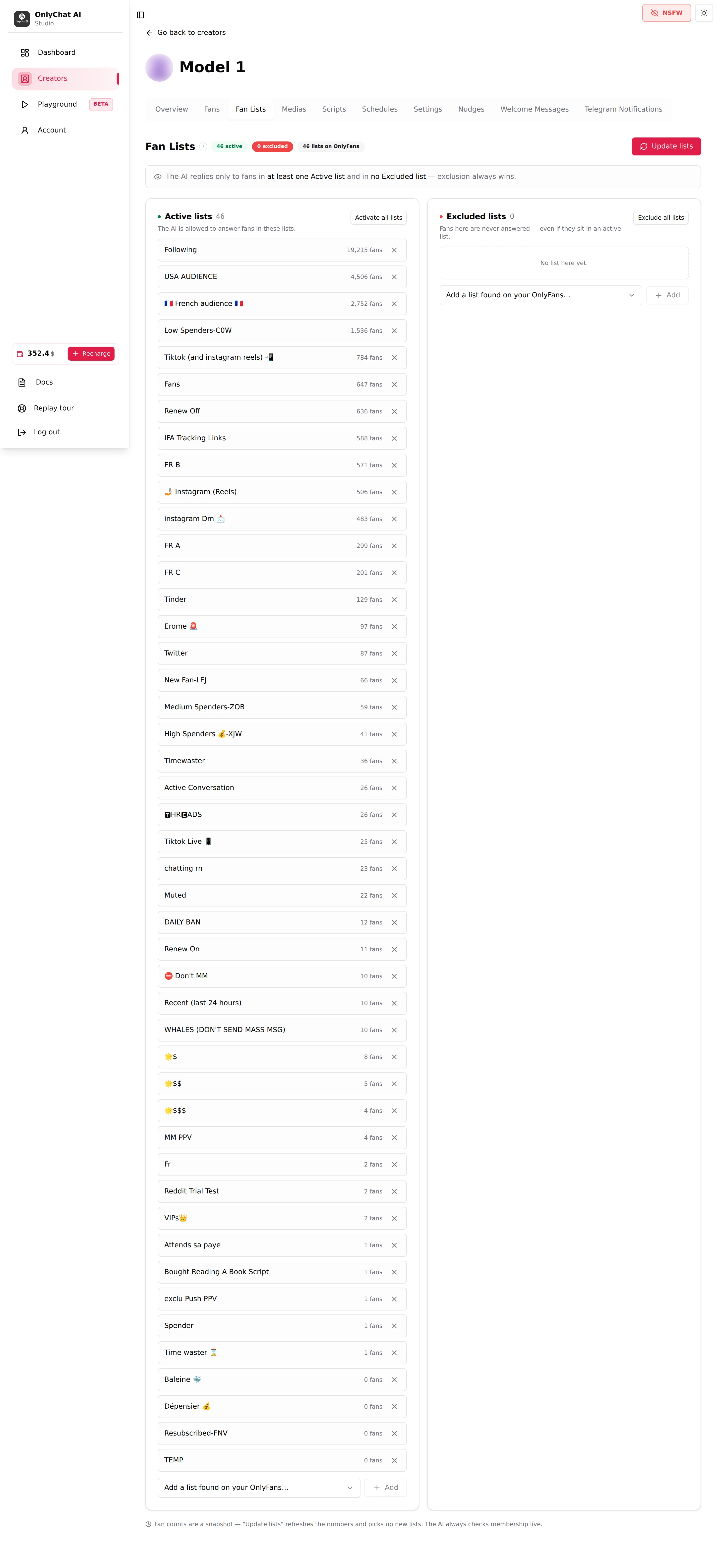
A creator with no Active list has an AI that answers nobody. This is the most common reason a freshly connected creator "does not reply".
Medias
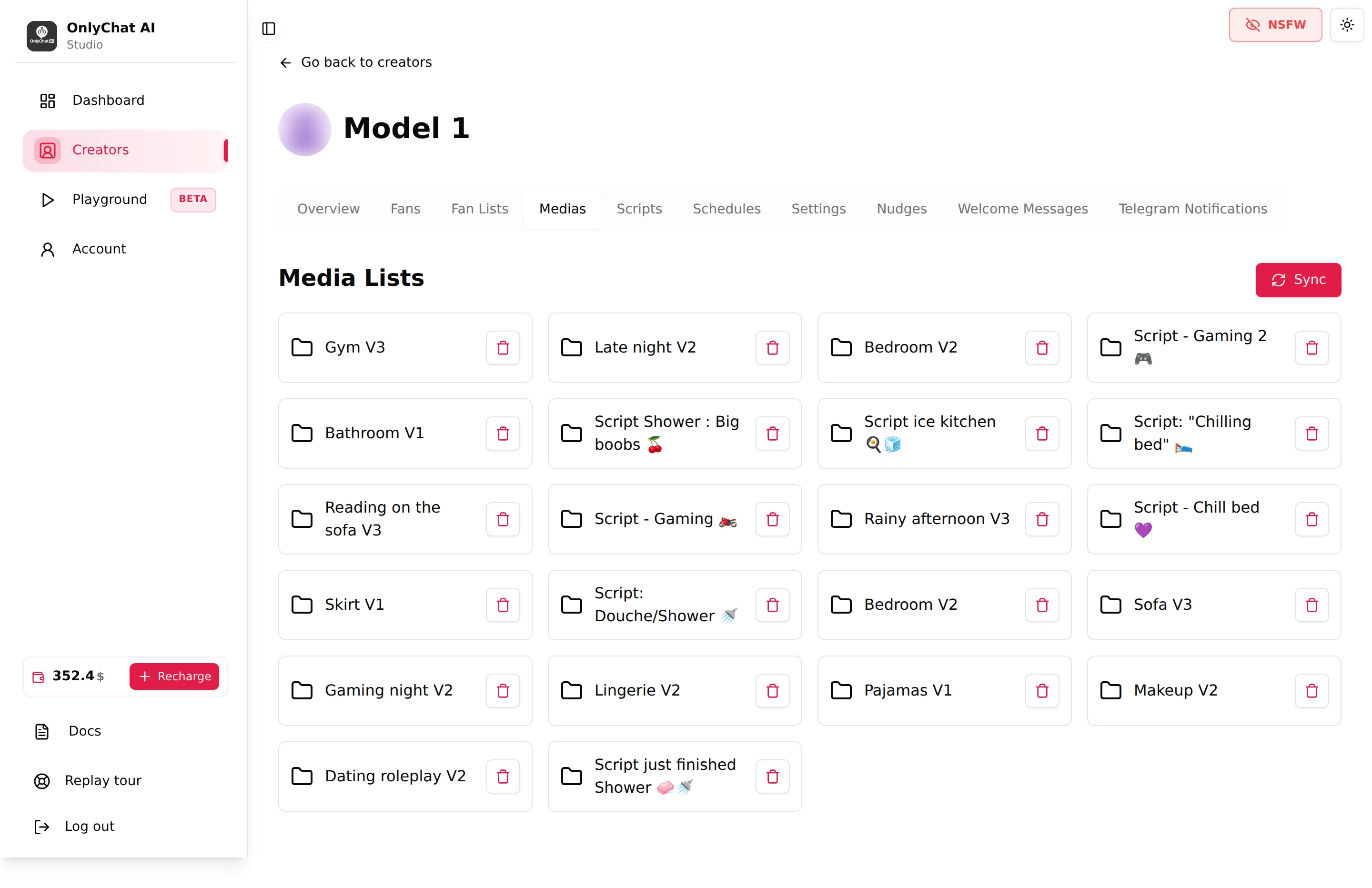
The card Media Lists shows the vault lists you synced. Sync Media opens the picker of the creator's vault lists; the sync is incremental and never overwrites the descriptions you wrote. Each list opens a table with Media, Description, Type, Duration and Ready for AI (ticked when a description exists). The description is what tells the AI what it is sending: a media without one cannot be sold well. You can also tag other creators featured in a media (Tag other creators) and delete a media from OnlyChat (the vault is untouched).
Scripts
Where the selling happens. A script is a scene: a name, a description the AI reads, two timers, and steps. Each step is a message, media from the Medias tab, a price (0 = free), an optional discount, pacing and post-media follow-ups. The tab lists scripts in folders with a search field, New Folder, Add Script, an Active switch per script and a First star for the script to use first. Folder menus offer Enable all / Disable all, Rename, Delete folder; row actions offer Edit, Create Variation, Move to folder, Delete.
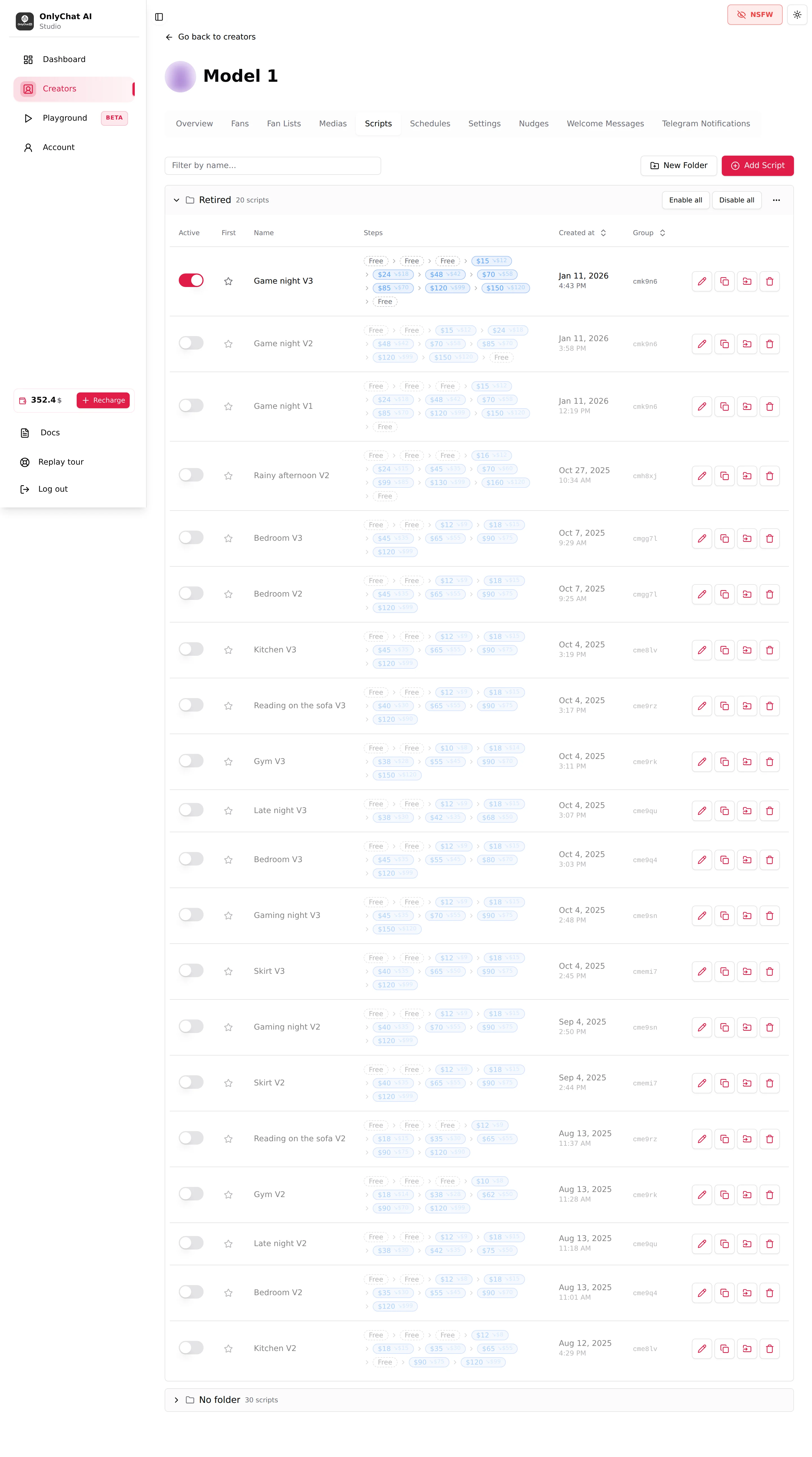
The AI needs at least 2 active scripts to be enabled. The order in which the AI walks a fan through steps, prices and discounts is explained in What a script is and Script steps.
Schedules
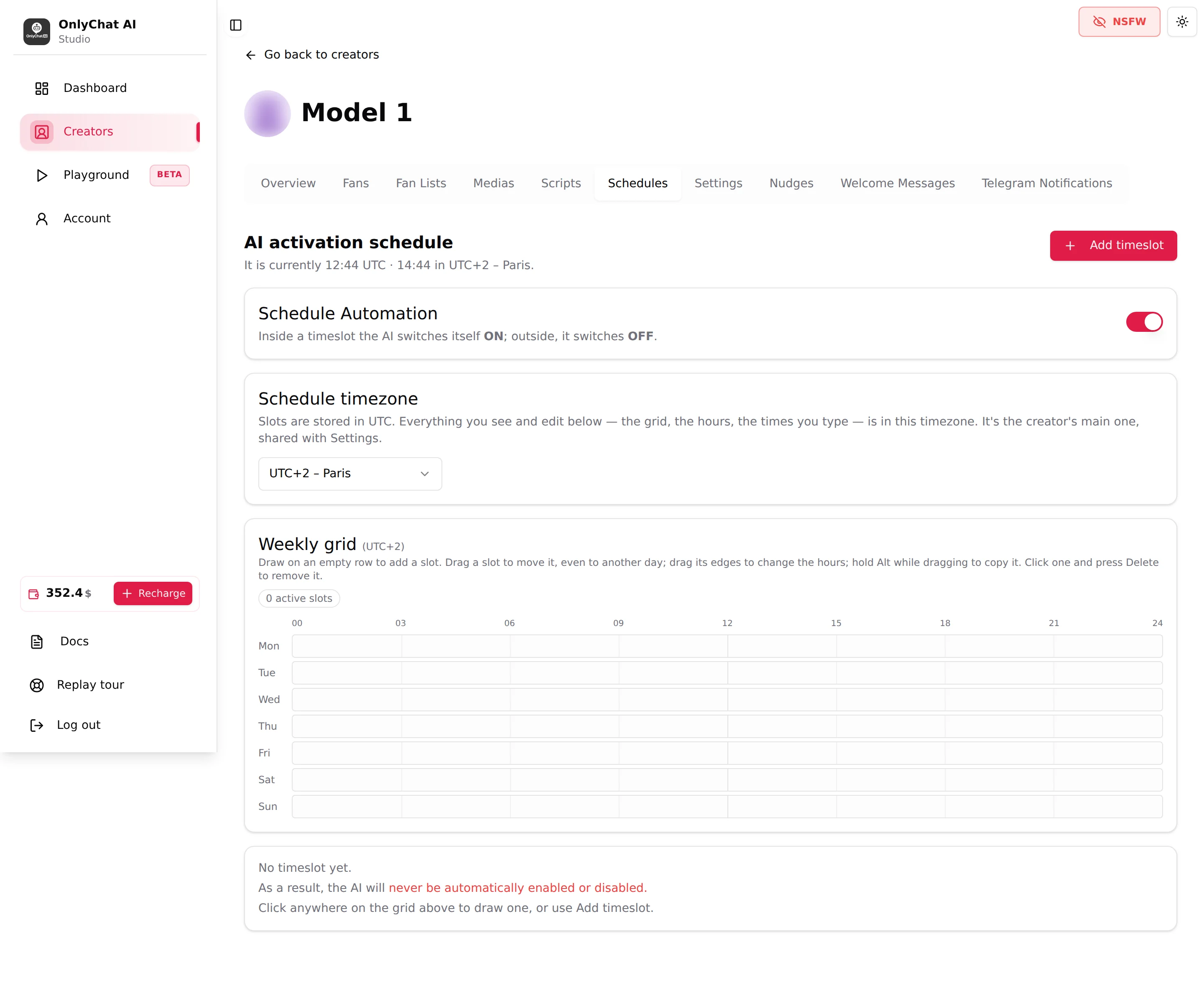
"AI activation schedule": a Schedule Automation switch ("Inside a timeslot the AI switches itself ON; outside, it switches OFF."), a Schedule timezone select shared with Settings, a weekly grid where you draw, drag and resize timeslots, and a Timeslots list with a switch, Edit and Delete per slot. Without any timeslot, "the AI will never be automatically enabled or disabled": the creator switch alone decides.
Settings
Four sub-tabs, one Submit button at the bottom that saves all four ("Creator info updated!").
- Details: Identity (First Name, Age, Date of Birth, Gender, Ethnicity, Timezone), Appearance (hair, eyes, height, weight, shoe size), Bra size, Personality (Languages, Hobbies, Personality Traits). "Fans ask these constantly, a wrong answer breaks the illusion."
- Add infos: the free-form Additional info field, "Anything the other fields can't hold: the daily routine, the boundaries, running jokes, what the creator calls their fans. The AI reads it verbatim."
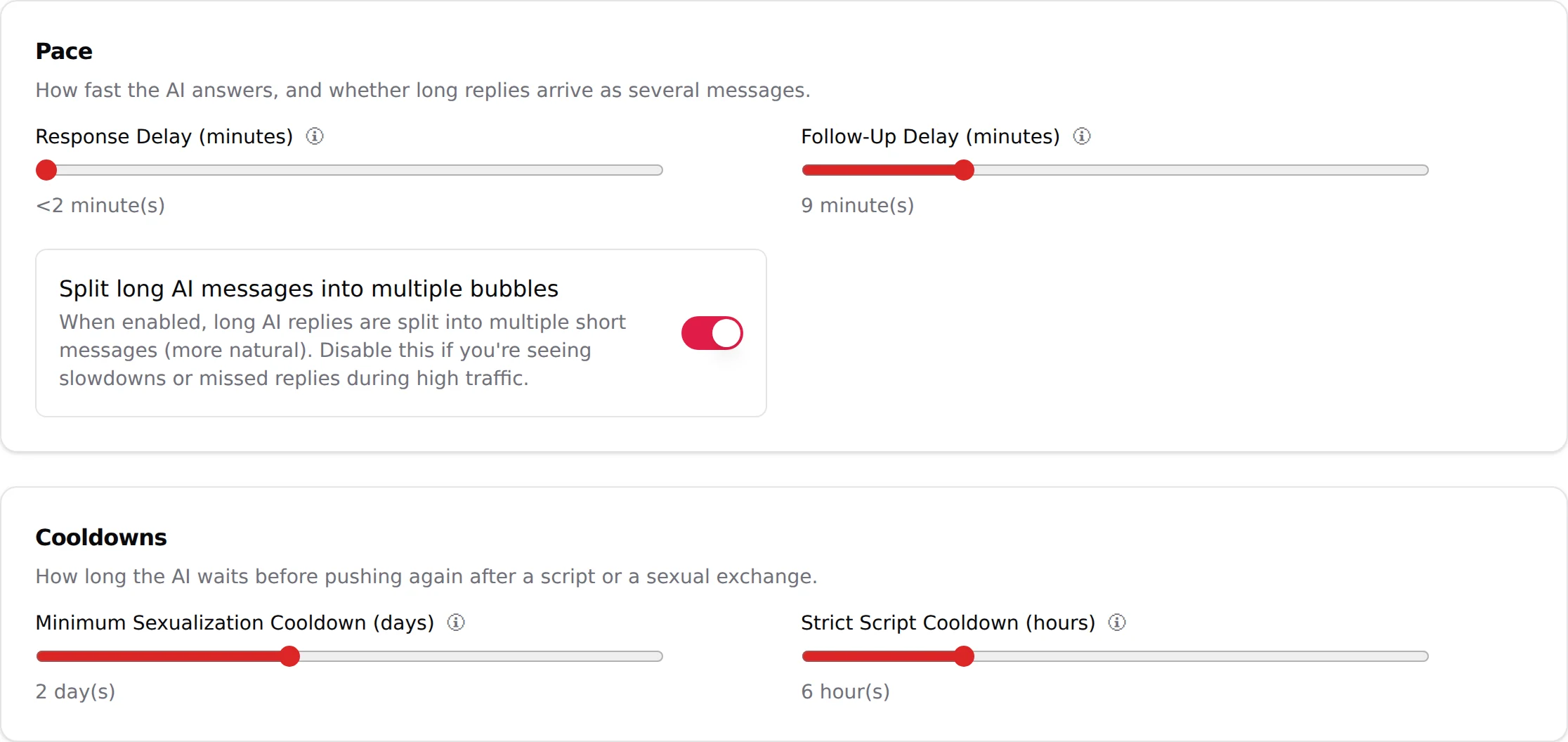
- Behavior: Pace (Response Delay (minutes), Follow-Up Delay (minutes), Split long AI messages into multiple bubbles) and Cooldowns (Minimum Sexualization Cooldown (days), Strict Script Cooldown (hours)).
- Strategies: "Six phases drive every conversation": Language, Launch script, Sexualisation, Negotiation, Follow-up, KYC. Each has a tuned default and a Custom option.
Details in Settings, Identity and appearance, Behavior and timing, Custom strategies.
Nudges (Premium)
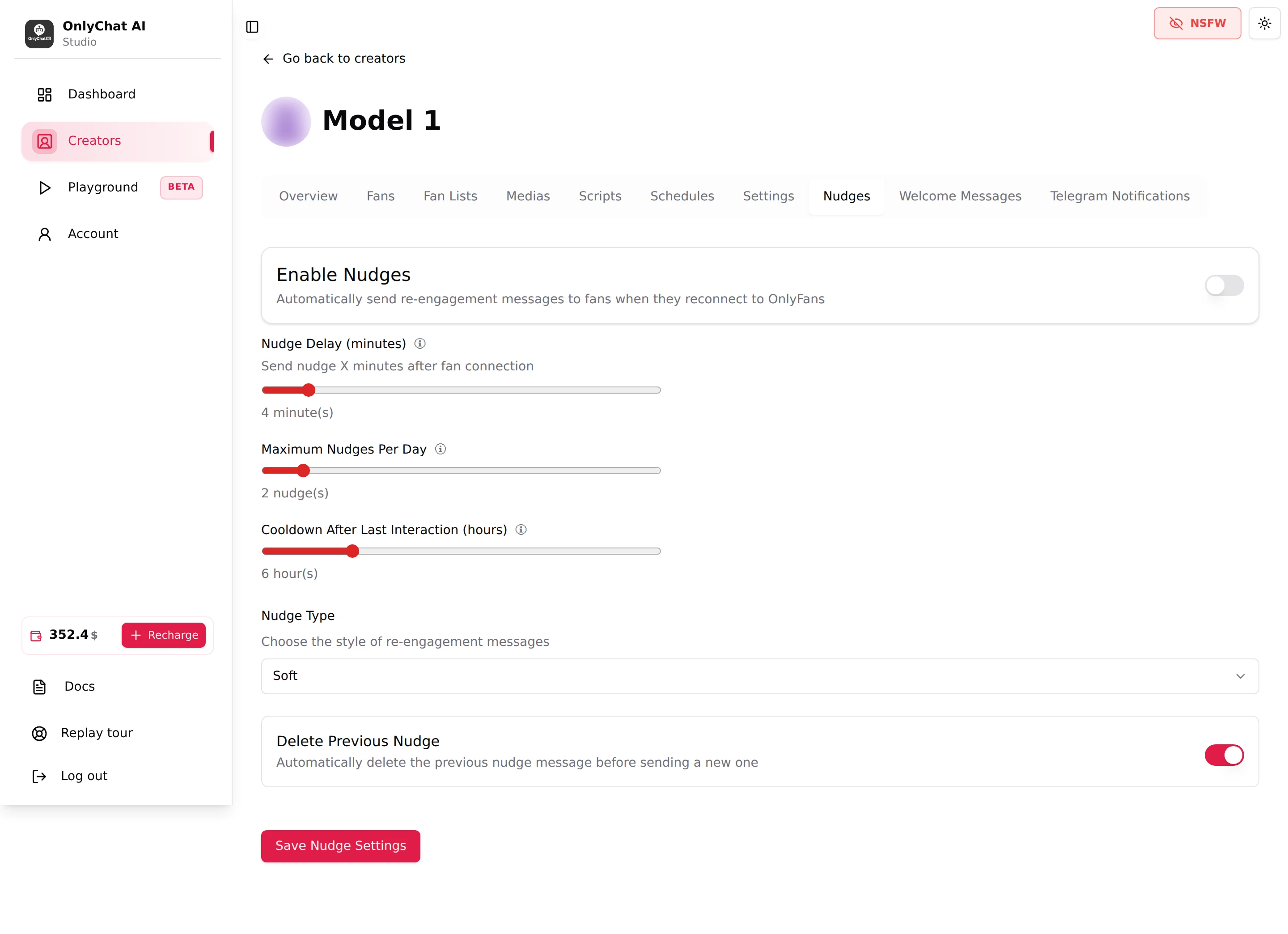
premium "Automatically send re-engagement messages to fans when they reconnect to OnlyFans". An Enable Nudges master switch, then Nudge Delay (minutes), Maximum Nudges Per Day, Cooldown After Last Interaction (hours), Nudge Type (Soft, Aggressive, Custom) and Delete Previous Nudge.
Welcome Messages (Premium)
premium "Automatically send messages to new subscribers". Two sequences: Standard ("Sent to all new subscribers (or when no first name is detected)") and Personalized (used when a real first name is detected in the fan's username, with a name placeholder). Each message has text, optional media and a delay relative to the previous message.
Telegram Notifications (Premium)
premium "Configure which Telegram notifications to receive for this creator." Toggles Sales, AI Disabled, No Script Left, a Low/Negative Balance row, and Custom Alerts on keywords found in fan messages. Needs the notifications bot connected on Account, Integrations.
Set-up order for a new creator
- SettingsFill Details and Add infos first. Everything the AI says depends on them.
- MediasSync the vault lists you sell from, then write a description for every media you will attach to a step.
- ScriptsCreate at least two scripts, mark one as First, keep both Active.
- Fan ListsImport the lists, put the ones to answer in Active, the ones to protect in Excluded.
- Schedules (optional)Draw timeslots if the AI should not run 24/7.
- Premium tabs (optional)Nudges, Welcome Messages and Telegram Notifications once the basics sell.
- Enable AIHeader switch or card switch. See Turn the AI on.
Good to know
-
There is no delete button on an OnlyFans creator, on purpose (fans, conversations, fan memory, scripts and media would be lost by one wrong click). To remove one, write to our lead developer on Telegram (@OnlychatAIsupport); meanwhile switch the AI off and let the license expire.
-
All tabs except Overview require an active license. Without one, assign a license from the card first.
-
The Enable AI switch in the header is the same as the AI switch on the board card.
-
The NSFW toggle blurs every thumbnail in Medias, Scripts and conversations. Useful when you work in the open.
-
Telegram creators have a different set of tabs (no Fan Lists, no Schedules, no Nudges, no Welcome Messages; Re-engagements, Notifications and Dropp instead). See The Telegram workspace.