
Telegram alerts push events from an OnlyFans creator into a Telegram group you own: every sale the AI closes, the moment the AI gets switched off automatically, the moment a fan has seen every script, and any fan message that contains a keyword you chose. They exist because the dashboard tells you what happened yesterday, while a Telegram alert tells you what is happening now, on your phone: a fan writing "custom video" at 2 am is a sale you can close by hand if you see it in time.
Setting up alerts takes two places: once per organization in Account, Integrations (the notification bot and your Telegram username), then per creator in the Telegram Notifications tab (which events, which keywords).
Part 1: connect the notification bot (organization level)
Done once, by a member with the Manage Telegram bot permission (Owner only by default). Open Account, tab Integrations, card Telegram Notifications.
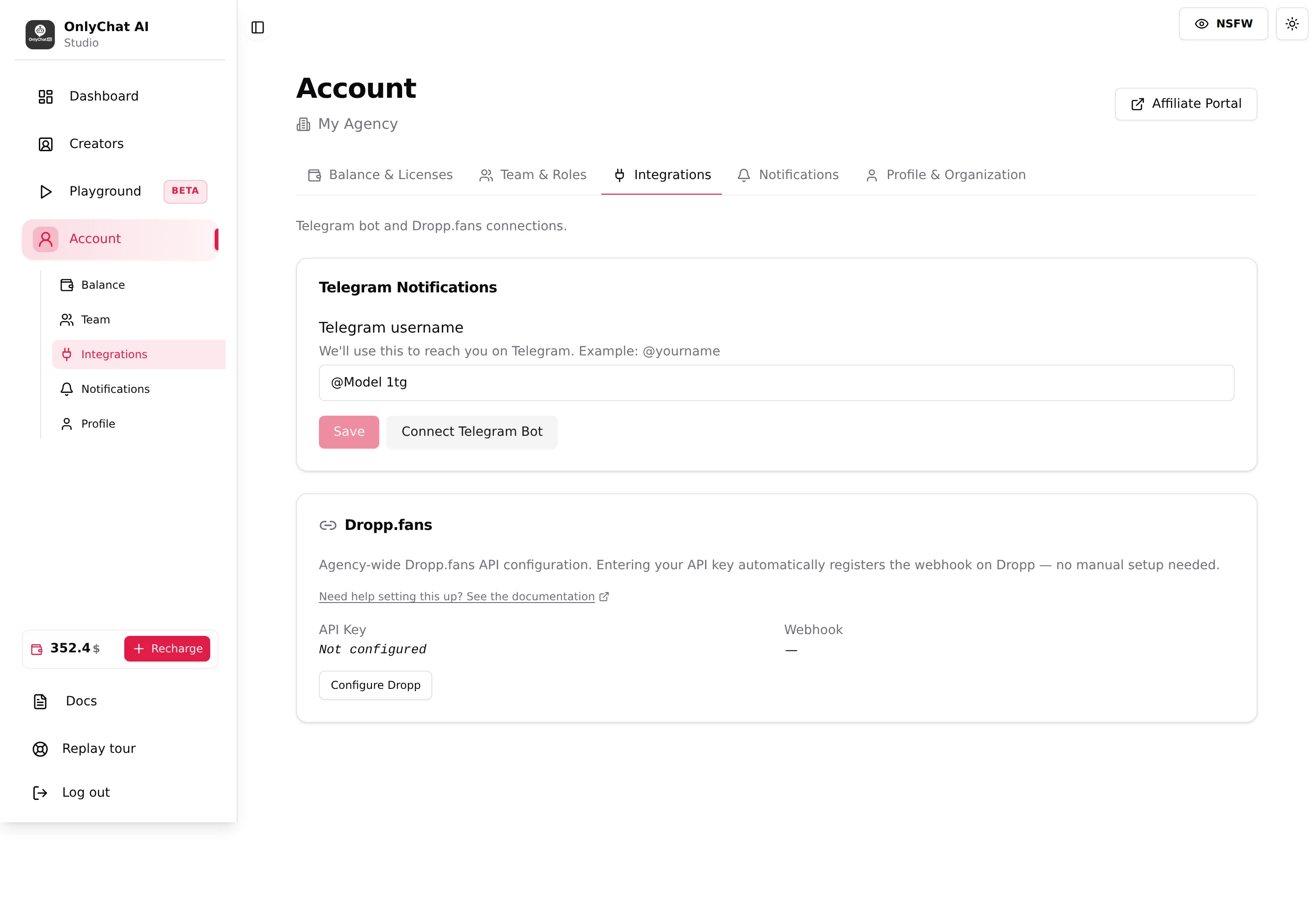
Telegram username
Field with helper "We'll use this to reach you on Telegram. Example: @yourname", placeholder "@yourname". Enter the handle of the Telegram account that will add the bot to the group. Validation: "Telegram username must start with @", "must have at least 2 characters (e.g., @ab)", "is too long (max 64 characters)". Save shows "Telegram username updated".
The modal note explains why this matters: "Your Telegram username must match the one saved in your account settings for verification to work." The bot checks that the person who added it is you.
Connect Telegram Bot
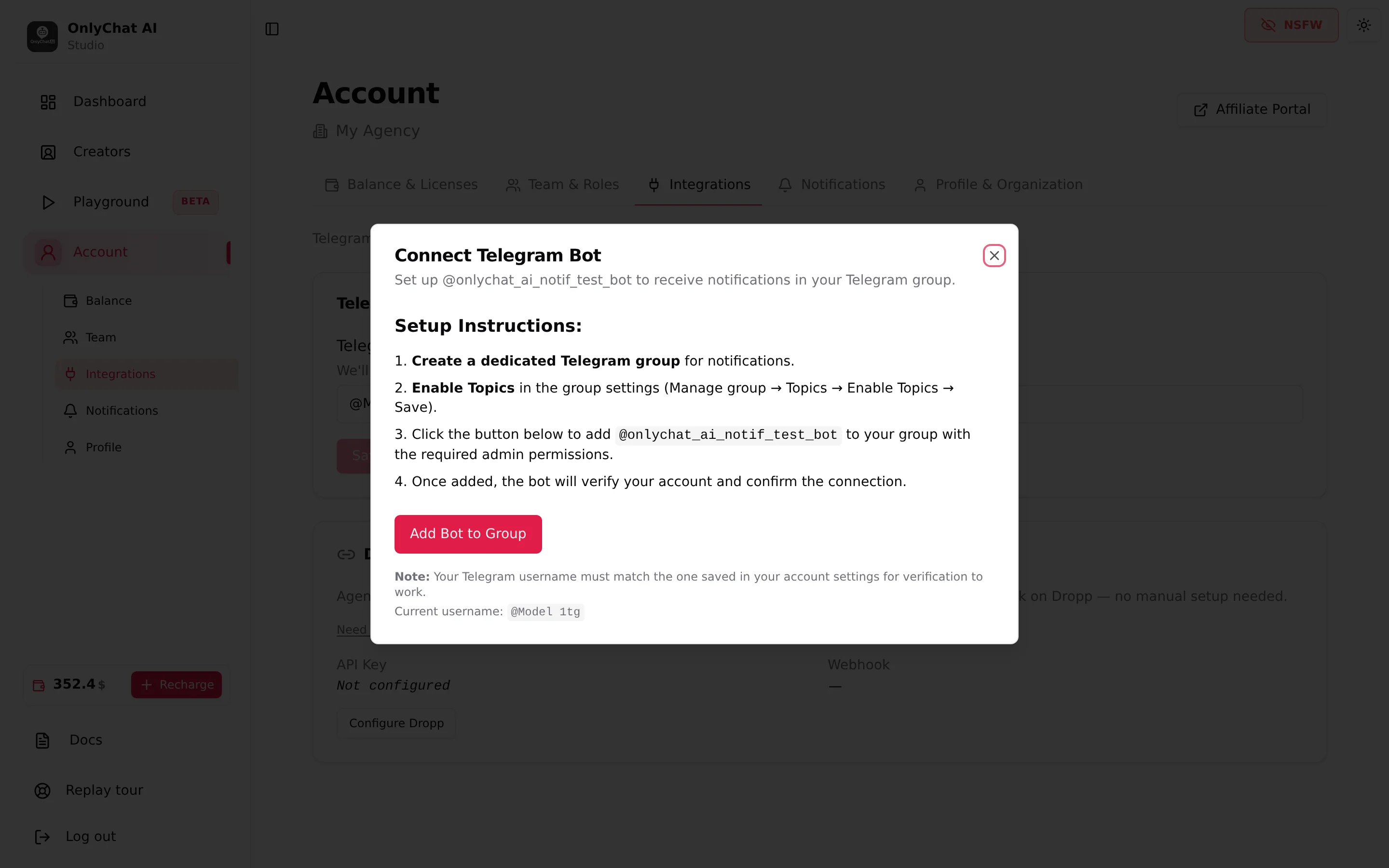
Opens the modal Connect Telegram Bot, "Set up @onlychatai_notif_bot to receive notifications in your Telegram group."
Two guards can replace the instructions:
- "You need at least one active Premium OnlyFans license or one Telegram license to use Telegram notifications."
- "Please set your Telegram username above before connecting the bot."
The Setup Instructions in the modal, verbatim:
- Create a dedicated Telegram group for notifications.
- Enable Topics in the group settings (Manage group, Topics, Enable Topics, Save).
- Click the button below to add @onlychatai_notif_bot to your group with the required admin permissions.
- Once added, the bot will verify your account and confirm the connection.
One step the modal does not mention: once the bot has confirmed the connection, send /setup_topics in the group. The bot creates the topics it needs, one per type of alert, and only then starts posting. Without it the group stays silent.
Add Bot to Group opens Telegram with the bot pre-selected and the admin rights it needs (delete messages, ban users, invite users, manage topics, pin messages). Topics are required: the bot needs them enabled in the group before it confirms the connection. The line "Current username: @x" or "Not set" under the button reminds you which handle the bot expects.
- Save your Telegram usernameIn Account, Integrations, type your handle with the @ and click Save.
- Create the group and enable TopicsIn Telegram: new group, then Manage group, Topics, Enable Topics, Save.
- Click Connect Telegram Bot, then Add Bot to GroupPick the group you just created and confirm the admin rights.
- Wait for the confirmation in the groupThe bot verifies that the member who added it matches the saved username and confirms the connection in the group.
- Send /setup_topics in the groupType /setup_topics in the group. The bot creates the topics it needs, one per type of alert, and only then starts posting. Without this command the group stays silent.
Part 2: choose the events (per creator)
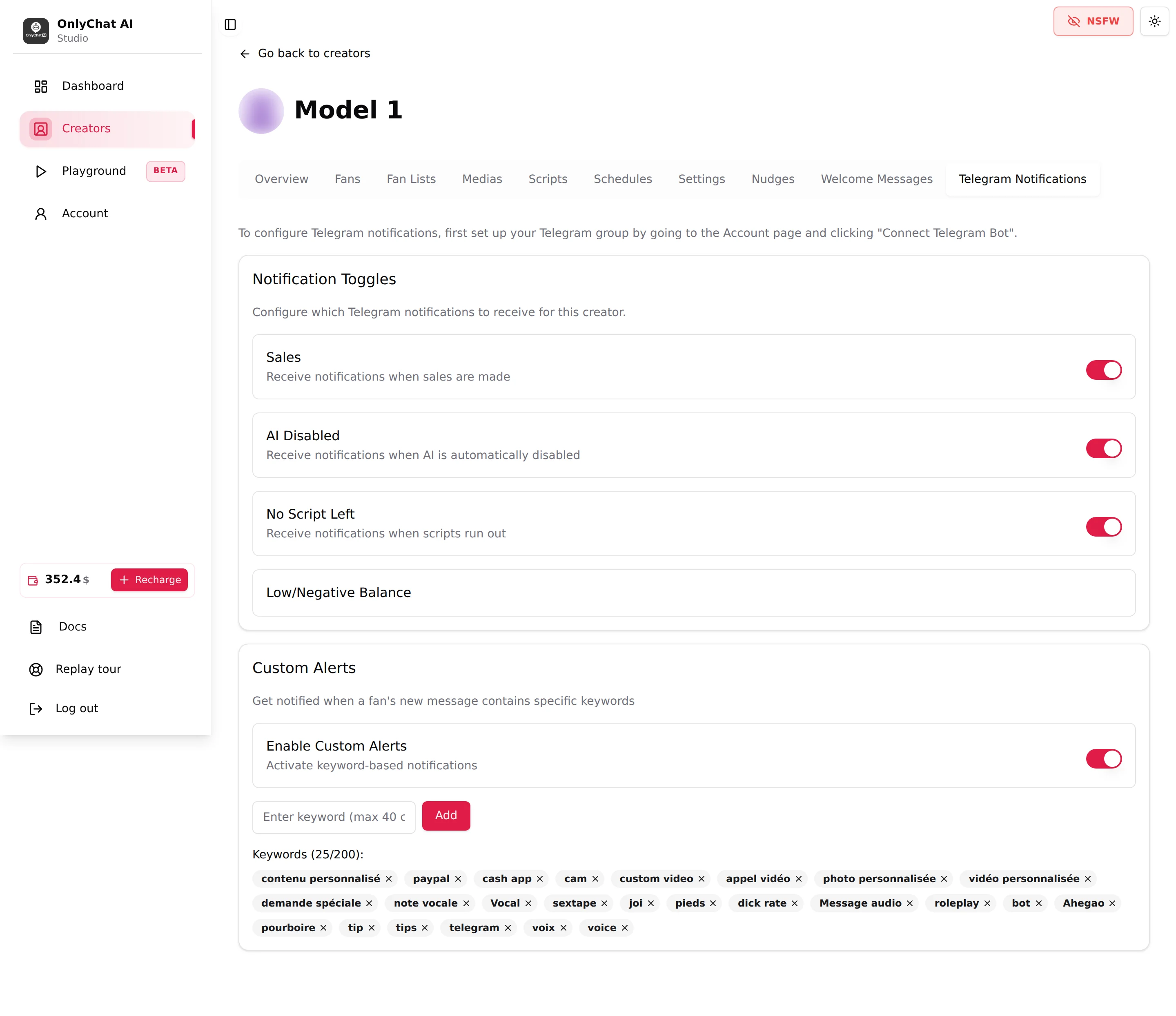
Open the creator's workspace, tab Telegram Notifications. The intro line reads: "To configure Telegram notifications, first set up your Telegram group by going to the Account page and clicking "Connect Telegram Bot"."
Notification Toggles
Card "Notification Toggles, Configure which Telegram notifications to receive for this creator." Every switch saves as soon as you flip it: toast "Telegram notification settings updated!" or "Error updating Telegram notification settings". There is no Save button on this tab.
| Toggle | Helper text | What you receive | Why keep it on |
|---|---|---|---|
| Sales | "Receive notifications when sales are made" | One message per sale closed on this creator. | Live feel of the day, and a way to spot a script that suddenly sells. |
| AI Disabled | "Receive notifications when AI is automatically disabled" | A message when OnlyChat switches the AI off on its own, for example when the creator drops below two active scripts (toast "AI has been disabled because you have less than 2 active scripts"). | The AI being off means zero revenue until someone notices. This alert is the one to never turn off. |
| No Script Left | "Receive notifications when scripts run out" | A message when a fan has been through every active script of the creator. The AI keeps chatting with him, with nothing to sell, for 24 hours on a Basic license and 5 days on a Premium license, then stops answering him. | Time to add scripts or a variation: that fan cannot be sold anything new until you do, see Versions and variations. |
| Low/Negative Balance | none | A row without a switch. The threshold and the email alert are set for the whole organization in Account, Notifications, see Low balance alerts. | The balance alert is sent by email only; it is not posted to the Telegram group. |
Custom Alerts
Card "Custom Alerts, Get notified when a fan's new message contains specific keywords".
- Enable Custom Alerts, helper "Activate keyword-based notifications". Master switch for the keyword list.
- Field "Enter keyword (max 40 chars)" and button Add. The list header shows the count, "Keywords (25/200):"; the empty state reads "No keywords added yet. Add keywords above to trigger alerts."
- Each keyword is a chip with a cross to remove it.
Validation: "Keyword cannot be empty", "Keyword must be 40 characters or less", "This keyword already exists (case-insensitive)", "Maximum 200 keywords allowed".
What it changes in practice: a fan writes "can I get a custom video?"; if "custom video" is in the list, a message lands in your Telegram group with the creator and the fan, and you decide whether to step in, see Human takeover. Only what the fan writes is scanned, never the AI's own replies, so a keyword that the AI uses in its scripts does not fire. Matching is case-insensitive; add the words in every language your fans use ("custom", "personnalisé", "personalizado").
Keywords worth adding on most creators: payment words ("paypal", "cash app", "venmo", "crypto"), off-platform words ("telegram", "snap", "whatsapp", "number"), custom content words ("custom", "video call", "cam", "rate", "voice", "audio"), and risk words ("refund", "scam", "police", "report", "underage").
Good to know
- Two conditions for any alert: the organization bot connected (Part 1) and the creator's toggle on (Part 2). A toggle on a creator does nothing until the bot sits in a group.
- One group for the whole organization. The Integrations tab holds a single bot connection; there is no per-creator group selection in the interface.
- The Sales alert is per sale, not per day. On a busy creator that is many messages; mute the topic in Telegram rather than turning the toggle off, so the history stays.
- Rate Limit is a fifth toggle that exists only on Telegram creators ("Receive notifications when Telegram rate-limits the bot (only for waits of 30 seconds or more)"). It does not appear on OnlyFans creators.
- Permissions: the tab needs View Telegram Notifications tab; the Integrations card needs Manage Telegram bot.