
Connecting an OnlyFans creator means giving OnlyChat the creator's OnlyFans session. You log in to onlyfans.com as the creator in an Incognito window, open the OnlyChat extension, sign in with your OnlyChat account and click Sync. A few seconds later the creator exists on the Creators board with a Synced badge, and from then on OnlyChat reads fan messages and sends replies from that account. The same procedure is used to reconnect a creator whose session broke.
Where to find it
The sync starts from the extension icon in Chrome, not from the dashboard. The result shows on the Creators board (card badge) and on the creator's Overview tab (Creator health, Connection line).

Before you start
- The extension is installed, allowed in Incognito and pinned. See Install the extension.
- You have the creator's OnlyFans email and password, or the creator is with you.
- Your OnlyChat member account has the permission "Sync creator with extension".
- If the creator uses two-factor authentication on OnlyFans, have the code ready: you log in to OnlyFans normally.
Sync a creator
- Open an Incognito windowChrome menu, New Incognito window (Ctrl + Shift + N on Windows, Cmd + Shift + N on Mac). The window must be Incognito so the creator's session does not mix with your own OnlyFans browsing or with the previous creator you synced.
- Log in to OnlyFans as the creatorGo to onlyfans.com and sign in with the creator's credentials. Wait until the OnlyFans home page is fully loaded.
- Open the OnlyChat extensionClick the OnlyChat icon in the toolbar (pin it from the puzzle icon if it is hidden). The popup opens.
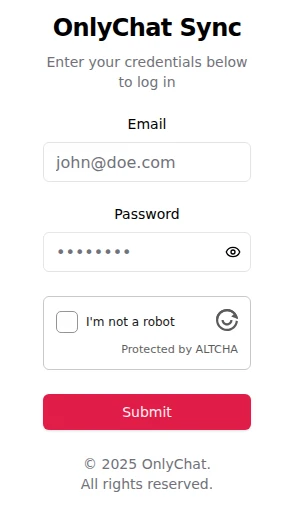
- Sign in to OnlyChat in the popupUse the same email and password as on app.only-chat.ai. This tells the extension which organization receives the creator.
- Click SyncThe popup shows a welcome message and the Sync button. Click it and wait a few seconds. The popup confirms and you are sent to the dashboard.
- Close the Incognito windowClose it without logging out of OnlyFans. Logging out kills the session you just handed over.
- Check the boardThe creator card is there with the OnlyFans glyph, its handle and fan count ("OnlyFans · handle · N fans"), the Synced badge and, if it is a new creator, the status "No active license" with the Assign License button.
The sync states
The badge on the card and the Connection line of the Overview tab tell you the state of the session ("State of the OnlyFans session used to read and send messages").
| Badge on the card | Overview, Connection line | Meaning | What to do |
|---|---|---|---|
| Synced | "Last synced MMM D, HH:mm" with a green Connected badge | The session is valid. The AI can read and send. | Nothing. |
| Sync warning | Last synced date, older | OnlyChat had trouble using the session recently. It may recover, or not. | Re-sync from the extension at the next opportunity. |
| Sync error | "Never synced" or an old date | The session is dead: logged out, password changed, OnlyFans asked for a new login. The AI cannot read or send. | Re-sync now. Fans are waiting. |
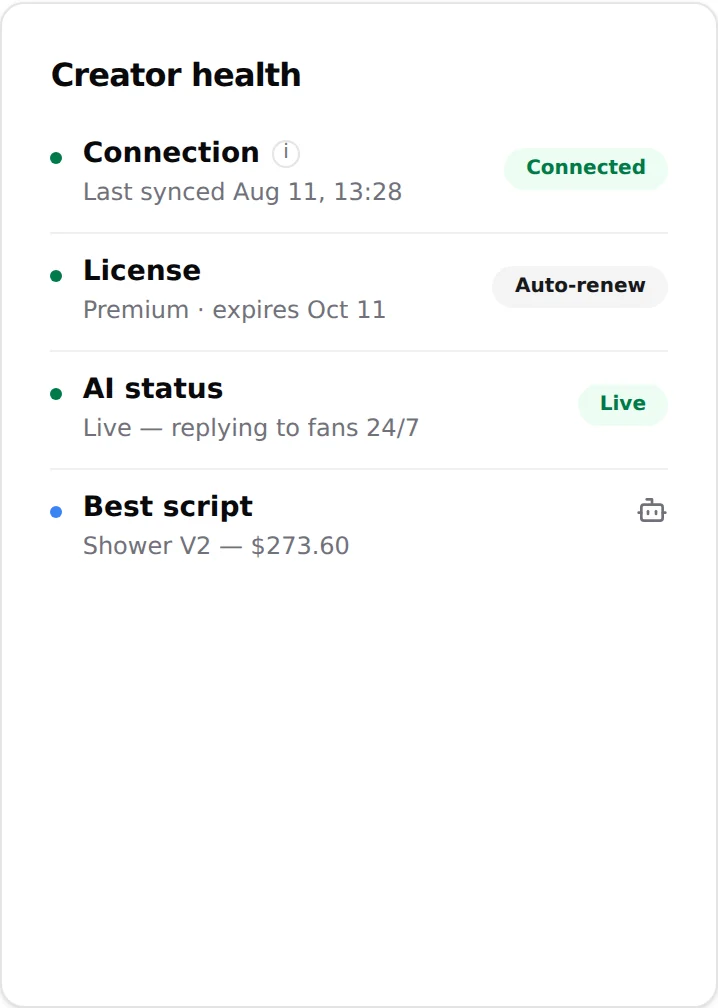
A creator with a Sync error keeps its license, scripts, media and settings. Only the session is missing. After a new sync everything resumes.
What is imported, and when
The sync itself brings the creator's identity (name, avatar, handle, fan count) and the session. The rest of the workspace fills in through its own actions, each triggered by you:
| Data | How it arrives | Where |
|---|---|---|
| Fans | One row per fan the AI has crossed paths with at least once. Fans appear as they write, not as a bulk import. | Fans tab. See Fans list. |
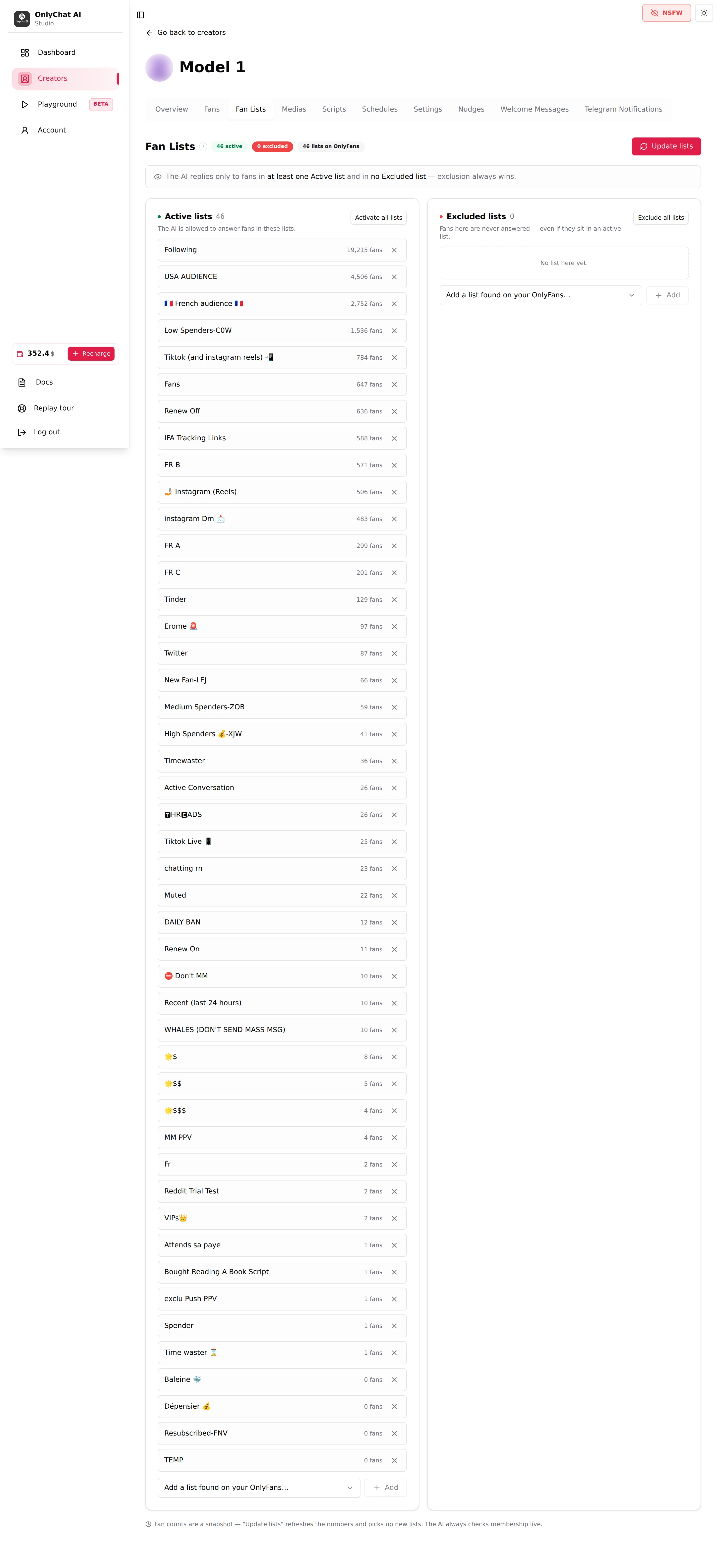
| Fan lists | Click Import fan lists (first time) or Update lists. OnlyChat never stores which fan is in which list; membership is checked live before every reply. | Fan Lists tab. See Fan lists. |
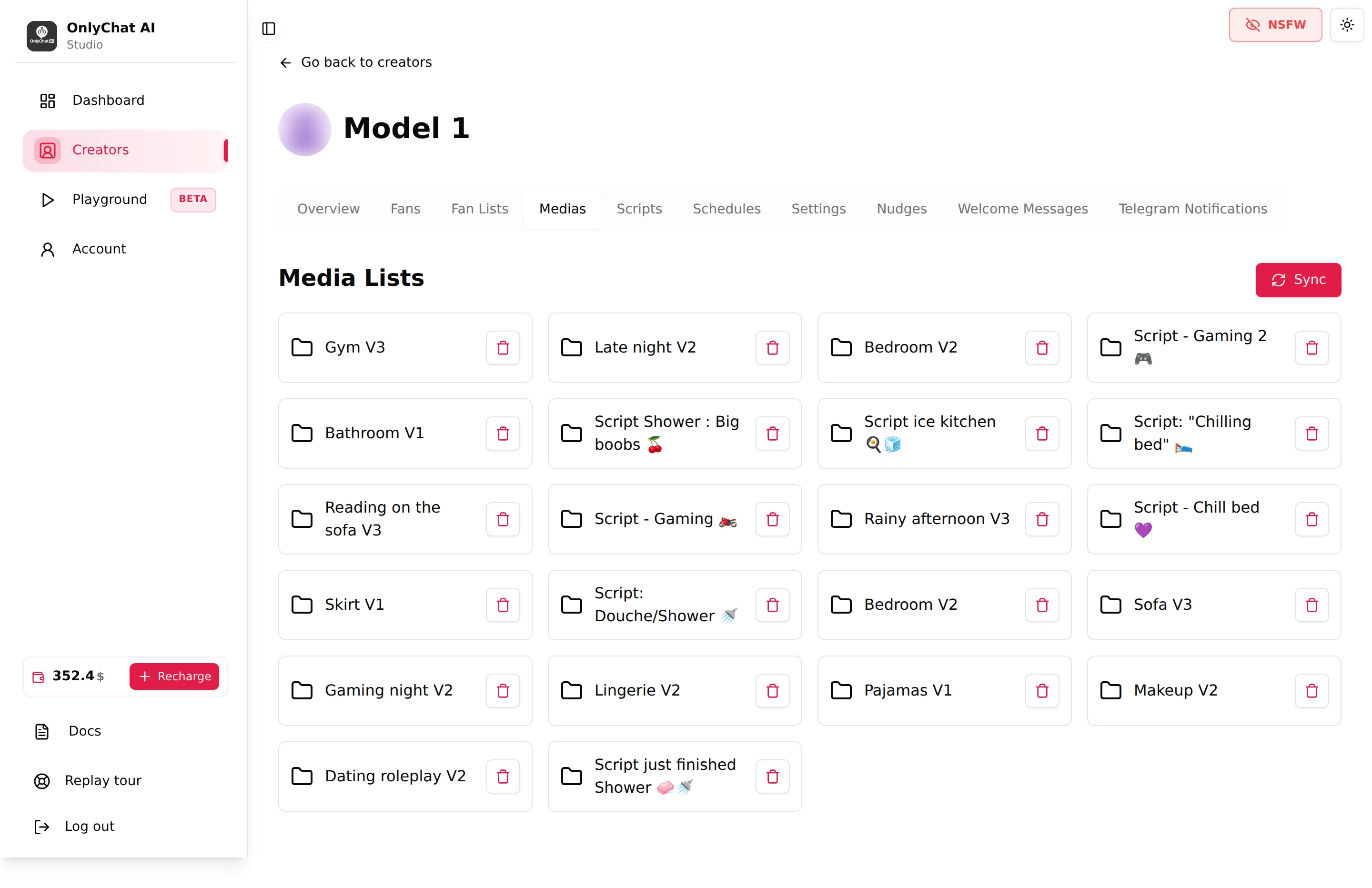
| Media | Click Sync Media and pick the vault lists to sync. Incremental: "it only brings in what's new, nothing you wrote here is overwritten." | Medias tab. See Media library. |
| Conversation history | Opening a fan shows the stored messages; Sync last 50 msgs pulls the last 50 from OnlyFans when the conversation is not synced yet. | Fan conversation. See Fan conversation. |
Nothing is written to OnlyFans by the sync: no post, no message, no change of settings.
Reconnect a creator
Re-syncing is the same procedure as the first sync. OnlyChat recognizes the creator by its OnlyFans account and updates the existing card; it does not create a duplicate, and scripts, media, fans, settings and license are untouched.
Re-sync when:
- the card shows Sync warning or Sync error;
- the creator changed their OnlyFans password or logged out of all devices;
- OnlyFans asked the creator to log in again on their phone (a sign that sessions were reset);
- the AI is on, fans write, and no reply goes out. See AI not replying.
Several creators, one computer
Sync them one after the other, each in a fresh Incognito window: log in as Model 1, sync, close every Incognito window; open a new Incognito window, log in as Model 2, sync, close. The extension login (your OnlyChat account) is the same each time. Do not open two creators in two Incognito windows or tabs at the same time: all Incognito windows share one session, and the second login replaces the first. The full loop, what breaks a session and how to share the work in a team are on Connect several creators.
Good to know
- Syncing does not need a license. Assign the license after the card exists. See Licenses for OnlyFans.
- The Renew switch and the AI switch appear only once a license is assigned.
- The fan count on the card comes from OnlyFans at sync time.
- Members of your team who only monitor do not need the extension: "Sync creator with extension" is a separate permission.