
The Settings tab is the creator's brain: who the AI pretends to be, what it knows, how fast it talks, and how it sells. It is the same form on OnlyFans and on Telegram, split into four sub-tabs, with one Submit button at the bottom that saves all four at once. This page explains the layout and the save rules. Each sub-tab has its own detailed article, linked below.
Where to find it
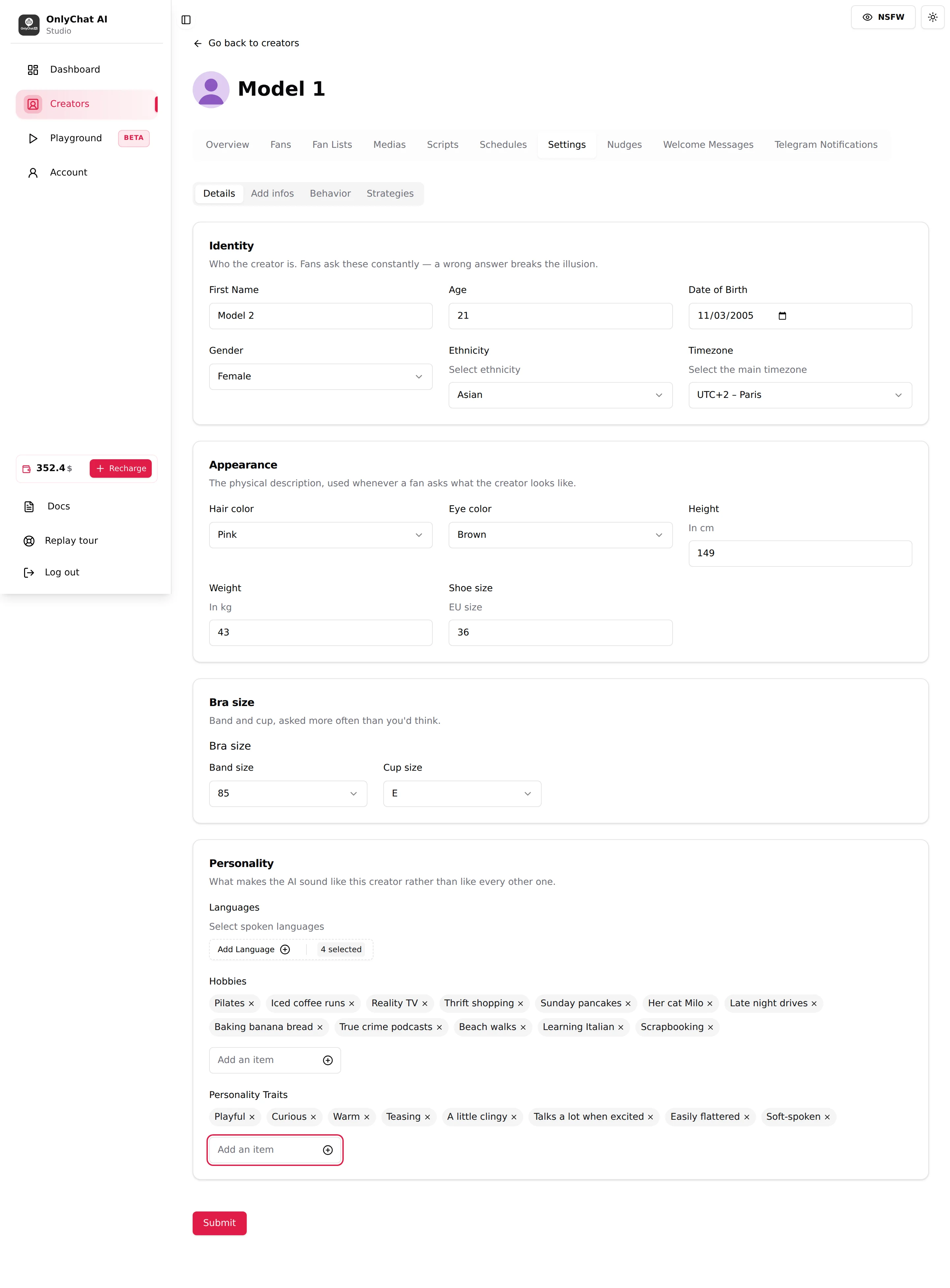
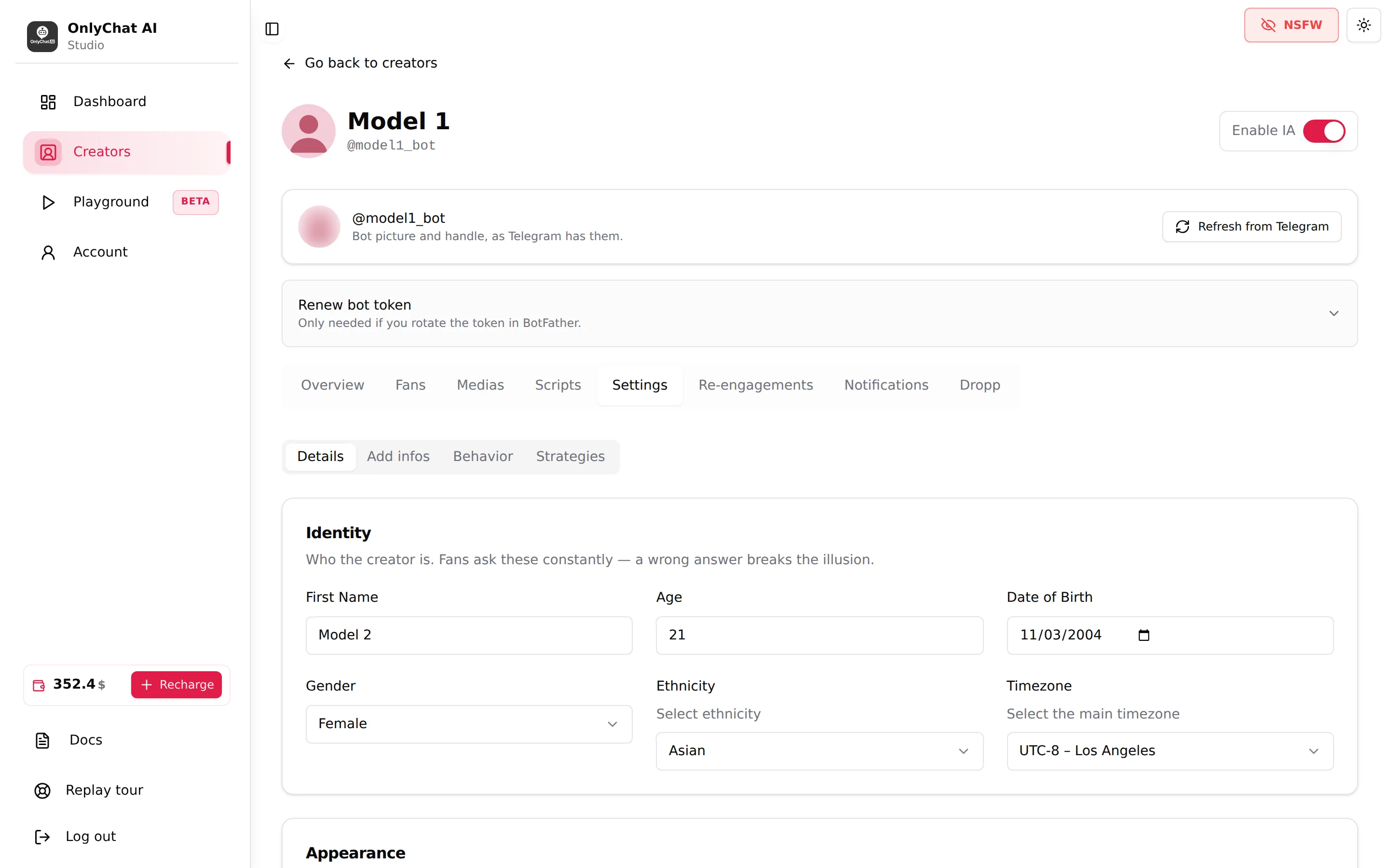
Open a creator from the Creators board (Open workspace), then click Settings in the tab row. On OnlyFans, Settings sits between Schedules and Nudges. On Telegram, it sits between Scripts and Re-engagements.
Seeing the tab requires the "View Settings tab" permission. If a team member does not see Settings, check their permissions in Account, Team & Roles.
The four sub-tabs
| Sub-tab | What it holds | Detailed article |
|---|---|---|
| Details | Identity (first name, age, date of birth, gender, ethnicity, timezone), Appearance (hair, eyes, height, weight, shoe size), Bra size, Personality (languages, hobbies, personality traits) | Identity and appearance |
| Add infos | One free-text field, Additional info, that the AI reads verbatim | Additional info |
| Behavior | Pace (response delay, follow-up delay, split long messages) and Cooldowns (sexualization cooldown, strict script cooldown) | Behavior and timing, Cooldowns |
| Strategies | Six phases (Language, Launch script, Sexualisation, Negotiation, Follow-up, KYC), each Default or Custom | Language and negotiation style, Custom strategies |
Switching sub-tabs does not lose your edits. The four sub-tabs are views on one form.
Submit
Submit is the only save button. It sits at the bottom of the form, whatever sub-tab is open. It writes every field of every sub-tab in one go.

What you see after clicking:
| Message | Meaning | What to do |
|---|---|---|
| "Creator info updated!" | Everything is saved. The AI uses the new values from its next reply. | Nothing. |
| "Fix the fields marked below, then submit again." | At least one field failed validation. The faulty field is highlighted on its sub-tab, which may not be the one you are looking at. | Walk the four sub-tabs, find the red field, fix it, Submit again. |
| "Error updating creator info" | The save itself failed. | Retry. If it persists, reload the page and check the balance widget still shows your organization. |
Validation rules that block Submit
These are the rules you will hit most often, with the exact message shown under the field.
| Field | Rule | Message |
|---|---|---|
| Age (Details) | 18 or more | "Age must be at least 18" |
| Date of Birth (Details) | dd/MM/yyyy | "Invalid date format. Use dd/MM/yyyy." |
| Custom Instructions (Strategies) | Required when a phase is set to Custom | "Custom Language instructions are required when Language style is CUSTOM" (same pattern for each phase) |
| Custom Instructions (Strategies) | 3,000 characters max | "Custom Language instructions must be 3000 characters or less" |
| Additional info telegram | 6,000 characters | Not blocking: "Text will be automatically truncated to 6000 characters when saved." |
What Submit changes in a live conversation
There is no separate "publish" step: once "Creator info updated!" appears, the saved values are the ones the AI works with for its next replies, including with fans who are mid-conversation. This is convenient (a typo in the age is fixed instantly) and dangerous (a half-written Custom instruction goes live the moment you Submit). Write custom text in a separate editor, paste it, then Submit once.
Same form, two platforms
The form is identical on OnlyFans and Telegram with two differences:
- Additional info on Telegram is capped at 6,000 characters with a live counter and an archive panel for the text beyond the cap. OnlyFans shows no counter.
- Whether Split long AI messages into multiple bubbles applies on Telegram is not stated in the interface. The switch is displayed on both platforms.