
The AI switch is the single control that puts a creator live. Off, nothing is sent and fans wait for a human. On, the AI answers every fan it is allowed to answer, from the creator's account, day and night (or inside the timeslots you drew on the Schedules tab). The switch refuses to turn on until four conditions are met: a positive balance, an active license, at least 2 active scripts, and on Telegram a verified business connection. Each refusal has its own dialog; this page lists them with the fix.
Where to find it
Two places, same switch:
- Creators board: the AI switch on the creator's card, between Renew and Open workspace.
- Creator workspace: the Enable AI switch in the header, next to the creator's name (on Telegram the label reads "Enable IA").

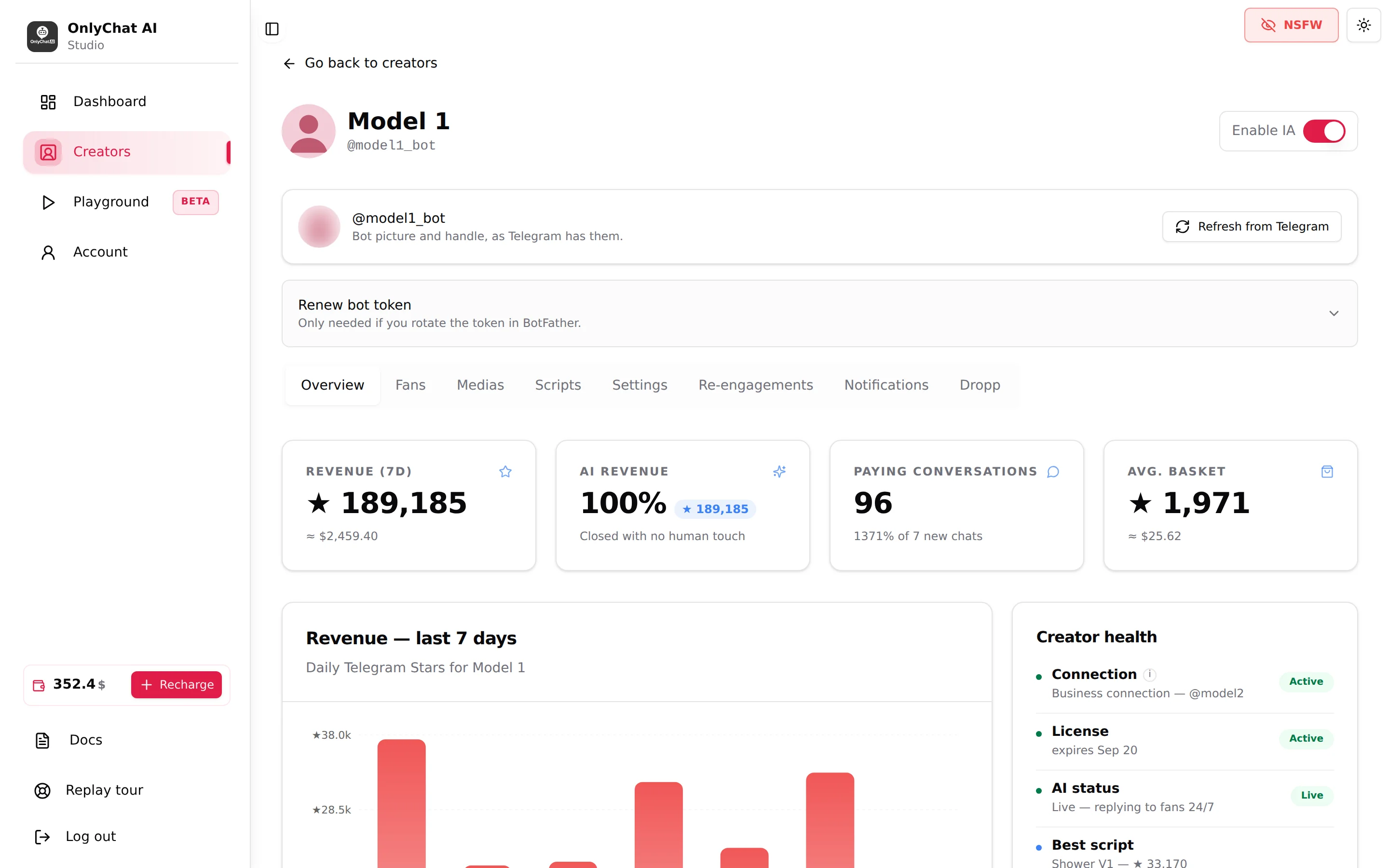
Both switches need the permission "Toggle AI for creator". Without it the switch is not shown.
Before you flip it
The switch checks the four conditions the moment you click. Save yourself the round trips:
| Condition | How to check | Where to fix |
|---|---|---|
| Balance is positive | Sidebar balance widget, or Account, Balance and Licenses | Recharge in the sidebar. See Balance and licenses. |
| An active license is assigned | Card status is not "No active license"; Overview, Creator health, License line | Assign License on the card. See Your first creator. |
| At least 2 scripts are active | Scripts tab, Active switches | Create or activate scripts. See Create a script. |
| Telegram only: business connection | Overview, Creator health, Connection line says "Business connection @user" | The setup page. See Telegram setup. |
And, not enforced by the switch but decisive for results: Settings filled in, media with descriptions, Fan Lists configured on OnlyFans (an empty Active list means the AI answers nobody).
Turn it on
- Open the Creators boardFind the card. Its status should read "Ready to launch" with the hint "Flip the AI toggle to go live".
- Flip the AI switchClick the AI switch on the card, or open the workspace and click Enable AI in the header.
- Read the resultThe switch stays on, the badge becomes "AI on" and the status becomes "Live" with "AI is replying automatically" or "License until MMM D, YYYY". If a dialog opens instead, the switch stays off: read the next section.
- Check one conversationOpen the Fans tab, click a fan who wrote recently. Messages sent by the AI are marked "(sent by" and a robot icon. On the Overview tab the Creator health card shows "AI status: Live".
The refusal dialogs
The switch never half-works: either the creator goes live or one of these dialogs explains why not.
Insufficient Balance
"Insufficient Balance. You need a positive balance to enable AI for this creator."
Your organization balance is zero or negative. Recharge from the sidebar or Account. Note that a negative balance also stops creators that were already live: the AI needs a positive balance to keep replying, and license renewals fail when the balance cannot cover them. See Low balance alerts.
Not Enough Scripts
OnlyFans: "Not Enough Scripts. You must have at least 2 scripts to enable AI for this creator."
Telegram: "Not Enough Scripts. You must have at least 2 active scripts to enable AI for this Telegram creator."
The AI needs a choice of scripts to route each fan to the scene that fits him, and to re-pitch a fan who did not buy the first one. Create at least two scripts, each with its media, and make sure their Active switch is on in the Scripts tab. The count that matters is active scripts, on both platforms.
No Active License
"No Active License. You cannot enable AI for this creator because it does not have an active license."
The creator has no license, or the license expired with Renew off. Assign a license from the card (buy one first if the stock is empty). See Licenses for OnlyFans or Assign a Telegram license.
No Business Connection (Telegram)
"No Business Connection. You cannot enable AI for this Telegram creator because it does not have an active business connection. Please connect a Telegram Business account first."
The bot is not linked to the creator's Telegram account through Telegram Business, or the connection event never reached OnlyChat. Open the creator: the setup page with its checklist and Verify business connection button appears instead of the workspace until the connection is detected. See Telegram setup.
The three states of a creator
| State on the card | Hint under it | Meaning | What to do |
|---|---|---|---|
| Live | "AI is replying automatically" or "License until MMM D, YYYY" | License active, AI switch on. Fans are being answered. | Monitor. Watch the expiry date. |
| Ready to launch | "Flip the AI toggle to go live" | License active, AI switch off. | Finish the setup, then flip the switch. |
| No active license | "Assign a license to start" | No license, or it expired. | Assign a license. |
The Overview tab repeats this in the Creator health card: AI status "Live, replying to fans 24/7" or "Paused, no automatic replies", License "Premium · expires MMM D" (with an "Auto-renew" badge when Renew is on) or "No license assigned", and on OnlyFans Connection "Last synced MMM D, HH:mm". A "Needs attention" badge on the card header means one of the lines is red.
Where else the AI can be off
The creator switch is the master. Three other switches can silence the AI even when the card says Live:
- Per fan: the Enable AI switch on each row of the Fans tab. Off for a fan means a human handles him. Bulk buttons Enable AI for all / Disable AI for all reset everyone. See Enable AI per fan.
- Fan Lists (OnlyFans): "The AI replies only to fans in at least one Active list and in no Excluded list." A fan outside every Active list gets no reply. See Fan lists.
- Schedules (OnlyFans): with Schedule Automation on, "Inside a timeslot the AI switches itself ON; outside, it switches OFF." The card status follows the schedule. See Schedules.
When a fan is not getting replies, check in this order: card switch, per-fan switch, Fan Lists, Schedules, balance. The full checklist is in AI not replying.
Turning it off
Flip the same switch off. The AI stops replying for this creator. Fans who write while the AI is off wait until a human answers or the switch goes back on. Turning it off does not pause the license: the month keeps running.
If you want a human to take one conversation without stopping the others, use the per-fan switch rather than the creator switch. See Human takeover.
Good to know
- Sales and Telegram alerts can tell you when the AI is switched off by the app: the AI Disabled notification ("Receive notifications when AI is automatically disabled") in the creator's Telegram Notifications tab. See Telegram alerts.
- The switch on the card and the switch in the workspace are the same setting. Flipping one updates the other after a refresh.
- The Playground does not need the AI switch: you can test a creator with the AI off, as long as it has an active license.