
One computer, one Chrome, one OnlyChat account, and several OnlyFans creators to connect: this is the normal case for an agency, and it works as long as you respect two rules. Each creator is synced in its own Incognito window, one after the other. And once a creator is synced, nobody logs out of that OnlyFans account, ever, from anywhere.
The two rules
Closing the window is not logging out. OnlyFans keeps the session alive on its side, and OnlyChat keeps using it. The Incognito window is only a clean room for the login; once the sync is done, the room can go.
Sync three creators, step by step
The example is three creators; the loop is the same for twenty.
- Open a new Incognito windowChrome menu, New Incognito window (Ctrl + Shift + N on Windows, Cmd + Shift + N on Mac). Check that no other Incognito window is open.
- Log in to OnlyFans as Model 1Go to onlyfans.com, sign in with Model 1's credentials, wait for the home page to load fully.
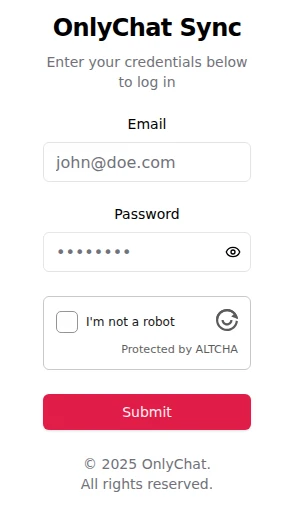
- Open the OnlyChat extension and click SyncClick the OnlyChat icon, sign in with your OnlyChat email and password, click Sync. Wait for the confirmation.
- Close the Incognito windowClose it with the window's close button. Do not click Log out on OnlyFans. Model 1 now shows Synced on the Creators board.
- Open a new Incognito window for Model 2It starts empty: no OnlyFans session inside. Log in as Model 2, open the extension, click Sync, close the window. Same OnlyChat login in the popup.
- Repeat for Model 3New Incognito window, log in as Model 3, Sync, close.
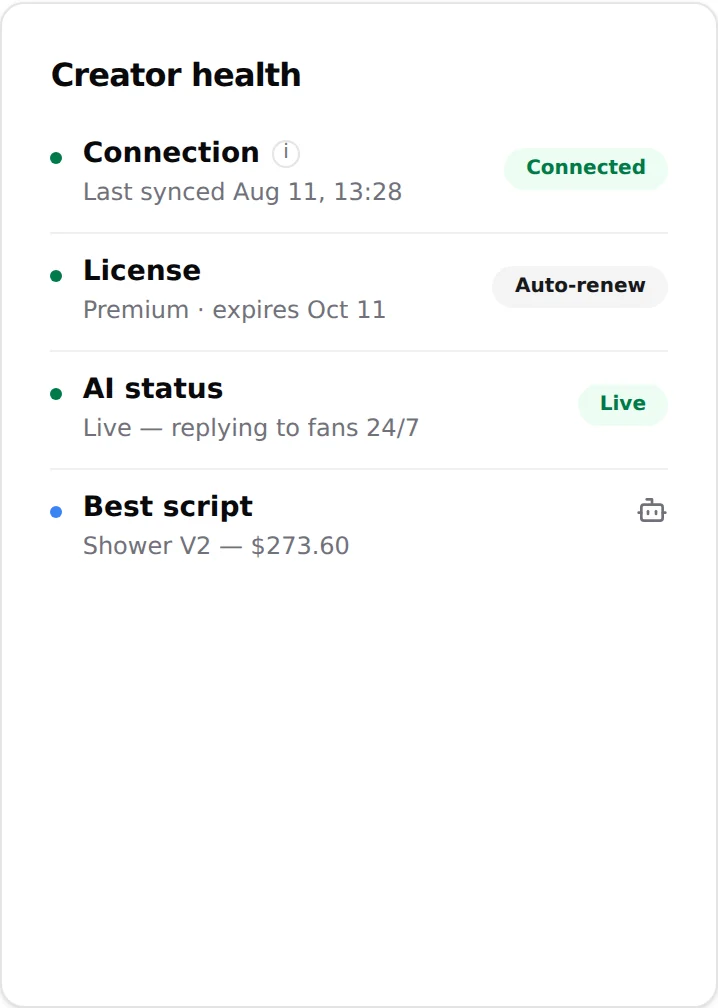
- Check the boardThree cards, each with its own handle and fan count and the Synced badge. Assign a license to each, then turn the AI on.

What kills a session
Every one of these breaks the connection of that creator only. The other creators keep running.
| Action | Effect | Fix |
|---|---|---|
| Clicking Log out on OnlyFans, in any window or device | Session revoked. Card goes to Sync error, the AI stops for that creator. | Sync the creator again. |
| The creator logs out of all sessions from their OnlyFans settings | Same. | Sync again, and tell the creator not to use that button. |
| The creator changes their OnlyFans password | OnlyFans resets the sessions. | Sync again with the new password. |
| Logging in as the same creator from another browser or phone, then logging out there | The logout can revoke the session OnlyChat holds. | Sync again. Reading OnlyFans on the phone without logging out is fine. |
| Clearing Chrome's cookies, reinstalling Chrome, closing the Incognito window | Nothing. The session lives on OnlyFans' side, not in your browser. | Nothing to do. |
Sharing the work in a team
- Any member with the permission "Sync creator with extension" can run the loop above from their own computer. The creator lands in the same organization because the popup login is the organization's account.
- Two members must not sync the same creator at the same time. The second sync replaces the first; nothing breaks, but it is wasted work.
- The creators themselves can sync from their own computer: install the extension on their Chrome, open an Incognito window, log in to their own OnlyFans, sign in to the popup with your OnlyChat login, Sync. Then they close the window. Remind them: close, never log out.
Good to know
- A second sync of a creator that already exists updates the card. It never creates a duplicate, and scripts, media, fans, settings and license stay.
- The order does not matter, and there is no limit to the number of creators per computer.
- Licenses are assigned after the sync, one per creator. See Licenses for OnlyFans.
- If you sync a creator with DRM video protection on, videos are skipped. Turn it off on each creator's OnlyFans account before syncing media. See Connect a creator.