
The Schedules tab makes the AI switch itself on and off on a weekly timetable. Inside a timeslot the AI is on; outside, it is off. The interface calls it the "AI activation schedule". Use it when the creator also chats herself at fixed hours, when you want the AI to stop during the night of the persona's timezone, or when a human team takes over on given days. It exists on OnlyFans creators only. onlyfans
Where to find it
Open an OnlyFans creator and click Schedules in the tab row, between Scripts and Settings. Seeing the tab requires the "View Schedules tab" permission.
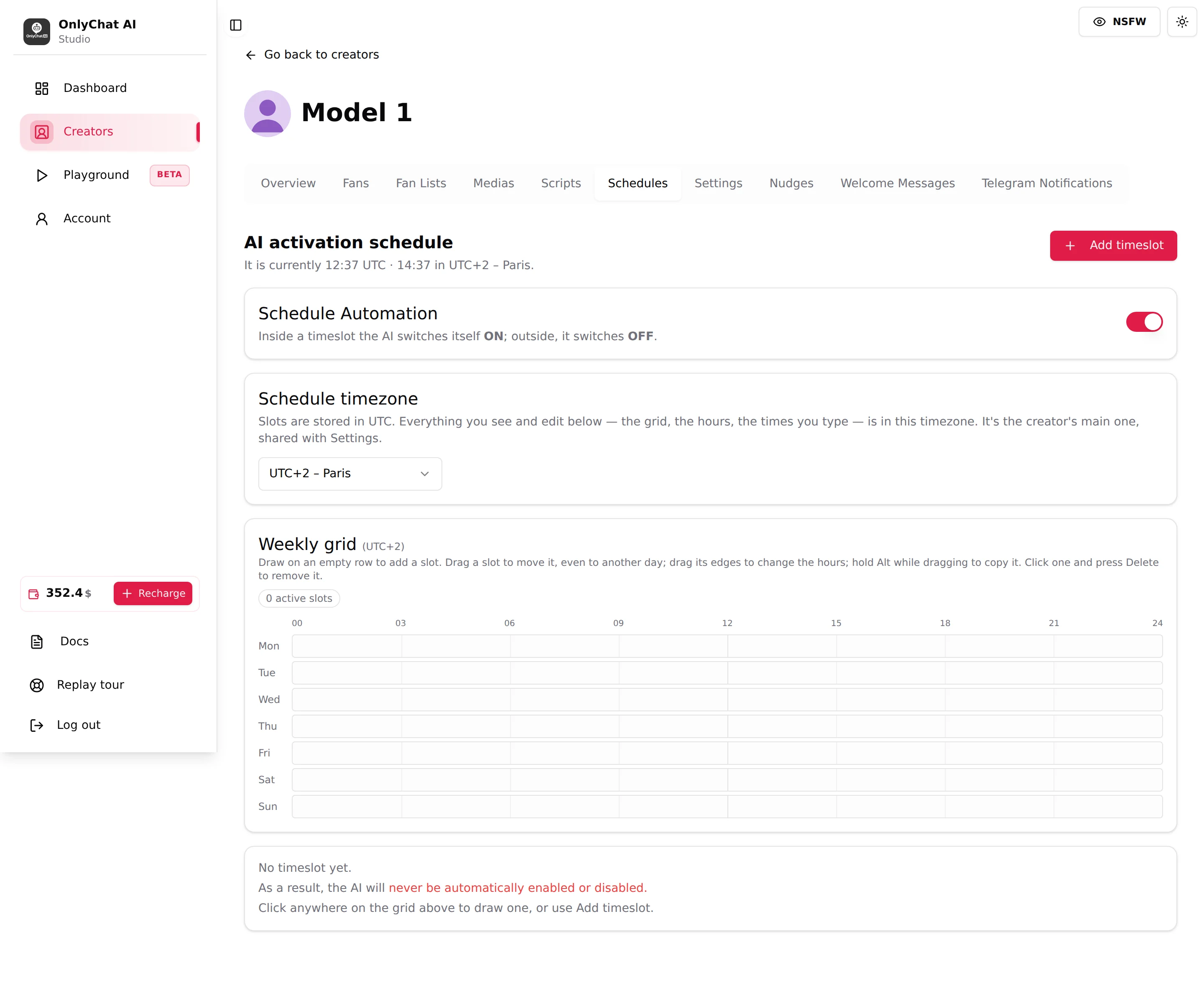
The header line reads "It is currently HH:mm UTC, HH:mm in [timezone]" and updates live. Use it to sanity-check a slot before saving.
Schedule Automation
Switch at the top of the tab. Text: "Inside a timeslot the AI switches itself ON; outside, it switches OFF."

| State | What happens |
|---|---|
| On | At the start of every enabled timeslot the AI turns on; at its end the AI turns off. The AI switch on the creator card follows. |
| Off | The tab shows "Schedule Automation is off, so nothing here runs yet." Slots stay saved but do nothing. The AI stays in whatever state you set it by hand. |
Turn it off for a one-off (a launch weekend where the AI should run around the clock) instead of deleting the slots. Turn it back on and the timetable resumes.
Schedule timezone
Select under the switch, placeholder "Select a timezone". Text: "Slots are stored in UTC. Everything you see and edit below (the grid, the hours, the times you type) is in this timezone. It's the creator's main one, shared with Settings."
This is the same value as Timezone on the Settings, Details sub-tab. Changing it here changes it there, and the other way round. The grid heading confirms it: "Weekly grid (UTC+2)". Type the hours in the persona's local time and let the app store them in UTC; never convert by hand.
Options are the same list as in Settings: UTC-11 Midway to UTC+12 Auckland. See Identity and appearance.
Weekly grid
Seven rows (Mon to Sun), hours 00 to 24 across. Help text: "Draw on an empty row to add a slot. Drag a slot to move it, even to another day; drag its edges to change the hours; hold Alt while dragging to copy it. Click one and press Delete to remove it." A pill shows "N active slots".
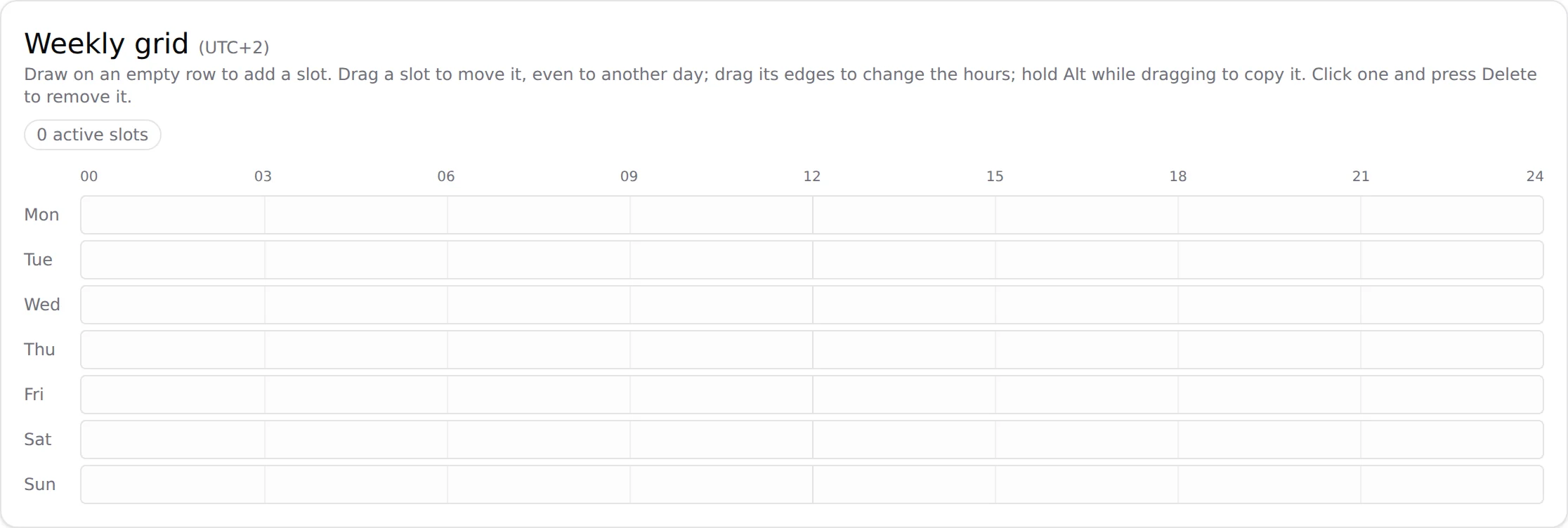
Gestures:
| Action | How |
|---|---|
| Create a slot | Click and drag on an empty part of a day row. |
| Move a slot | Drag it, horizontally to change the hours, vertically to another day. |
| Resize | Drag its left or right edge. |
| Copy | Hold Alt while dragging. |
| Delete | Click the slot, press Delete. |
Hovering a slot shows "[Day] HH:mm to HH:mm [timezone]" and, when the slot's own switch is off, "(disabled)". A slot that crosses midnight cannot be edited on the grid: its tooltip says "crosses midnight, edit it from the list below".
When no slot exists the tab says: "No timeslot yet. As a result, the AI will never be automatically enabled or disabled. Click anywhere on the grid above to draw one, or use Add timeslot."
Timeslots list
Under the grid, one row per slot with three controls:
- A switch, "Enable [day] timeslot". Off keeps the slot but takes it out of the automation. Handy for a holiday week.
- Edit, opens the Edit Timeslot form.
- Delete, opens the confirmation.
Add a timeslot
- Click Add timeslotTop right of the tab. The form says "Select a day and time range to automatically enable the AI. Times are read in [timezone]."
- Pick the dayDay of Week: Sunday to Saturday. One slot is one day; repeat for each day, or draw one and Alt-drag copies on the grid.
- Set the hoursStart time and End time, in the schedule timezone. Start must be before end, otherwise "Start time must be before end time."
- CreateClick Create. Toast "Timeslot created!". The slot appears on the grid and in the list, enabled.
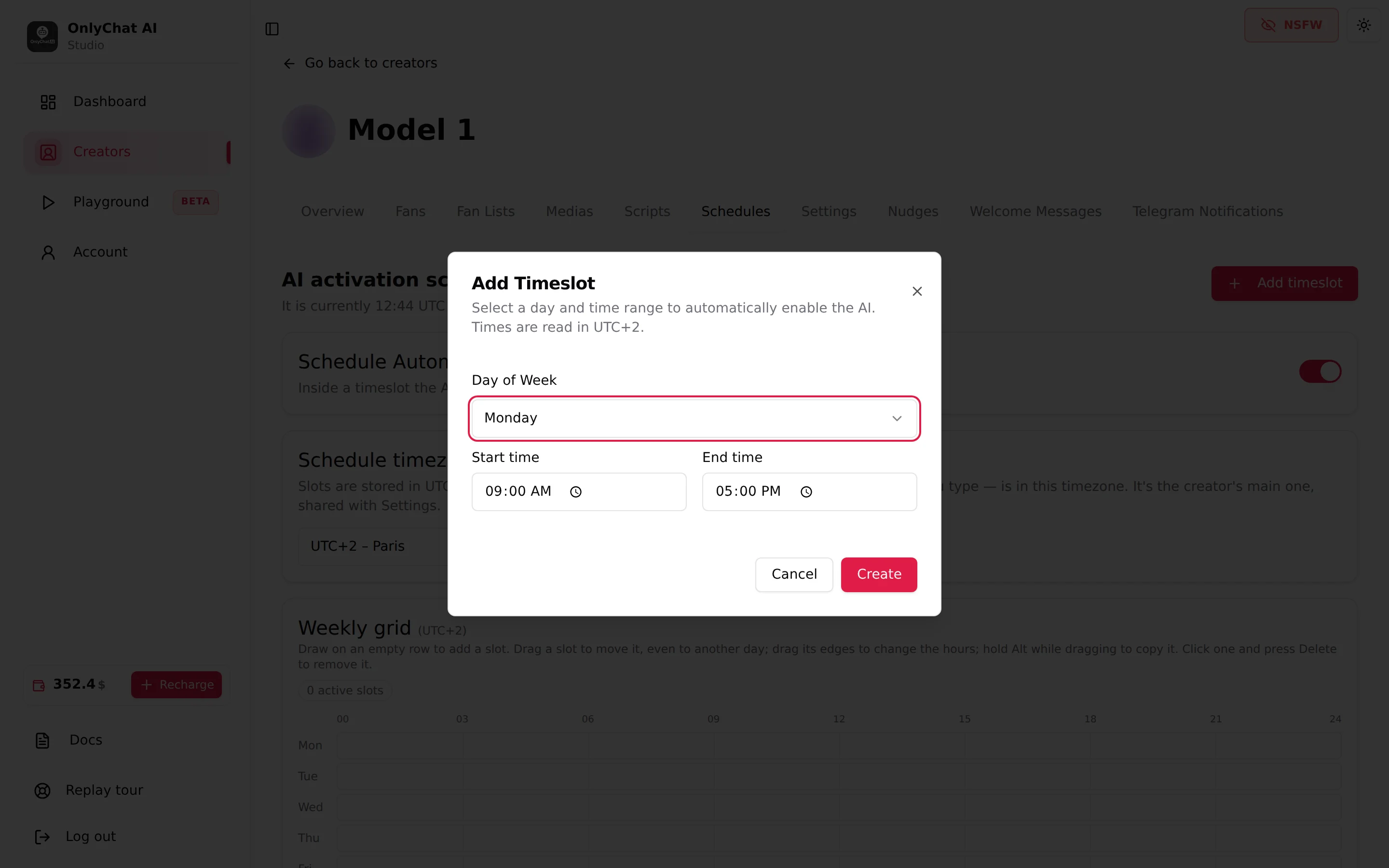
To make the AI run overnight (say 22:00 to 06:00), create two slots: 22:00 to 24:00 and 00:00 to 06:00 the next day, since the form rejects a start after the end.
Edit a timeslot
Click Edit on the row. The form "Edit Timeslot" says "Modify the day and time of this activation window". Change day or hours, click Update. Toast "Timeslot updated!". Errors: "Error updating timeslot", "Couldn't save that timeslot."
Delete a timeslot
Click Delete on the row (or select the slot on the grid and press Delete). Confirmation: "Are you sure you want to delete this schedule timeslot?" Toast "Timeslot deleted!". Errors: "Error deleting timeslot.", "Couldn't delete that timeslot."
How it plays with the manual AI switch
- The schedule flips the same switch you see on the creator card and in the workspace header. Between two slots, the card shows "AI off".
- The automation acts at slot boundaries (start and end). A manual change made between two boundaries takes precedence: if you flip the AI switch yourself, your choice holds and the schedule does not undo it. Remember to flip it back, or the creator stays in the state you left.
- Messages received while the AI is off are not lost. A fan who writes outside a timeslot gets their answer when the next slot opens and the AI comes back on: the AI reads everything that arrived in between and replies from there. The same applies when you switch the AI back on by hand.
- The dashboard and the Fans tab do not show why the AI went off. When a creator is "off" and nobody touched it, check Schedules before anything else. The AI not replying checklist includes it.
Good to know
- OnlyFans only. Telegram creators have no Schedules tab and the schedule never touches a Telegram bot. On Telegram, use the AI switch by hand or pause per fan.
- "Failed to load schedules." on opening the tab means the list could not be fetched; reload the page.
- There is no Submit button on this tab, unlike Settings: each creation, edit or deletion is confirmed by its own toast.
- Keep the schedule and the persona story consistent: a persona "in Paris" whose AI runs 09:00 to 02:00 Paris time is believable; one that answers at 05:00 every day is not, unless the story says night shift.