
A nudge is a short message the AI sends from the creator's account when a fan comes back online on OnlyFans. The fan opens the app, and a few minutes later the creator is already there in their inbox. Nudges exist because a fan who is online right now is the one most likely to answer and to buy: the AI does not wait for the fan to write first. The Nudges tab controls whether nudges are sent, how long after the fan connects, how many per day, how long after the last exchange, and in which tone.
Why a nudge beats a mass message
On OnlyFans a nudge is delivered as a priority message: it goes to the top of the fan's inbox. The fan has been quiet for the number of hours you set in the cooldown, then reconnects; a few minutes later the creator's message is the first thing in their inbox, above every conversation they are having by hand. A mass message sent to the whole fan base does not get that treatment: it queues behind the chats the fan is actively holding. This is why OnlyChat sends nudges instead of mass messages: the fan is online, the message is on top, and it is read first most of the time.
The only fans a nudge cannot reach are those who hide their online status: the AI never sees them connect, so it never sends the nudge.
Where to find it
Open the creator's workspace from the Creators board and click the Nudges tab. Everything is on one screen: a master switch, three sliders, a type select, a second switch and a save button.
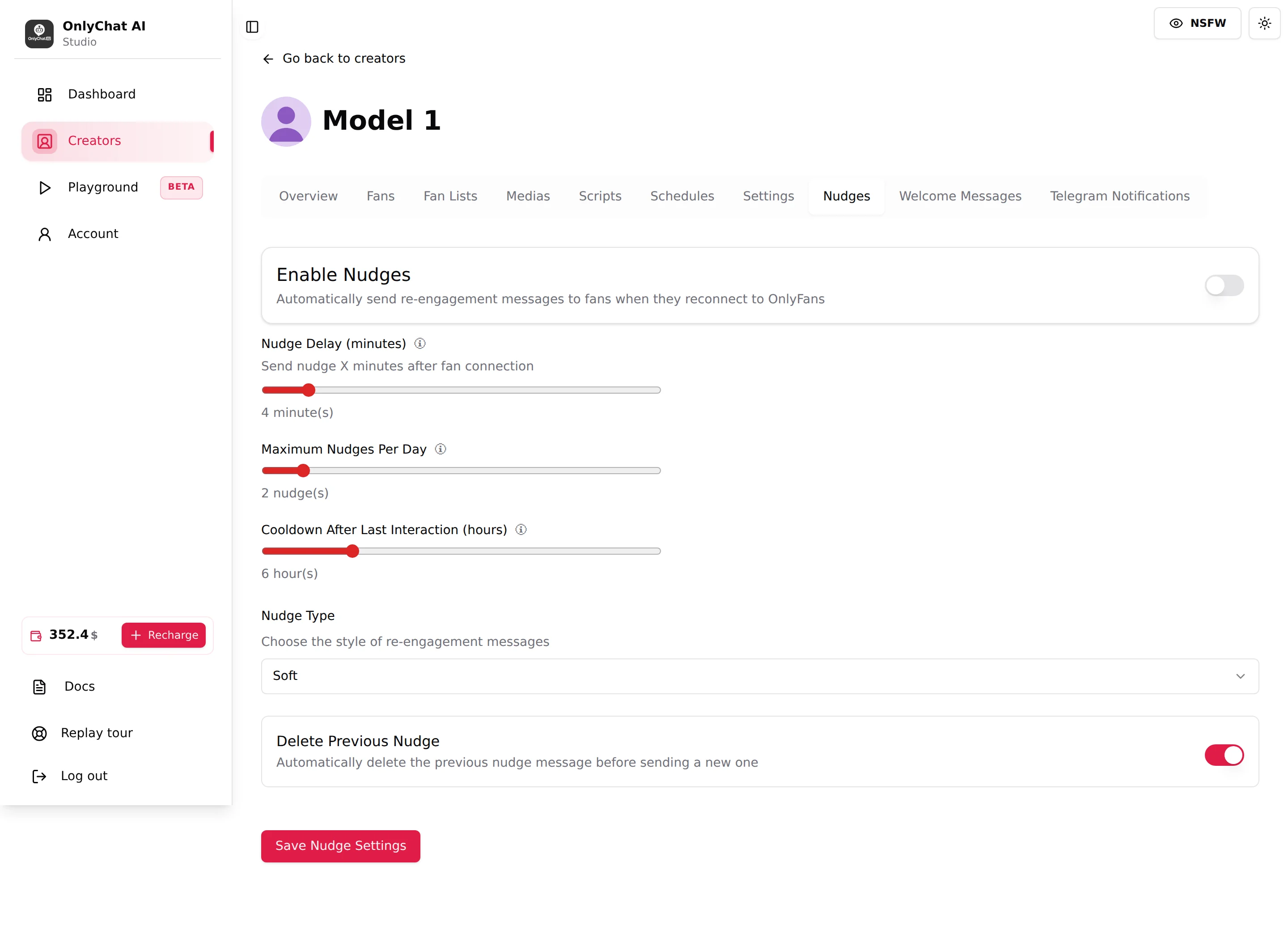
The fields
Enable Nudges
Master switch at the top of the tab, helper text "Automatically send re-engagement messages to fans when they reconnect to OnlyFans". It applies immediately: flipping it shows the toast "Nudge settings updated!" (or "Error updating nudge settings") without pressing Save.
When it is off, nothing on this tab has any effect, whatever the sliders say. When it is on, every fan the AI is allowed to answer (per-fan AI switch on, fan in an Active list and in no Excluded list, see Fan lists) becomes a candidate for a nudge each time they come online.
Nudge Delay (minutes)
| Range | 1 to 30 minutes |
| Default | 5 |
| Helper | "Time to wait after a fan comes online before sending a nudge message" / "Send nudge X minutes after fan connection" |
How long the AI waits between the moment the fan appears online and the nudge. A very short delay reads as automatic: the fan opens the app and a message lands within the minute. A few minutes gives the fan time to scroll, and the nudge arrives while they are still there. If the fan writes to the creator during the delay, the normal conversation takes over and no nudge is needed. Recommended for an agency: 3 to 6 minutes.
Maximum Nudges Per Day
| Range | 1 to 12 |
| Default | 3 |
| Helper | "Maximum number of nudge messages to send to any fan per day" |
Cap per fan and per day. A fan who connects ten times in an afternoon will not get ten "hey you're back" messages. Once the cap is reached, that fan gets no more nudges until the next day, even if they keep reconnecting. Keep it low (2 or 3): the goal is to start a conversation, not to fill the inbox. High values only make sense with Delete Previous Nudge on, so the fan never sees a stack of unanswered nudges.
Cooldown After Last Interaction (hours)
| Range | 1 to 24 hours |
| Default | 3 |
| Helper | "Minimum hours to wait after the last interaction before sending a nudge" |
Minimum silence between the last message exchanged with this fan (in either direction) and a nudge. A fan who chatted with the creator an hour ago and comes back online does not need a "where have you been": the cooldown blocks the nudge. Longer cooldowns (6 to 12 hours) suit creators with active fans who chat several times a day; short ones (1 to 3 hours) suit quieter pages where each visit is rare.
Nudge Type
Select with helper "Choose the style of re-engagement messages". Three options:
| Option | What the fan receives | When to use |
|---|---|---|
| Soft | A light, friendly opener that fits the creator's personality from Settings. No pressure, no selling in the first line. | Default choice. Fits every niche and is the least likely to hurt the relationship. |
| Aggressive | A direct opener that pushes for a reaction or a purchase right away. | Pages where fans are used to a bold tone and where the goal is a fast unlock. Watch the unlock rate on the Dashboard after switching. |
| Custom | Your own instructions for how nudges should be written. | When you know exactly what tone works for this creator and the two presets do not match it. |
Custom Nudge Text
Appears only when Nudge Type is Custom. Textarea with placeholder "Enter your custom nudge instructions (max 3000 characters)" and a live counter "n / 3000 characters". You write instructions, not a fixed sentence: the AI still writes a different nudge each time, in the creator's voice, following what you put here. Leaving it empty blocks the save with "Custom nudge text is required when nudge type is CUSTOM".
What to write: the mood (playful, teasing, caring), what the nudge should refer to (the fan being back, the time of day, something new on the page), and what it must not do (no price in the first message, no explicit words, no emoji). Keep it short; a paragraph is enough.
Delete Previous Nudge
Switch, on by default, helper "Automatically delete the previous nudge message before sending a new one". With it on, the AI removes the last nudge it sent to this fan before sending a new one, but only if that nudge got no answer. A nudge the fan replied to is part of a real conversation and is never deleted. The fan's inbox shows one fresh opener instead of a list of unanswered ones, which looks like a person who came back rather than a machine that fires on every login. Turn it off only if you want the history kept, for example to review what was sent on the fan conversation page.
Save Nudge Settings
Button at the bottom. The three sliders, the type, the custom text and the Delete Previous Nudge switch are saved together when you click it. Only Enable Nudges saves on its own. The toast "Nudge settings updated!" confirms the save.
Turn nudges on for a creator
- Check the creator is LiveA nudge is an AI message: the creator needs an active Premium license, the AI switch on, a positive balance and at least two active scripts. See Turn the AI on.
- Open the Nudges tab and set the slidersStart with the defaults (5 minutes, 3 per day, 3 hours). Choose Soft.
- Click Save Nudge SettingsWait for the toast "Nudge settings updated!".
- Flip Enable Nudges onThe toast appears again. From now on, fans who come back online get a nudge when the delay, the cap and the cooldown allow it.
- Review after a few daysOpen the Dashboard and the fan conversations. If fans answer nudges and buy, keep the settings. If they ignore them, lower the daily cap or lengthen the cooldown before changing the type.
Good to know
- Nudges respect the schedule: when Schedules switch the AI off outside a timeslot, no nudge is sent either. A nudge only goes out while the AI is on for this creator.
- Per-fan AI off means no nudge for that fan. Use the switch in the Fans tab to protect fans you handle yourself, see Enable AI per fan.
- Nudges and scripts: a nudge opens the conversation; if the fan answers, the AI continues with its normal phases and may launch a script. The nudge itself never contains paid media.
- Balance: a nudge that leads to a sale is an AI sale, commission applies as usual. The nudge message itself costs nothing extra.
- Hidden online status: a fan who hides their presence on OnlyFans never appears online to the AI, so no nudge is sent to them; they still get answered when they write.
- Telegram creators have no Nudges tab. The equivalent on Telegram is the Re-engagements tab, which works on silence rather than on the fan coming online, see Re-engagements.