
The Fans tab is the register of every fan the AI has met on this creator. The tour describes it as "One row per fan the AI has crossed paths with at least once". It is where you see how far each fan is in your scripts, whether the AI is on for him, what you noted about him, and where you open his conversation. It does not decide who the AI may answer: on OnlyFans that is the Fan Lists tab. This page walks the table column by column, then the filters and the pagination.
Where to find it
Open a creator (Open workspace on the Creators board, or the Fans shortcut in Quick access), then click Fans. Seeing it requires the "View Fans tab" permission.
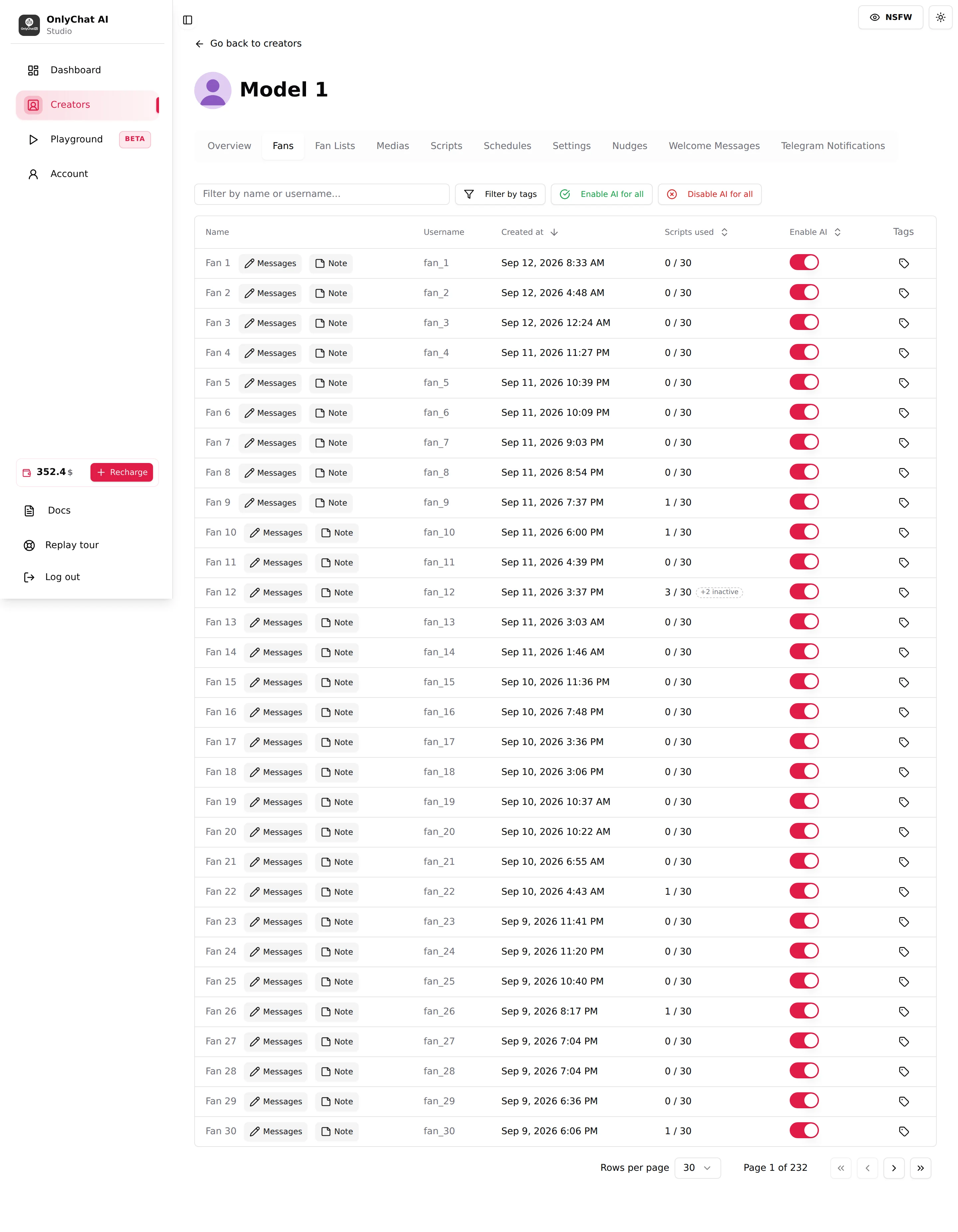
The toolbar

Filter by name or username
Text box, placeholder "Filter by name or username...". Type any part of the display name or the handle; the table narrows as you type. Empty result: "No results." Use it to jump to a fan you were just talking to on the platform.
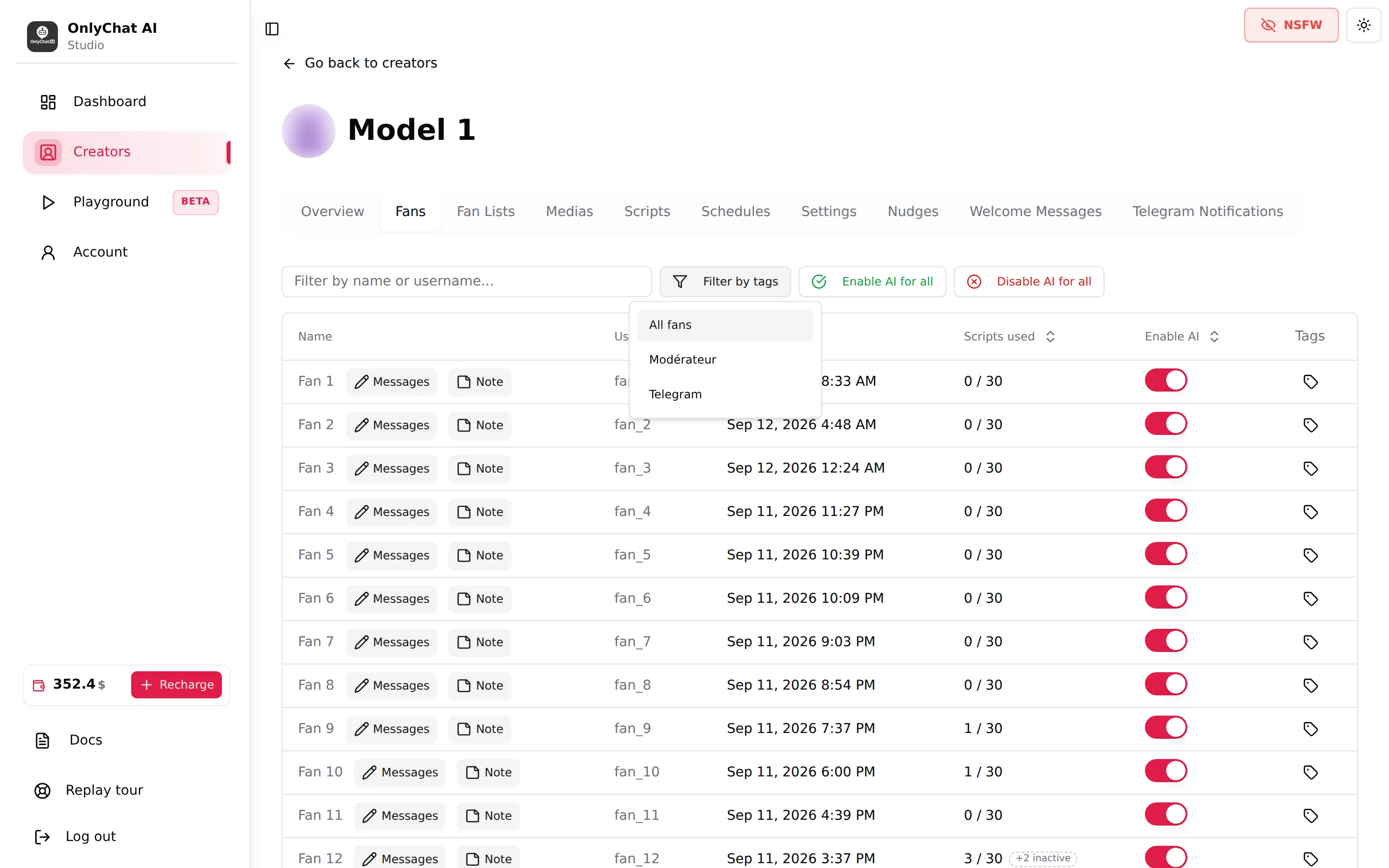
Filter by tags
Button opening a dropdown with All fans and one entry per tag that exists on this creator. Pick a tag to keep only the fans carrying it. On OnlyFans, tags need a Premium license. See Tags.
Enable AI for all / Disable AI for all
Bulk switches for every fan of the creator, with a confirmation. Covered in Enable AI per fan.
The columns on OnlyFans
| Column | What it shows | How to use it |
|---|---|---|
| Name | The fan's display name, then two buttons: Messages opens the conversation, Note opens the fan note. | Click the row or Messages to read what the AI wrote. |
| Username | The OnlyFans handle. | Search on it when two fans share a display name. |
| Created at | Date and time the fan first appeared for this creator. Sortable. | Sort descending to see who arrived today. |
| Scripts used | "x / y": x scripts already sent to this fan out of y active scripts. Sortable. A pill "+N inactive" means "N further script(s) already sent to this fan, since deactivated". The counter turns red when the fan has seen every active script. | Red rows are fans the AI has nothing left to sell to. Add scripts or variations. |
| Enable AI | Per-fan switch. Sortable, which groups the paused fans together. | See Enable AI per fan. |
| Tags | A tag button per row; assigned tags show as coloured chips. | See Tags. |
Reading Scripts used
"3 / 30" with "+2 inactive" means: this fan went through 3 of the 30 scripts currently active, and 2 more scripts that were active when he received them but have since been deactivated. The AI will not resend any of those 5. A fan at "62 / 62" in red has exhausted the catalogue: the AI only chats with him, with nothing to sell, for 24 hours (Basic OnlyFans license, Telegram) or 5 days (Premium OnlyFans license), then stops answering him until you activate a new script or a variation. To see which scripts, with what he paid on each, and give some back to the AI: Burned scripts and Unburn.
The Note and Tags buttons on OnlyFans need a Premium license and the "View fan notes" / "Edit fan notes" permissions.
The columns on Telegram
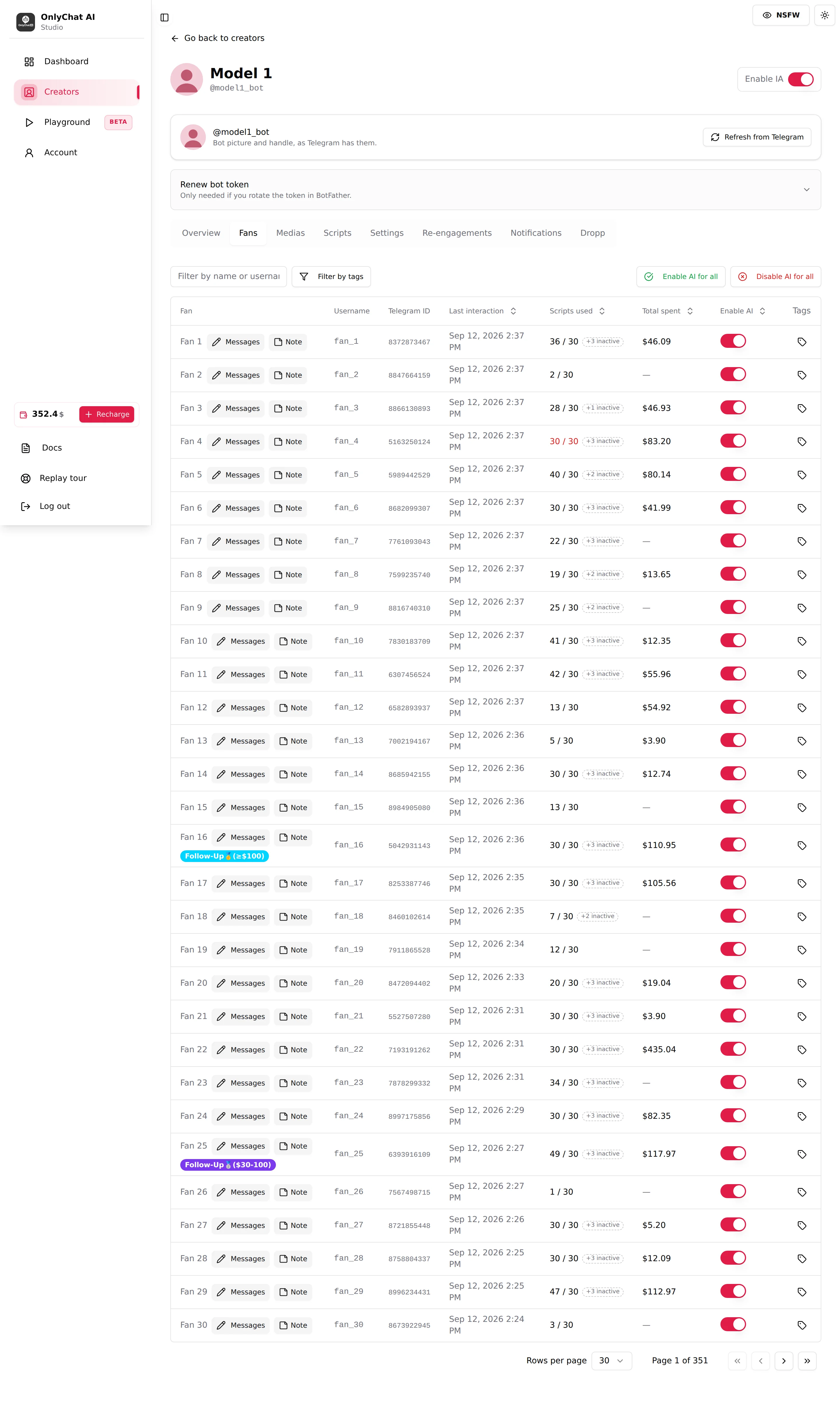
| Column | What it shows |
|---|---|
| Fan | Display name, or "Fan #[telegramFanId]" when Telegram gives none. Then Messages and Note. Tags appear as chips under the name. |
| Username | The Telegram @handle. |
| Telegram ID | The numeric Telegram user id. Useful when a fan changes his username. |
| Last interaction | Date and time of the last interaction with this fan. Sortable. |
| Scripts used | Same "x / y" and "+N inactive" logic as OnlyFans. |
| Total spent | What this fan has spent with this creator, shown in dollars. Sortable. |
| Enable AI | Per-fan switch. |
| Tags | Tag button. |
Empty state: "No Telegram fans found yet." A Telegram creator only lists fans once the business connection is active and a fan has written.
Opening a conversation
Click anywhere on a row (or Messages). On OnlyFans the conversation page lists every message ("Creator" / "Fan", the robot marker on AI messages, "Price: N $" on paid media, "N media file(s)"), a Sync last 50 msgs button when the conversation is not synced yet, and a composer to write yourself. On Telegram the page is read-only, with a Fan note card under the messages and Back to followers on top. See Fan conversation and Fans on Telegram.
Pagination
Bottom of the table: Rows per page (default 30) and "Page x of y" with first, previous, next and last buttons. Sorting and filters apply across pages, not only to the visible rows. On a creator with thousands of fans, filter first, then sort.
What the table changes for the AI
Nothing on this tab changes what the AI says. Two things change whether it speaks: the Enable AI switch per row, and the bulk buttons. Everything else (Scripts used, Created at, Last interaction, Total spent) is read-only information for you. Who the AI may answer at all is decided elsewhere: Fan lists on OnlyFans, the business connection on Telegram.
Good to know
- A fan appears here only after the AI has crossed paths with him. Subscribers who never wrote and never received a message are not listed.
- If the tab shows "Access Denied, You are not authorized to view messages." on a row click, the member lacks the "Send messages to fans" or "View Fans tab" permission.
- The NSFW switch in the top bar blurs fan avatars in this table too.