
The Pace card decides how fast the AI answers, how long it waits before nudging a silent fan, and whether a long reply arrives as one block or as several short bubbles. The interface sums it up: "How fast the AI answers, and whether long replies arrive as several messages." These three settings are the difference between a chat that feels like a real person on her phone and one that feels like an autoresponder.
Where to find it
Open the creator, click Settings, then the Behavior sub-tab. Two cards: Pace (this page) and Cooldowns (see Cooldowns). Save with Submit at the bottom of the form.
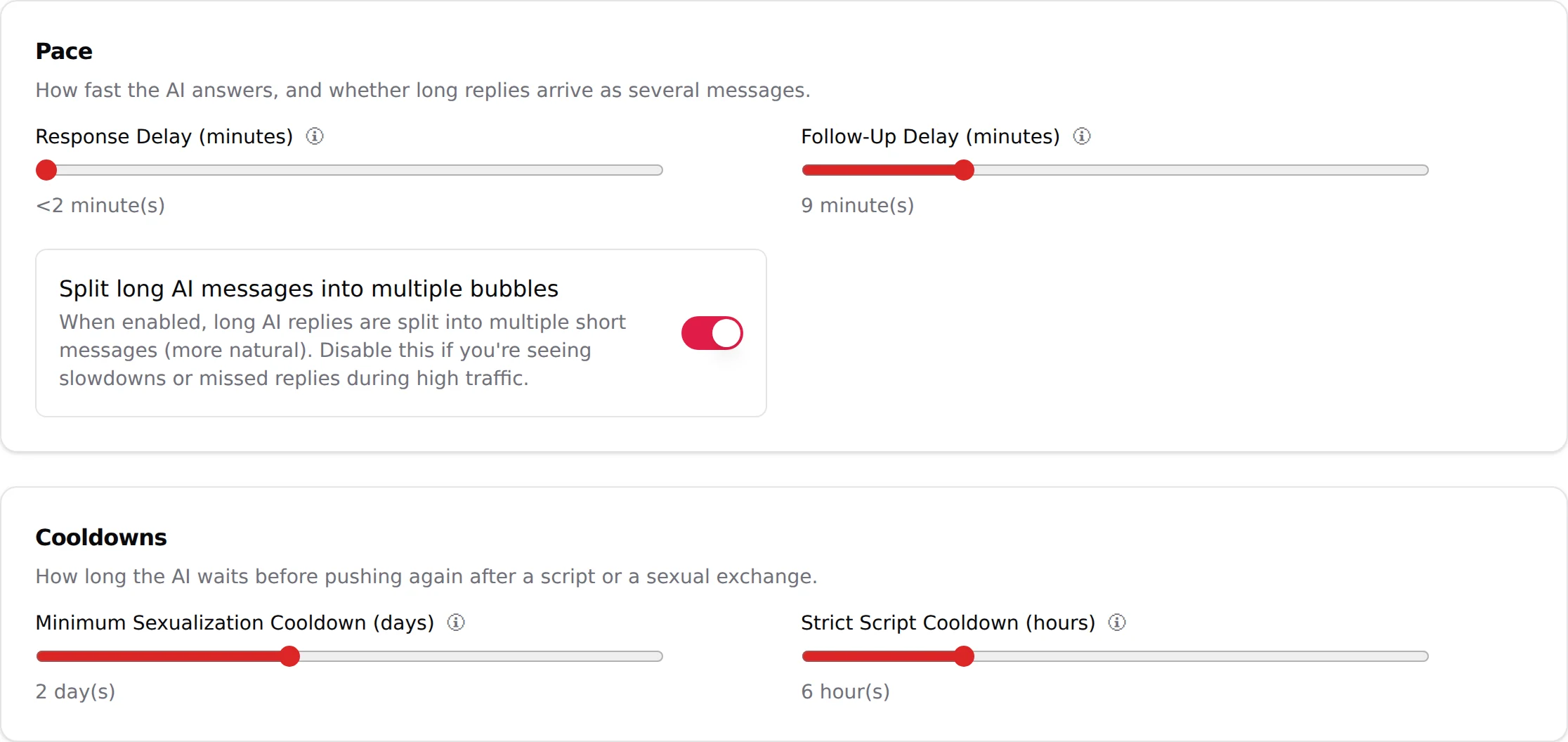
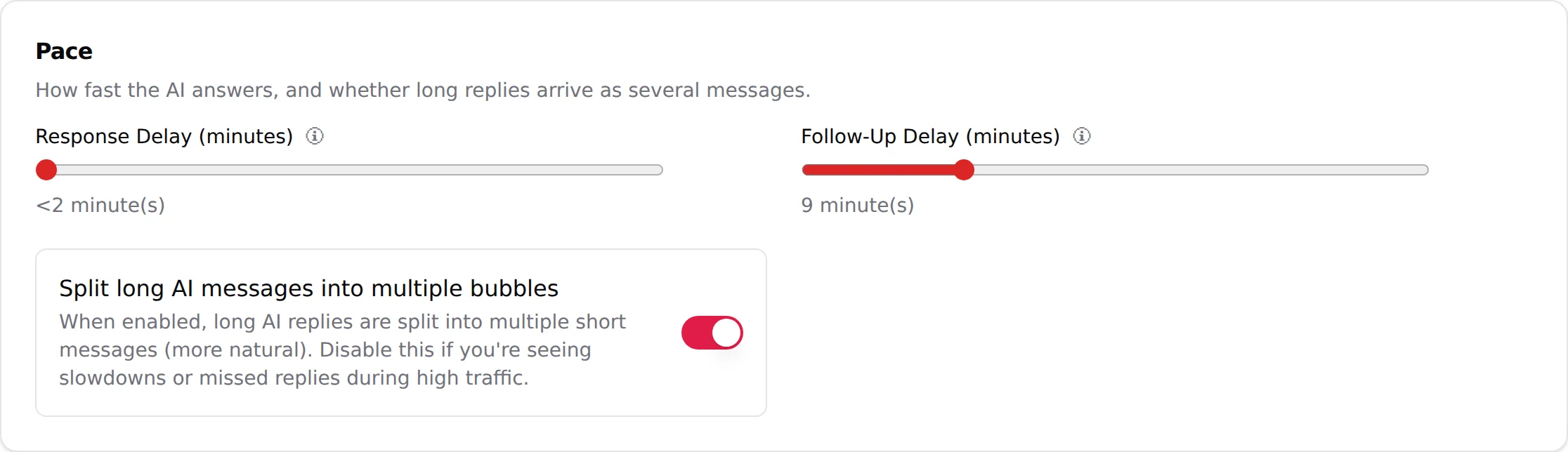
Response Delay (minutes)
Helper text (the info icon next to the label): "How fast the bot responds after the fan sends a message."
| Control | Slider |
| Range | 1 to 15 minutes |
| Default | 1 |
| Display | At 1, the slider reads <2 minute(s); otherwise "N minute(s)" |
What it changes: the time between a fan's message and the AI's answer. It is the AI's "typing" time. The value is a target, not a stopwatch: the real wait varies by a few tens of seconds around it from one reply to the next, so two answers never land after exactly the same delay, which is what a human looks like. At 1, replies come back within two minutes, which reads as a creator glued to her phone. At 5 or more, it reads as someone busy who checks her messages now and then.
Recommended: keep 1 for most creators. Fans who message during a script are hot; every minute of delay is a chance for them to leave. Raise it (3 to 5) only for a persona whose story is "busy student, answers between classes", and only if the story is worth the lost momentum.
Pitfall: the delay applies to every reply, not only the first one. A 10-minute delay in the middle of a paid step feels like being ignored.
One case looks slow and is not: when a script step sends a video or an audio with Wait before sending video/audio on (the default on every step that holds one), the AI waits about the media's duration before the file lands, as a person who had to record it would. The switch lives on the step itself and can be turned off the moment you add the video, see Script steps.
Follow-Up Delay (minutes)
Helper text: "Time the bot waits before sending a follow-up message if the fan hasn't replied."
| Control | Slider |
| Range | 2 to 30 minutes |
| Default | 8 |
| Display | "N minute(s)" |
What it changes: when the AI has asked something or sent a step and the fan goes silent, this is how long it waits before it comes back on its own. The content of that follow-up is driven by the Follow-up strategy ("How the AI comes back when a fan goes quiet", see Custom strategies). This slider only sets the wait.
Recommended: 8 to 12 for OnlyFans, where fans often read a PPV and think about it. Below 5 reads as needy, and a needy creator gets ignored. Above 15, many fans have moved on before the answer lands.
Pitfall: this is the short follow-up inside an active conversation. Longer silences (hours, days) are handled elsewhere: on Telegram by the Re-engagements tab, on OnlyFans Premium by Nudges when the fan comes back online.
Split long AI messages into multiple bubbles
Helper text: "When enabled, long AI replies are split into multiple short messages (more natural). Disable this if you're seeing slowdowns or missed replies during high traffic."
| Control | Switch |
| Default | On |
What it changes: with the switch on, a long answer arrives as two, three or four short messages, one after the other, the way people text. With it off, the same answer arrives as one block. The switch exists on both platforms, in the Settings of an OnlyFans creator and in the Settings of a Telegram creator, and each creator has its own.
Example, switch on:
- "omg thank u"
- "u made my whole night ngl"
- "did u see what i posted earlier?"
Switch off: "omg thank u, u made my whole night ngl. did u see what i posted earlier?"
Recommended: on. Short bubbles look human and get more replies. Turn it off when you see slowdowns or missed replies on a busy creator: each bubble is a separate message sent through the platform, and at high volume the extra sends are what gets throttled. The helper text says exactly that.
Whether the switch applies to Telegram creators is not stated in the interface. The switch is shown on both platforms.
How the three settings play together in a real conversation
- Fan writes "hey" at 21:00.
- The AI answers at 21:01 (Response Delay 1), in two bubbles (Split on).
- Fan reads and says nothing.
- At 21:09 (Follow-Up Delay 8) the AI comes back with a follow-up written the way the Follow-up strategy says.
- Fan replies. The loop goes back to step 2.
Change Response Delay to 5 and step 2 moves to 21:05. Change Follow-Up Delay to 20 and step 4 moves to 21:25. Switch off Split and step 2 becomes one message.
Good to know
- Sliders are saved with Submit only. Moving a slider and leaving the tab loses the change. See Settings tab.
- The AI status on the creator card ("Live" / "Ready to launch") does not change with these settings. They shape the replies, they do not turn the AI on or off.
- The Playground's Custom Parameters panel has no pace settings. Judge delays and bubbles in a real conversation, from the Fans tab.