
The Medias tab of an OnlyFans creator is the library the AI sells from. Nothing is uploaded here: you pick lists from the creator's OnlyFans vault, OnlyChat copies their references, and you write a description for each item. Only media present on this tab can be attached to a script step, and only the description tells the AI what it is sending. The editor's reminder says it in one line: "Media has to be synced on the creator's Medias tab before it can be attached to a step, and its description is what tells the AI what it is sending."
On Telegram the tab works differently (folders and uploads). See Media on Telegram.
Where to find it
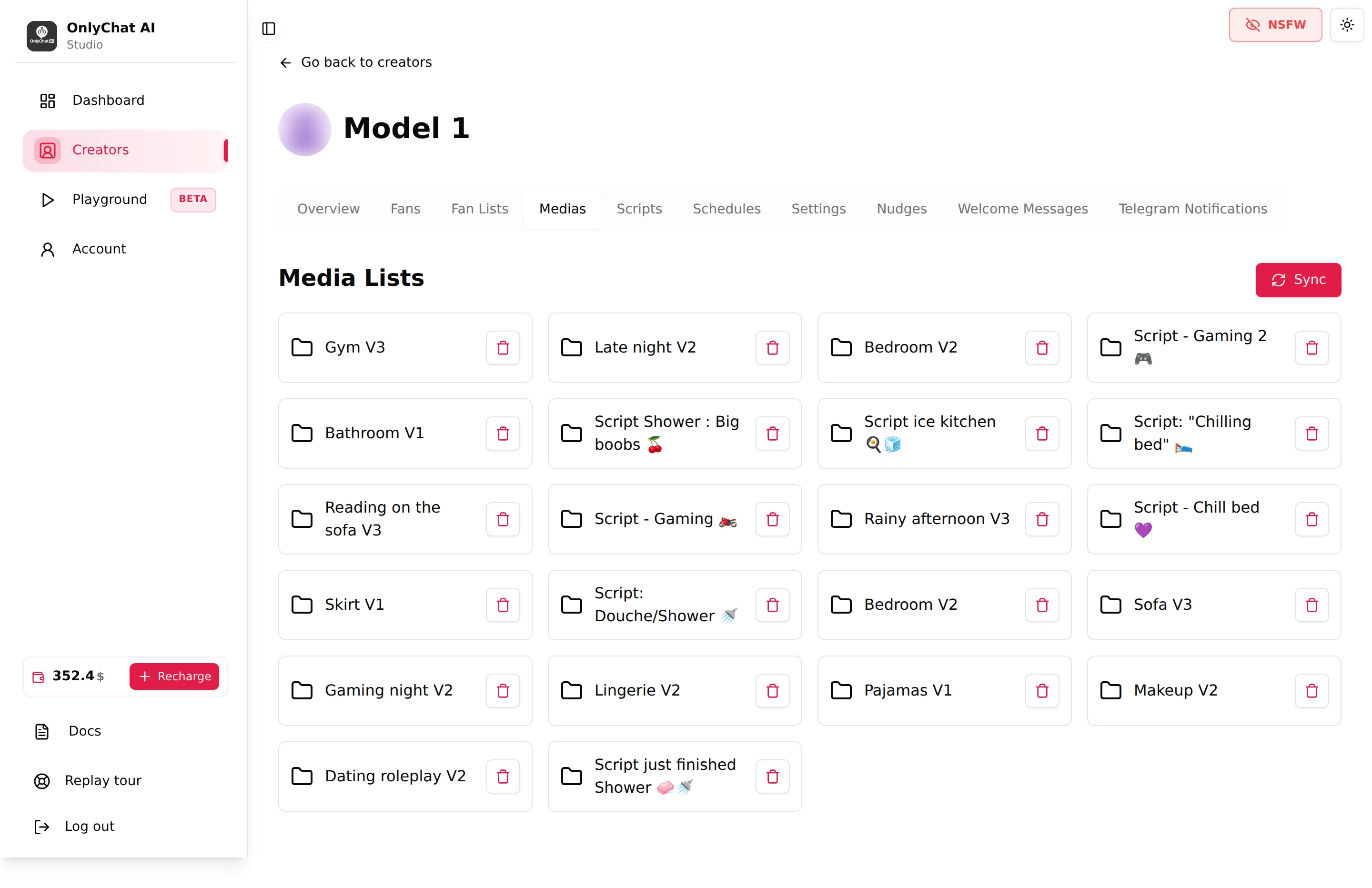
Open the creator from the Creators board, then click the Medias tab. The page shows a card Media Lists with one card per synced vault list, and a Sync Media button. Before the first sync the card reads "Sync your vault to access creator's media".
Sync Media
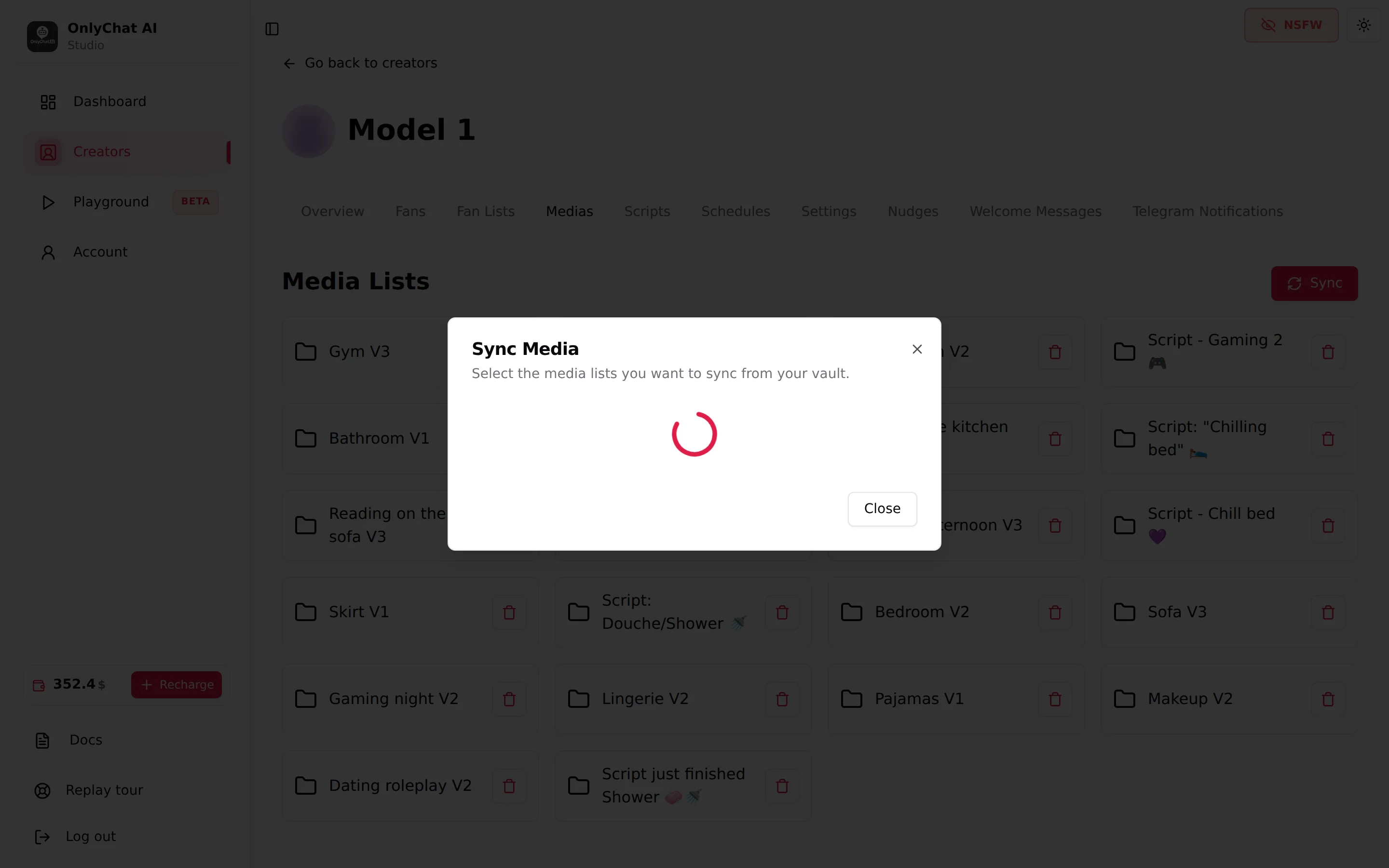
Click Sync Media. The modal "Sync Media" ("Select the media lists you want to sync from your vault.") lists every list found in the creator's OnlyFans vault with its name, its type and its photo and video counts. Tick the lists you want, then click Sync lists (the button reads "Sync N list(s)" once you have selected some).
What happens next:
- The toast "Sync started" confirms the job. A progress panel then shows each list ("List" followed by the list name), the count "x / y medias synced", a percentage, then "All media lists synced" and "Sync complete! Your media lists are now up to date." The toast "Media lists synced successfully" closes the job.
- "Failed to start sync" means the extension session is not usable. Reconnect the creator from the extension and try again. See Extension and sync issues.
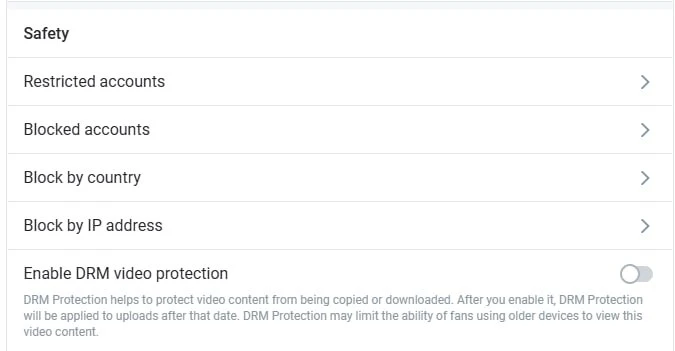
- Videos missing after a sync almost always means DRM is on for the creator: on OnlyFans, Settings, Privacy and safety, Safety block, Enable DRM video protection off, then sync again. See Extension and sync issues.
- Syncing is incremental. The guided tour says it: "it only brings in what's new, nothing you wrote here is overwritten." You can re-sync a list after adding photos to it on OnlyFans; existing descriptions stay.
The media list page
Click a list card to open it. The page has a back arrow ("Back to the lists") and a table with one row per item.
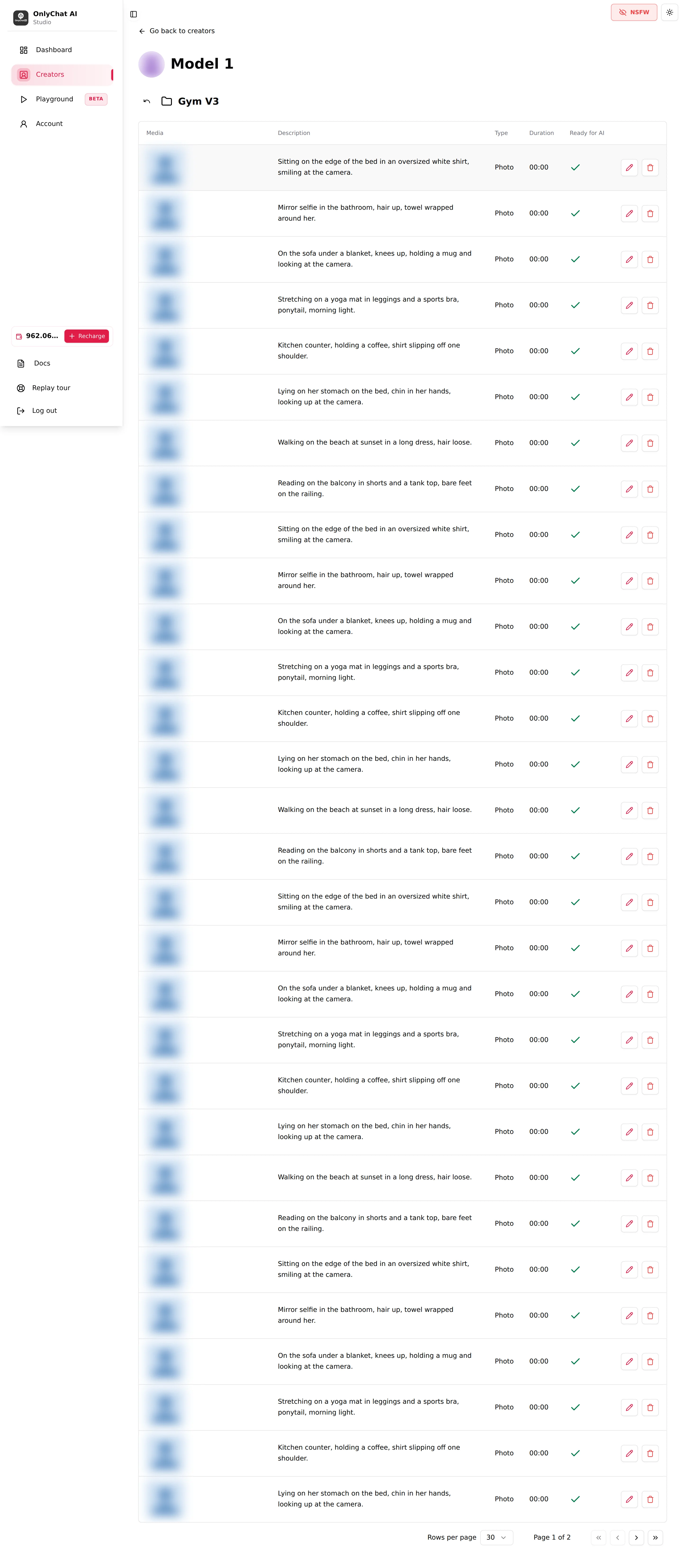
| Column | What it shows | Why it matters |
|---|---|---|
| Media | Thumbnail or file name; an audio icon for voice notes. Click it to open the preview dialog with a player. | Check what the item really is before describing it. The NSFW toggle at the top of the app blurs these thumbnails too. |
| Description | The text you wrote, or "No description". | This is the only thing the AI knows about the file. It never sees the image itself. |
| Type | Photo, Video or Audio. | Videos and audios get extra options on a step (pre-media teaser, wait before sending). |
| Duration | mm:ss for videos and audios. | With "Wait before sending video/audio" on, the AI waits about this long before the media lands, so the upload feels real. |
| Ready for AI | A check mark when a description exists. | An item without a check mark is still sent by its step, but the AI will not know what it is if a fan asks before paying. Describe everything you attach. |
The table is paginated (30 rows per page by default) with first, previous, next and last page controls.
Edit Media
Click the pencil on a row. The modal Edit Media ("Add media metadata to provide AI with more context.") has two parts.
Description
Write what the fan will see, from the creator's point of view, in one to three sentences: place, outfit or absence of outfit, action, what is visible and what is hidden, and the mood. The AI uses this to write the teasing around the step, to answer "what is in it?" or "what do you do in the video?" once the PPV is sent, and to keep the scene consistent from one step to the next. It never uses the description to pick a media by itself: the AI only sends the media attached to script steps, never a file of its own choice outside a script.
| Weak description | Good description |
|---|---|
| "photo 3" | "Selfie in the gym mirror, black sports bra and leggings, sweaty, smiling, phone hides half of the face." |
| "video" | "45 second video on the bed, pink pyjama top pulled up slowly, breasts shown at the end, playful, no sound." |
| "nude" | "Full nude standing in the shower, water running, back to the camera, looking over the shoulder." |
Two rules: never describe a media as more explicit than it is (the fan who pays for "everything" and gets a bra shot asks for a refund), and never put a price in a description (prices live on the step).
Tagged Creators
Click Tag other creators to open "Tag Other Creators" ("Select the creators featured in this media to tag them."). Tick the creators of your organisation who appear in the file and confirm with Confirm (N). If none of your other creators can be tagged, the modal reads "No creators available for tagging"; "Unable to fetch tagged creators for tagging." means the list could not load, close and retry.
Tagging matters for collaboration content: when a fan asks who the other girl is, the AI can answer with the tagged creator's identity instead of inventing one.
Click Update to save. The toast reads "Media metadata updated!" ("Error updating media metadata" on failure).
Delete a media or a list
- One item: click the trash icon on the row. The dialog asks "Are you sure you want to delete this media?". Confirm: "Media deleted!". This only removes the reference from OnlyChat. The file stays in the OnlyFans vault and comes back on the next sync of its list if you still want it.
- A whole list: from the Medias tab, delete the list card. The dialog "Delete Media List" warns: "Are you sure you want to delete this Media List? This action cannot be undone and will also delete all associated media." Confirm: "Media List deleted!" ("Error deleting Media List." on failure).
Good to know
- The step editor's Select Medias picker lists your synced lists in "Select a media list", then the items of that list. An item already attached elsewhere in the same script is greyed out and marked "Used", so the same photo is never sold twice in one scene.
- A media item can be reused across different scripts. Reuse the free teasers sparingly: a fan who has seen the same free photo in two scripts notices.
- If the picker shows "No media for creator found" ("Please sync your vault to access creator's media"), come back here and sync a list first.