
The Telegram workspace is the page you land on when you click Open workspace on a connected Telegram creator. It has a fixed header (creator name, bot handle, the AI switch, the bot card and the token panel) and eight tabs underneath. This page tells you what each part is for and links to the detailed article. The OnlyFans workspace is organised differently; see The OnlyFans workspace for the comparison.
Where to find it
Creators board, Open workspace on the card, or one of the Quick access shortcuts on the card that opens a tab directly. The URL is /creators/telegram/[id]?tab=[tab].
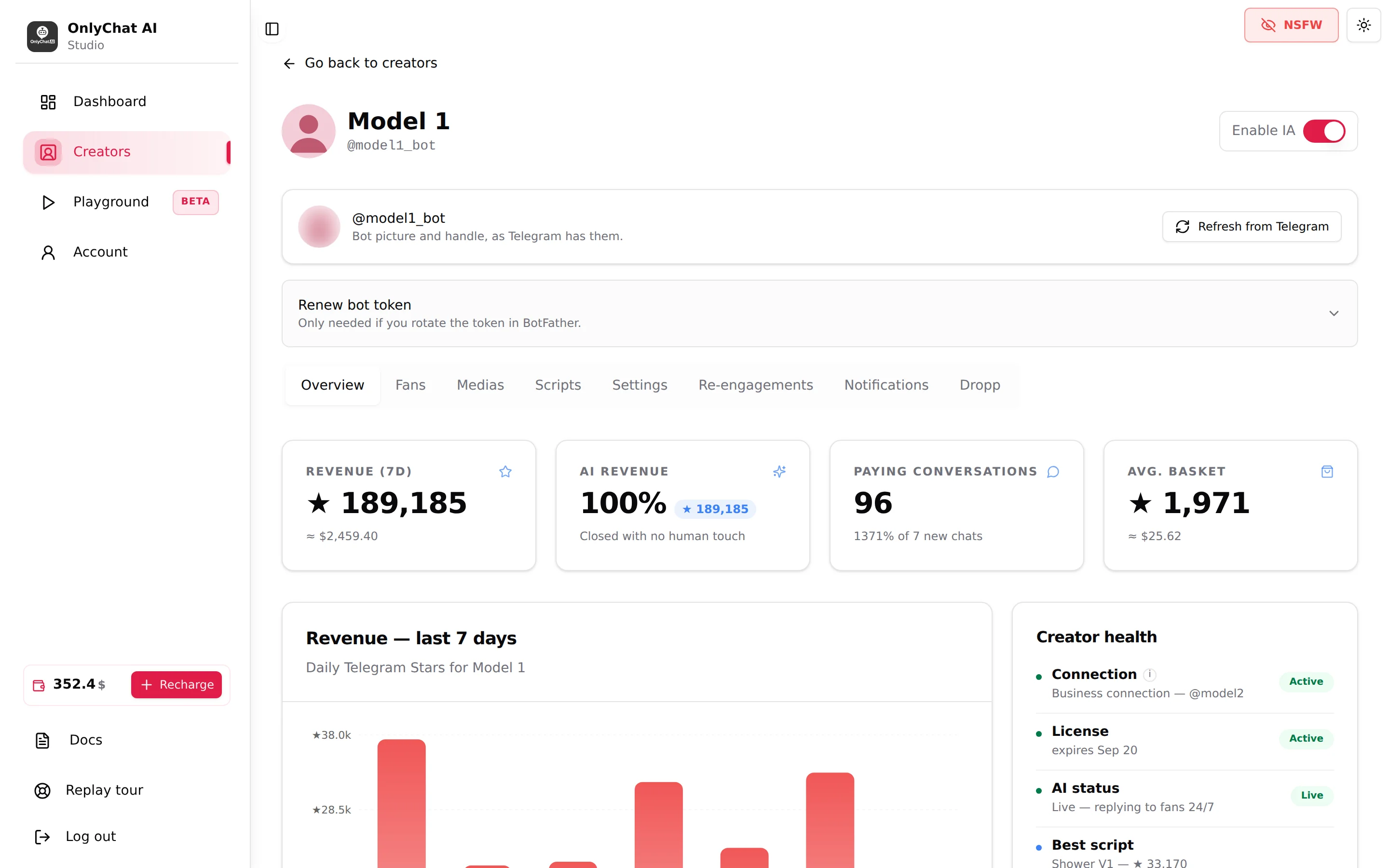
The header
Go back to creators
Returns to the Creators board.
Name, handle and avatar
The creator name you gave in the wizard, the bot handle as "@botusername", and the bot picture (or a placeholder until you set one in BotFather).
Enable IA switch
The AI on/off switch for this creator, the same as the AI switch on the card. It checks the four conditions (license, balance, 2 active scripts, business connection) and shows the matching refusal dialog when one is missing. Turning it off stops every automatic reply immediately; conversations in progress simply stop being answered. See Turn the AI on.
Bot card
"Bot picture and handle, as Telegram has them." with the button Refresh from Telegram. Detailed in Overview and bot token.
Renew bot token
Collapsed panel: "Renew bot token. Only needed if you rotate the token in BotFather." Open it only after revoking the token in BotFather. Detailed in Overview and bot token.
The eight tabs

| Tab | What it holds | What it changes for fans | Article |
|---|---|---|---|
| Overview | Bot card, token renewal, 7-day KPIs in Stars, revenue chart, Creator health (Connection, License, AI status, Best script), Jump to shortcuts | Nothing directly; it is your control panel | Overview and bot token |
| Fans | One row per fan who wrote to the creator: username, Telegram ID, last interaction, scripts used, total spent, per-fan AI switch, Note and Tags | The per-fan switch decides who gets AI replies | Fans on Telegram |
| Medias | Folders of uploaded photos, videos and audio with descriptions; upload modal; import from another bot; daily upload counter | What the scripts can send; the description is what the AI knows about each file | Media on Telegram |
| Scripts | Scripts and folders, Active switch, First star, Import Script, editor with Stars prices, bubbles, Dropp links | The sales path the AI follows in every conversation | Scripts on Telegram |
| Settings | Details, Add infos (6,000 characters), Behavior, Strategies; one Submit for all four | Who the creator is, how fast and how explicit the AI is | Settings |
| Re-engagements | Timeline of up to 4 checkpoints in the 24 h after the fan's last message, message style | Whether and when a quiet fan gets a message | Re-engagements |
| Notifications | Toggles Sales, AI Disabled, No Script Left, Rate Limit, plus keyword alerts | Nothing for fans; alerts for you in your Telegram group | Telegram notifications |
| Dropp | Dropp.fans profile, link folders, synced links with descriptions | Lets a step sell through a Dropp.fans link instead of Stars | Dropp.fans |
What is not on Telegram
- Fan Lists: OnlyFans lists do not exist on Telegram. Who the AI answers is decided per fan with the Enable AI switch.
- Schedules: no time slots on Telegram; the AI is on or off.
- Nudges and Welcome Messages: OnlyFans Premium features. Re-engagements is the Telegram equivalent of Nudges.
- Composer on the fan page: you do not write to fans from OnlyChat on Telegram; you write from the creator's Telegram app after pausing the AI for that fan.
A sensible order for a new creator
- SettingsFill Details and Add infos first, so that the AI knows who it is before the first fan writes.
- MediasCreate one folder per script, upload the files, write a description for each.
- ScriptsBuild or import at least 2 scripts and activate them. Mark one as First.
- Re-engagements and NotificationsSet the timeline and turn on the alerts you want.
- OverviewCheck Creator health: Connection Active, License Active, then flip Enable IA.