
OnlyFans creators are not added from the dashboard. They are connected by the OnlyChat Chrome extension, which reads the creator's logged-in OnlyFans session in your browser and hands it to OnlyChat. That session is what lets the AI read fan messages and send replies from the creator's own account. The extension is distributed as a zip file from the app, not from the Chrome Web Store, so you load it manually once per computer. This page covers the installation; the next one covers the sync itself.
Where to find it
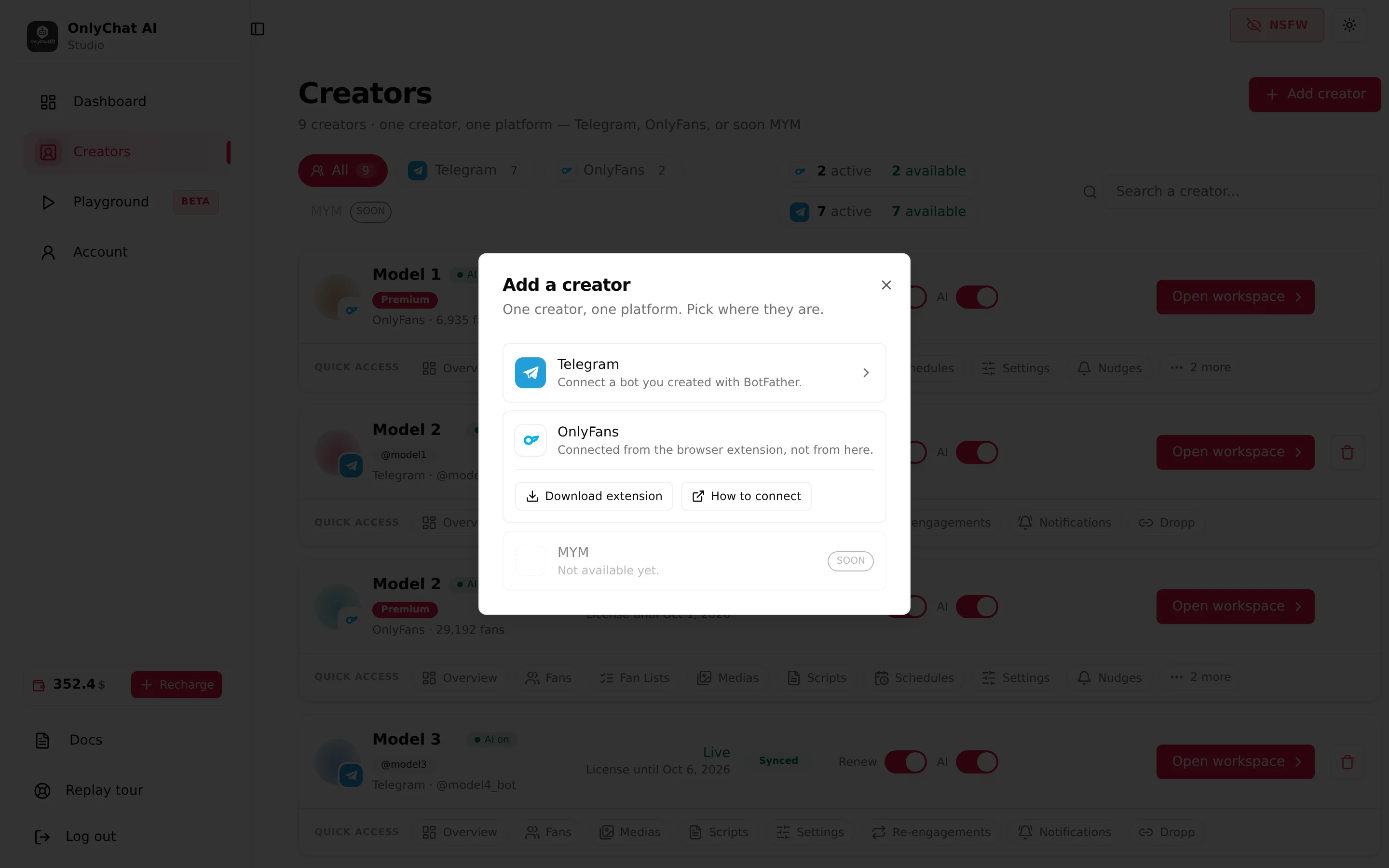
Creators board, Add creator, row OnlyFans: "Connected from the browser extension, not from here." Two buttons: Download extension (the zip) and How to connect (this help center).
What you need
- Google Chrome on a desktop computer. The extension is built for Chrome; other browsers are not supported.
- Your OnlyChat login (email and password): the extension asks for it to know which organization the creator belongs to.
- The creator's OnlyFans login, or the creator next to you to log in themselves. You need the session in your browser, once, at sync time.
- The Chrome permission to install unpacked extensions (Developer mode in
chrome://extensions). On a managed company computer, this can be blocked by policy: ask your administrator.
Install
- Download the zipOn the Creators board click Add creator, then Download extension on the OnlyFans row. Chrome saves a zip file.
- Unzip itExtract the zip into a folder you will keep (for example a "OnlyChat extension" folder in Documents). Chrome loads the extension from this folder every time it starts, so do not delete or move it afterwards.
- Open the extensions pageIn Chrome, open a new tab and go to chrome://extensions.
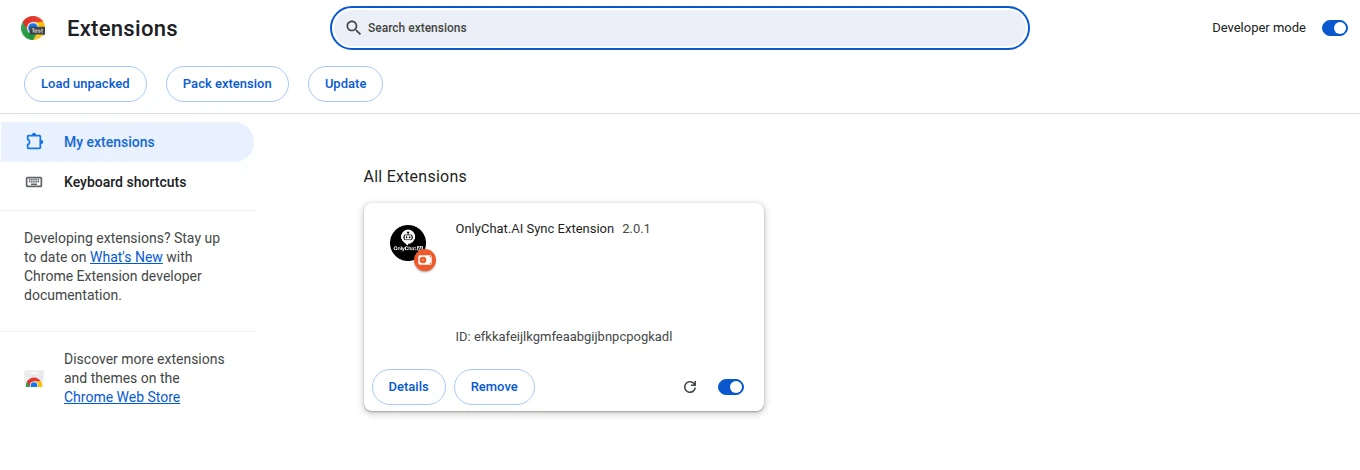
- Enable Developer modeTurn on the Developer mode switch, top right of the extensions page. Three new buttons appear.
- Load unpackedClick Load unpacked and select the folder you extracted (the folder that contains the extension files, not the zip). The OnlyChat extension card appears in the list, switched on.
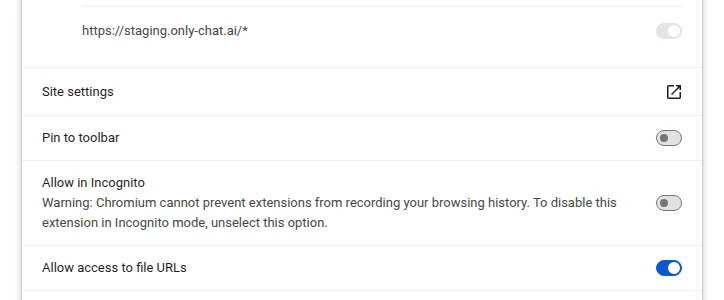
- Allow in IncognitoOn the extension card click Details, scroll down and enable Allow in Incognito. The sync is done from an Incognito window so the creator's OnlyFans session stays separate from your own browsing.
- Pin itClick the puzzle icon right of the address bar, find OnlyChat and click the pin. The icon now stays visible in the toolbar, which is where you will click it during the sync.
Why Incognito
Chrome keeps one set of cookies per profile. If you sync several creators from the same Chrome profile, each login to onlyfans.com replaces the previous one. An Incognito session starts empty and is thrown away once you close every Incognito window (all open Incognito windows share the same session), so you can log in as Model 1, sync, close all Incognito windows, open a new one, log in as Model 2, sync. The extension only works in Incognito if Allow in Incognito is enabled, which is why the step is not optional.
Update the extension
The app hosts the current version of the extension; when a new version is released, download it again from the same Download extension button. Chrome does not update unpacked extensions on its own.
- Download and unzip the new versionSame button, same steps. Extract it into a new folder, or replace the contents of the existing folder.
- Reload or reload-and-replaceIn chrome://extensions: if you replaced the contents of the same folder, click the reload arrow on the OnlyChat card. If you used a new folder, click Remove on the old card, then Load unpacked with the new folder.
- Check Allow in Incognito and the pinRemoving and re-adding an extension resets Allow in Incognito. Enable it again and pin the icon.
- Sync the creators againOpen an Incognito window and run the sync for each creator. See Connect a creator.
There is no version number shown in the app dialog; if the team asks which version you run, read it on the extension card in chrome://extensions.
Troubleshooting the install
| Symptom | Cause | Fix |
|---|---|---|
| Load unpacked is missing | Developer mode is off | Turn it on, top right of chrome://extensions. |
| "Manifest file is missing or unreadable" | You selected the zip or the wrong folder | Select the folder that directly contains the extension files. Unzip first. |
| The icon does not show in an Incognito window | Allow in Incognito is off | Details, Allow in Incognito. |
| The icon is not in the toolbar | Not pinned | Puzzle icon, pin OnlyChat. |
| Chrome blocks the install on a company computer | Enterprise policy | Ask your administrator, or use a computer you manage yourself. |
Good to know
- The extension is needed only at sync time. Once a creator shows Synced on the board, the AI runs on OnlyChat's side; you can close Chrome.
- One extension install per computer is enough for all your creators.
- How the AI behaves on the account. OnlyChat writes from the creator's account the way a person would, one conversation at a time, and stays within the platform's messaging limits. It never posts, never changes the profile and never touches settings.
- Your OnlyFans credentials are never stored. The extension reads the session of the OnlyFans tab you are logged into; OnlyChat never asks for the password and never keeps it.
- Team members who sync creators need the permission "Sync creator with extension" in Account, Team and Roles. See Members and roles.