
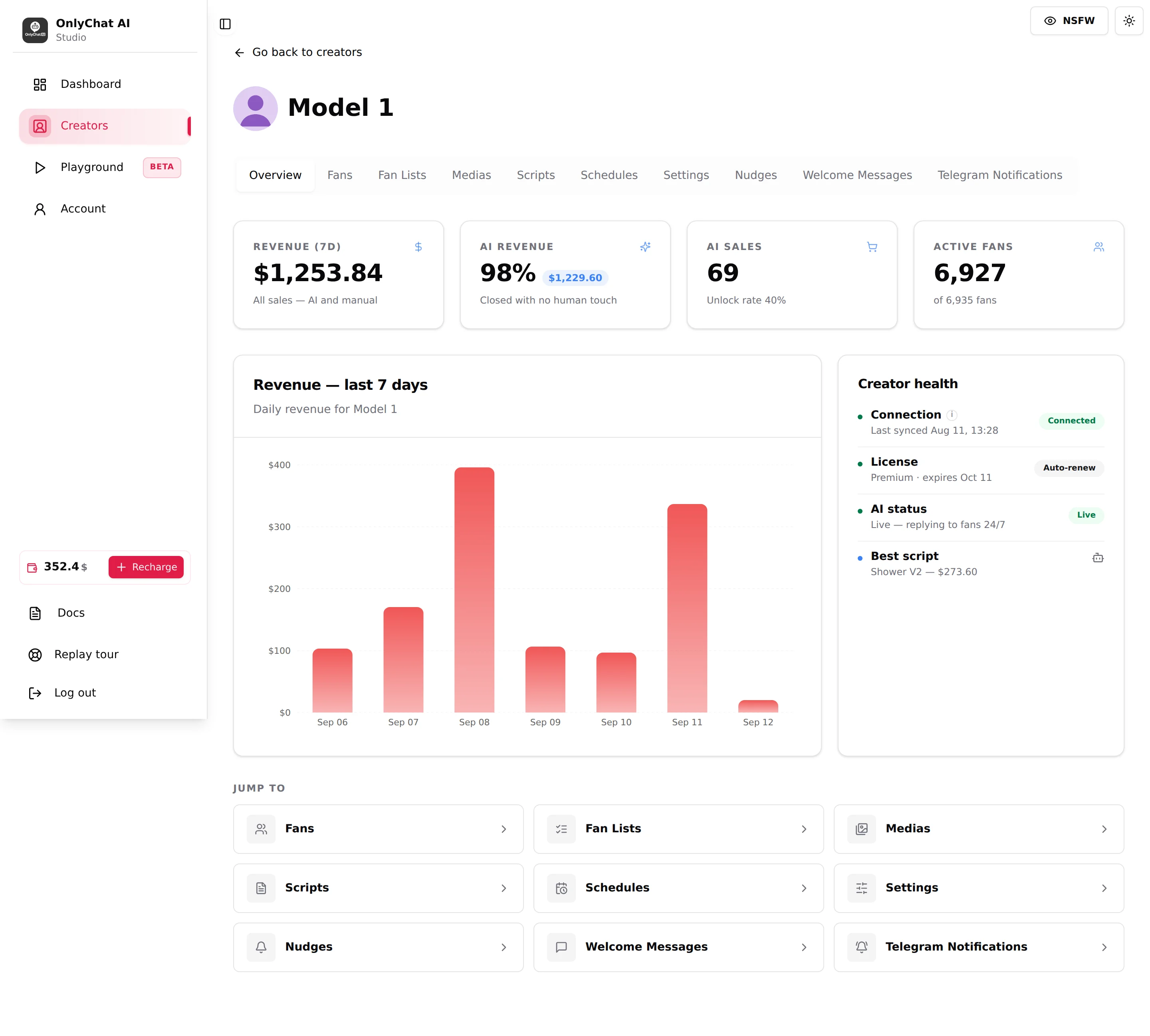
The Overview tab is the creator's cockpit: four numbers for the last 7 days, a daily revenue chart, a health card that tells you whether anything is blocking the AI, and shortcuts to the other tabs. It answers two questions in ten seconds: is this creator selling, and is anything broken. Everything on it is read-only; you act from the other tabs.
Where to find it
Open the creator's workspace: Overview is the first tab and the default one. From the board, the Overview shortcut in the Quick access row of the card opens it directly.
The four KPI cards
All four cover the last 7 days, rolling, and cannot be changed here. For other periods and for net versus gross, use the Dashboard page with its date range picker.

Revenue (7d)
Subtitle "All sales, AI and manual". Tooltip: "Total revenue generated by this creator over the last 7 days". Everything the creator's account sold in the period, whether the AI or a human closed it. This is the number to compare with your OnlyFans statistics.
AI revenue
Shown as a percentage with the amount next to it, subtitle "Closed with no human touch". Tooltip: "Share of the last 7 days' revenue generated exclusively by the AI". A creator running fully on the AI sits near 100%. A lower share means humans are closing sales from OnlyFans directly (on OnlyFans the OnlyChat composer sends text only and does not attach a PPV; on Telegram it can, see Send a PPV by hand); those OnlyFans sales are not commissioned once the AI has been off for that fan for more than 30 minutes, and they do not appear in the Scripts analytics.
AI sales
The count of sales the AI closed in 7 days (tooltip "Number of sales closed by the AI over the last 7 days"), with the line "Unlock rate N%" underneath: the share of paid media sent by the AI that fans actually unlocked. Read the two together:
| AI sales | Unlock rate | Reading |
|---|---|---|
| High | High | The catalogue fits the audience. Add variations of the winners. |
| High | Low | The AI sends a lot and fans buy a fraction. Prices or first paid steps are too aggressive. |
| Low | High | Few fans reach a paid step. Check Fan Lists, the schedule, and the Launch script strategy. |
| Low | Low | Check that the AI is on, the session is synced and the scripts have described media. |
Active fans
"N of M fans", tooltip "Fans the AI talked to over the last 7 days". M is the creator's total fan count from OnlyFans; N is how many of them had an exchange with the AI in the period. If N is far below the number of fans who write, look at Fan Lists: fans outside every Active list are not answered and do not count here.
Revenue, last 7 days
"Daily revenue for [creator]": one bar per day. Use it to spot a dead day (AI off, session broken, balance negative) rather than to measure trends: for trends, the Dashboard offers longer ranges.
Creator health
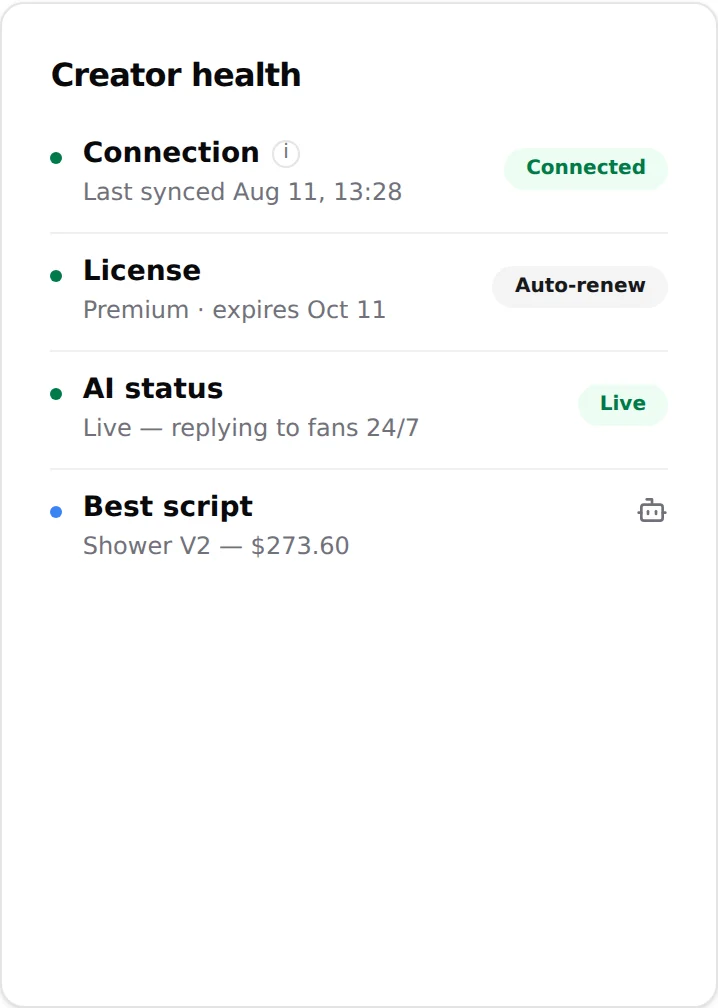
The card that tells you whether the AI can work. Each line has a coloured dot and a badge; a "Needs attention" badge on the card header means at least one line is not green.
Connection
"Last synced MMM D, HH:mm" with a Connected badge, or "Never synced". Tooltip: "State of the OnlyFans session used to read and send messages". This is the session the extension handed over. If the board card shows Sync warning or Sync error, re-sync from the extension. See Connect a creator.
License
"Premium · expires MMM D" or "Standard · expires MMM D", with an Auto-renew badge when the Renew switch is on; "expired MMM D" when it lapsed; "No license assigned" when there is none. An expired or missing license means the AI switch refuses with "No Active License". See Licenses for OnlyFans.
AI status
Live: "Live, replying to fans 24/7". Paused: "Paused, no automatic replies". This mirrors the Enable AI switch. With Schedule Automation on, the status follows the timeslots: Paused outside a slot is expected. See Turn the AI on.
Best script
"Script: [name]" for the script that generated the most revenue in the period, or a message that no sale is attributed to a script yet. That is the one to duplicate. See Versions and variations.
Jump to
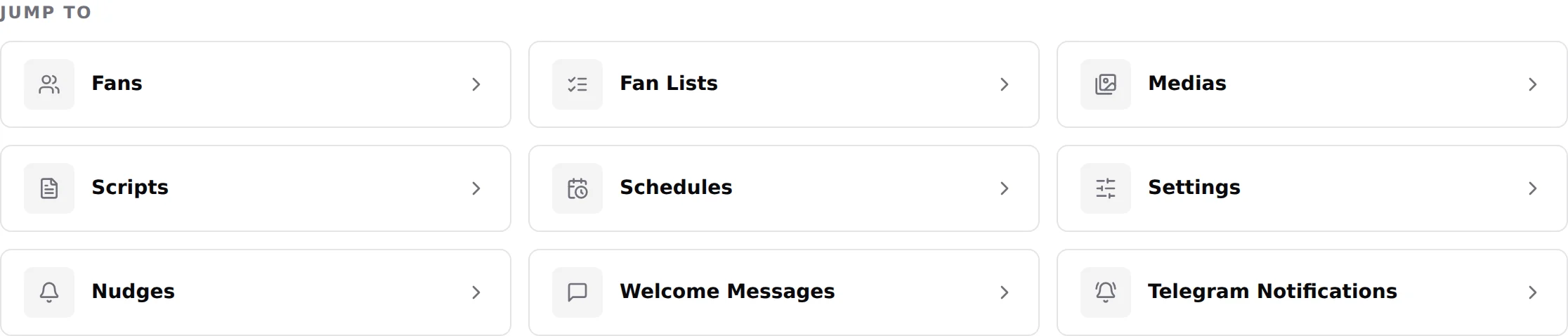
Nine shortcuts, one per tab: Fans, Fan Lists, Medias, Scripts, Schedules, Settings, Nudges, Welcome Messages, Telegram Notifications. They open the same tabs as the tab bar; they exist so the Overview works as a launch pad when the tab bar is scrolled out of view.
How to use the Overview in a routine
- Health firstFour green lines? Move on. A red Connection: re-sync. A red License: assign or renew. Paused AI status when it should be Live: check the switch, the schedule and the balance.
- Then revenueCompare Revenue (7d) with last week (Dashboard, Last Week preset). A drop with green health means the content, not the plumbing: look at AI sales and the unlock rate.
- Then the best scriptIf the same script wins every week, create a variation: keep the paid media for the fans who never bought (they never saw them) and change only the teasers and the first pitch; for the fans who bought everything, that means a new script with new media, not a variation.
Good to know
- Overview has no permission of its own in the Team tab: any member who can view creators sees it. The Jump to shortcuts hide tabs the member is not allowed to see.
- Amounts are in dollars as reported by OnlyFans for this creator. Net or gross follows the Net Revenue / Gross Revenue choice you make on the Dashboard; the commission is always computed on the net figure.
- Telegram creators have their own Overview with Stars amounts, a bot card and the bot token renewal. See Overview and bot token.