
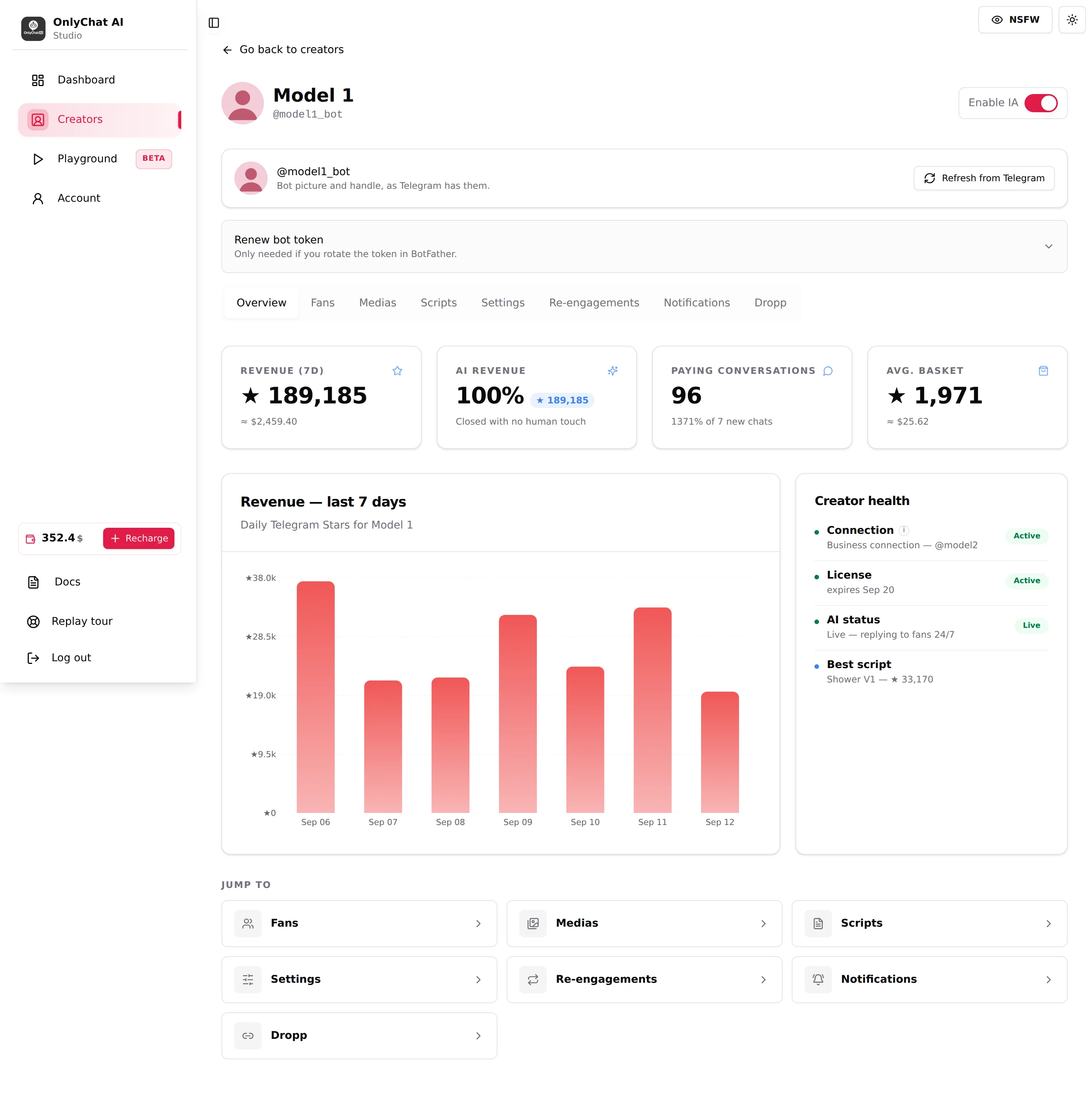
A brand-new bot starts empty: no media, no scripts, nothing configured, and its Overview shows zeros across the board. Rebuilding it tab by tab is slow. Duplicate from another bot copies another bot's whole setup into this one in a single action, and you choose exactly what gets copied.
Where to find it
On the bot's Overview, top right, next to Enable IA: the Duplicate from bot button. On a fresh bot the Overview also points you here, since there is nothing else to do yet.
The Duplicate modal
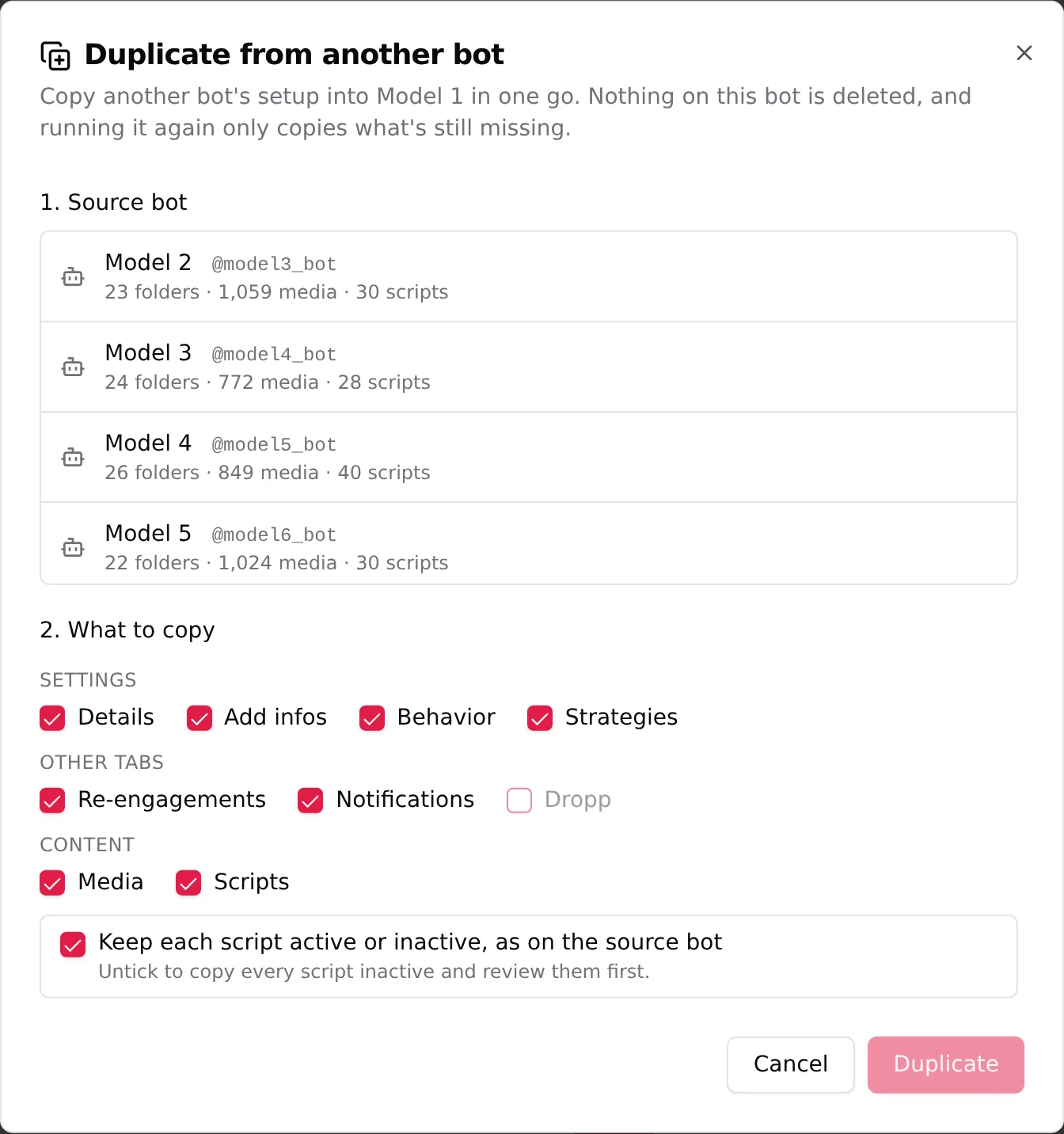
The modal is titled Duplicate from another bot and explains what it will and will not touch: "Copy another bot's setup into [this bot] in one go. Nothing on this bot is deleted, and running it again only copies what's still missing."
Two things to take from that line. It is not destructive, so nothing already on the target bot is removed. And it is safe to run again later: a second run only fills in what is still missing, it does not duplicate what is already there.
1. Source bot
Pick the bot to copy from. Each option shows how much it carries, for example "N folders, N media, N scripts", so you can tell a fully built bot from a thin one before you copy.
2. What to copy
Tick exactly what to bring over. The options are grouped:
| Group | Options |
|---|---|
| Settings | Details, Add infos, Behavior, Strategies |
| Other tabs | Re-engagements, Notifications, Dropp |
| Content | Media, Scripts |
Under the content options there is a switch: Keep each script active or inactive, as on the source bot, with the helper "Untick to copy every script inactive and review them first." Leave it on to mirror the source exactly, untick it to bring scripts in switched off so you can check them before they go live.
Confirm with Duplicate, or back out with Cancel.
What happens after
The target bot's media and script counts fill in with what you copied. Revenue stays the bot's own: copying a setup copies the ladder and the configuration, not another bot's sales. If you add more to the source later, run Duplicate again and only the new pieces come across.