
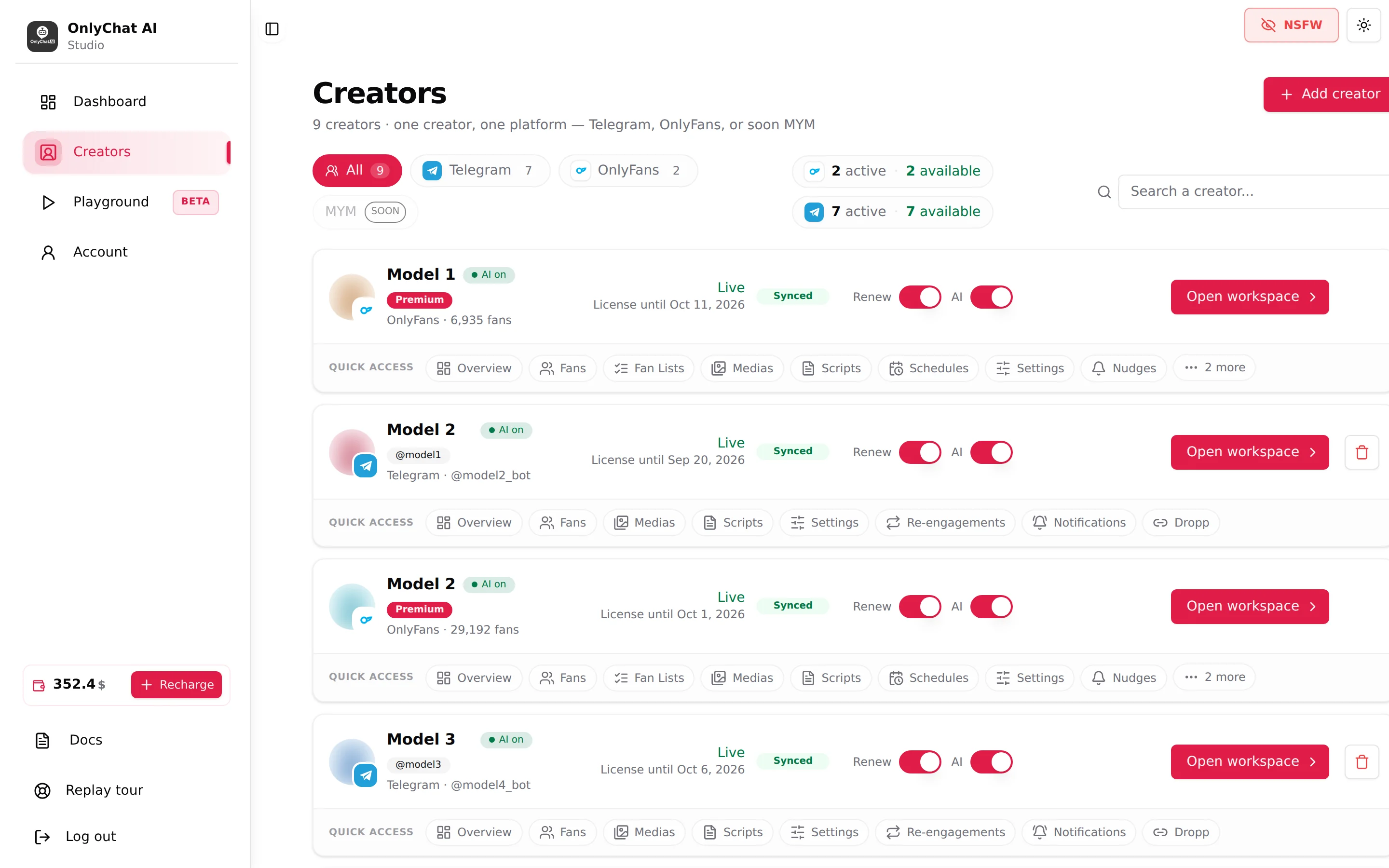
The setup page is the gate between a freshly created Telegram creator and its workspace. OnlyChat shows it in place of the tabs until it has received a "business connection" event from Telegram, which only happens when the creator's account is connected to your bot with the right permissions. The page is a checklist of 8 items in two steps plus a Verify business connection button. The banner at the top reads "Required setup before dashboard access", and the intro: "Follow each step in order, check every item, then click the verification button. The dashboard will unlock automatically once OnlyChat detects the business connection."
Where to find it
Click Open workspace on any Telegram card that still shows the "Not connected" badge. The page title is "Telegram setup for [creator name]". You can also reach it from the Overview tab later: if the connection drops, the Creator health card shows "No business connection: the bot can't reply" and the AI switch refuses with the "No Business Connection" dialog.
Before you start: two devices
You will switch between two things: BotFather (from the account that owns the bot) and the Telegram app on the creator's account (the one with Premium). Keep OnlyChat open on a computer to tick the boxes as you go.
Step 1: Prepare the bot & account
Three checkboxes. Each one describes exactly what to do in Telegram.
Enable Secretary Mode in BotFather
Checklist text: "Open BotFather → /mybots → select your bot → Bot Settings → Secretary Mode → Turn secretary mode on (or confirm it is already on)."
Secretary Mode is the BotFather flag that makes a bot attachable to a Telegram Business account. Without it, the bot does not appear in the Chatbots screen of the creator's account. Do this from the account that created the bot.
Get Telegram Premium on the creator's account
Checklist text: "Telegram Business is included in Telegram Premium. The account you link to this bot must have an active Premium subscription."
The Chatbots feature lives inside Telegram Business, which is part of Premium. Check that Premium is active on the creator's account (Settings shows the Premium badge) before going further. If Premium lapses later, the business connection stops and the AI stops replying.
Connect the bot to the account
Checklist text: "In the Telegram app: Settings → Telegram Business → Chatbots → Connect your bot."
Before you connect, one check: the creator's account must have a public username (Settings, Username). Without it the business connection is not detected, and the username is what fans will use to reach her.
On the creator's phone: Settings, Telegram Business, Chatbots, Connect your bot, then search the bot username you created in BotFather and select it. Telegram also asks which chats the bot may access; leave all private chats included, otherwise fans outside the selection get no answer.
Step 2: Enable all 5 bot permissions
Instruction text: "In the Telegram app: Settings → Telegram Business → Chatbots → your bot → Permissions. Enable all of the following (Manage Messages 5/5)."
| Permission | Why the AI needs it |
|---|---|
| Read Messages | To receive what fans write. Without it, nothing reaches OnlyChat. |
| Reply to Messages | To send answers, media and payment requests in the creator's name. |
| Mark Messages as Read | So the fan sees the message as read when the AI answers, like a human would. |
| Delete Sent Messages | Used when the AI has to withdraw a message it sent, for example a re-engagement message that is superseded. |
| Delete Received Messages | Needed by Telegram to grant the full "Manage Messages" group. |
The permissions screen in Telegram shows "Manage Messages 5/5" when all five are on. Tick the five boxes in OnlyChat as you enable them.
What happens next
The page explains it: "Once you go back in Telegram after enabling the permissions, a business connection event is sent to OnlyChat. If the bot was already connected, simply toggling any permission off and back on will trigger an update…"
In other words, Telegram only sends the event when you leave the permissions screen. Enable the five toggles, then press Back in Telegram.
The progress bar and the Verify button
Under the checklist: "N checked: button unlocks at 8/8" and, while incomplete, "All N items must be checked before you can verify the connection." The checkboxes are your own to-do list; OnlyChat does not verify them individually. They exist so you do not skip a step.
- Tick all 8 boxes3 in Step 1, 5 in Step 2.
- Click Verify business connectionThe button reads "Checking connection…" while OnlyChat looks for the event.
- The workspace unlocksIf the event was received, the page is replaced by the Telegram workspace and its tabs. The card on the Creators board now shows the connected @username instead of Not connected.
"No business connection detected"
Full text: "No business connection detected: OnlyChat hasn't received a business connection event yet. Make sure you've completed all the steps above and toggled a permission off and back on in Telegram to trigger the event. Then try again."
Work through this list in order:
- Does the creator's account have a public username? Settings, Username. This is the most common cause. If there is none, set one, then disconnect the bot in Chatbots and connect it again with the 5 permissions, press Back and verify. Full steps in Check the username first.
- On the creator's phone, open Settings, Telegram Business, Chatbots. Is your bot listed? If not, Secretary Mode is off in BotFather or you connected a different bot.
- Open the bot's Permissions screen. Turn any one permission off, then on again, then press Back. This forces Telegram to resend the event.
- Return to OnlyChat and click Verify business connection again.
- Still nothing: unlink and relink the bot. On the creator's phone, Settings, Telegram Business, Chatbots, open the bot and disconnect it, then Connect your bot again, re-enable the 5 permissions, press Back and verify again. This fixes the problem almost every time.
- Still nothing: check the token. If the token was revoked in BotFather after the creator was created, OnlyChat cannot receive events. Paste the new token in the Renew bot token panel of the Overview tab (see Overview and bot token) and toggle a permission again.
- Check Premium is active on the creator's account.
After the connection: where it shows
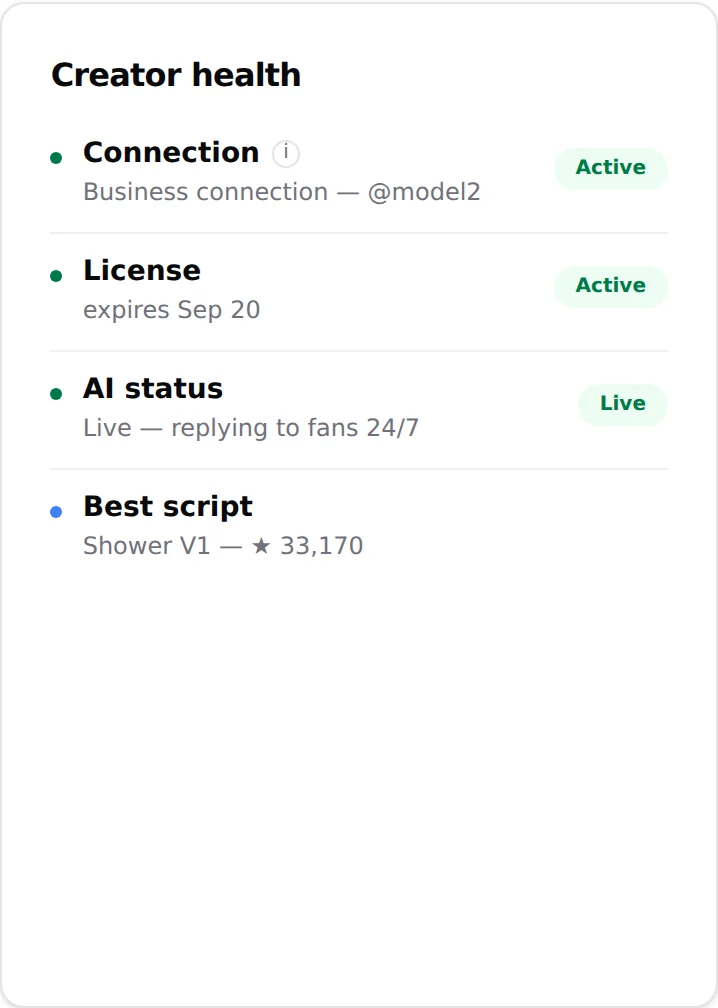
- Overview tab, Creator health, Connection: "Business connection @username" with the tooltip "Telegram Business connection the bot uses to read and send messages on the creator's account". The @username is the creator's account, not the bot.
- Creator card: the badge "@username" replaces "Not connected".
- AI switch: the "No Business Connection" refusal disappears. The remaining conditions are license, balance and 2 active scripts.