
A Telegram creator in OnlyChat is a bot token plus a name. You add it from the Creators board with a 3-step wizard: Name & identity, Bot token, Review. The wizard validates the token against Telegram before letting you continue, so a typo is caught immediately. Once created, the creator appears as a card with the status "No active license"; the next steps are assigning a license and connecting the creator's account.
Where to find it
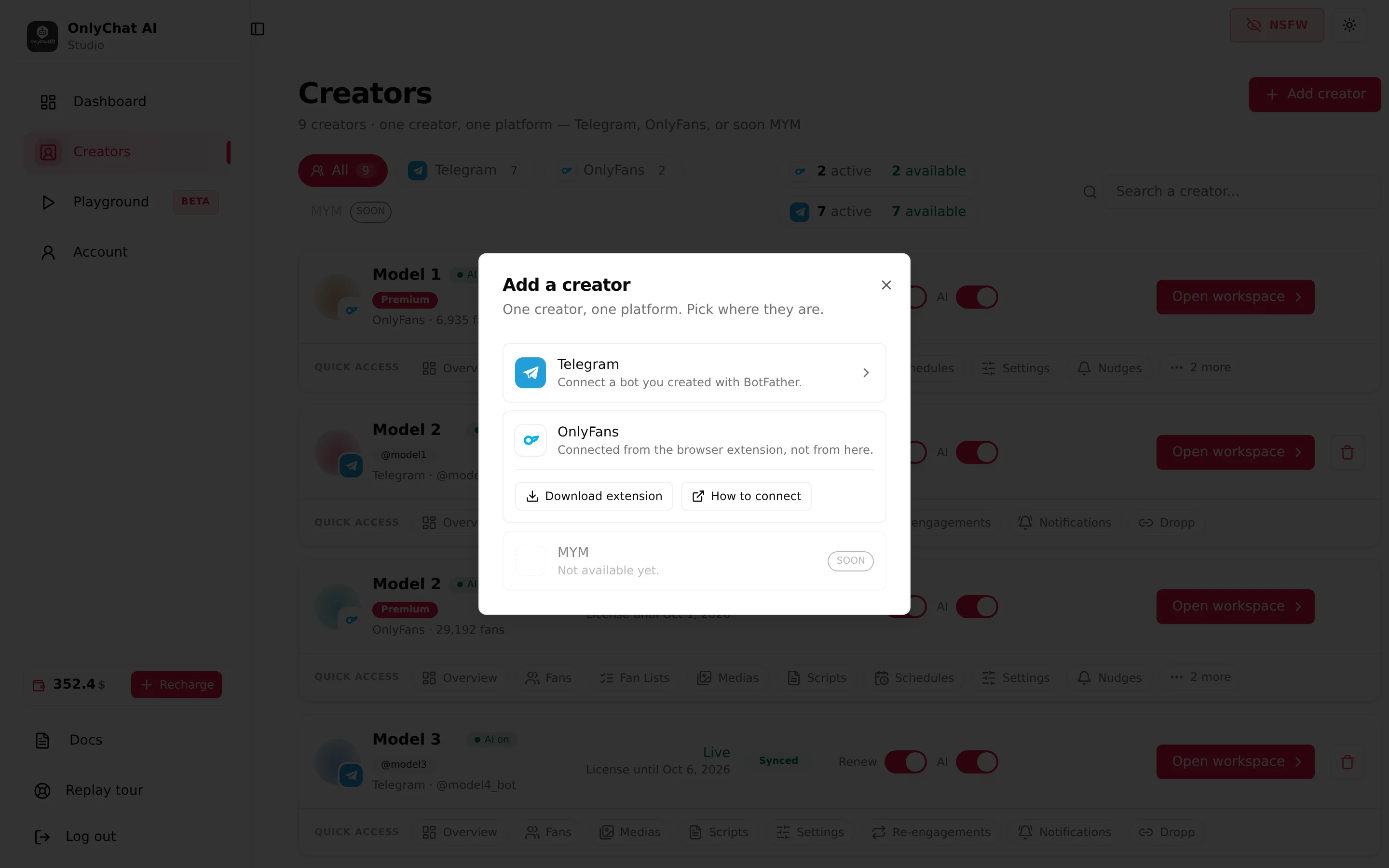
Open Creators in the sidebar and click Add creator at the top right. The dialog "Add a creator" says "One creator, one platform. Pick where they are." Choose Telegram, described as "Connect a bot you created with BotFather." The other two entries are OnlyFans ("Connected from the browser extension, not from here.") and MYM ("Not available yet.", badge "Soon").
The stepper
The top of the wizard shows "Step n of 3" and three segments: Name & identity, Bot token, Review. A completed segment is clickable to go back ("Step 1 (done)"); the current one reads "(current)". Back to creators and Cancel leave the wizard without creating anything.
Step 1: Name & identity
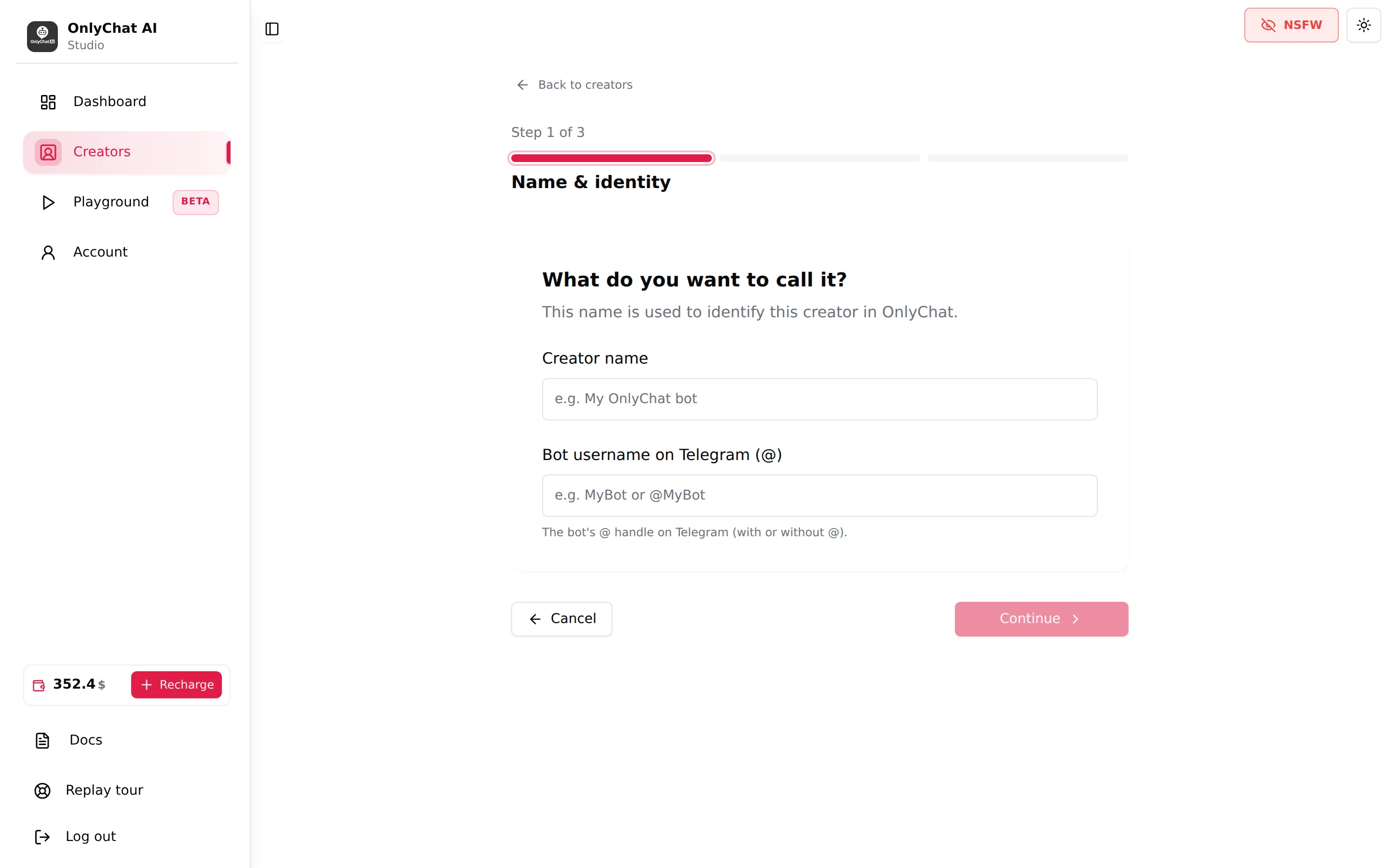
The heading reads "What do you want to call it?" with the helper "This name is used to identify this creator in OnlyChat."
Creator name
Placeholder "e.g. My OnlyChat bot". This is the label you will see on the Creators board, in the dashboard filters, in notifications and in the analytics. Fans never see it. Use the creator's stage name; if you run several bots for one creator, add a suffix (Model 1 TG, Model 1 ES). You can rename it later with the pencil icon on the card ("Rename creator").
Bot username on Telegram (@)
Placeholder "e.g. MyBot or @MyBot", helper "The bot's @ handle on Telegram (with or without @)." This is the username you chose after /newbot, the one ending in "bot". The guided tour puts it plainly: "The creator name is for you, inside OnlyChat. The @username is your bot's real handle on Telegram: it has to match exactly." The @ is optional; the spelling is not.
Step 2: Bot token
The step opens with a help box, "Where do I find my bot token?": "The token is a secret key that Telegram gives you when you create a bot. If you don't have it yet: Open Telegram and search for @BotFather. Send /newbot and follow the instructions. BotFather will send you a token. Copy it." A link, Open BotFather on Telegram, jumps to the BotFather chat.
Paste your token here
Placeholder "e.g. 123456789:AAHxxxx…". Paste the full token from BotFather. Under the field: "Don't share this token with anyone. OnlyChat uses it only to connect your bot."
The token is checked live against Telegram as soon as you paste it. You see "Verifying token..." for a second, then either the step unlocks or one of these errors:
| Error | Meaning | Fix |
|---|---|---|
| "Please enter the bot token." | The field is empty. | Paste the token. |
| "Invalid bot token." | Telegram does not recognise it: a character is missing, or the token was revoked in BotFather. | Copy it again from the BotFather message, or revoke and use the new one. |
Step 3: Review
Heading "All good?", helper "Review the information below. Click "Edit" to change anything." The page lists the creator name, the bot username and the token, shown truncated. Edit next to a line sends you back to that step. Click Create my Telegram creator.
Success shows the toast "Telegram creator created!" and returns you to the Creators board. Two errors can appear instead:
- "Unable to create your Telegram creator." The creation did not go through. Check the board for a creator already using that token, then try again.
- "Missing user or organization context. Please reload and try again." Your session lost its organization; reload the page.
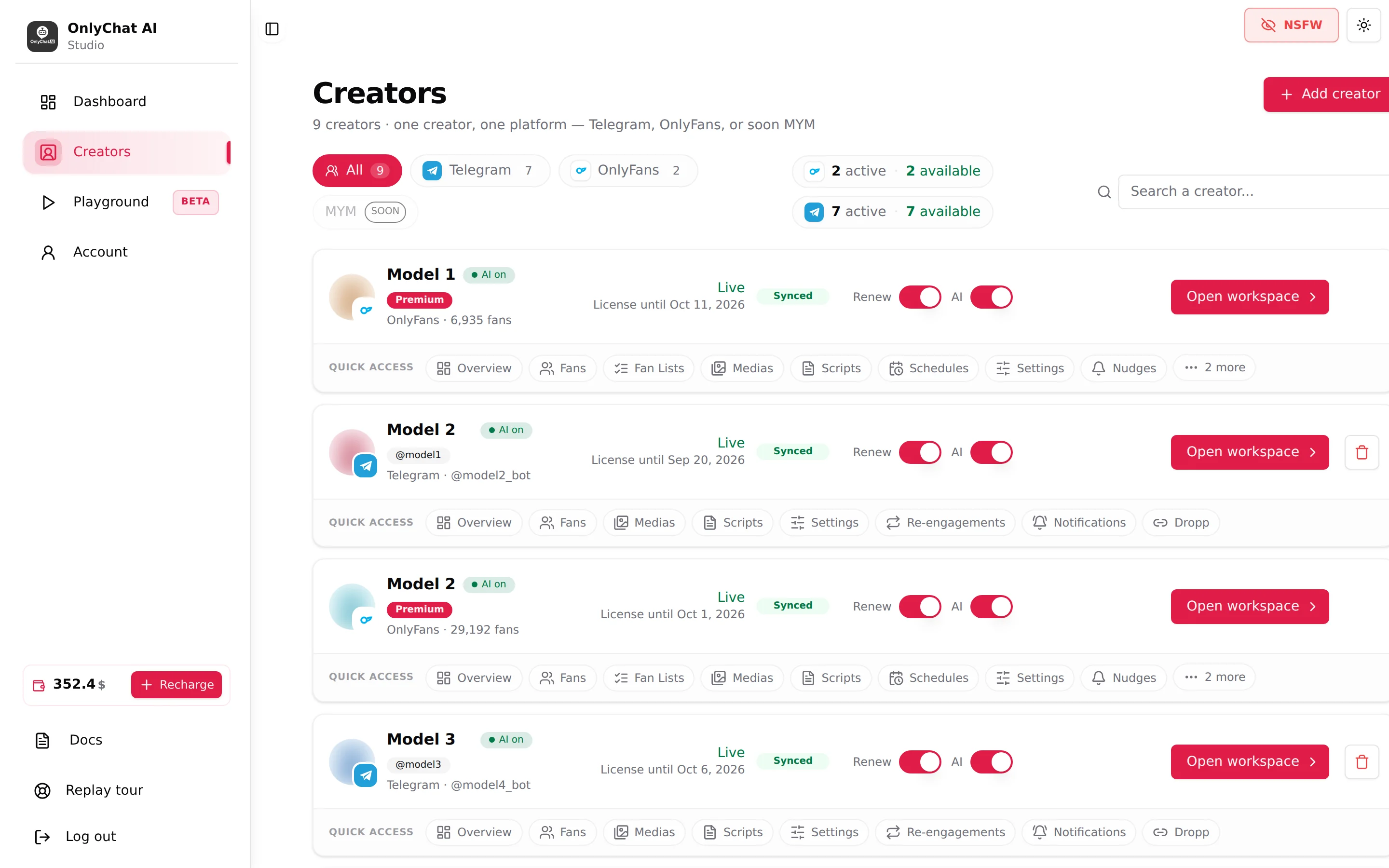
What the card looks like right after creation
The new card shows the Telegram glyph, the creator name, the bot handle, the badge "Not connected" (no business connection yet), "AI off", and the status "No active license" with the hint "Assign a license to start". The avatar is empty until you set a picture in BotFather and click Refresh from Telegram on the Overview tab.
What happens next
- Assign a Telegram licenseClick Assign License on the card. See Assign a Telegram license.
- Open the workspaceUntil the business connection exists, Open workspace leads to the setup page "Telegram setup for [creator]" instead of the tabs. See Telegram setup.
- Fill the workspaceMedia, at least 2 scripts, Settings. Then turn the AI on.