
An organization has one owner and any number of members. Each member signs in with their own account and sees only what their permissions allow: a chatter can be limited to the Fans tab and the conversations of the creators, an accountant to the balance, a manager to everything except buying. Permissions are per member, chosen when you invite and editable afterwards. The Team & Roles tab is where members are invited with a link, listed, edited and removed. Members cost nothing; there is no seat price.
Where to find it
Account, tab Team & Roles ("Members, invitations and per-member permissions."). Sidebar sub-item Team.
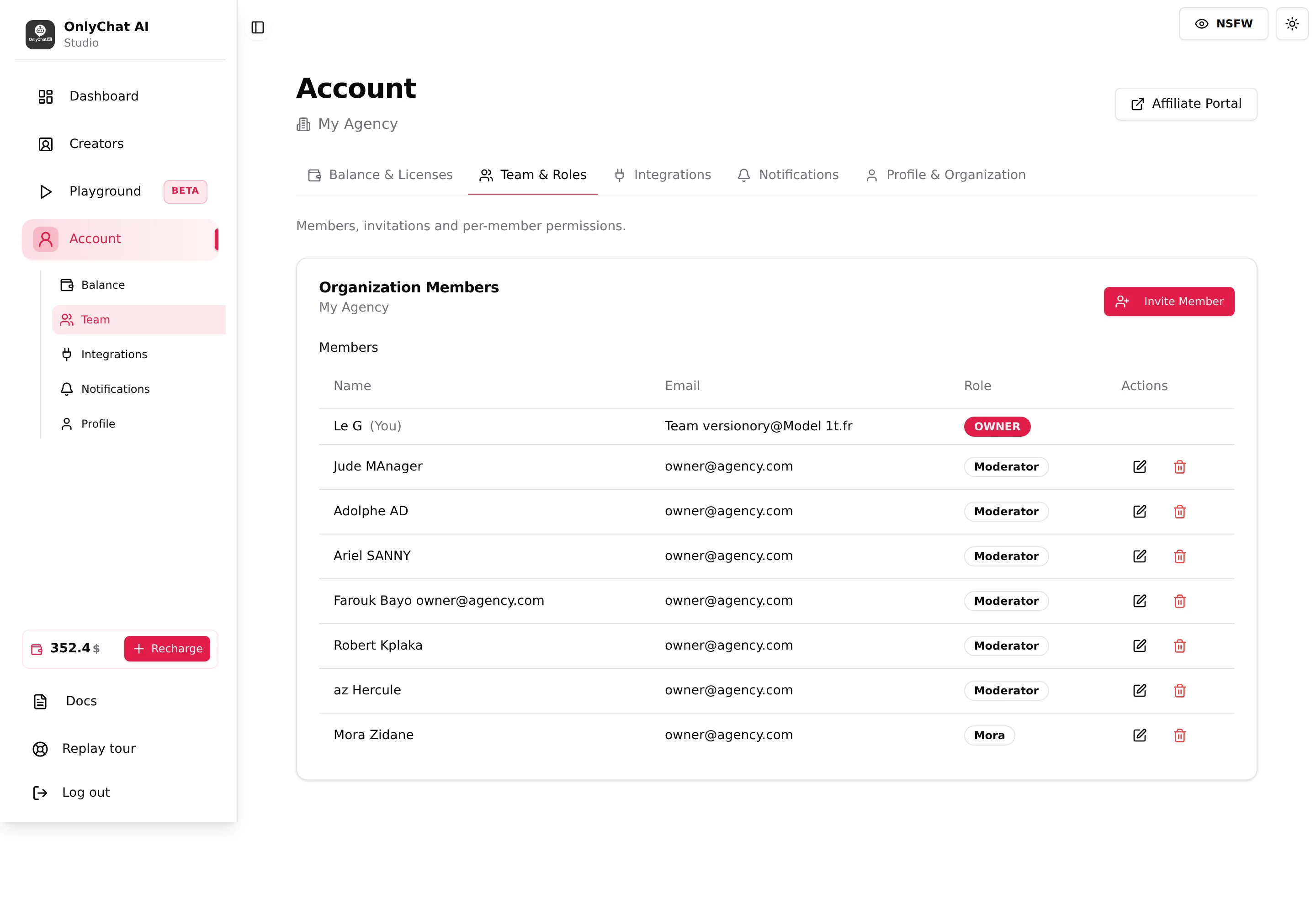
Organization Members
Card titled Organization Members with the organization name, then the table:
| Column | Content |
|---|---|
| Name | The member's name; your own row is marked "(You)". |
| Sign-in email. | |
| Role | OWNER, ADMIN, MODERATOR, or the custom role name typed at invitation. |
| Actions | Pencil (edit permissions, needs Manage member permissions) and trash (needs Delete members). The owner row has no actions. |
"Unable to load organization data." appears if the page cannot fetch the members; reload.
Roles
| Role | How you get it | Meaning |
|---|---|---|
| OWNER | Created the organization. | Holds every permission, including the ones marked "(Owner only)". Cannot be edited or deleted from the interface. |
| ADMIN | Invited with the Admin Template. | Broad set: creators, scripts, media, fans, balance. |
| MODERATOR | Invited with the Moderator Template. | Day-to-day set: view creators and fans, act on conversations, without billing or organization settings. |
| Custom name | Invited with a hand-picked set and a Role Name ("Content Manager", "Support Agent"). | Exactly the permissions you ticked. The name is a label; it does not add permissions. |
The role is a label on top of the permission list. Two admins can have different permissions if you edited one of them; what counts is the checkboxes.
Invite Member
The button (permission Invite members) opens Invite a New Member, "Send an invitation to join your organization."
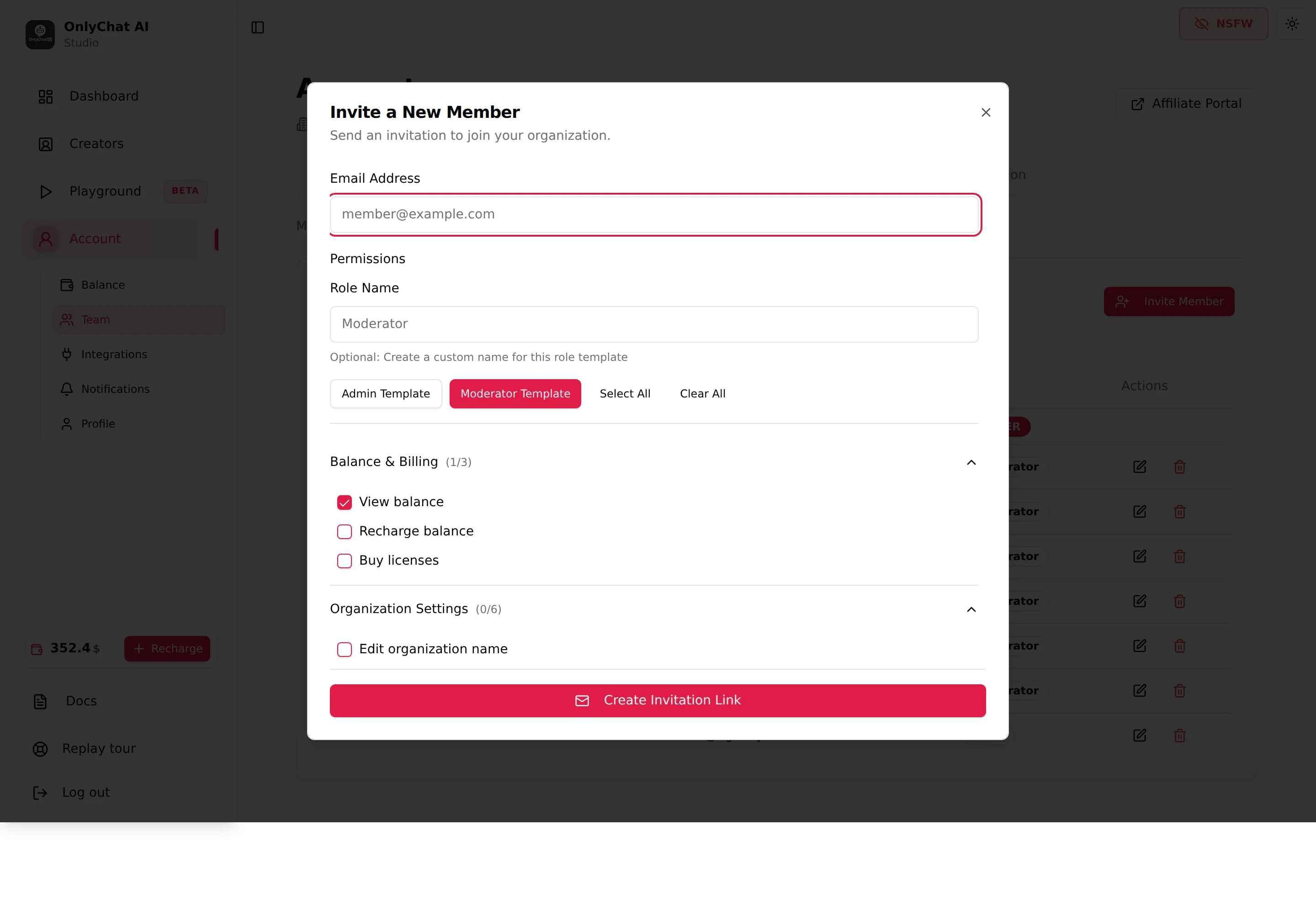
Email Address
Placeholder member@example.com. The address is written into the invitation: the invite page pre-fills it and shows "This email matches the invitation". Validation "Invalid email address".
Role Name
Placeholder "Enter role name (required)". Two helpers depending on the state: "Custom permissions require a role name (e.g., 'Content Manager', 'Support Agent')" when you ticked boxes by hand, "Optional: Create a custom name for this role template" when a template is selected. Error "Role name is required".
Permissions
Four buttons above the groups: Admin Template, Moderator Template, Select All, Clear All. Under them, collapsible groups with a counter "(selected/total)" and a checkbox per permission. A counter "N permission(s) selected" and the label "<template> template" summarise the choice. Permissions marked (Owner only) cannot be granted to a member.
Templates are a starting point: click one, then tick or untick individual boxes. As soon as you deviate, the role becomes custom and needs a name.
Create Invitation Link
Generates the link and shows "Invitation created! Share this link with the user:" with a copy button ("Link copied to clipboard!") and Done. Toasts "Invitation created!" / "Failed to create invitation". OnlyChat does not email the link: you send it yourself (Telegram, email, whatever you use with the team).
The permissions, group by group
Labels as they appear in the modal. The group headers show "(selected/total)"; the modal is the reference for the exact set in each group.
Balance & Billing
| Permission | Lets the member |
|---|---|
| View balance | See the balance figure (Account and sidebar widget). Needed to upgrade a license to Premium ("Permission Required" otherwise). |
| Recharge balance | Open Recharge Balance and create invoices. |
| Buy licenses | Open Buy Licenses and purchase. |
Organization Settings
| Permission | Lets the member |
|---|---|
| Edit organization name | Rename the organization. |
| Manage email alerts (Owner only) | Edit the balance alert threshold. |
| Manage Telegram bot (Owner only) | Open the Integrations tab: notification bot, Dropp.fans key. |
| Manage member permissions | Edit other members' permissions. |
| Invite members | Create invitation links. |
| Delete members | Remove members. |
Creator Access
| Permission | Lets the member |
|---|---|
| View creators | See the Creators board and open workspaces. Without it: "Access Denied, You are not authorized to view creators." |
| Sync creator with extension | Connect and re-sync OnlyFans creators from the extension. |
| Toggle AI for creator | Use the AI switch on the card and in the workspace header. |
| Assign license to creator | Use Assign License. |
| Toggle auto-renew | Use the Renew switch. |
Creator Tabs
One permission per tab; a tab without its permission is hidden: View Fans tab, View Fan Lists tab, View Medias tab, View Scripts tab, View Schedules tab, View Settings tab, View Nudges tab, View Telegram Notifications tab.
Scripts
| Permission | Lets the member |
|---|---|
| Edit and create scripts | Open the script editor, create, edit, duplicate. |
| Delete scripts | Delete scripts and folders. |
| Activate/deactivate scripts | Use the Active switch and the first-script star. |
Medias
Edit media descriptions, Sync medias from creator, Delete medias.
Fans
| Permission | Lets the member |
|---|---|
| Send messages to fans | Use the composer on the OnlyFans conversation page. Without it the messages are read-only ("You are not authorized to view messages." when even reading is denied). |
| View fan notes | Open the Note modal and the Telegram Fan note card. |
| Edit fan notes | Save a note. |
| Toggle AI for individual fans | Use the per-fan Enable AI switch and the bulk buttons. |
Playground
View playground credits, Buy playground credits, Use playground / Access playground ("You are not authorized to use the Playground." without it).
Three role recipes for an agency
| Role | Tick | Leave unticked |
|---|---|---|
| Chatter (handles conversations) | View creators, View Fans tab, Send messages to fans, View and Edit fan notes, Toggle AI for individual fans | Everything in Balance & Billing and Organization Settings, Delete scripts, Delete medias, Toggle AI for creator |
| Script writer | View creators, View Medias tab, View Scripts tab, Edit and create scripts, Activate/deactivate scripts, Edit media descriptions, Sync medias from creator, Use playground | Billing, Delete scripts, Fans permissions |
| Manager | Admin Template, then untick Buy licenses and Recharge balance if purchases stay with the owner | Owner-only items are unavailable anyway |
- Click Invite MemberType the email of the person.
- Pick a template or tick the boxesAdmin Template or Moderator Template, then adjust. Give a Role Name if the set is custom.
- Create Invitation Link and copy itSend the link to the person yourself.
- The person opens the linkThey see "You're Invited!", "Create your account to join <Org> as a <Role>", fill first name, last name and password, receive a 6-digit code by email, click Verify & join, and land in the organization ("Welcome to the organization!"). An existing OnlyChat account uses "Already have an account? Sign in".
- Check the Members tableThe new row appears with the role you chose.
Pending Invitations
Card under the members: Email · Role · Expires and a cancel button ("Invitation cancelled" / "Failed to cancel invitation"). An invitation has an expiry; a link opened after it shows "Invitation Expired, has expired or has already been used". Other invite-page errors: "Invalid Invitation, This invitation link is invalid or has expired" and "No invitation token was provided. Please check the link you received." Cancel and create a new link in those cases.
Edit a member
The pencil opens Edit Permissions for <name>, "Customize the permissions for this member", with the same groups and templates as the invitation. Save Changes shows "Permissions updated successfully!" / "Failed to update permissions". Ask the member to reload the app: tabs they no longer have disappear, and the ones they gained appear.
Delete a member
The trash opens "Are you sure? This will permanently remove <name> from the organization. This action cannot be undone." Button Delete Member, toasts "Member removed" / "Failed to remove member". The member loses access to the organization immediately. What happens to their own sign-in afterwards is not shown in the interface.
Good to know
- Permissions apply to the whole organization, not to one creator. A member who has View creators sees every creator of the organization and can open every workspace his permissions allow. There is no way to give a member access to one creator and not another. If two teams must not see each other's creators, the only separation is two organizations (two OnlyChat accounts, each with its own balance and licenses). OnlyVault is different: there, editors and assistants are scoped to the creators you pick, see OnlyVault team and invitations.
- Least privilege. Start from the Moderator Template for anyone who is not a partner. Add permissions when they ask, not before.
- View balance is more than a number: without it a member cannot upgrade a license, and the sidebar hides the balance widget.
- Owner-only permissions (email alerts, Telegram bot) stay with the owner whatever the template.
- The invitation link is tied to the invited email. Whoever opens it still has to sign in with that address and its 6-digit code, but send it privately anyway and cancel it if it leaks.
- Blur mode is a good habit for members who work in public places; it is per browser, see Tour of the dashboard.
Can a member see one creator and not another?
No. Access is per organization: a member with View creators sees all the creators of the organization, and the per-tab permissions (Fans, Medias, Scripts, Settings) apply to every creator alike. OnlyChat has no per-creator permission. The two ways to separate creators between people are: two organizations (each with its own account, balance and licenses), or a role that removes the tabs the member should not touch, knowing that he will still see every creator on the board.