
The Notifications tab decides what OnlyChat tells you about this creator, in a Telegram group of your own, through the OnlyChat notification bot. Sales, the AI being switched off automatically, a fan who has exhausted every script, Telegram slowing the bot down, and any keyword you want to catch in fan messages. On Telegram creators the tab is included with the license; on OnlyFans creators the equivalent tab needs a Premium license. Each toggle saves as you flip it.
Before you start: connect the notification bot
Notifications are delivered by the agency-level bot @onlychatai_notif_bot into a Telegram group you create. The tab reminds you: "To configure Telegram notifications, first set up your Telegram group by going to the Account page and clicking "Connect Telegram Bot"."
- Account, IntegrationsFill Telegram username ("We'll use this to reach you on Telegram. Example: @yourname") and Save.
- Connect Telegram BotThe modal lists the four setup steps: create a dedicated group, enable Topics in the group settings, click Add Bot to Group, wait for the bot to verify your username.
- Send /setup_topics in the groupOnce the bot has confirmed the connection, send the command /setup_topics in the group. The bot creates the topics it needs, one per type of alert, and only then starts posting. Without this command the group stays silent.
- Come back hereOnce the group is connected, the toggles below take effect.
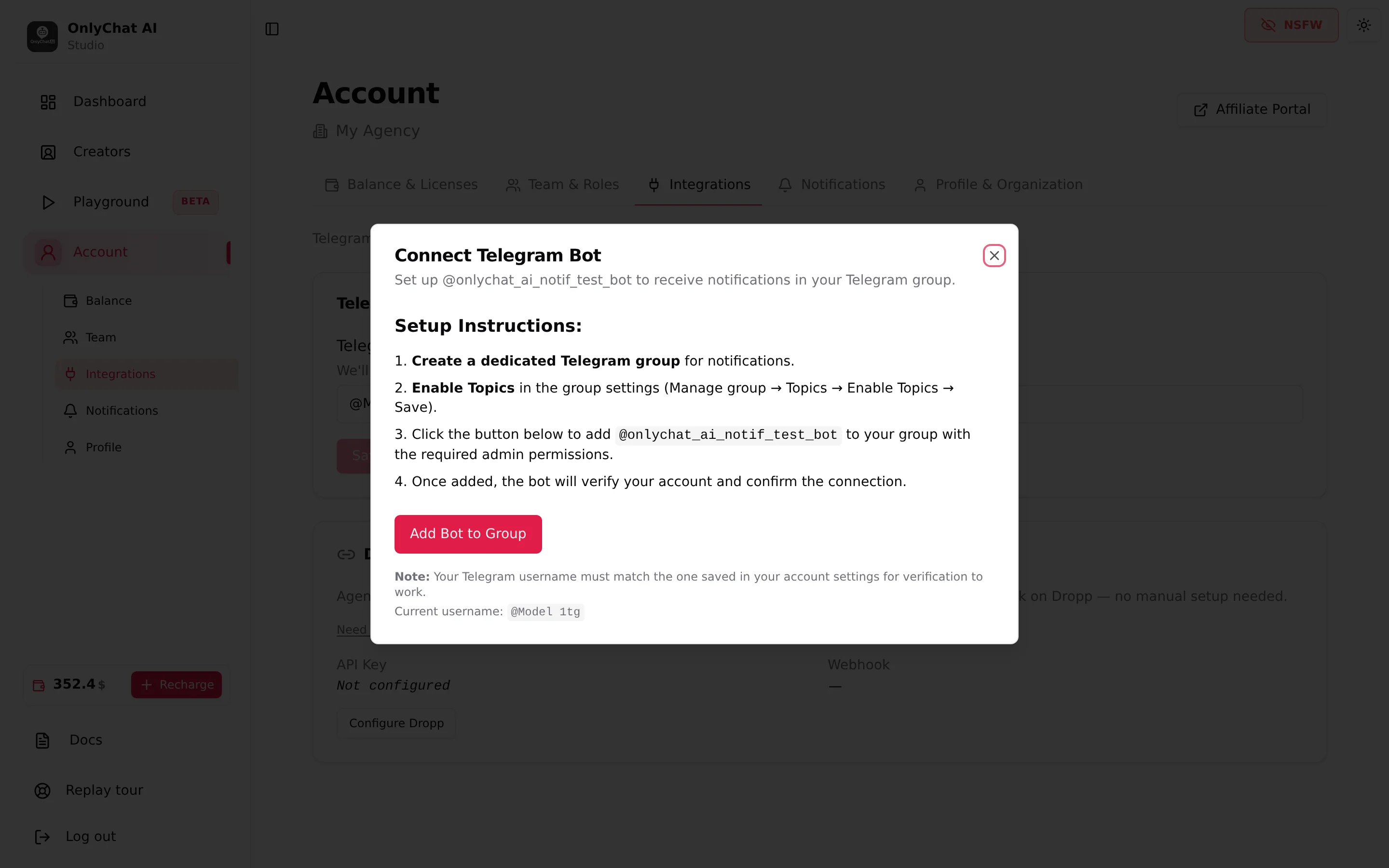
The full procedure, including the group and Topics settings, is in Integrations.
Where to find it
Seventh tab of the Telegram workspace, Notifications. Requires the "View Telegram Notifications tab" permission.
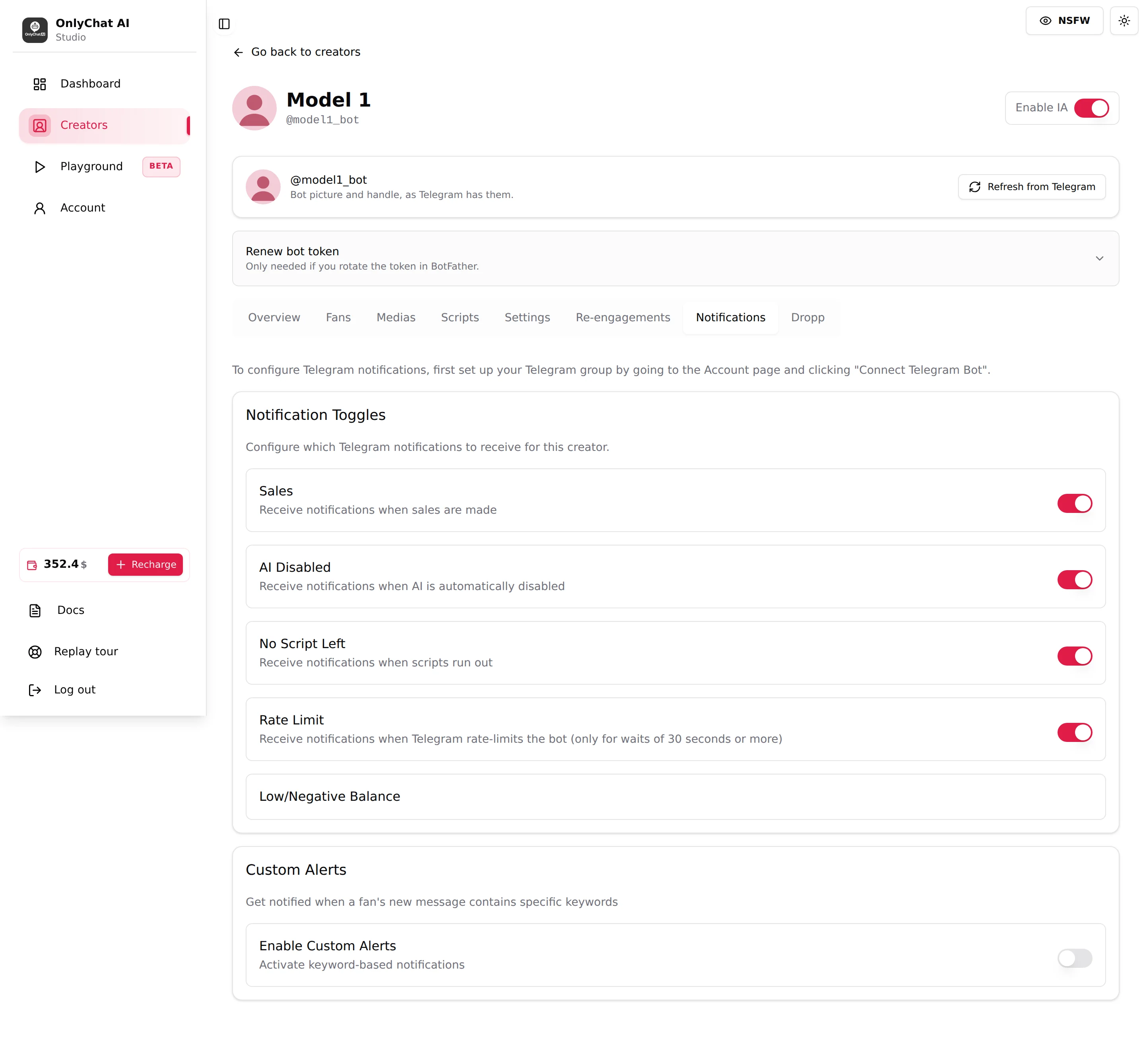
Notification Toggles
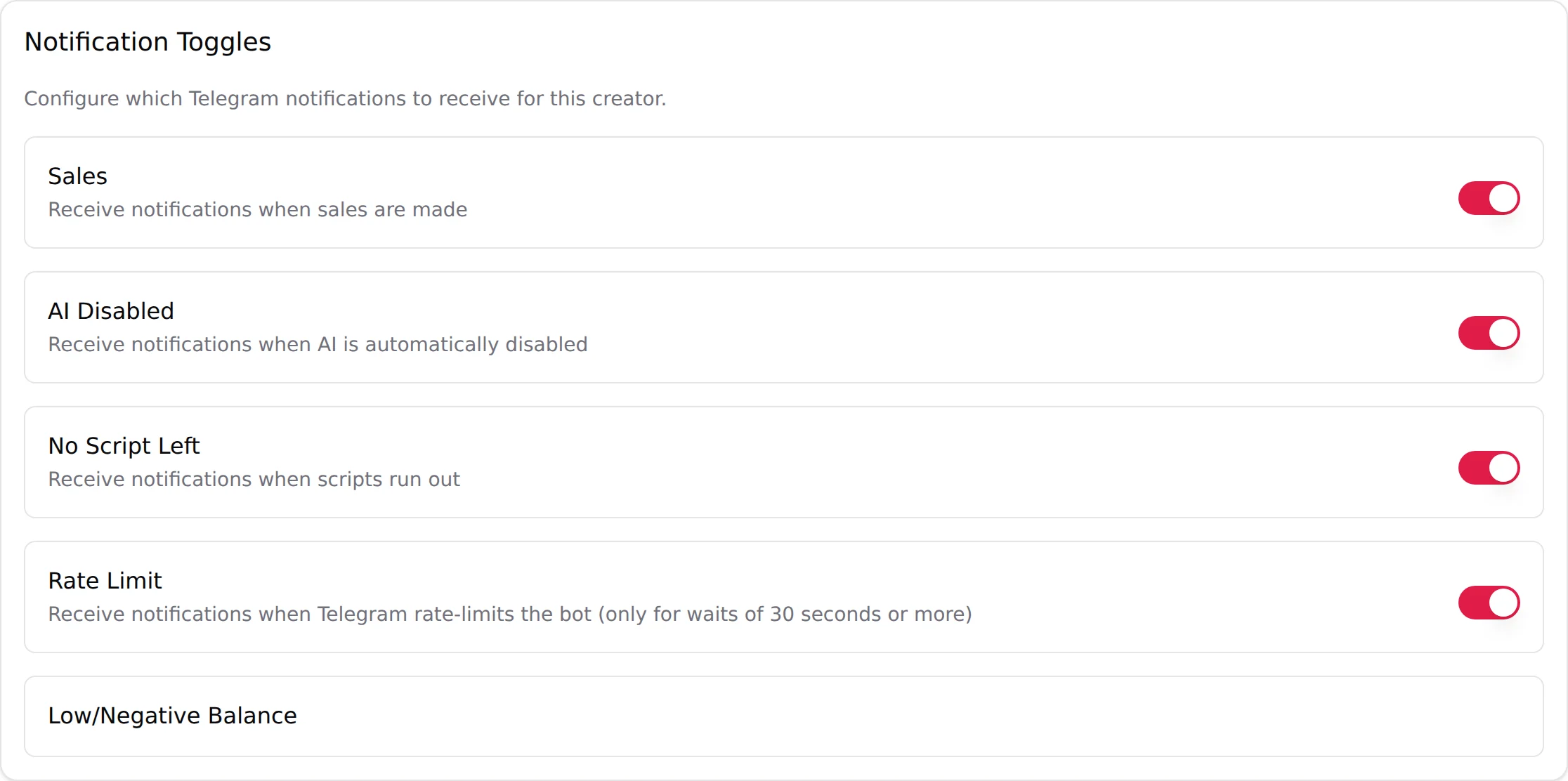
Card text: "Configure which Telegram notifications to receive for this creator." Each switch saves immediately: toast "Telegram notification settings updated!" or "Error updating Telegram notification settings".
| Toggle | Helper text | When it fires | Recommended |
|---|---|---|---|
| Sales | "Receive notifications when sales are made" | Every time a fan pays a step (Stars or Dropp) on this creator. | On for new creators and during script tests; off on high-volume creators if the group becomes unreadable. |
| AI Disabled | "Receive notifications when AI is automatically disabled" | When OnlyChat switches the creator off by itself: fewer than 2 active scripts, license expired, balance gone, business connection lost. | Always on. This is the alert that tells you fans are getting no answer. |
| No Script Left | "Receive notifications when scripts run out" | When a fan has been through every active script and the AI has nothing more to sell him. On Telegram the AI keeps chatting with him, with nothing to sell, for 24 hours, then stops answering him (5 days on an OnlyFans Premium license). | On. Each alert is a fan to serve with a new script or a variation. |
| Rate Limit | "Receive notifications when Telegram rate-limits the bot (only for waits of 30 seconds or more)" | When Telegram asks the bot to wait 30 seconds or more before sending again. Short waits are absorbed silently. | On. Repeated alerts mean too many outgoing messages at once: look at the Re-engagements timeline and the Follow-Up Delay. |
| Low/Negative Balance | No helper, no switch | Balance alerts are configured for the whole organization, not per creator. | See Low balance alerts. |
Custom Alerts
Card text: "Get notified when a fan's new message contains specific keywords". Only the fan's messages are scanned, never what the AI writes. Use it to catch the messages you want a human to read: a request for a custom, a mention of a meeting, a payment problem, a name, a language you do not serve.

Enable Custom Alerts
Helper: "Activate keyword-based notifications". Off, the keyword list is kept but nothing fires.
Keywords
Field "Enter keyword (max 40 chars)" and Add. The list header reads "Keywords (n/200):"; empty state "No keywords added yet. Add keywords above to trigger alerts." Each keyword has a remove button.
Matching is on the fan's new messages, case-insensitive. Validation:
| Message | Cause |
|---|---|
| "Keyword cannot be empty" | Blank entry. |
| "Keyword must be 40 characters or less" | Too long. |
| "This keyword already exists (case-insensitive)" | Duplicate, whatever the capitalisation. |
| "Maximum 200 keywords allowed" | List full. |
What to add: "custom", "meet", "refund", "scam", "police", "video call", the creator's real name if it must never come up, and the same words in the languages of your audience. Keep the list short enough that each alert deserves a look; a keyword like "hi" would page you all day.
What arrives in the group
Each alert lands in the connected group as a message from the notification bot, naming the creator, so one group can serve every creator of the organization. With Topics enabled in the group, alerts are organised by topic. Sales alerts include the amount; keyword alerts quote the fan's message so you can decide whether to pause the AI for that fan and answer from the creator's Telegram.