
On Telegram there is no vault to sync: you upload the creator's photos, videos and audio files into OnlyChat yourself, into folders. Each file gets a description, and that description is the only thing the AI knows about the file when it teases it before a paid step or answers a question about it. Scripts can only attach media from this library. The tab also lets you copy a whole folder from another bot of your organization, which is how you reuse content across creators without re-uploading.
Where to find it
Third tab of the Telegram workspace, or Medias in the Quick access row. Requires the "View Medias tab" permission; uploading and deleting need "Sync medias from creator" and "Delete medias".
Header
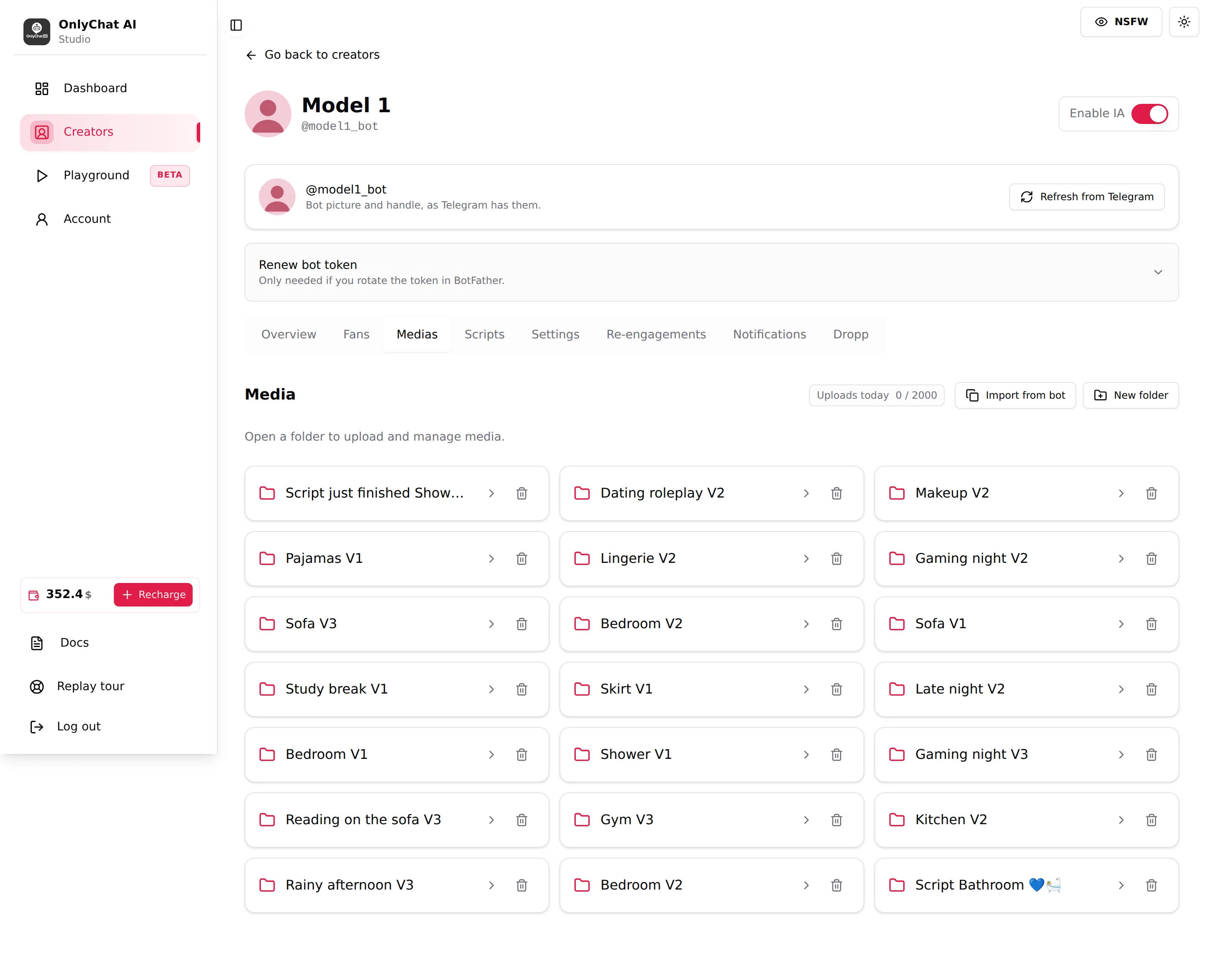
Media
The page title. Under it, the helper "Open a folder to upload and manage media." or, with no folder yet, "No folders yet" and "Create a folder first, then open it to upload media."
Uploads today x / y
Your daily upload allowance for this creator, shared between manual uploads and imports. The counter shown in the interface reads "Uploads today 0 / y" on a fresh day, y being your allowance (2,000 on the creators shown in this guide). When you reach it: "Daily upload limit reached (N/day). Try again tomorrow." When your selection would exceed it: "Only N upload(s) left today. Please reduce your selection."
Import from bot
Opens "Import media from another bot". See below.
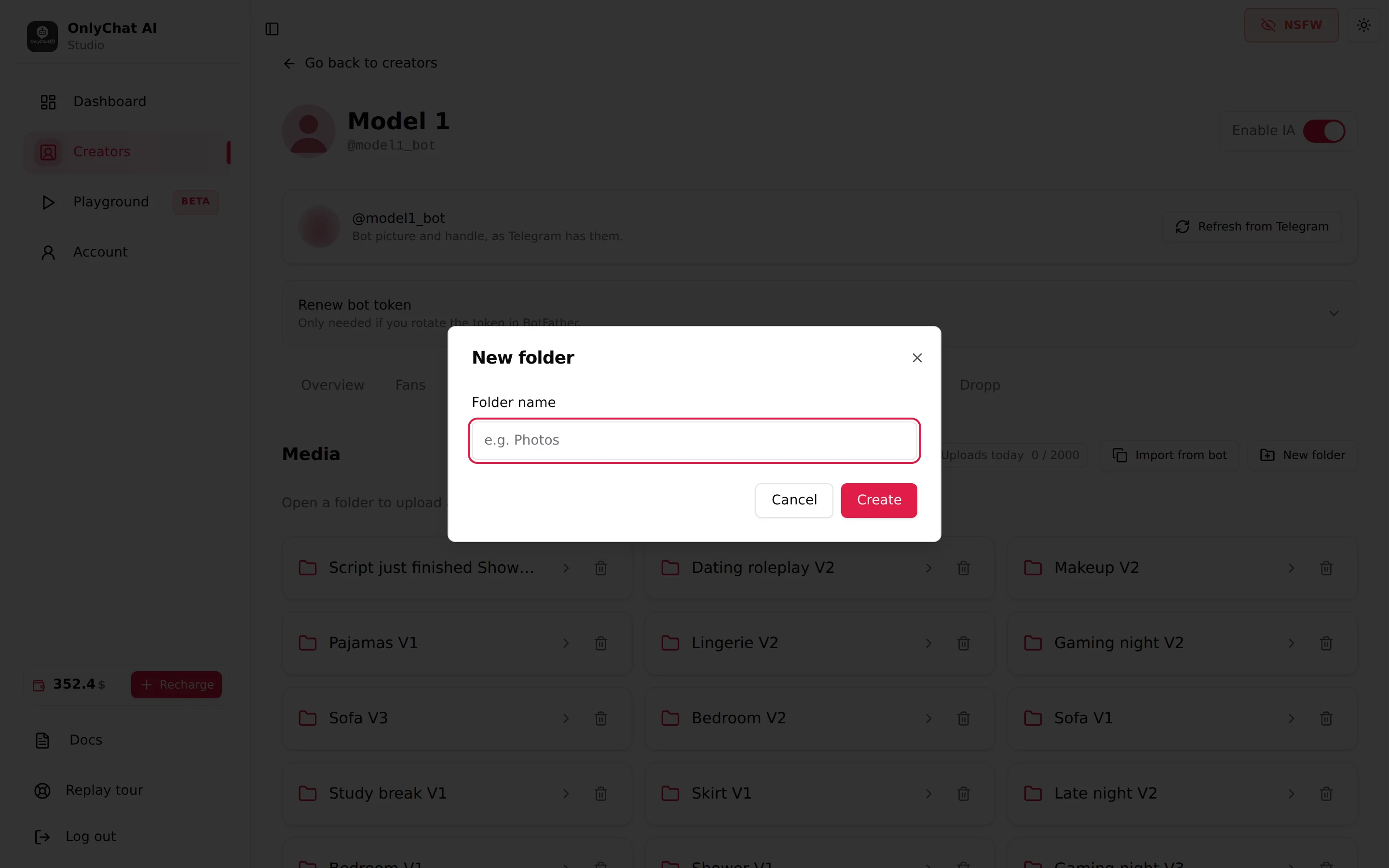
New folder
Modal with the field Folder name (placeholder "e.g. Photos") and Create. Toasts: "Folder created" / "Unable to create folder".
Folders
One card per folder, with its name, an arrow to open it and a trash icon. Deleting a folder shows "Folder deleted" or "Unable to delete folder". Folders are flat: no sub-folders.
Name folders after scripts. The media picker in the script editor has a Filter by folder select, so a folder called "Script: Shower" makes building that script a two-click job. It also makes "Import from bot" and "Import Script" work together, because a script is importable only when all its media were imported first.
Inside a folder
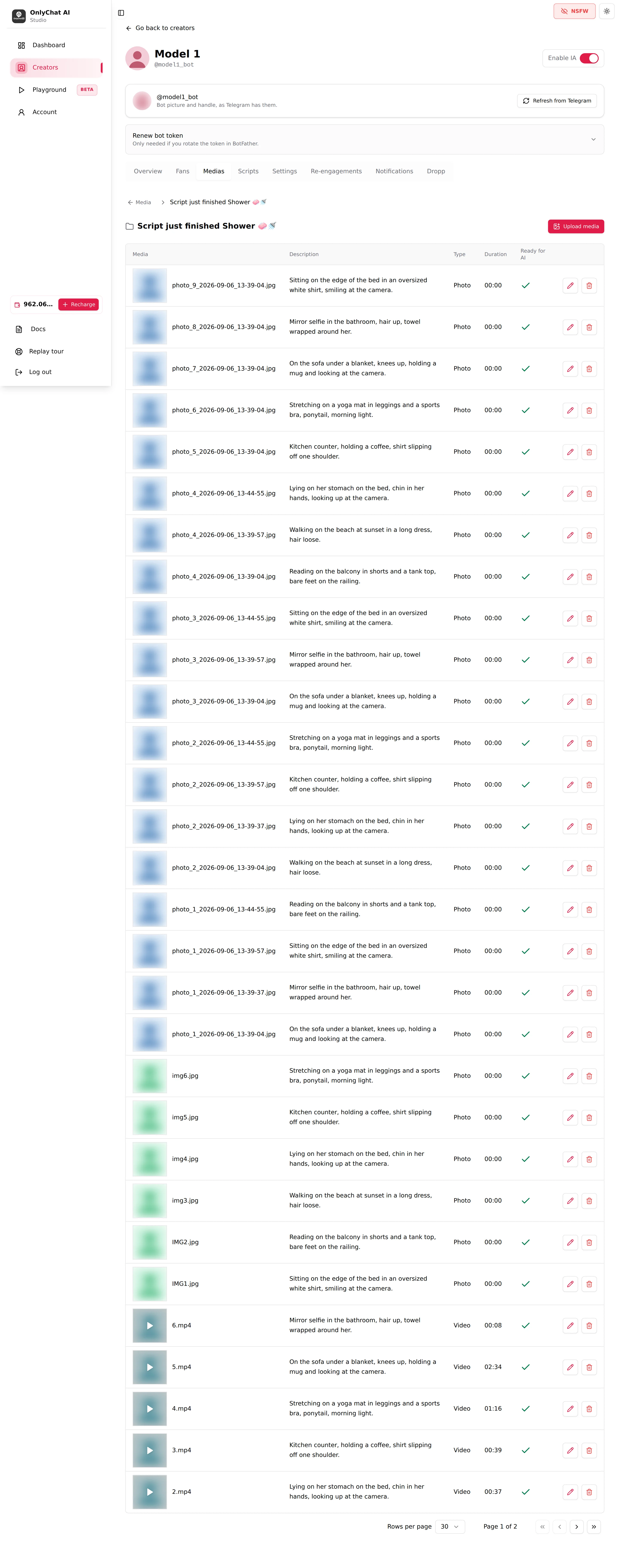
| Column | What it shows |
|---|---|
| Media | Thumbnail and file name ("Unnamed media" if none). Click the thumbnail to open "Media preview"; "Preview unavailable for this media." for formats the browser cannot play. |
| Description | The text the AI reads. "No description" until you write one. |
| Type | Photo, Video or Audio. |
| Duration | mm:ss for video and audio, 00:00 for photos. Used by the "Wait before sending video/audio" step option. |
| Ready for AI | A check mark when a description exists. No check: the file exists but the AI does not know what it is. |
Row icons: pencil opens "Edit media description" (text area "Write a description...", Save; toasts "Description updated" / "Unable to update description"); trash asks "Are you sure you want to delete this media?" then "Media removed". Empty folder: "No media in this folder". Pagination: "Rows per page", "Page x of y".
Statuses while a file is processed
A freshly uploaded row goes through: "Uploading…", "Queue #n", "Converting…", then the states PENDING, PROCESSING, CONVERTING, DONE or FAILED ("Upload failed"). Videos are converted after upload; this can take a few minutes for long files. A FAILED row can be deleted and re-uploaded.
Writing descriptions
The description is what makes a file sellable. The AI never looks at the pixels; it reads your text to tease the file before the price and to answer the fan who asks "what do you do in the video?" after the PPV lands. The AI does not pick media on its own: a file only goes out as the media of a script step you built. Write one or two sentences, in the third person, that say what is visible and what happens: the setting, the outfit or its absence, the action, the mood. Mention the duration for videos. Do not describe the price or the step: prices live in the script. A file without description still goes out with its step, but the AI has nothing to answer a fan who asks what is in it before paying, beyond the PPV caption: if that caption does not say what happens, it invents. Fill every row before activating a script.
Upload media modal
- 1. Terms and conditionsTick "I accept the terms and conditions (CGU/CGE). I confirm that the content I upload is legal and that I have the rights to publish it." Required every time; otherwise "Please accept the terms and conditions".
- 2. FilesChoose file(s). Accepted: JPEG, PNG and WebP images and videos, as the helper says: "Images (converted to JPEG) and videos only". The list shows each file with its size; Clear files empties it. The modal repeats "Uploads today x / y".
- UploadValidation happens before the upload starts (see table). Then "N file(s) queued for upload" and the modal closes.
| Message | Meaning |
|---|---|
| "Please select at least one file" | Nothing chosen. |
| "One or more files exceed the maximum size (2 GB)." / "N file(s) exceed the maximum size (2 GB)." | Per-file cap is 2 GB. Compress or trim the video. |
| "N file(s) ignored. Only images, videos, and audio files are allowed." | Unsupported format (PDF, GIF, archives). |
| "N image(s) converted to JPEG" | PNG and WebP are converted in the browser before upload. "Unable to read image" or "JPEG conversion failed" means the file is corrupt. |
| "Daily upload limit reached (N/day). Try again tomorrow." / "Only N upload(s) left today. Please reduce your selection." | Daily quota. |
The upload tray
Uploads run in the background in a tray at the bottom of the screen: "x/y uploaded", "N file(s) in progress: keep this tab open", and for videos "Converting on the server, this can take a few minutes…". Each file has Retry, Cancel and Remove; Clear completed empties the finished ones.
Import from bot
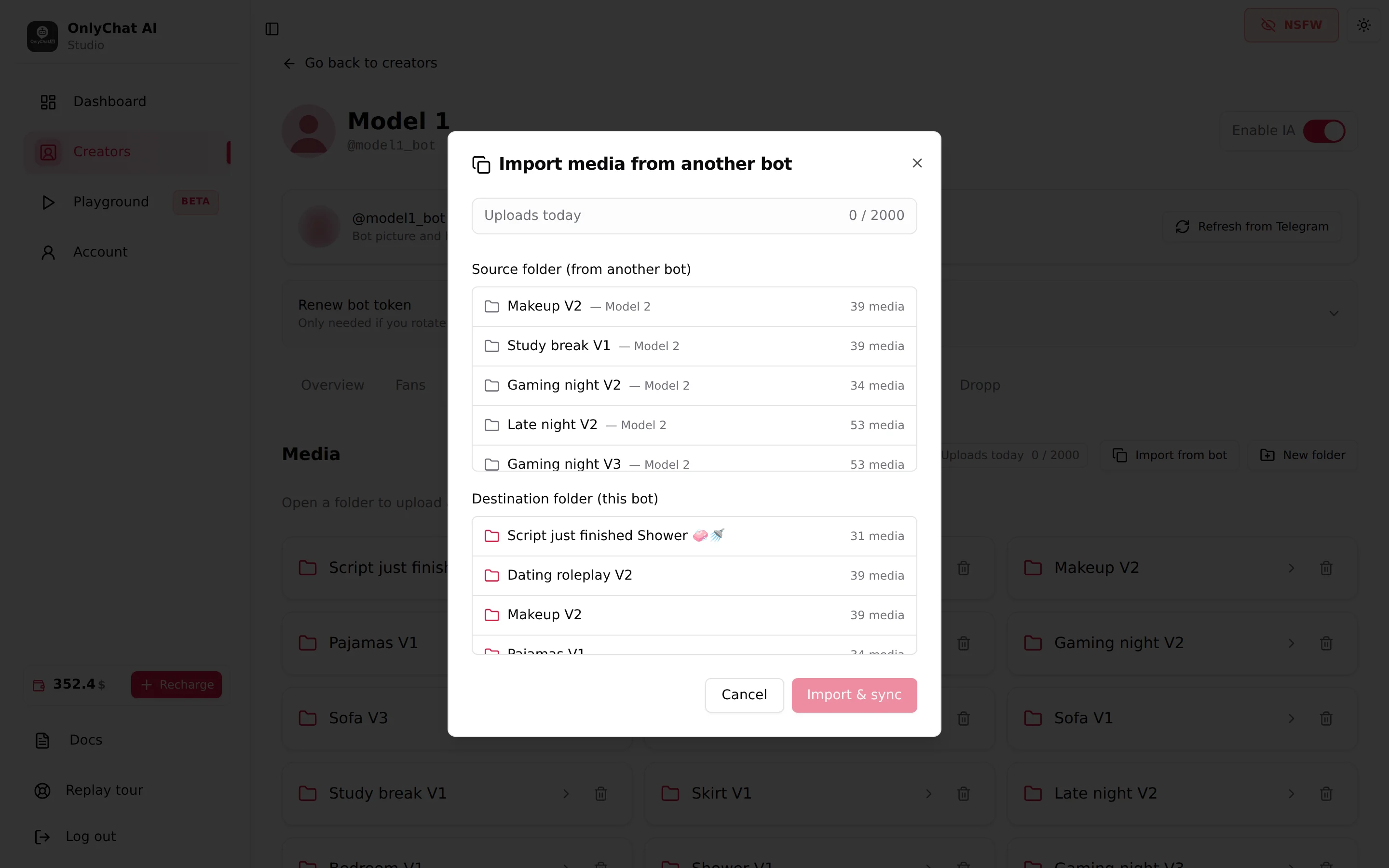
Use it when two creators share content (same model, two bots) or when you move a creator to a new bot.
- Create the destination folder firstThe destination list only shows this bot's folders. Empty state: "Create a folder first before importing."
- Pick a Source folder (from another bot)Every folder of every other Telegram creator in your organization, with its media count. Empty state: "No other bots in this organization have media folders yet."
- Pick a Destination folder (this bot)Where the copies go.
- Click Import & syncResult toasts: "N media imported", "N already present (description synced)", "Nothing to import" or "Import failed". The imported files count against "Uploads today".
"Already present (description synced)" means the file was imported before; only its description was refreshed from the source. Running the import again after editing descriptions on the source bot is the cheapest way to keep two libraries aligned.
Importing media is the prerequisite for Import Script on the Scripts tab: a script from another bot is importable only when all its media exist on this bot. See Import a script.