
A Telegram creator depends on three things you do not fully control: Telegram's sending limits, the creator's account staying in good standing with Premium, and the bot's token staying valid. When one of them fails, fans write and get nothing, and the dashboard shows it in a specific place. This page lists every limit and failure mode, what the interface says, and what to do. Keep the AI Disabled and Rate Limit notifications on so you learn about problems before fans do.
Where the state shows
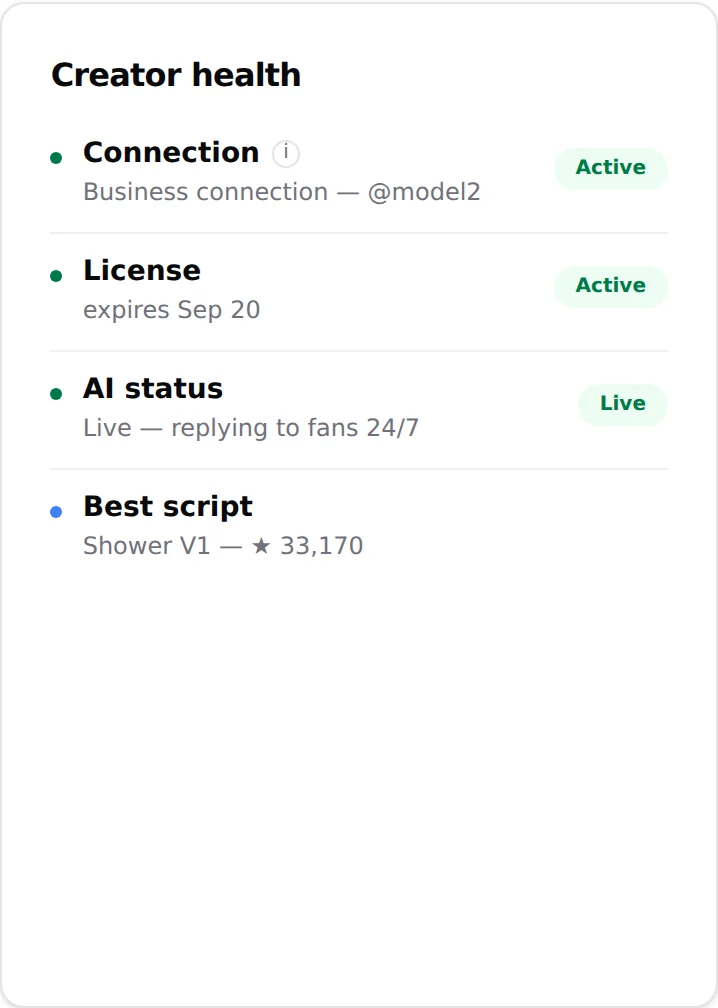
The Overview tab's Creator health card has one line per dependency: Connection, License, AI status. The creator card on the board shows the same in compressed form: "Not connected" badge, "No active license" status, "AI off". The AI switch itself explains what is missing when it refuses.
Telegram rate limits
Telegram throttles bots that send too many messages in a short time. When it happens, the bot has to wait before sending again; OnlyChat queues the messages and sends them when the wait is over. Fans notice a delay, not a silence. For waits of 30 seconds or more, the Rate Limit notification fires ("Receive notifications when Telegram rate-limits the bot (only for waits of 30 seconds or more)").
What increases the risk:
- Many re-engagement checkpoints at the same hours for thousands of fans. Space the checkpoints and keep them to what converts. See Re-engagements.
- A very short Follow-Up Delay in Settings, Behavior, on a busy creator.
- Split long AI messages into multiple bubbles on, which multiplies the number of sends. The helper suggests it: "Disable this if you're seeing slowdowns or missed replies during high traffic."
- Bulk "Enable AI for all" on a creator with a large backlog of unanswered fans.
What to do when alerts repeat, in this order: first turn Split long AI messages into multiple bubbles off on that creator (Settings, Behavior); it is the fastest way to cut the number of sends. Then lengthen the delays and reduce checkpoints. If the alerts keep coming with splitting off, the creator has outgrown one bot: create another bot in BotFather on a second Telegram account and add it as a new creator. Which fans land on which account is up to your own marketing (the handle you put on your social profiles, your channel, your links). The limit is per bot, and the rule is one bot per Telegram account: never connect two creators to the same bot, and never one creator to two bots.
"No business connection"
The business connection is the link between the creator's Telegram Business account and your bot. Without it the bot cannot read or send anything on the creator's account. The interface shows it in four places:
| Where | Text |
|---|---|
| Creator card | Badge "Not connected" |
| Overview, Creator health | "No business connection: the bot can't reply" |
| AI switch | Dialog "No Business Connection: You cannot enable AI for this Telegram creator because it does not have an active business connection. Please connect a Telegram Business account first." |
| Setup page, after Verify | "No business connection detected: OnlyChat hasn't received a business connection event yet…" |
Causes, most frequent first:
- The creator's account has no public username (Settings, Username). Without one the connection is never detected; set it, then unlink and relink the bot.
- The permissions screen was never left after enabling the five permissions (Telegram sends the event when you go back).
- The bot was disconnected in the creator's app (Settings, Telegram Business, Chatbots).
- Telegram Premium expired on the creator's account. Telegram Business, and the Chatbots feature with it, stops.
- The bot's token was revoked in BotFather and never renewed in OnlyChat.
- The creator's account was restricted or deleted by Telegram.
Fix in the same order: set a username then unlink and relink the bot, toggle a permission off and on and go back, reconnect the bot, renew Premium, paste the new token in Renew bot token, or connect a new creator account to the same bot. Then click Verify business connection on the setup page. Full walkthrough in Telegram setup and Telegram connection issues.
Token rotation
The token is the key to the bot. Rotate it when it may have leaked or when someone who knew it leaves the team. Revoke in BotFather (API Token, Revoke current token), then immediately paste the new one in the Renew bot token panel and click Save new token & reconnect webhook. Between the two actions the bot is dead; do both in the same minute. Details and errors in Overview and bot token.

Protecting the creator's account
- Two accounts. The bot is owned by an account you keep private; the creator's account is the exposed one. If the creator's account is lost, the bot and its scripts, media, fans and settings in OnlyChat survive; connect a new creator account and verify again. The fans do not move with it: they keep writing to the lost account, so update the links on your posts and profiles to the new one.
- Premium must not lapse. Put the Premium renewal date in the same calendar as the OnlyChat license. Both stop the AI when they expire.
- Do not chat from the creator's account while the AI is on for that fan. Two writers in one conversation confuse the fan. Pause the fan first on the Fans tab. See Human takeover.
- Content rules. The upload modal makes you confirm "I confirm that the content I upload is legal and that I have the rights to publish it." Telegram enforces its own terms on the creator's account; what the AI sends is sent by that account.
- Do not write anything unlawful in Custom strategies. The "Switch to Custom?" dialog says it: you become fully responsible for what the AI says.
OnlyChat-side limits on Telegram
| Limit | Value shown in the interface | Where |
|---|---|---|
| Scripts to enable the AI | At least 2 active scripts | AI switch dialog "Not Enough Scripts" |
| Re-engagement checkpoints | 1 h to 23 h after the last fan message, max 4 | Re-engagements tab |
| Additional info | 6,000 characters, older text kept in an archive | Settings, Add infos |
| Media file size | 2 GB per file | Upload media modal |
| Uploads per day | "Uploads today x / y" counter; 2,000 on the creator shown in the screenshots | Medias tab header |
| Media formats | JPEG, PNG, WebP (converted to JPEG), video, audio | Upload media modal |
| Free video sent as a bubble | 60 seconds or less | Step card, Send as bubble |
| Custom alert keywords | 40 characters each, 200 per creator | Notifications tab |
| Custom strategy instructions | 3,000 characters per phase (KYC targets 500, KYC instructions 2,500) | Settings, Strategies |
| Response delay / Follow-up delay | 1 to 15 minutes / 2 to 30 minutes | Settings, Behavior |
What switches the AI off by itself
OnlyChat turns a creator's AI off, and sends the AI Disabled notification, when:
- active scripts drop below 2 ("Script deactivated. AI has been disabled because you have less than 2 active scripts.");
- the license expires with Renew off ("Off, the creator goes offline on the expiry date.");
- the balance is no longer positive;
- the business connection is lost.
Turning it back on is the same switch, once the cause is fixed. See Turn the AI on.