
The Fans tab lists every Telegram user who has written to the creator's account since the bot was connected. One row per fan, with what they spent, how far they are in your scripts, when they last wrote, and a switch that decides whether the AI answers them. Clicking a fan opens the conversation as the AI sees it, read-only, with a note field for anything you want the AI to remember about this person.
Where to find it
Second tab of the Telegram workspace, or Fans in the Quick access row of the card. Requires the "View Fans tab" permission.
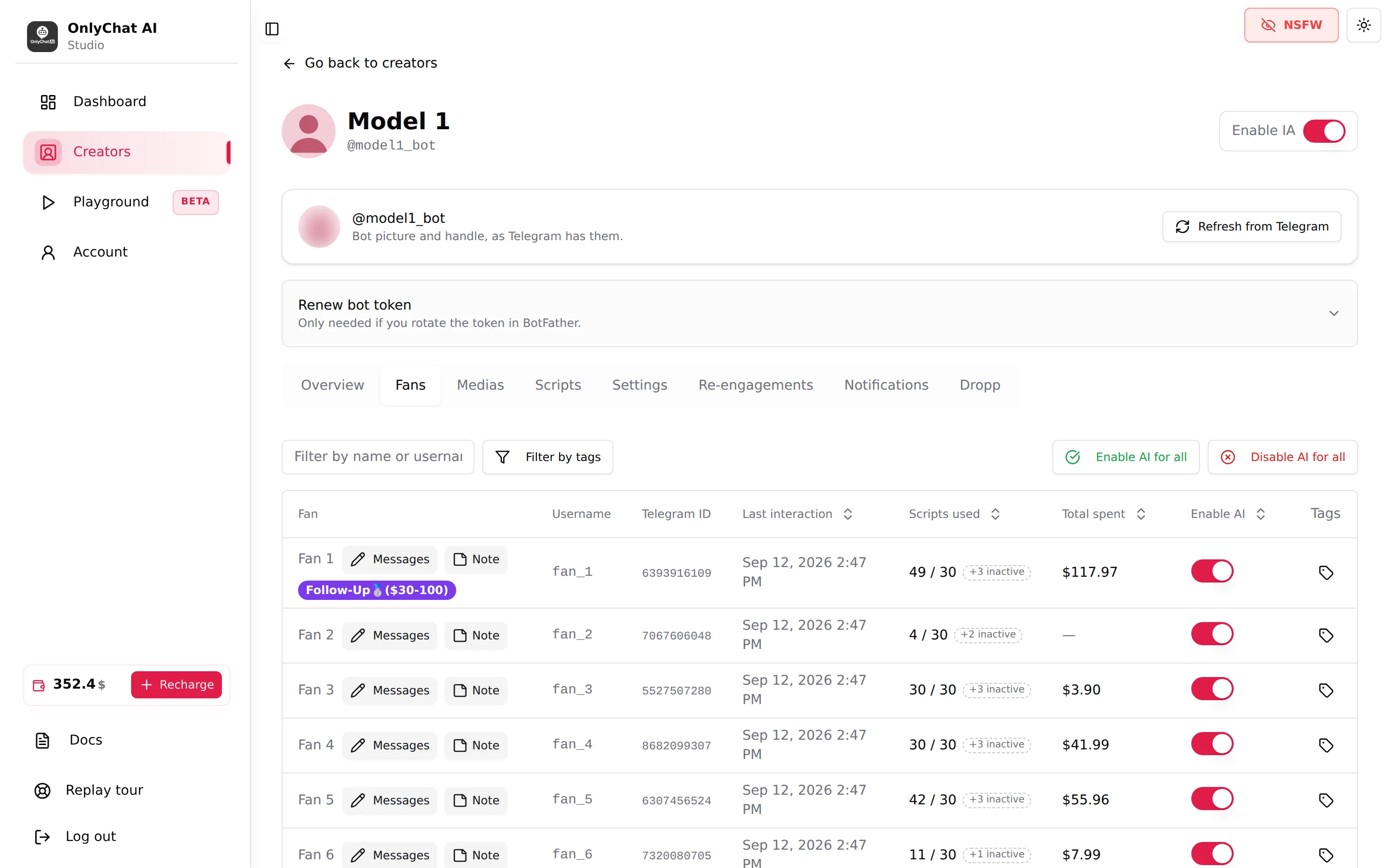
The toolbar
Filter by name or username...
Type part of the fan's display name or Telegram username. The table filters as you type.
Filter by tags
Shows only fans carrying the tags you pick ("All fans" by default). Tags are yours: the AI does not read them. See Tags.
Enable AI for all / Disable AI for all
Both open a confirmation: "Enable AI for all Telegram fans?" or "Disable AI for all Telegram fans?", with the note "This will update AI status for all fans of this creator immediately." Toast: "AI enabled for N fan(s)" or "AI disabled for N fan(s)"; on failure "Failed to update AI status".
Use Disable AI for all when you want to freeze every conversation without switching the creator off (for example, while you rewrite the scripts). Use Enable AI for all after a period of manual handling, to hand everyone back to the AI at once. Fans you had deliberately paused will be re-enabled too: note them first.
The table
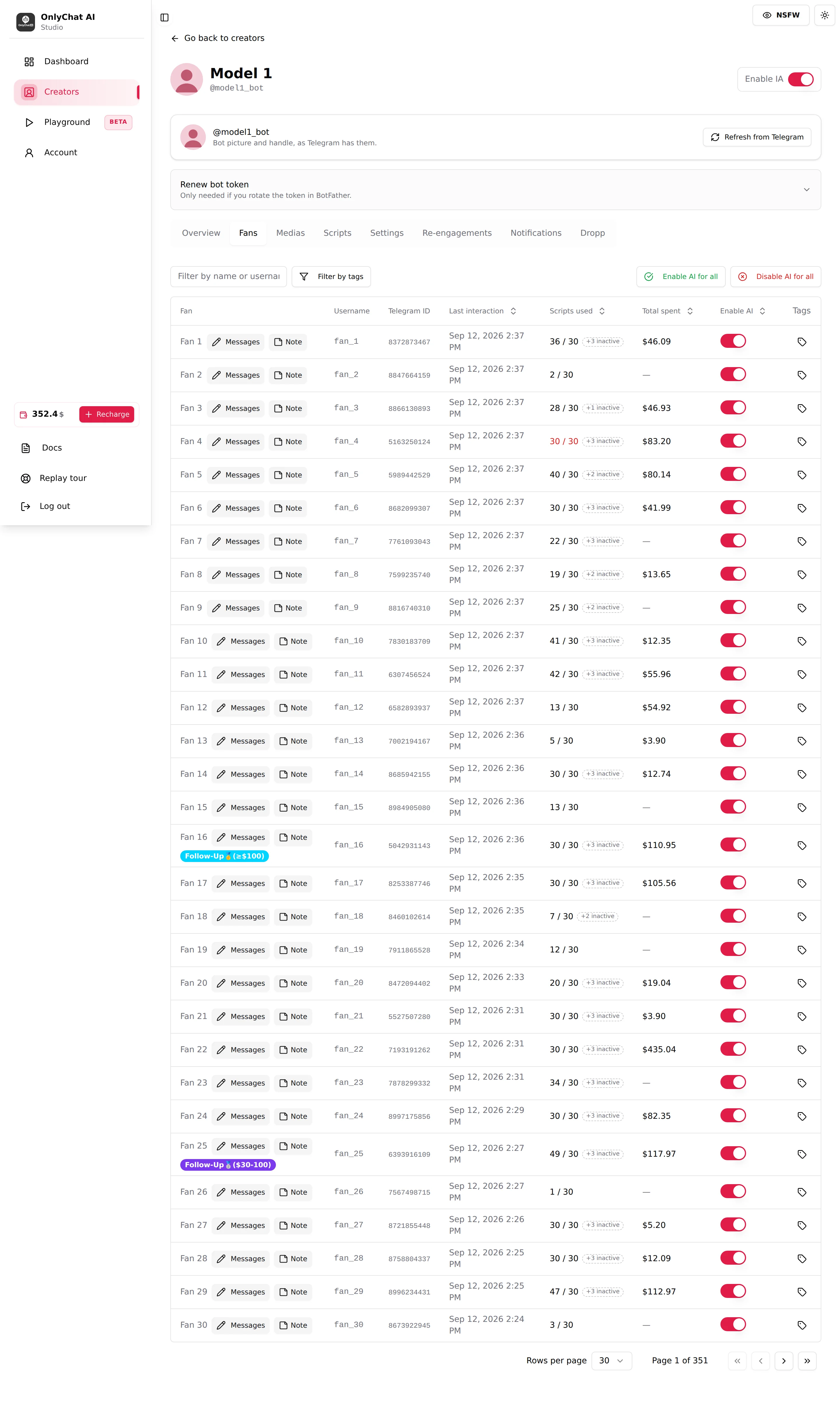
| Column | What it shows | Why it matters |
|---|---|---|
| Fan | The fan's Telegram display name, or "Fan #[telegramFanId]" when Telegram gives none. Under it, two buttons: Messages (opens the conversation) and Note (opens the note modal). Tag badges appear under the name. | Names are what the AI uses in conversation; the fallback tells you Telegram has no name for this user. |
| Username | The @username, without the @. Empty when the fan has none. | Lets you find the fan in the creator's Telegram app when you take over. |
| Telegram ID | The numeric Telegram user ID. | Stable identifier; usernames can change, IDs cannot. Useful when reporting a problem. |
| Last interaction | Date and time of the last message in either direction. Sortable. | Sort descending to see who is active right now; sort ascending to find fans who went quiet before the re-engagement window. |
| Scripts used | "x / y": scripts already sent to this fan out of the scripts currently active. A "+N inactive" pill counts scripts sent since deactivated (tooltip: "N further script(s) already sent to this fan, since deactivated"). Turns red when x equals y. | Red means the fan has seen every active script: the AI has nothing new to sell. Add or import a script, or create a variation. This is also what triggers the "No Script Left" notification. |
| Total spent | Dollar value of everything this fan paid, or a dash when nothing. | Your VIP list. Sort descending before deciding which fans deserve manual attention. |
| Enable AI | Per-fan switch. Needs "Toggle AI for individual fans". | Off: the AI ignores this fan; the creator's Telegram receives the messages normally and you can answer by hand. On: the AI answers. |
| Tags | Tag icon opening "Manage Tags for [fan]". | Organise fans (VIP, time-waster, handle by hand). The AI does not read tags. |
Empty state: "No Telegram fans found yet." Pagination at the bottom: "Rows per page" (30 by default) and "Page x of y".
When to switch the AI off for one fan
- The fan asks for something the AI must not handle (a custom, a meeting, a refund).
- The creator wants to talk to this person herself.
- The fan is a known time-waster and you would rather not spend on replies.
Switch off, handle the chat from the creator's Telegram app, then switch on again. While the switch is off, the AI does not send re-engagement messages to this fan either. See Human takeover and Enable AI per fan.
The conversation page
Click Messages on a row (route /creators/telegram/[id]/follows/fan/[fanId]).
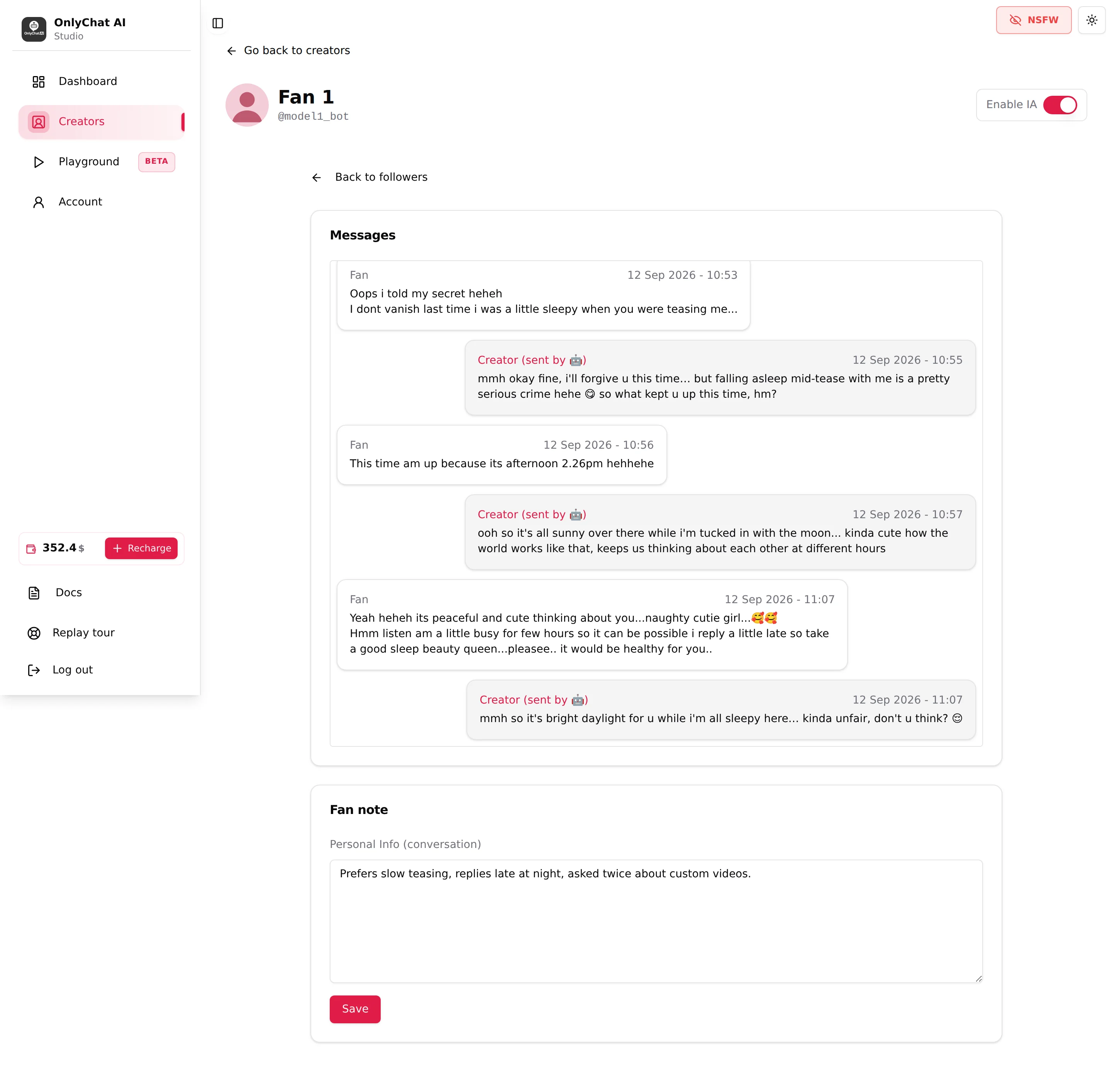
Messages
Each bubble is labelled "Creator" or "Fan". Creator messages sent by the AI carry "(sent by" followed by the robot icon. Timestamps read "DD MMM YYYY - HH:mm". Media appear as "N media file(s)" and paid steps show "Price: N". Scroll up to load older messages; the list ends with "No more messages." If loading fails: "Failed to load messages."
There is no composer on Telegram: you cannot write to the fan from this page. To answer yourself, switch Enable AI off for the fan and use the creator's Telegram app.
Fan note
Card "Fan note", label "Personal Info (conversation)", a text area (placeholder "Notes sur ce fan…") and Save ("Saving…"). Toasts: "Note enregistrée" on success, "Échec de l'enregistrement de la note" on failure (both in French in the current version).
Write what the AI should know and reuse about this fan: first name if he gave it, city, job, what he already bought, what he asked for, what annoys him. Keep it factual and short; the note is read by the AI when it answers this fan. Do not put instructions about pricing here; prices come from the scripts.
The same note is reachable from the Note button on the Fans table, in the modal "Note for [fan]" with the field "Personal Info" and the placeholder "Add personal notes about this fan...". Toasts: "Note saved successfully" / "Failed to save note". See Fan notes.