
The AI replies from the creator's own account, 24 hours a day, and closes most sales without anyone watching. Some conversations still deserve a person: a fan asking for a custom that no script covers, a big spender who wants a call, a refund threat, a fan who noticed something odd. Taking over means two things: stopping the AI for that one fan so the two of you do not talk at the same time, and writing yourself. How you write depends on the platform: OnlyFans has a composer inside OnlyChat; Telegram does not, you reply from the creator's Telegram app. This page covers both, plus the way back.
When to step in
| Signal | Where you see it | What a person does better |
|---|---|---|
| A fan asks for a custom, a call, a meet, a payment outside the platform | Custom Alerts keywords in your Telegram group ("custom", "call", "paypal"...), see Telegram alerts | Quote a price, collect the brief, deliver. |
| A fan has seen every script | Scripts used counter red in the Fans tab; No Script Left alert | Sell something the scripts do not have, then add a variation for next time. |
| A refund, chargeback or report threat | Keyword alert ("refund", "scam", "report") | De-escalate and decide. |
| A high spender goes quiet | Dashboard, Fans tab (Total spent on Telegram) | A personal message that the AI would not write. |
| The AI said something off | Reading the conversation | Correct it in the creator's voice, then fix the Settings or the script. |
Do not step in for ordinary selling: the AI's unlock rate is the benchmark, and a person interrupting a script mid-ladder usually lowers it.
OnlyFans: pause the fan, then write
Step 1: switch the AI off for that fan only
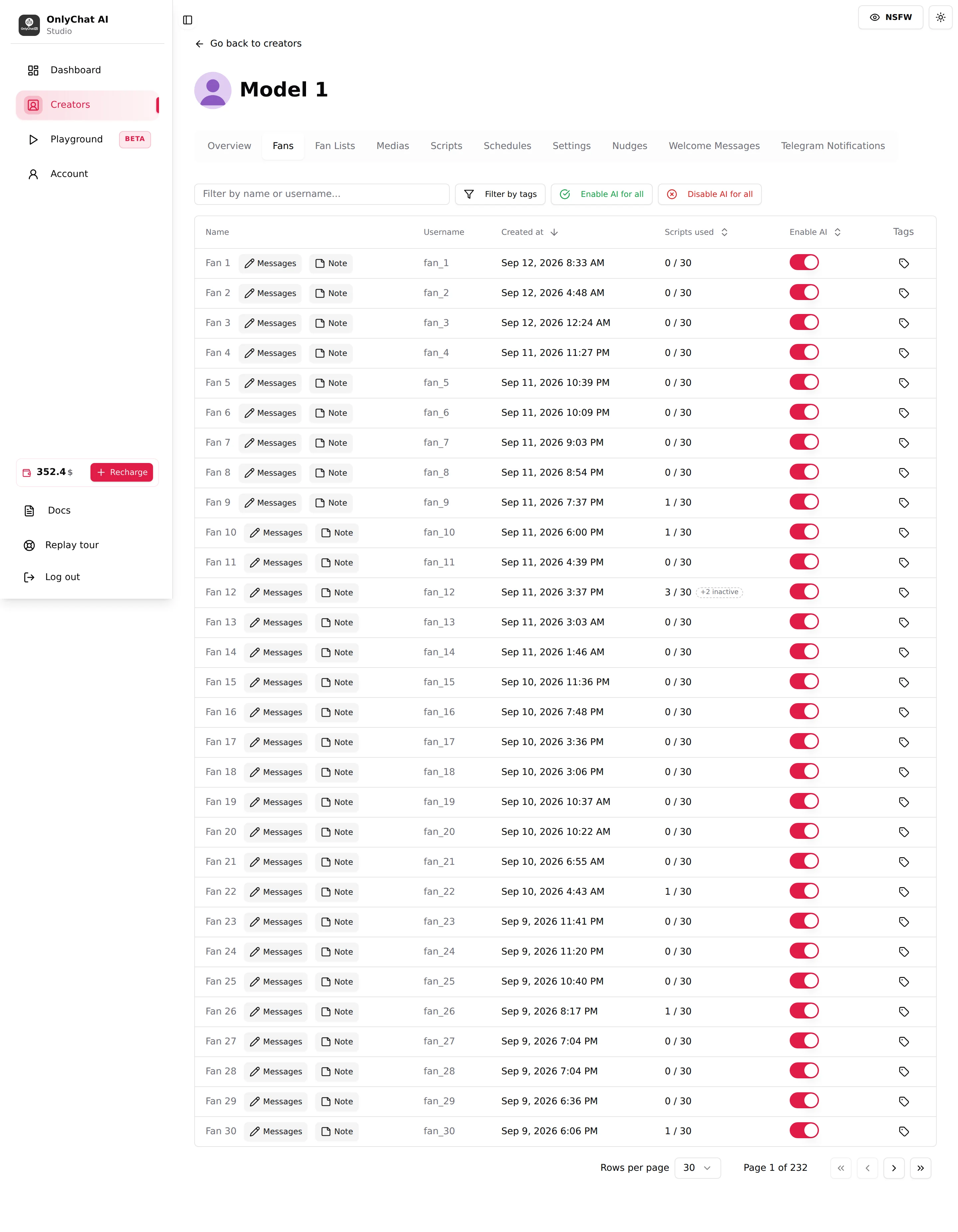
Fans tab, column Enable AI: the per-fan switch (permission Toggle AI for individual fans). Turning it off stops the AI for this fan and nobody else; the creator-level AI switch stays on. The bulk buttons Enable AI for all / Disable AI for all are for the whole list, not for a takeover.
Writing from the composer does not pause the AI. Two different situations, two different moves:
- You want to add one message in the middle of a conversation (a precision, a personal touch, an answer the AI could not give): just write it, with the AI on. The AI keeps the conversation going, reads your message as if it had written it itself, and carries on from there without losing the thread.
- You want to take the conversation over completely: switch the fan's Enable AI off in the Fans tab first, then write. If you leave the AI on, it keeps replying to the fan alongside you.
Step 2: open the conversation
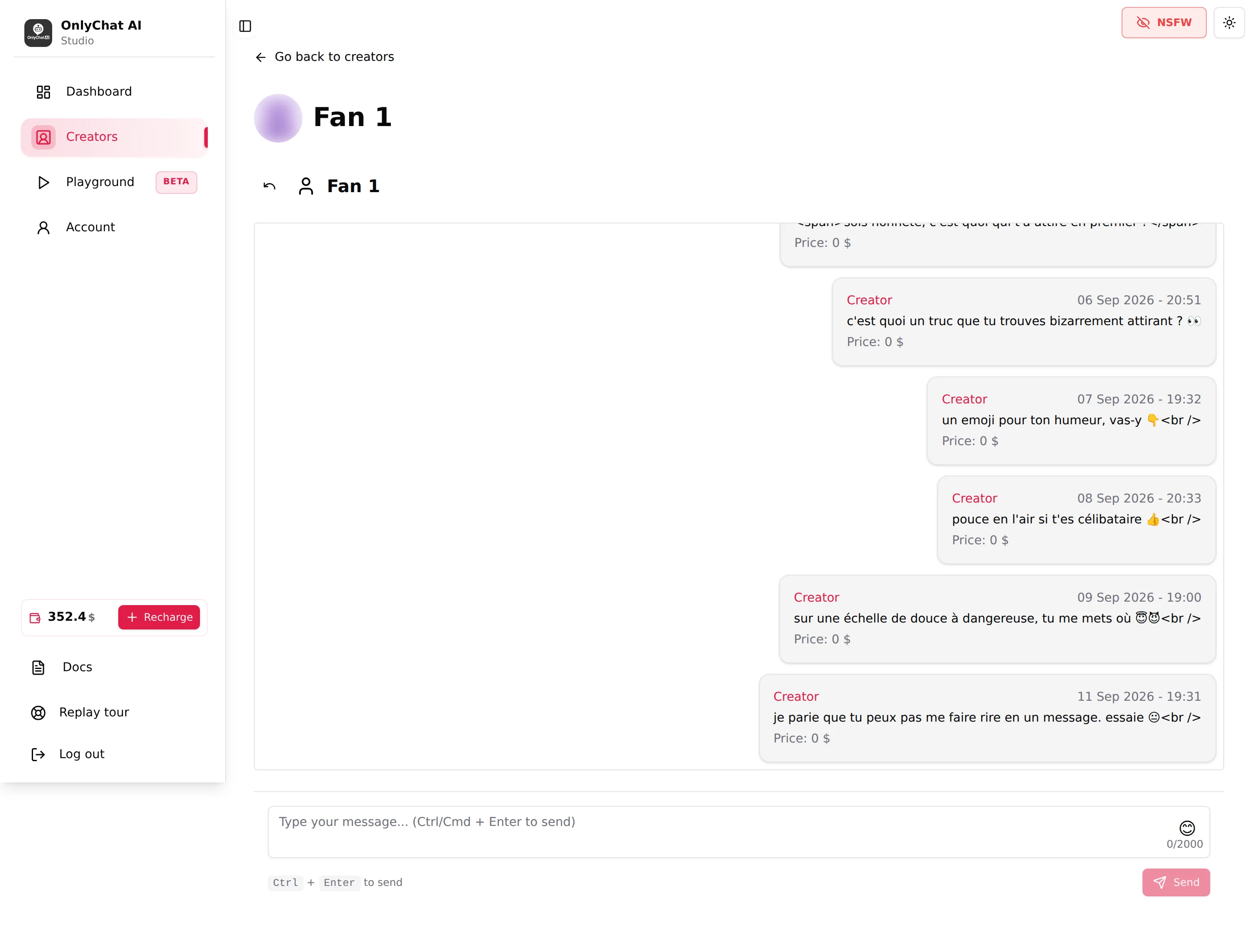
Click the row. The conversation page shows the messages with Creator or Fan, a robot mark on messages the AI sent, the timestamp, "N media file(s)" and "Price: N $" on paid messages. Sync last 50 msgs appears when the conversation is not synced yet; it pulls the recent history ("Messages synchronized successfully!").
Step 3: write from the composer
Textarea "Type your message... (Ctrl/Cmd + Enter to send)", emoji picker ("Add emoji"), counter "n/2000", hint "Ctrl + Enter to send", button Send ("Sending..."). Toasts "Message sent successfully!" / "Failed to send message. Please try again." Permission Send messages to fans.
The message goes out from the creator's OnlyFans account, exactly as if typed on OnlyFans. Text only: to send a paid media, use OnlyFans itself. A sale you close that way counts in "Revenue (7d), All sales, AI and manual" on the Overview tab but not in "AI revenue". It escapes commission only if the AI had been off for that fan for more than 30 minutes: a PPV sent while the AI is still running the conversation, or within 30 minutes after you switched it off, is an AI sale (anti-fraud rule). This zero case is OnlyFans only, because the human sells through OnlyFans directly. On Telegram a PPV you send by hand with Send a PPV by hand still leaves through the bot, so it always carries commission, 15% or a reduced 4%, see Plans and commission.
Step 4: hand back
Turn the fan's Enable AI switch on again. The AI reads everything that was exchanged while it was off, including what you wrote, and continues from there. If the fan told you something the AI should know, put it in the fan Note (Premium), see Fan notes and tags.
Telegram: pause the fan, reply from Telegram
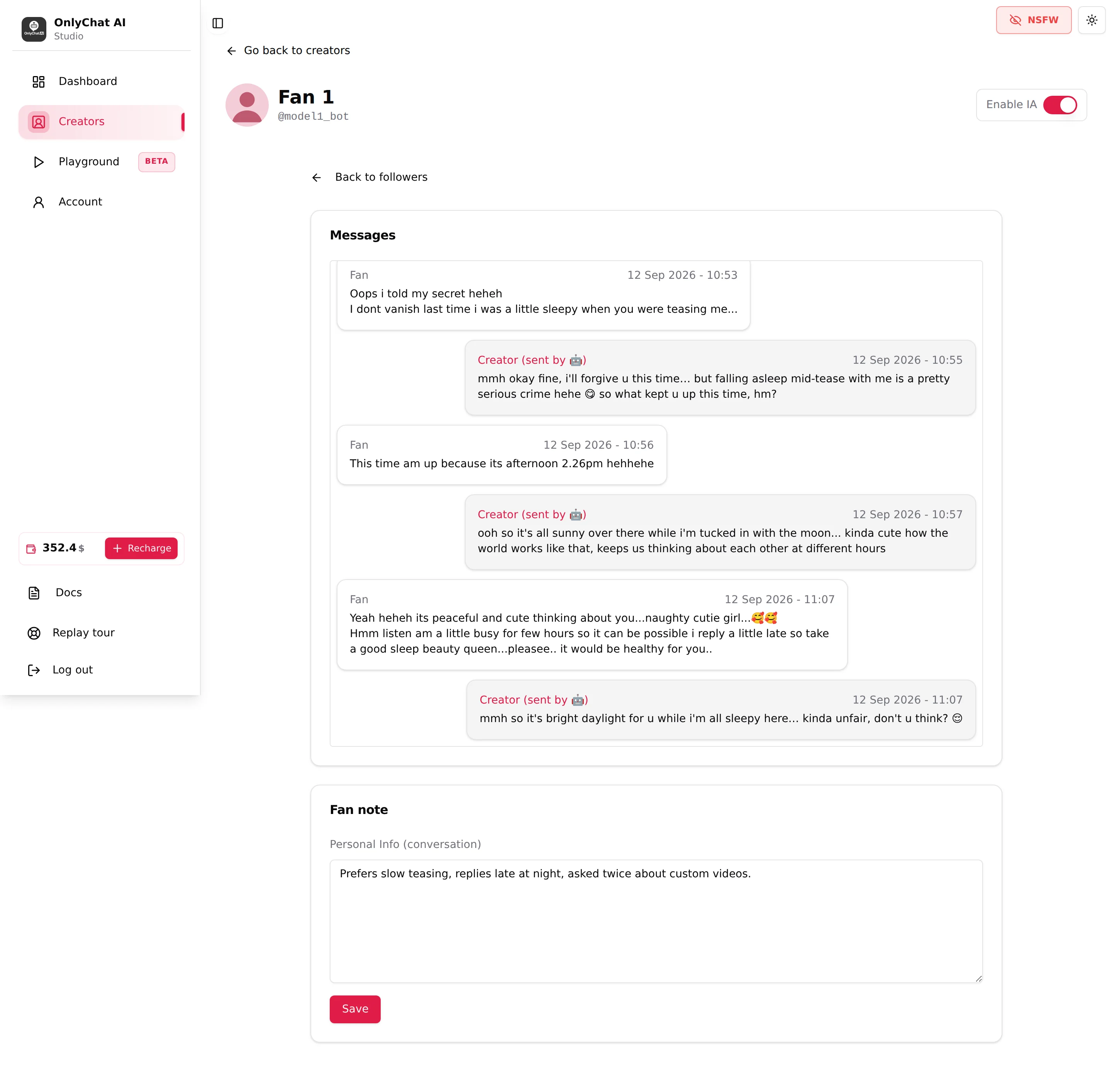
The Telegram conversation page is read-only: the Messages card shows the history (Creator / Fan, AI mark, price) and the Fan note card ("Personal Info (conversation)", Save), but there is no composer.
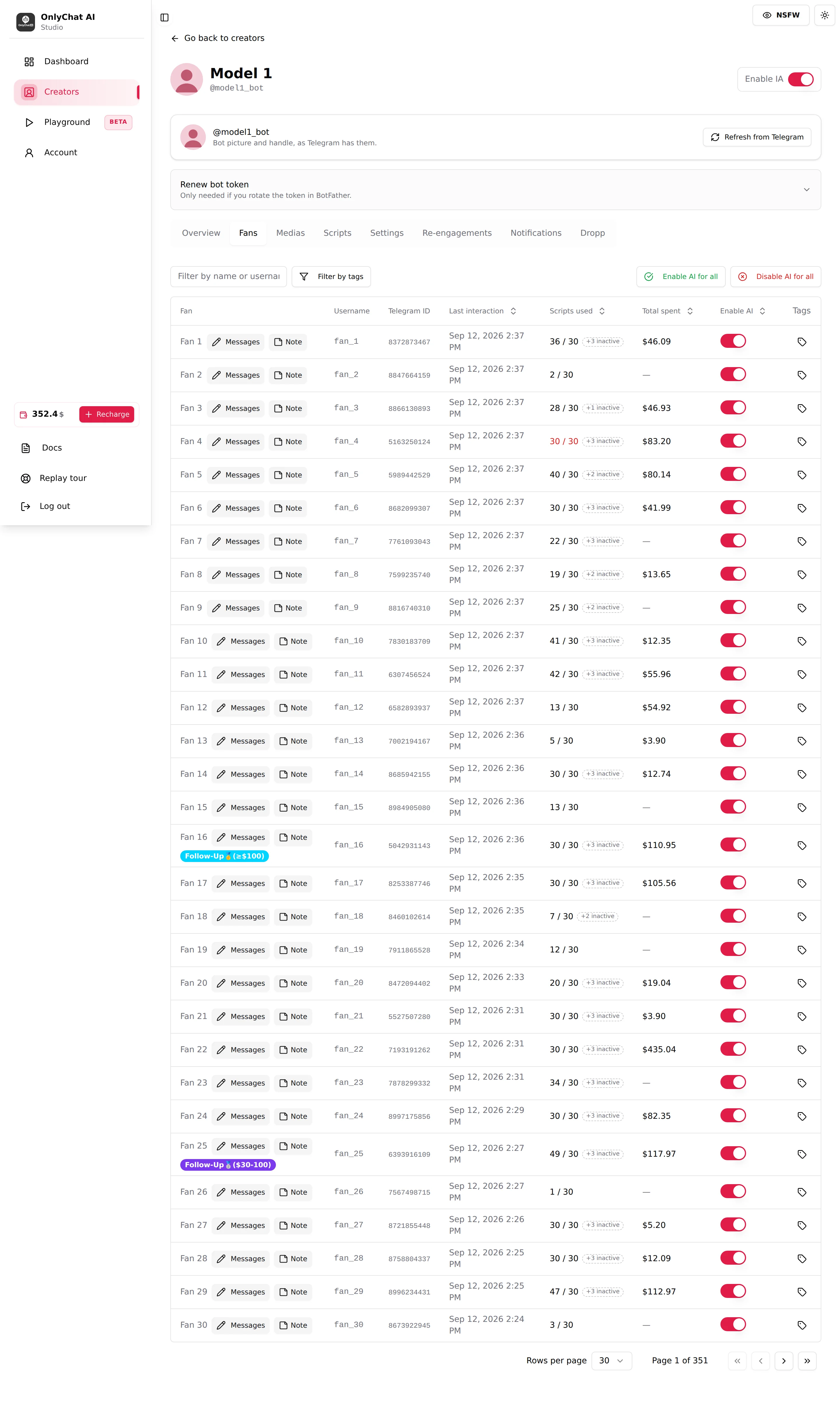
- Switch the AI off for the fanFans tab of the Telegram creator, column Enable AI, switch off on the fan's row. The Telegram ID and username columns help find the right person.
- Reply from the creator's Telegram accountOpen the chat in the Telegram app signed in as the creator (the account connected through Telegram Business). Your message is a normal message from the creator; the fan sees no difference.
- Sell through scripts, not by handPaid content in Stars is sent by the AI inside a script step. A manual reply is text or free media; if the fan wants to buy, hand back to the AI on a script that has what they want, or add one.
- Write the note and hand backSave what you learned in the Fan note, then switch Enable AI on again.
Pausing the whole creator
For an incident (the AI misbehaving on many fans, a media that should not have been sent), use the creator-level AI switch on the card or in the workspace header. The AI stops replying for every fan of that creator. Re-enabling requires a positive balance, at least two active scripts, an active license and, on Telegram, the business connection. Schedules can also turn the AI off outside a timeslot, see Schedules.
Good to know
- Permissions for a chatter: View creators, View Fans tab, Send messages to fans, Toggle AI for individual fans, View and Edit fan notes. See Members and roles.
- Tag the fan (Premium): a "Manual" tag with Filter by tags lets you list every fan currently handled by a person.
- "Flag a bad answer" is mentioned in a tour but not present on the conversation page; report bad answers to the team with the creator name, the fan and the time, see Contact the team.
- Playground: to test what the AI would answer before you hand back, use the Playground with the same creator, see Playground.
- French labels on the Telegram note card ("Notes sur ce fan…", "Note enregistrée") are cosmetic; the note works the same.