
The creator switch turns the AI on for everyone; the Enable AI switch on a fan's row turns it off for that one fan while the rest of the inbox keeps running. Use it to take a conversation over yourself, to protect a fan who should never be sold to by the AI, or to park a problem case. The bulk buttons in the toolbar flip every fan of the creator at once, with a confirmation.
Where to find it
Open the creator, click Fans. The Enable AI column holds one switch per row. Flipping it needs the "Toggle AI for individual fans" permission.
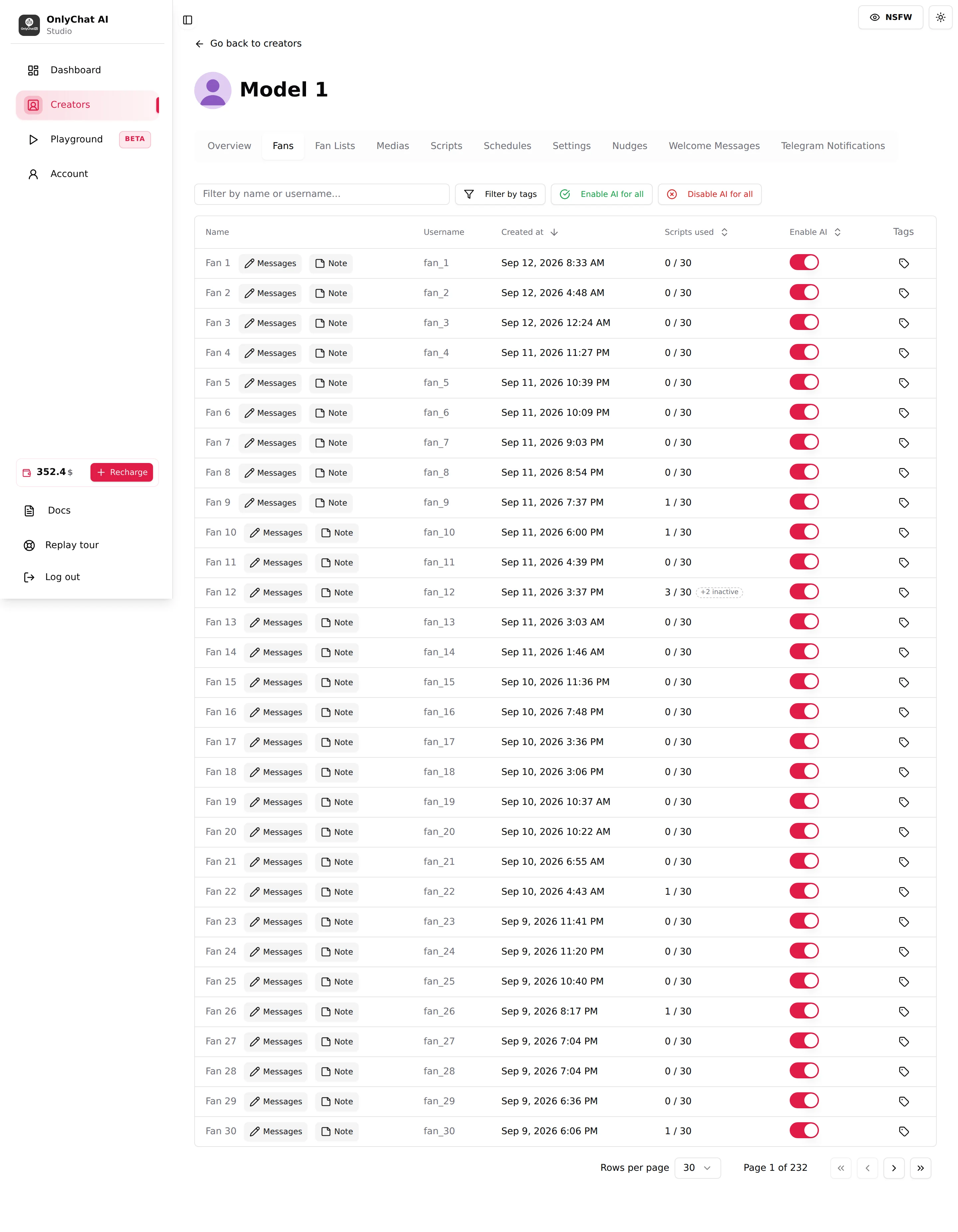
The per-fan switch
| State | What the fan experiences |
|---|---|
| On | The AI answers him whenever the creator's AI is on (and, on OnlyFans, whenever he passes the fan lists). |
| Off | The AI never writes to him. His messages arrive and stay unanswered until you answer yourself or turn the switch back on. He still counts in the table and keeps his Scripts used, notes and tags. |
The switch saves immediately; there is no Submit. Sorting the column groups the paused fans together, which is the fastest way to review who is paused and why.
The switch is the fan-level half of a two-level rule: a fan gets automatic replies only when the creator switch is on and his own switch is on. Turning a fan on does nothing while the creator is "AI off". See Enable the AI.
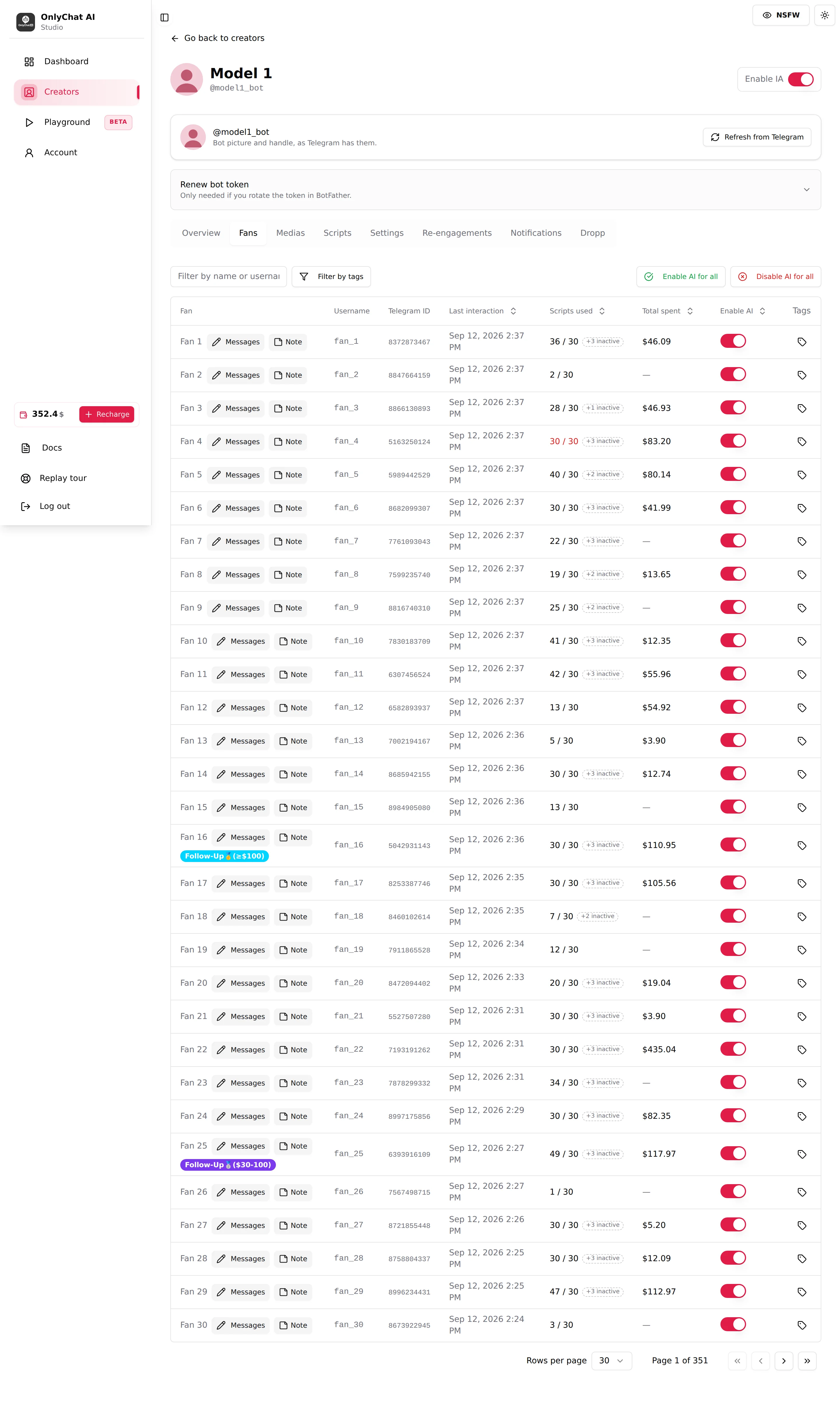
Enable AI for all / Disable AI for all
Two buttons on the right of the toolbar.
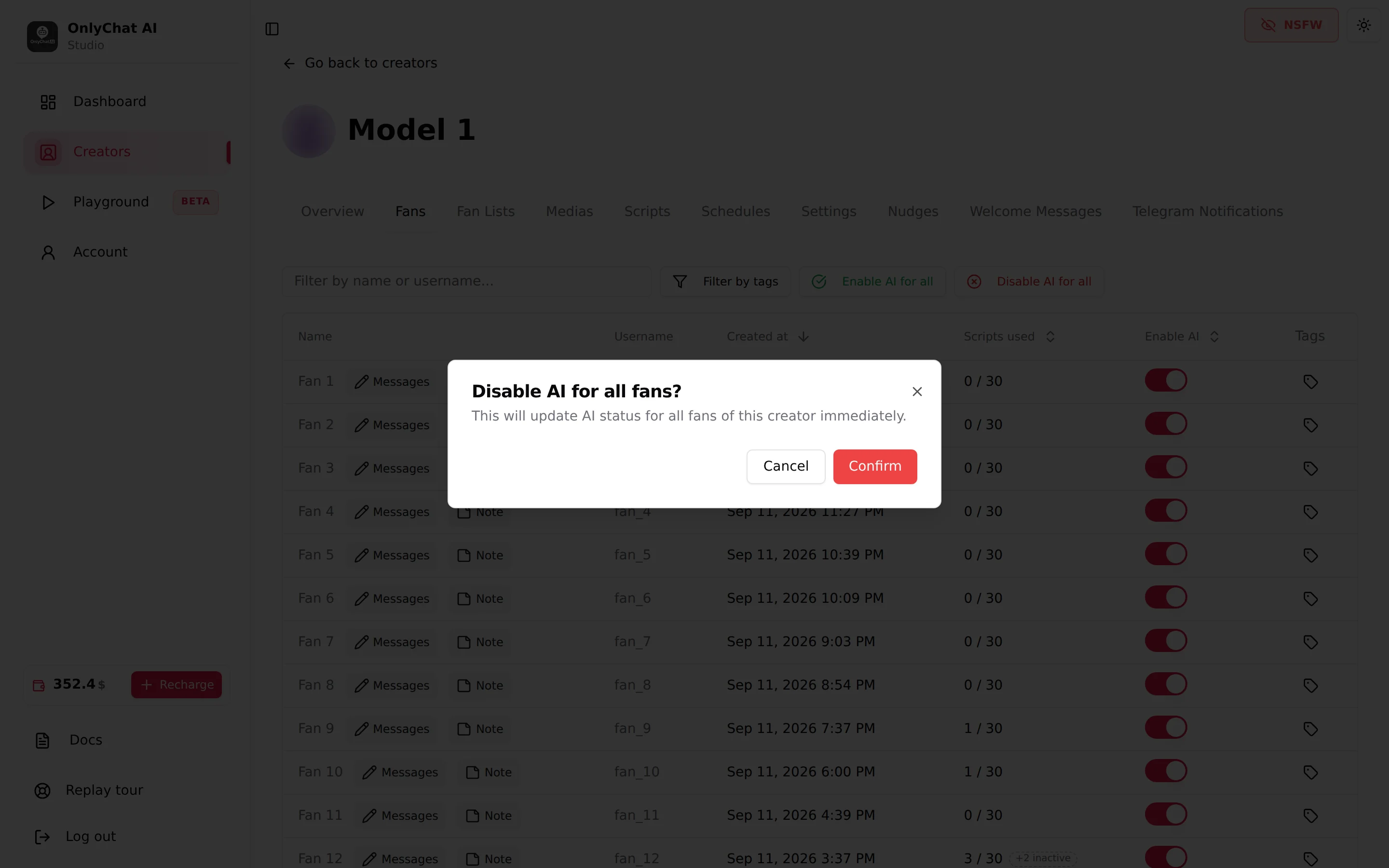
- Click the buttonEnable AI for all or Disable AI for all.
- Read the confirmation"Enable AI for all fans?" or "Disable AI for all fans?" (on Telegram: "Enable AI for all Telegram fans?"), with "This will update AI status for all fans of this creator immediately."
- ConfirmEvery per-fan switch of the creator flips, on every page of the table, not only the visible rows or the filtered ones. Toast: "AI enabled for N fan(s)" / "AI disabled for N fan(s)". On failure: "Failed to update AI status".
When to pause the AI on a fan
- You are about to write to him yourself. On OnlyFans the conversation page has a composer. Pause him first; otherwise the AI answers his next message on top of yours. Resume when you leave.
- A whale you handle in person. Some fans pay for a relationship with a specific human voice. Pause, tag him ("VIP", "manual"), write the fan note, and keep him out of the AI's catalogue.
- A fan who is upset or suspicious. "Are you a bot?" said in anger is better answered by a person. Pause, answer, and decide later whether to resume.
- A fan who should not be sold to. Friends, other creators, collaborators: pause and tag.
- A fan who has exhausted the scripts. Not necessary: the AI keeps chatting with him without anything to sell, for 24 hours on a Basic OnlyFans license or on Telegram and for 5 days on a Premium OnlyFans license, then stops answering him. If he pushes for something sexual in that window, she turns him down, because there is no content left to send. The fix is to add scripts or a variation, not to pause him.
When to use the bulk buttons instead:
- A human session on the whole creator. Disable AI for all, keep the creator switch on (so schedules, nudges and alerts keep working), chat, then Enable AI for all.
- After an import or a migration where fans arrived paused one by one.
What pausing does not do
- It does not delete anything: the conversation, the note, the tags and the Scripts used counter stay.
- Whether Premium nudges and welcome messages still reach a paused fan is not shown in the interface. If a fan must be fully silent, check their own switches too, see Nudges.
- It does not change the fan's list membership on OnlyFans. A fan in an Excluded list is not answered whatever his switch says.
- It does not notify the fan. He simply stops getting replies.
From the conversation
The same switch sits at the top of a fan's conversation, next to Back to followers: Enable AI · this fan only. Flip it there when you are reading the thread and decide to take over, or to hand the fan back to the AI, without going back to the table. Enable AI · this fan only controls the automatic replies for this fan; Enable AI · whole bot, in the creator header, controls the creator's AI.

Telegram specifics telegram
On Telegram, pause the fan with Enable AI · this fan only before taking the conversation over, from the composer of the conversation page or from the creator's own Telegram app, so the AI and the creator do not talk at the same time. Sending a PPV yourself is covered in Send a PPV by hand. The header switch of a Telegram creator is labelled Enable AI · whole bot, and the per-fan one, in the conversation, Enable AI · this fan only.