
Tags are labels you stick on fans to sort your inbox: "VIP", "Manual", "Refund", "Spanish", anything under 20 characters, with a colour. They are for you and your team only. The tour is explicit: "Tags are yours, the AI doesn't read them." Tags change nothing in what the AI says or whether it speaks; they change how fast you find the fans you need to act on. On OnlyFans, tags need a Premium license; on Telegram they come with every creator. premium
Where to find it
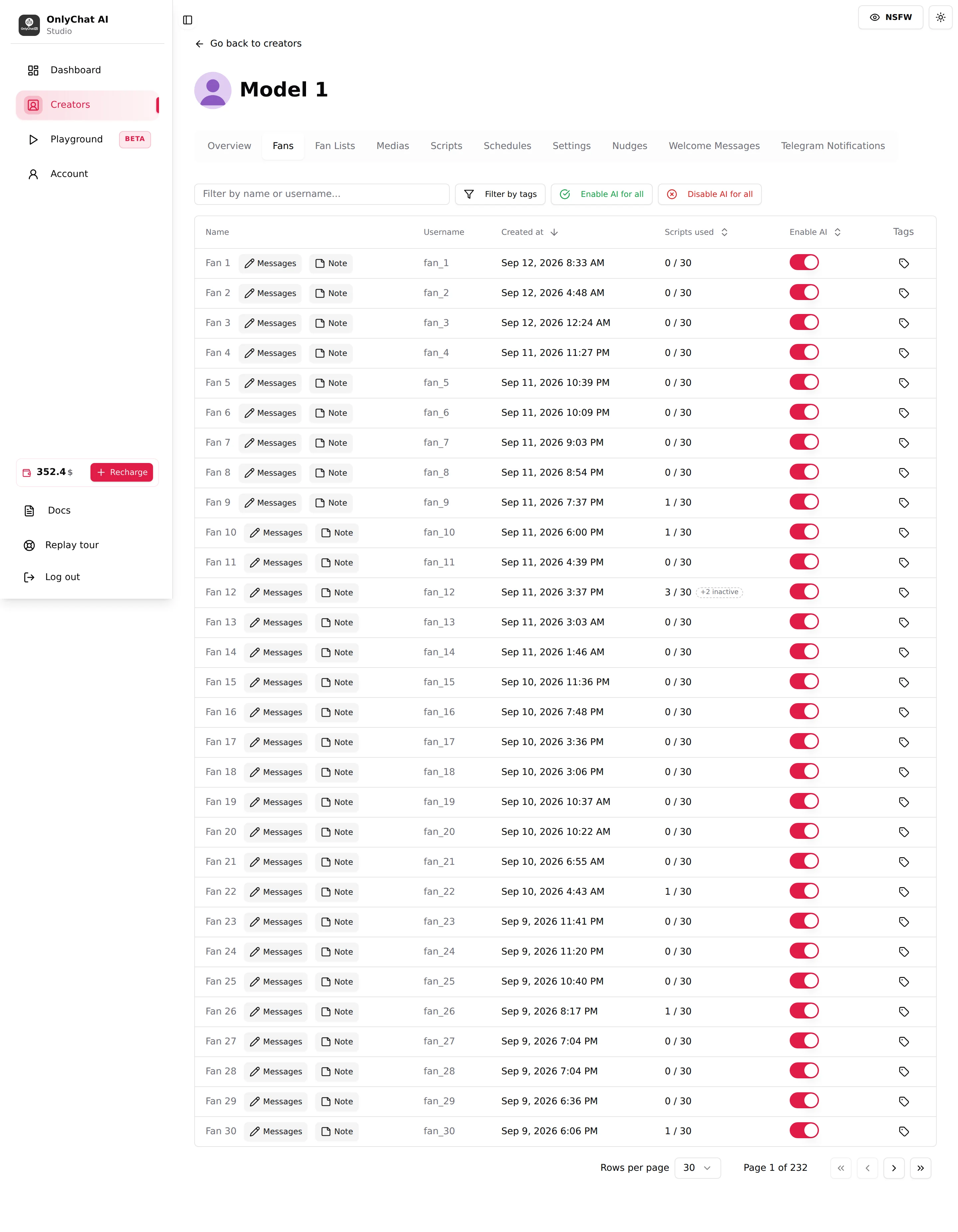
Open the creator, click Fans. Each row ends with a Tags button (a tag icon). Click it to open the modal "Manage Tags for [fan]". Assigned tags show as coloured chips on the row; on Telegram they show under the fan's name. The toolbar's Filter by tags lists every tag that exists on the creator.
The Manage Tags modal
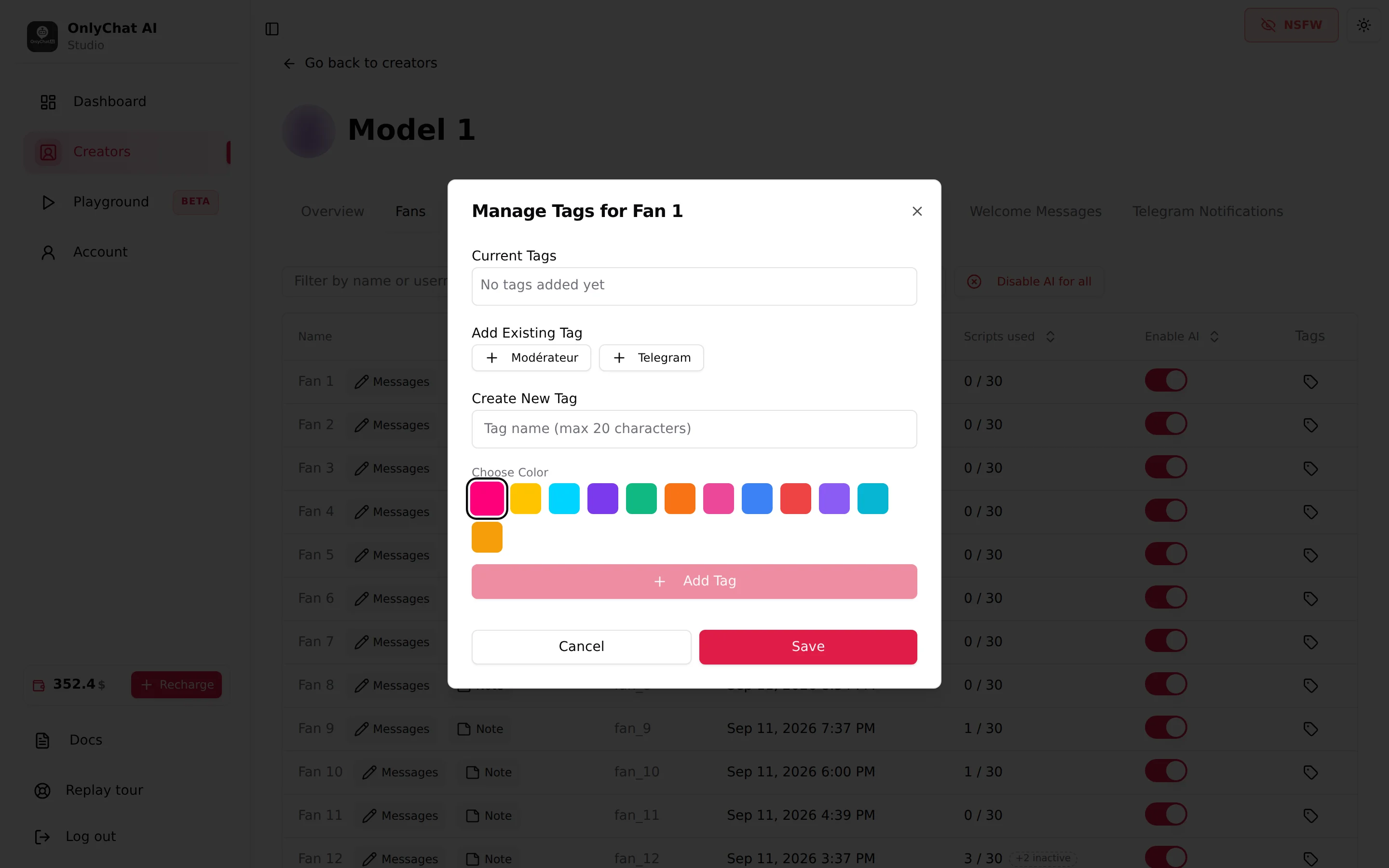
Three sections, top to bottom:
Current Tags
The tags already on this fan, as chips with a cross to remove them. Empty: "No tags added yet".
Add Existing Tag
One button per tag that already exists on this creator ("+ VIP", "+ Manual"). Click to add it to the fan. Adding a tag the fan already carries shows "Tag already added".
Create New Tag
- Tag name (max 20 characters): the label. Longer names are refused with "Tag name must be 20 characters or less".
- Choose Color: a palette of 12 colours. Pick one; it becomes the colour of the chip everywhere.
- Add Tag: creates the tag and puts it on the fan. The tag is then available in Add Existing Tag for every other fan of this creator.
Save and Cancel
Save writes the changes. Toast "Tags updated successfully" or "Failed to update tags". Cancel or the cross closes without saving, including tags you just created in the modal.
Filter by tags
Button in the Fans toolbar. Opens a dropdown with All fans and one entry per tag. Pick a tag: the table shows only the fans carrying it, across all pages. Pick All fans to clear.
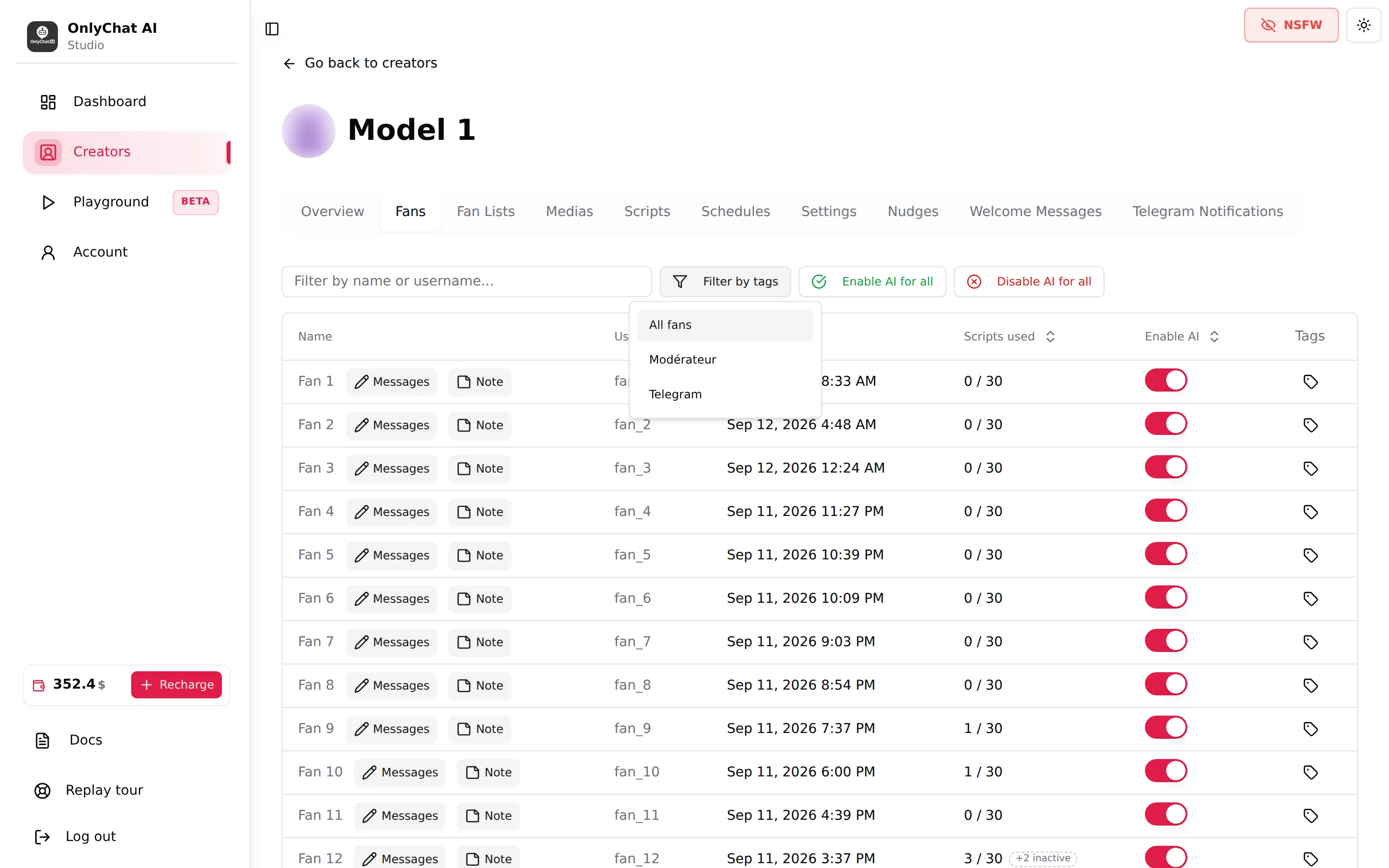
Combine it with the name filter and with sorting on Enable AI or Scripts used: "tag VIP, sorted by Scripts used" is the list of your best fans who are about to run out of scripts.
Protective tags
The most useful tag is the one that says "hands off". The AI does not read tags, so the tag itself does not protect anyone; the protection comes from the habit you attach to it:
- Create the tag onceOn any fan, open Manage Tags, create "Manual" (or "No AI") with a red colour, Save.
- Tag and pause togetherEvery time you turn off a fan's Enable AI switch on purpose, add the tag. Every time you add the tag, turn the switch off.
- Before any bulk actionFilter by "Manual" and note the fans. Enable AI for all turns them back on; put their switches off again afterwards.
- Once a weekFilter by "Manual". Fans who no longer need a human get the tag removed and the AI back.
On OnlyFans you can go one step further and make the protection real: keep an OnlyFans list for these fans and put it in Excluded lists on the Fan Lists tab. Then the AI cannot answer them whatever the switches say. See Fan lists.
Tags that pay for themselves
| Tag | Why |
|---|---|
| VIP | Your top spenders. Review their conversations first every day. |
| Manual | Handled by a human, AI off. |
| Custom request | Fans who asked for a custom; a human closes those. |
| Refund / dispute | Fans to keep an eye on and never pitch aggressively. |
| Language (ES, FR, DE) | To check that the persona's Languages setting covers your traffic. |
| Test | Your own test accounts, so they never pollute your reading of the table. |
Keep the set small. Ten tags that everyone on the team understands beat forty that nobody filters on.
Good to know
- Tags are per creator. A tag created on Model 1 does not exist on Model 2; create it there too.
- Tags do not appear in the fan's conversation and are never sent to the fan.
- The tag button and filter on OnlyFans need a Premium license on the creator; the "View fan notes" permission group also governs access. See Premium overview.
- Deleting a tag entirely (not just removing it from a fan) is not shown in the interface. Remove it from every fan and it stops mattering.