
A creator is one account on one platform, with its own license, its own scripts, its own media and its own AI switch. Adding one is the first thing you do after sign-up. The path differs by platform: an OnlyFans creator is created by the browser extension when you sync the creator's OnlyFans session; a Telegram creator is created in the app through a 3-step wizard. Either way the creator ends up as a card on the Creators board, and the next move is the same: assign a license.
Where to find it
Creators board, top right: Add creator. The board is the page you land on after sign-in; it is also the Creators entry of the sidebar.
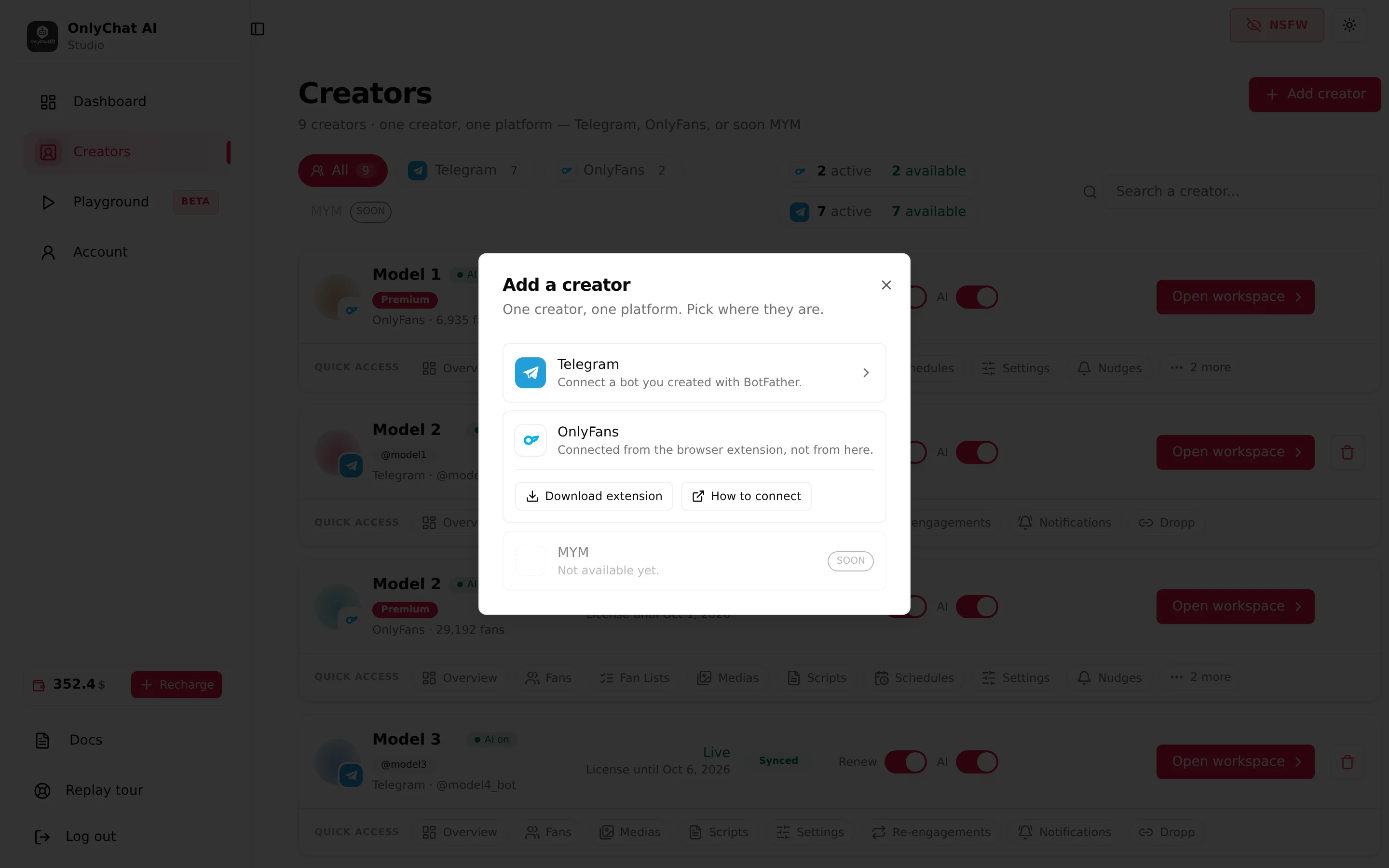
The Add a creator dialog
The dialog says "One creator, one platform. Pick where they are." and offers three rows.
Telegram
"Connect a bot you created with BotFather." Clicking the row opens the wizard at /creators/telegram/new: Name & identity, Bot token, Review. You need a bot created in BotFather beforehand, and the creator's Telegram account must have Telegram Premium (Telegram Business is included). The full procedure is in Create a Telegram bot and Add a Telegram creator.
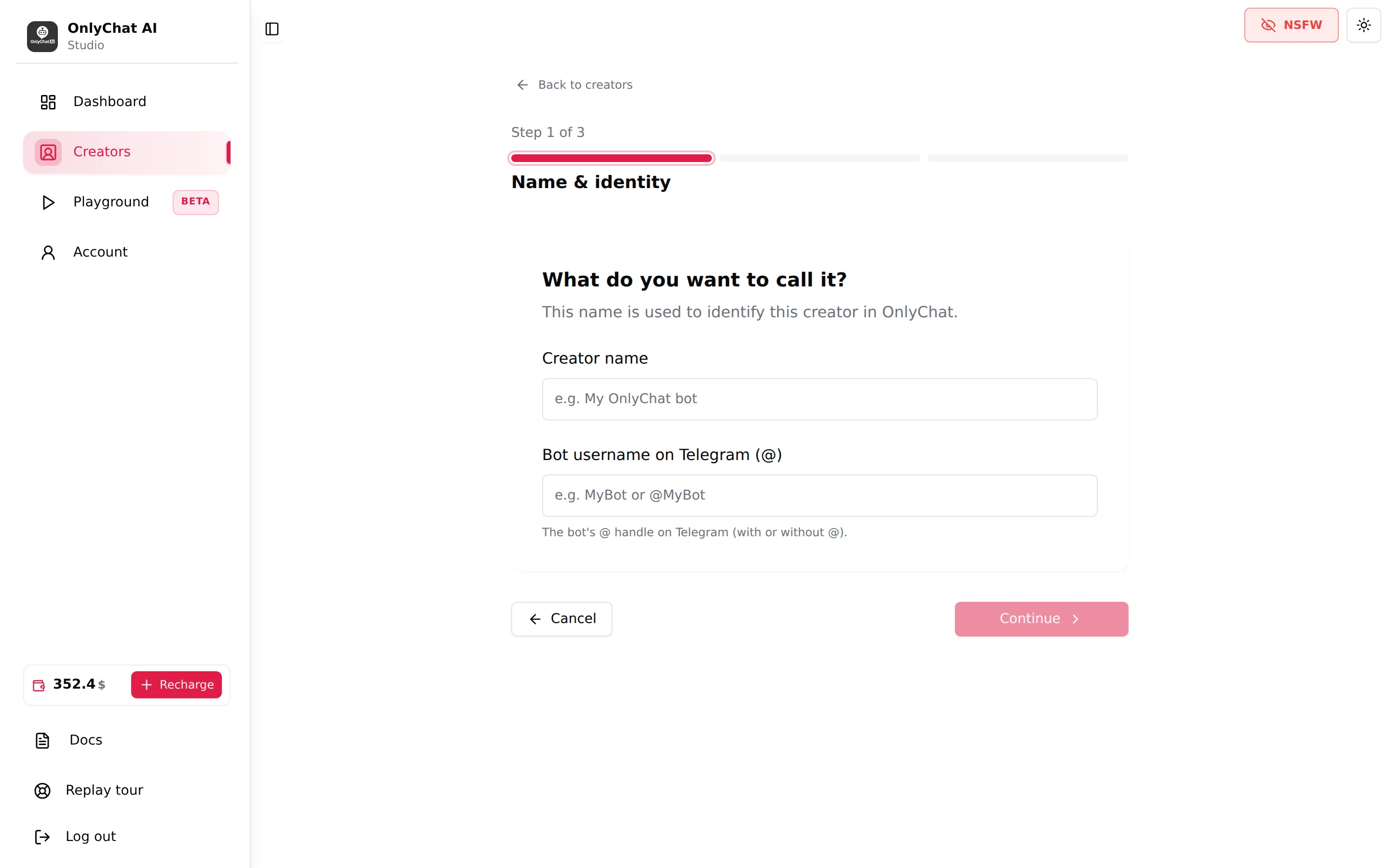
OnlyFans
"Connected from the browser extension, not from here." There is no form: the creator appears on the board once you sync it from the OnlyChat Chrome extension while logged in to the creator's OnlyFans. Two buttons help:
- Download extension downloads the extension as a zip file from the app.
- How to connect opens the help page.
The procedure is in Install the extension and Connect a creator.
MYM
"Not available yet." with a "Soon" badge. The row is disabled. MYM is coming soon.
Which platform to choose
| Question | OnlyFans | Telegram |
|---|---|---|
| Where are the fans paying today? | On the OnlyFans page, through paid messages. | In Telegram, through Stars or Dropp.fans links. |
| What does the creator need to provide? | Their OnlyFans login, once, in a Chrome window with the extension. | A bot created in BotFather, and a Telegram Premium subscription on their account. |
| Can I restrict which fans the AI answers? | Yes, with Fan Lists (Active minus Excluded). | Per fan, with the Enable AI switch on the Fans tab. |
| Do I need Premium? | Only for Nudges, Welcome Messages, fan notes, tags and Telegram alerts. | There is no Premium tier on Telegram. |
| Can a human reply from the dashboard? | Yes, from the fan conversation composer. | No composer in the dashboard: the creator replies from their own Telegram app. |
If the same person sells on both platforms, add two creators and buy a license for each. Licenses are separate pools: "Telegram and OnlyFans licenses are separate pools."
What a license is
A license is the monthly right to run the AI on one creator. Without an active license, the creator's card says "No active license" with the hint "Assign a license to start", the AI switch refuses with "No Active License", and the workspace tabs beyond Overview stay locked.
| License | Price | Commission | Used for |
|---|---|---|---|
| OnlyFans Basic | $20/month per creator | 10% of AI net revenue | Everything except the Premium tabs |
| OnlyFans Premium | $70/month per creator | 10% of AI net revenue | Adds Nudges, Welcome Messages, fan notes, tags, Telegram Notifications |
| Telegram | $20/month per creator | 15% of AI net revenue | Telegram creators; single licenses or bulk packs |
Commission is charged only on what the AI sells. A license is bought on Account, Balance and Licenses (Buy Licenses), which puts it in the "available" stock. Assigning it to a creator moves it to "active" and starts the month. The card then shows "License until MMM D, YYYY". See Plans and commission and Buy and assign licenses.
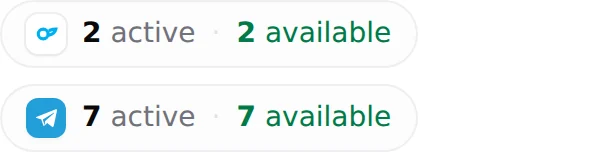
Hover a chip for the detail: "OnlyFans licenses: N assigned to a creator and still valid, N basic and N premium waiting to be assigned. Click to manage them on the Account page."
Assign the license
- Buy a license if the stock is emptyAccount, Balance and Licenses, Buy Licenses. Choose the platform (OnlyFans or Telegram), for OnlyFans the type (Basic or Premium), the quantity, then Confirm Purchase. The modal shows "New Balance after purchase" before you confirm.
- Open the creator cardBack on the Creators board, find the card. Without a license it shows the Assign License button.
- AssignOnlyFans: the modal "Assign License to [name]" asks "Select which type of license to assign:" with "Basic (N available)" or "Premium (N available)". Telegram: "Assign Telegram License to [name]" shows "Available Telegram licenses: N". Click Confirm.
- Check the cardThe status becomes "Ready to launch" with the hint "Flip the AI toggle to go live", and the Renew switch appears.
If the stock is empty the modal says "No Available Licenses. You don't have any available licenses. Please purchase one from the Account page." Buy one first.
The creator card, element by element

| Element | What it shows |
|---|---|
| Avatar and name | The creator's picture and name. A pencil next to the name renames the creator inside OnlyChat (Enter to confirm, Escape to cancel). On Telegram a missing picture shows the tooltip "No picture yet. Open BotFather, send /setuserpic and pick this bot". |
| AI on / AI off badge | Whether the AI is currently allowed to answer. |
| Premium badge | OnlyFans creators with a Premium license. |
| Platform line | "OnlyFans · handle · N fans" or "Telegram · @bot · N fans". Telegram cards also show "@username" of the connected business account or "Not connected". |
| Status | Live ("License until MMM D, YYYY" or "AI is replying automatically"), Ready to launch ("Flip the AI toggle to go live"), No active license ("Assign a license to start"). |
| Sync badge (OnlyFans) | Synced, Sync warning or Sync error: the state of the OnlyFans session the extension gave to OnlyChat. |
| Renew switch | Auto-renew. Tooltip: "On, this license is bought again from your balance when it expires. Off, the creator goes offline on the expiry date." Shown only once a license is assigned. |
| AI switch | Turns the AI on or off for this creator. See Turn the AI on. |
| Assign License | Shown instead of the switches when there is no active license. |
| Open workspace | Opens the creator's tabs. |
| Trash icon (Telegram only) | "Delete Telegram bot. You are about to delete [name]. This action cannot be undone." |
| Quick access | Shortcuts to each tab; extra tabs are folded under "N more". |

What happens next
Assigning a license unlocks the workspace but does not start anything. Before flipping the AI switch you still need:
- Settings: identity, appearance, personality and behavior of the creator. See Settings.
- Media with descriptions: synced from the vault on OnlyFans (Media library) or uploaded on Telegram (Media on Telegram).
- At least two active scripts. See Create a script.
- On OnlyFans, the Fan Lists tab decides who the AI may answer. See Fan lists.
- On Telegram, the business connection must be verified on the setup page. See Telegram setup.
Then read Turn the AI on.
Good to know
- The board search "Search a creator..." and the platform chips stack: filter Telegram, then search, to find one bot among many.
- The license chips and the Overview tab of each creator show the expiry. Check them weekly; see Daily routine.
- Renaming a creator changes only the name in OnlyChat. It never touches the OnlyFans display name or the Telegram bot name.
Deleting a creator
- Telegram: the trash icon on the card opens "Delete Telegram bot. You are about to delete [name]. This action cannot be undone." The creator disappears from OnlyChat; the bot itself still exists in BotFather.
- OnlyFans: there is no delete button, and it is not possible from the interface. This is on purpose: an OnlyFans creator carries her fans, their conversations, the AI's memory of each fan, her scripts and her media, and one wrong click would lose all of it. To remove an OnlyFans creator, write to our lead developer, one of the founders, on Telegram (@OnlychatAIsupport) with the creator name. In the meantime, switch the AI off and let the license expire (Renew off): a creator without a license costs nothing.