
The New Script page is where a scene becomes something the AI can sell: a name, a description the AI reads, two timers, and a list of steps. The same page serves to edit an existing script (Edit Script) and to create a variation (Duplicate Script). This article covers everything above the steps and the save button. The step card itself, with its message, media, price and follow-ups, has its own page: Script steps.
Where to find it
On the creator's Scripts tab, click Add Script (top right). The page opens at /scripts/new with the title "New Script" and the subtitle "Create a new conversation script". The Back arrow returns to the Scripts tab without saving.
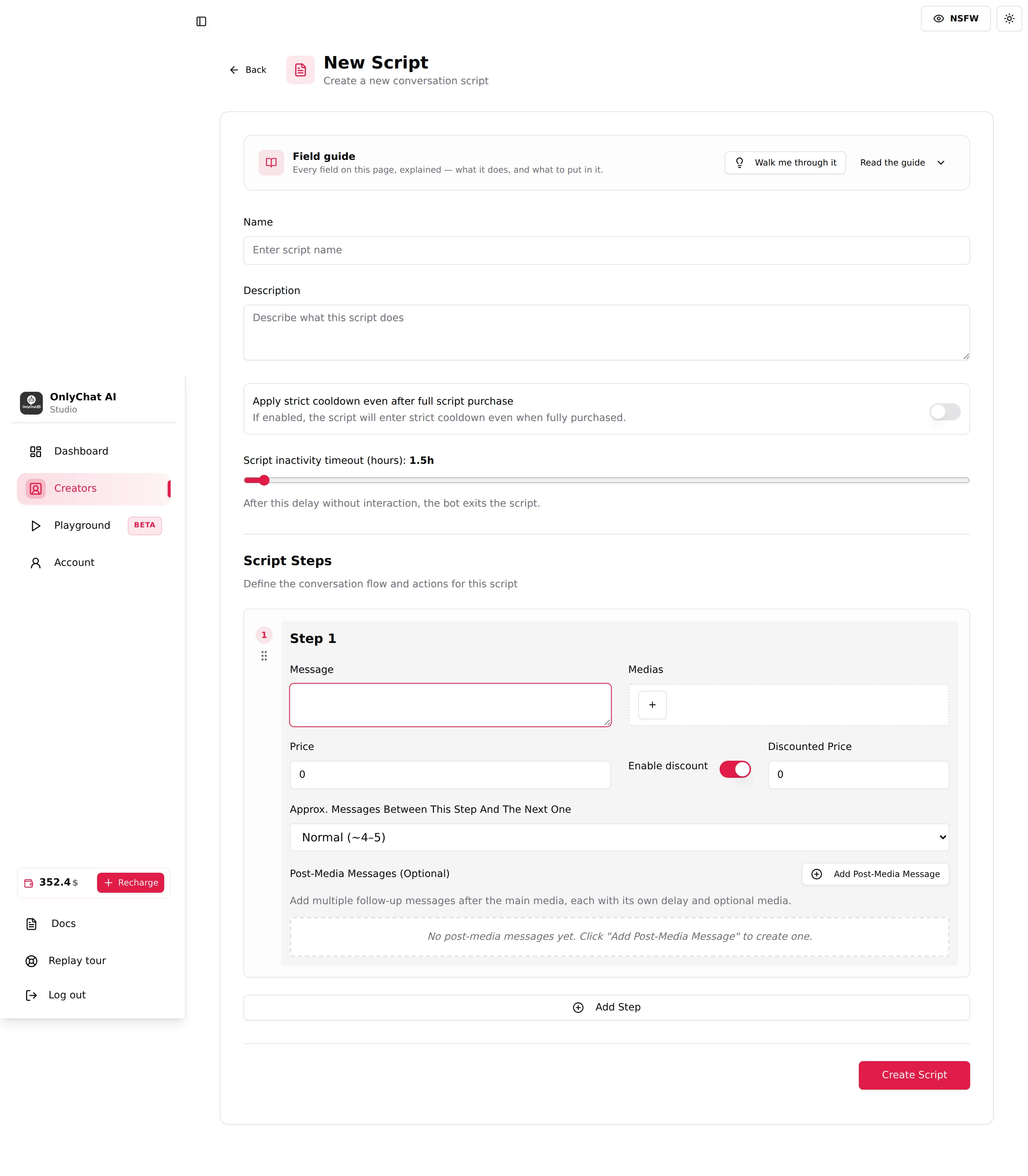
Opening an existing script with Edit shows "Edit Script" and "Modify" followed by the script name; the button at the bottom becomes Update Script. If the link points to a script that no longer exists, the page reads "Script not found" ("The script you're trying to edit could not be found.").
The Field guide
The card at the top, Field guide ("Every field on this page, explained: what it does, and what to put in it."), is a built-in cheat sheet. It has two buttons: Walk me through it replays the guided tour of the page, step by step, and Read the guide expands the card (it then reads Hide).
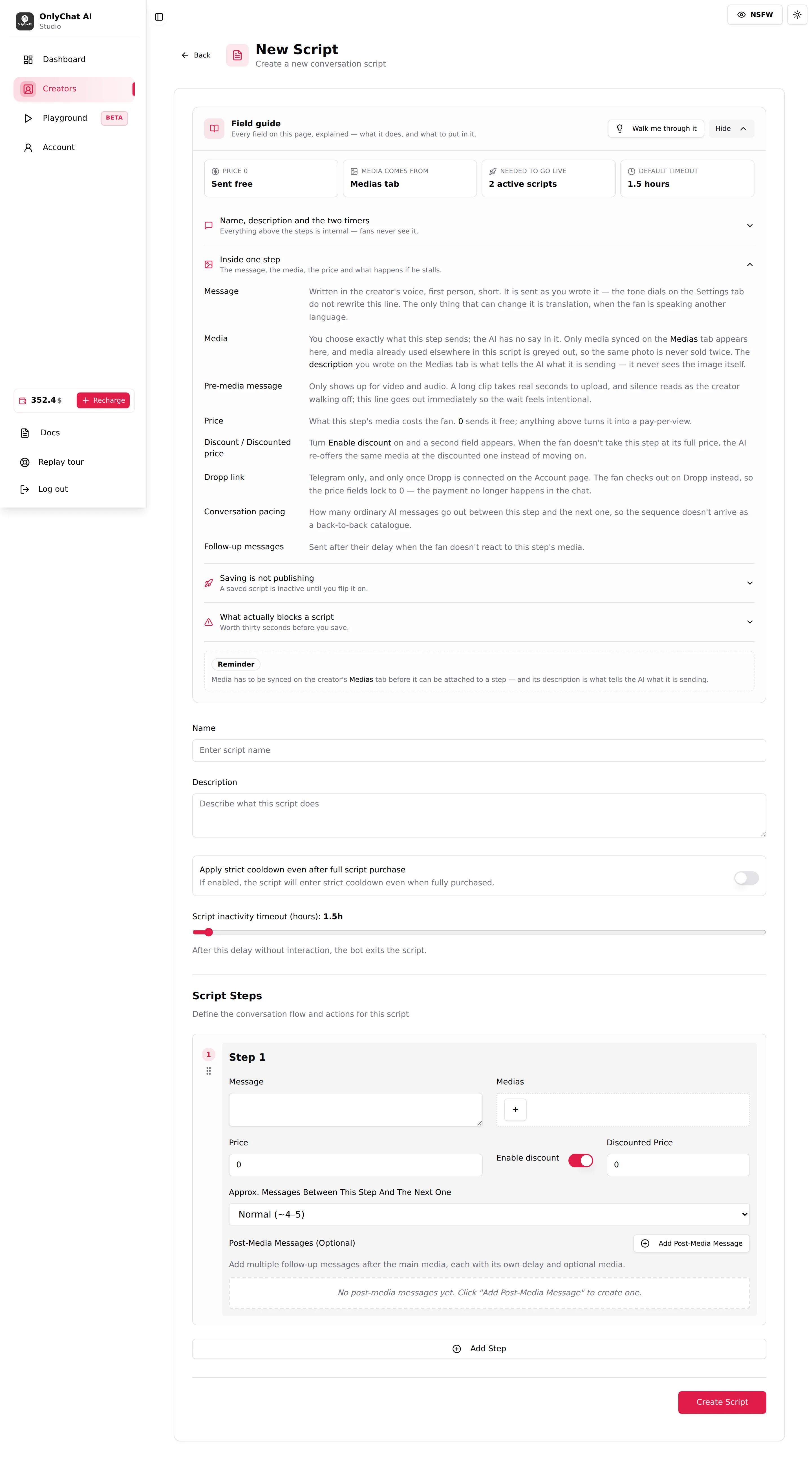
The four quick facts are worth memorising:
| Quick fact | Meaning |
|---|---|
| Price 0: Sent free | A step priced 0 is a free step. Anything above turns it into a pay-per-view. |
| Media comes from: Medias tab | Only media synced (OnlyFans) or uploaded (Telegram) on the Medias tab can be attached. |
| Needed to go live: 2 active scripts | The AI cannot be enabled with fewer than two active scripts. |
| Default timeout: 1.5 hours | The inactivity timeout below starts at 1.5 hours. |
The four sections: "Name, description and the two timers" ("Everything above the steps is internal, fans never see it."), "Inside one step" ("The message, the media, the price and what happens if he stalls."), "Saving is not publishing" ("A saved script is inactive until you flip it on.") and "What actually blocks a script" ("Worth thirty seconds before you save."). The last one lists five traps: a paid step with no media, media with no description, an empty message on a step, importing a script without its media, and saving and walking away (without activating).
Below the guide, a Reminder banner repeats the one rule people forget: "Media has to be synced on the creator's Medias tab before it can be attached to a step, and its description is what tells the AI what it is sending."
Script-level fields
Name
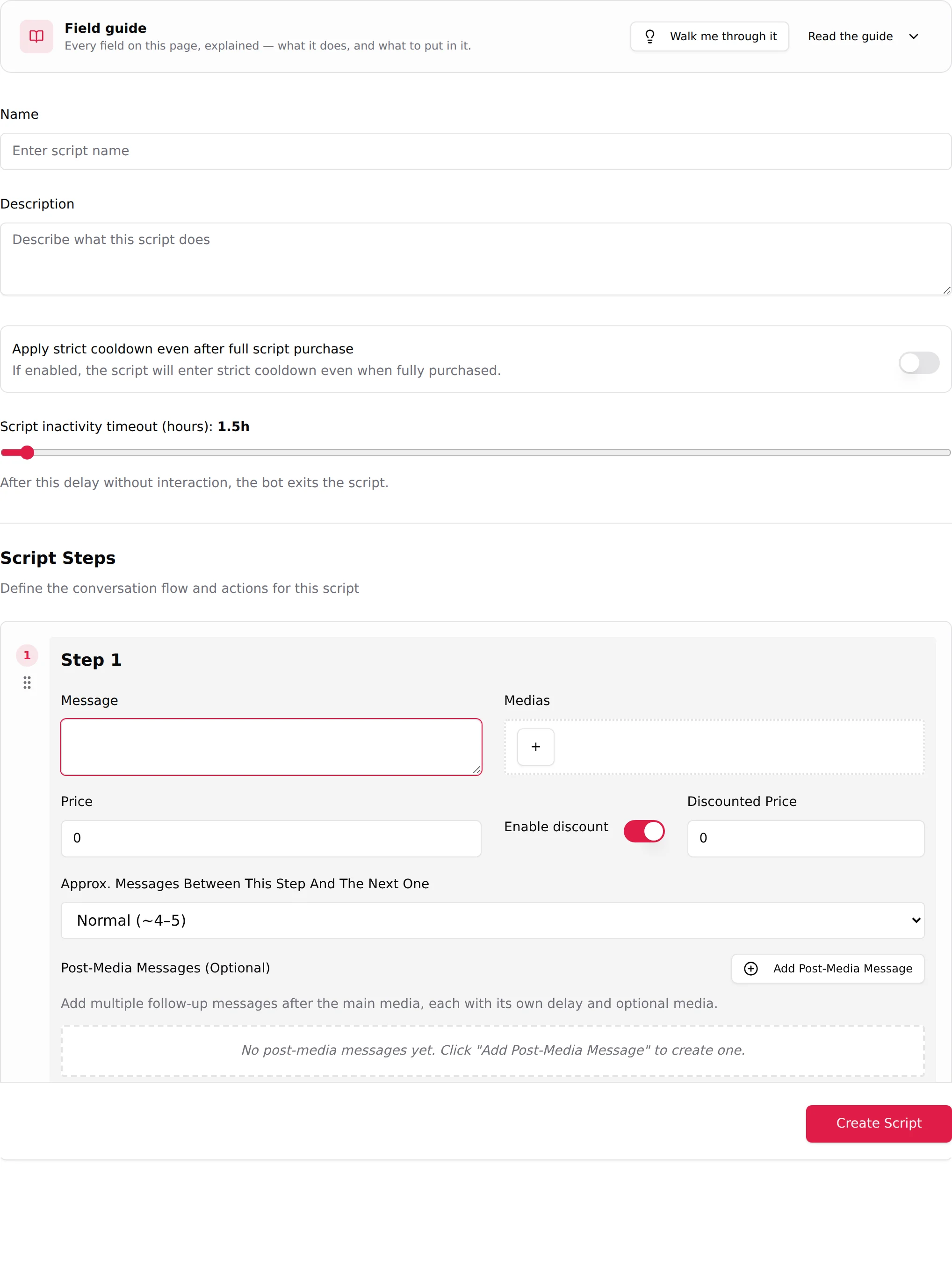
Placeholder "Enter script name". Internal, never shown to fans. Use a name that tells you the scene and the version at a glance: "Workout (V1)", "Gaming (V2 soft opening)". The name appears on the Scripts tab, in the Select a media list picker if your vault lists follow the same naming, on the dashboard's Best Script tile and in the Scripts Performance table. A duplicated script is pre-filled with "(copy)" appended to the original name: rename it before saving. See Versions and variations.
Description
Placeholder "Describe what this script does". Also internal, but this one is read by the AI: it is how the AI decides that this script fits the current conversation and the current fan, and how it introduces the scene before the first step. A two-line description gets picked rarely and launched awkwardly. Write the setting, the starting mood, the trigger, the progression and the type of fan it suits. The full method, with examples, is in Write a script description.
Apply strict cooldown even after full script purchase
A switch, off by default. Helper text: "If enabled, the script will enter strict cooldown even when fully purchased."
The strict cooldown is the rest period set in Settings, Strict Script Cooldown (hours) (0 to 24, 10 by default): "Time during which no new script can start after one ends, even if the fan tries to initiate." By default it applies when a script ends without the fan buying everything. With this switch on, it applies even when the fan bought the last step.
| Setting | What happens after the last paid step is bought | When to use |
|---|---|---|
| Off (default) | The fan just paid the top of the ladder and is hot. No cooldown at all: if the fan shows he is still hot (asks for more, says he wants it to continue), the AI can go straight into the next script in the same conversation. | Most creators. A buyer who finished a scene is the best candidate for the next one. |
| On | The fan enters the strict cooldown like any other fan: no new script for the number of hours set in Settings. | Creators who want to avoid back-to-back sales to the same fan on the same day (long-term subscribers, high prices, fans who complain about being pushed). |
The Minimum Sexualization Cooldown (days) from Settings plays no part here: it is the creator-wide number of days the AI waits after each script before steering that fan toward sex again on its own. See Cooldowns.
Script inactivity timeout (hours)
A slider with the current value shown in the label ("Script inactivity timeout (hours): 1.5h"). Range 0.5 to 48 hours, default 1.5. Helper text: "After this delay without interaction, the bot exits the script."
While a script is running, the AI waits for the fan between steps. If the fan stops answering for longer than this timeout, the AI closes the scene: the script is marked as used for that fan, the cooldowns start, and the AI goes back to normal chatting when the fan returns. What it changes in a conversation:
- Short (0.5 to 2 hours): a fan who leaves for the evening comes back to a fresh conversation, not to "so, did you like the video?" sent 14 hours later. Suits scenes that only make sense in one sitting.
- Long (8 to 48 hours): the AI keeps the scene open across a night or a day. A fan who bought step 2 in the evening and writes again the next morning gets step 3, at the point where he left. Suits high-ladder scripts where each step is expensive and the fan needs time, and Telegram audiences that chat in short bursts across the day.
The default of 1.5 hours is a safe start. Raise it on a script whose dashboard row shows many fans stuck between two paid steps.
The steps
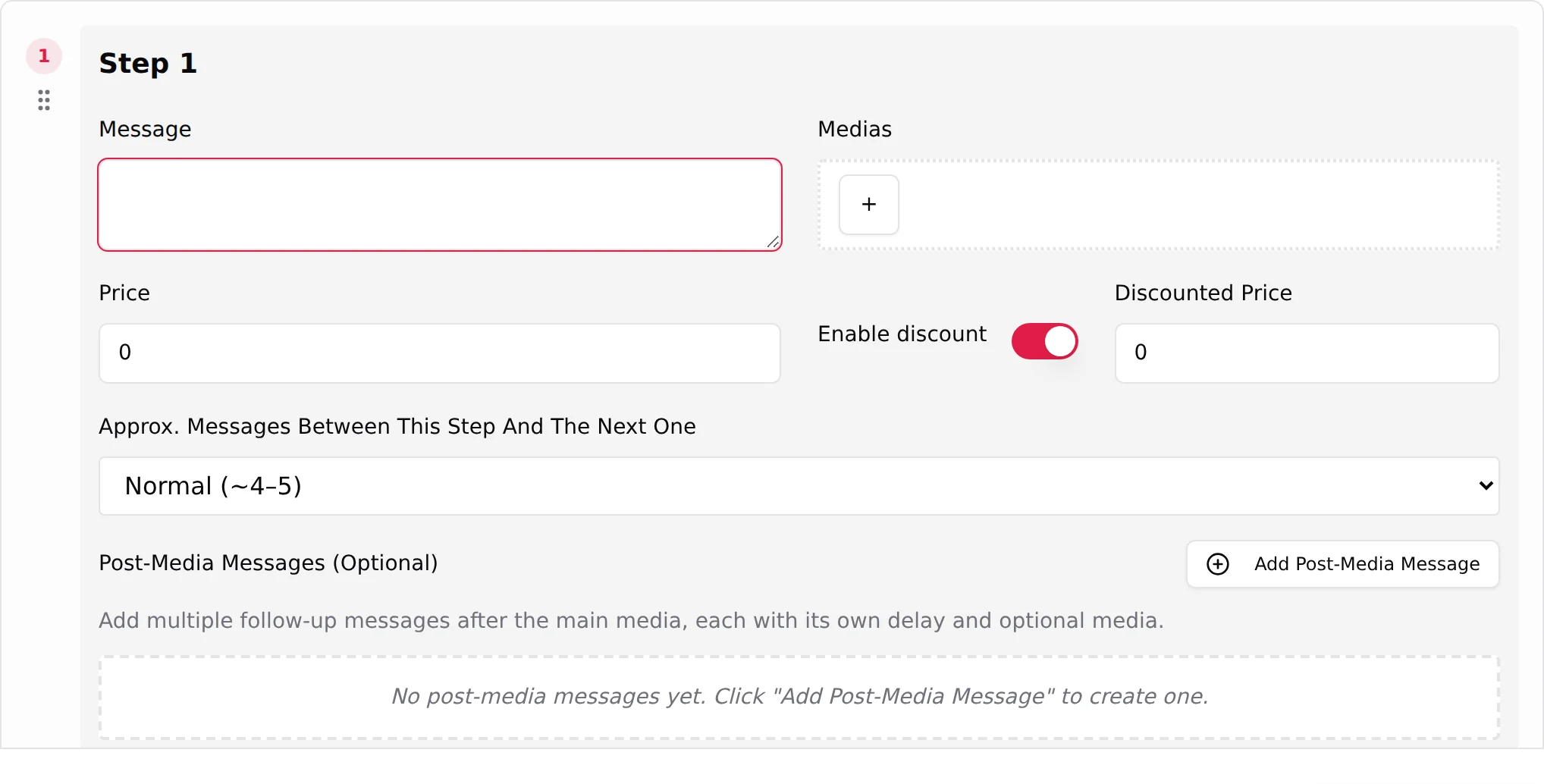
Under "Script Steps" ("Define the conversation flow and actions for this script"), the page starts with one empty step card. Add Step appends a new card at the bottom. Each card has a numbered badge and a drag handle on the left: drag it to reorder steps. Every field of the card is explained in Script steps; the choice of which media goes where in Media per step.
Create the script, step by step
- Open the editorOn the Scripts tab, click Add Script. Read the field guide once if it is your first script.
- Name and describe the sceneFill Name and Description. Leave the strict cooldown switch off and the timeout at 1.5h unless you have a reason to change them.
- Build the free stepsIn the first card, write the Message, click + under Medias to attach one item from the synced list, leave Price at 0. Click Add Step and repeat for the second and third free step.
- Build the paid stepsAdd a step per paid message. Set the Price, turn on Enable discount and fill Discounted Price where you want a fallback, add one or two Post-Media Messages for the fans who go quiet.
- Check the trapsNo paid step without media, no media without description, no empty message. Scroll the page once from top to bottom.
- CreateClick Create Script. The toast "Script created successfully!" confirms and the page returns to the Scripts tab, where the new script is inactive.
- ActivateFlip the Active switch on its row. Star it as First if it should be the first scene every new fan sees. See Activate and monitor a script.
Saving: what can go wrong
| Message | Meaning | Fix |
|---|---|---|
| "Some fields are invalid. Please review the form." followed by "field: message" | A required value is missing or out of range. The detail line names the field. | Scroll to the field named in the detail and correct it. |
| "At least one media is required (or select a Dropp link)" | A step has no media attached. On Telegram a Dropp.fans link counts as media. | Attach a media item, or a Dropp link on Telegram. |
| "Error creating script" / "Error updating script" | The save did not go through. | Wait a few seconds and click again. If it persists, copy your messages elsewhere before reloading. |
| "Missing organization context." | The page lost the organisation session. | Reload the page and retry. |
| "Script not found" | The script was deleted by another member while you had the editor open. | Go back to the Scripts tab. |
Saving with Update Script shows "Script updated successfully!". A fan who is in the middle of the script does not start over: he continues from the step he is at, and every step he has not received yet is sent in its updated form. Example: a fan has just paid PPV 2 and has not received PPV 3; you change the price or the caption of PPV 3 and click Update Script; when the AI reaches PPV 3, it uses the new price and the new caption. The only exception is a step that was already being sent at the moment you saved, which goes out as it was. Steps the fan already received are never changed after the fact.