
Your OnlyChat account is the owner account of an organization. Everything you do later (creators, balance, licenses, team members) hangs from it. Sign-up takes a few minutes: confirm you are 18 or older, fill four short steps, then enter the 6-digit code sent to your email. If someone invited you to their organization, you do not sign up: you accept the invitation link instead (see the last section).
Where to find it
Open https://app.only-chat.ai. The sign-in page opens. Click Sign up (top right, also in "Don't have an account? Sign up") to reach /signup.
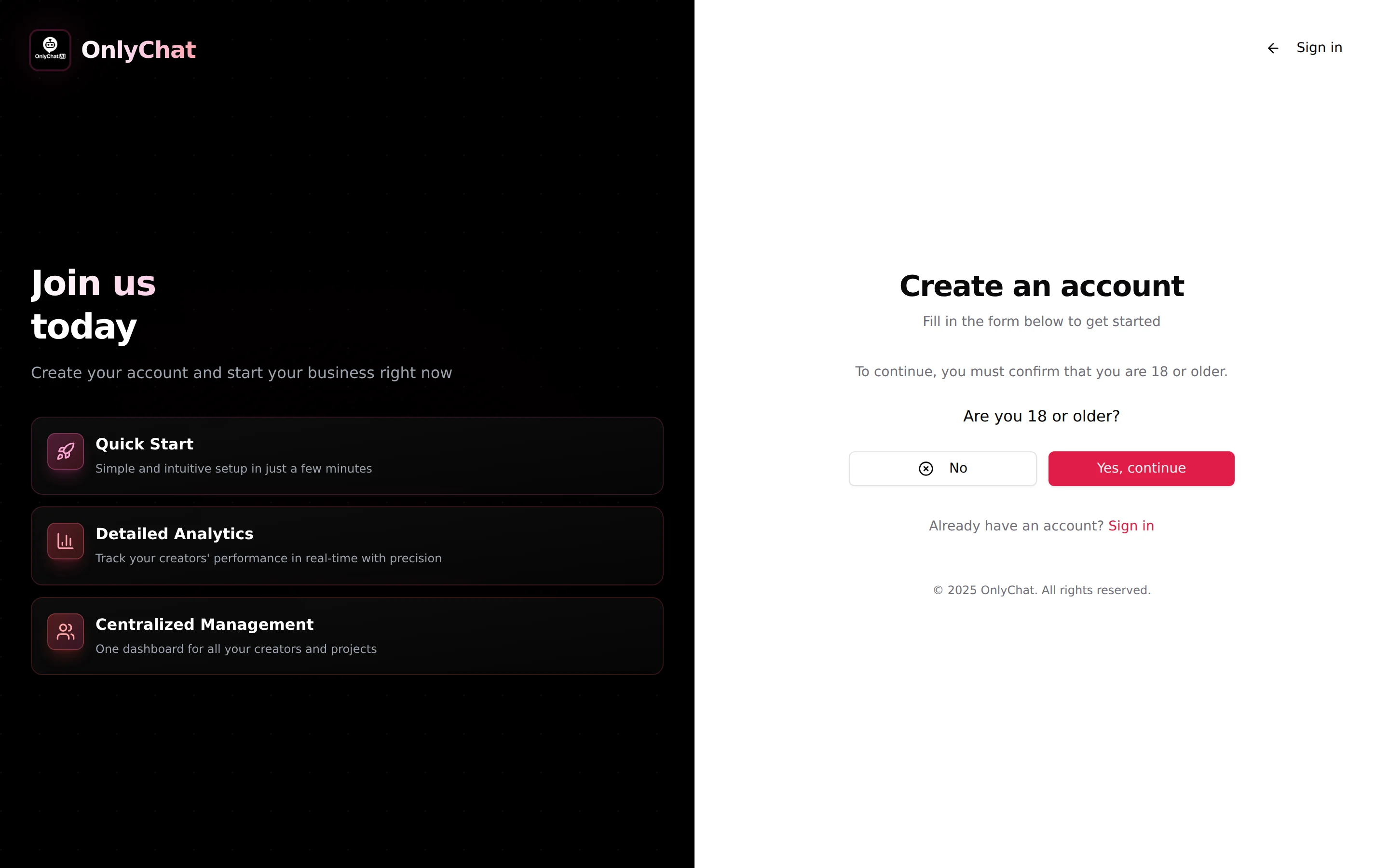
The age check
Before the form, the card asks "Are you 18 or older?" with the line "To continue, you must confirm that you are 18 or older."
- Yes, continue opens the form.
- No stops here with "You must be 18 or older to create an account."
This is a hard requirement of the platform, not a survey question.
The four steps of the form
The card is titled "Create an account" with "Fill in the form below to get started". A stepper shows Account · Profile · About you · Legal with "Step n of N". You cannot skip a step; each one validates before the next opens.
Step 1: Account
| Field | What to enter | Validation |
|---|---|---|
| Email address | The email you will sign in with. A 6-digit code is sent to it at the end, so use an inbox you can open now. | "Invalid email address" |
| Password | Helper text: "At least 12 characters, with lowercase, uppercase, number and special character (!@#$%^&*)." | Each missing rule is listed under the field. |
| Confirm password | Type the same password again. | "Passwords do not match" |
Step 2: Profile
| Field | What to enter |
|---|---|
| First name | Shown in the team members table as your name (placeholder "John"). |
| Last name | Placeholder "Doe". |
Step 3: About you
Two optional questions. They do not change anything in the product.
| Field | Options |
|---|---|
| How many creator accounts do you have? | "Select a range (optional)": 0, 1, 2 to 5, 6 to 10, 11 to 20, 21+ |
| How did you hear about us? | "Select (optional)": Organic search (Google, etc.), Social media, Referral / word of mouth, Advertisement, Other |
Step 4: Legal
Two checkboxes, both required:
- I have read and accept the Privacy Policy (otherwise "You must accept the Privacy Policy")
- I have read and accept the Terms of Service (otherwise "You must accept the Terms of Service")
The Privacy Policy and Terms of Service links open on only-chat.ai.
Email verification
- Send the codeAfter the Legal step, click Send verification code. The button reads "Sending code..." then the app says "If this email address is valid, you will receive a verification code shortly."
- Enter the 6 digitsThe Verification step says "We sent a 6-digit code to your email. Enter it below." Type the code in the Verification code field (placeholder 000000). A wrong length gives "Code must be 6 characters".
- Verify and create accountClick Verify and create account. On success the toast reads "Account created successfully." and you land on the Creators board.
Sign in
Once the account exists, /signin is your entry point every day.
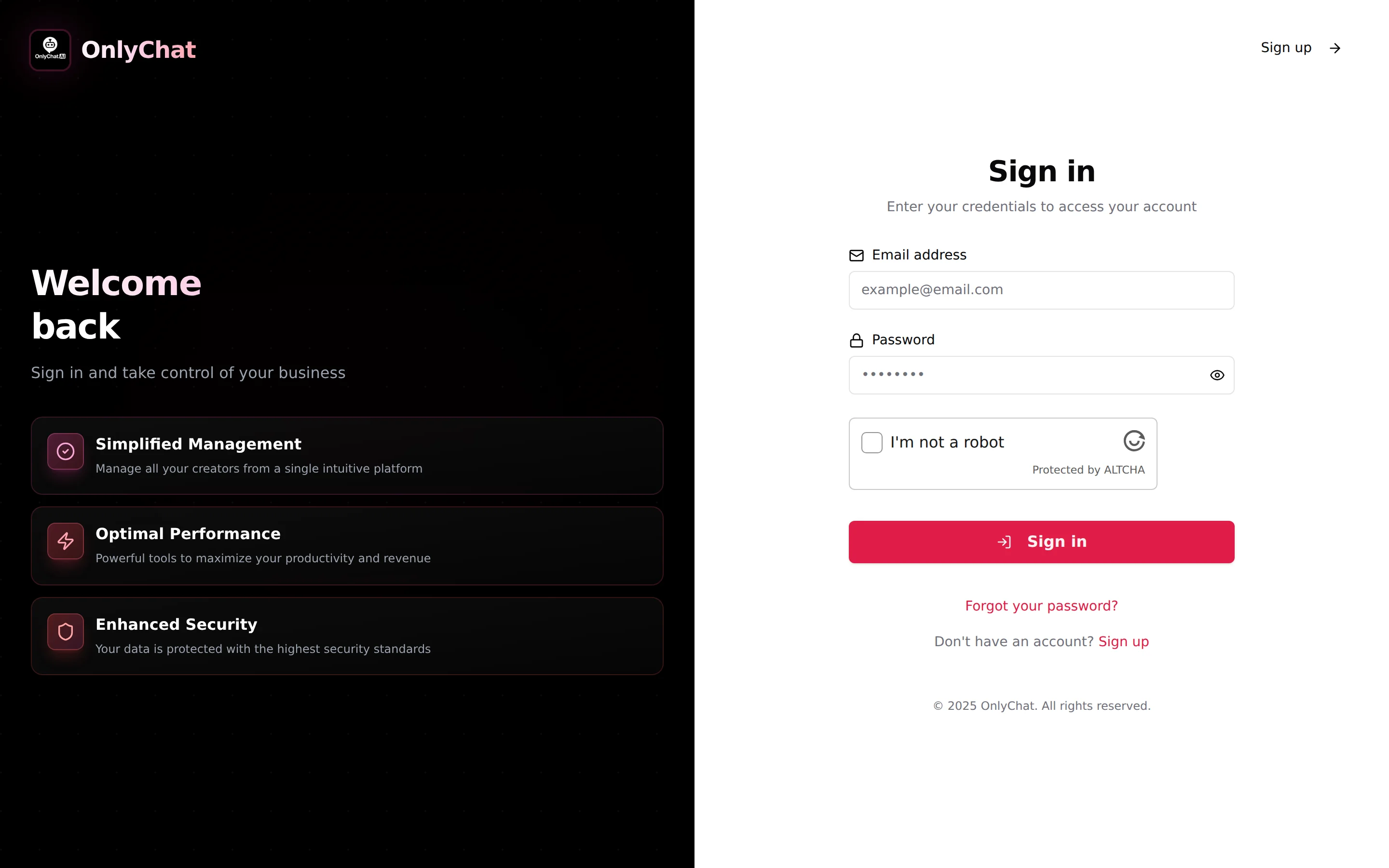
- Email address (placeholder
example@email.com) and Password. The eye icon "Show password" reveals what you typed. - I'm not a robot: a security check that must complete before the button works.
- Sign in turns into "Signing in..." while the app checks the credentials.
- Wrong credentials give "Invalid email or password." There is no hint about which one is wrong.
The left panel ("Welcome back", "Sign in and take control of your business") is decorative. The footer links open the Privacy Policy and Terms of Service.
Forgot or reset your password
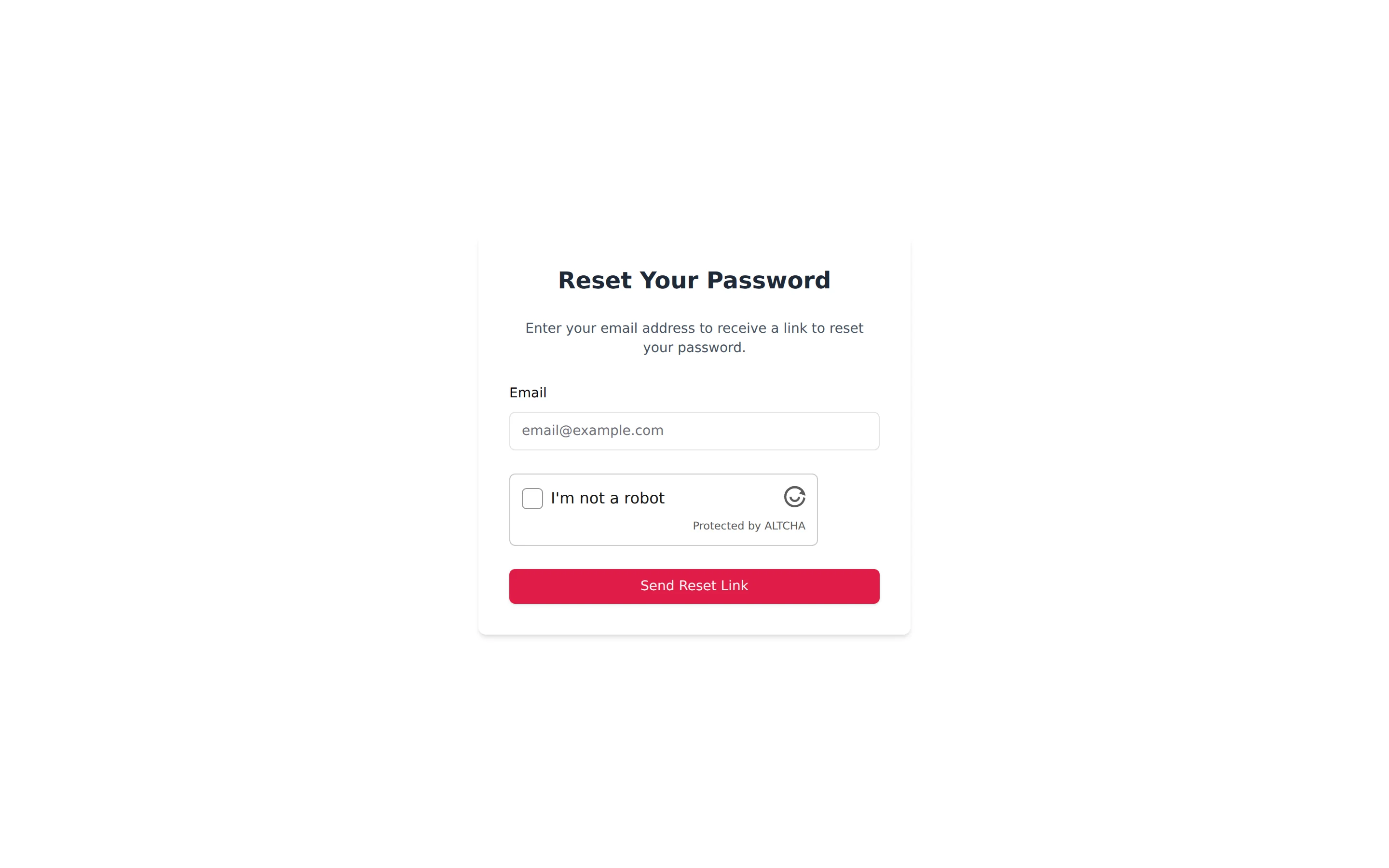
- Open the reset pageOn the sign-in page click Forgot your password?. The page "Reset Your Password" says "Enter your email address to receive a link to reset your password."
- Send the linkType the email in the Email field (placeholder
email@example.com) and click Send Reset Link. The app answers "If your email address is registered, you will receive a message with password reset instructions." - Choose a new passwordThe email contains a link to the New password form. Enter the new password (same rules as sign-up: 12 characters, lowercase, uppercase, number, special character) and click Reset password. Success reads "Password has been successfully reset."
Errors on the new password form: "Something went wrong. Please try again." (retry, or ask for a new link) and "The token is required" (the link is incomplete: open it again from the email rather than retyping it).
Accept an invitation to an organization
If an owner or admin invited you to their organization, you receive an invitation link (/invite?token=...). Do not sign up separately: a separate sign-up creates a second, empty organization.
- Open the linkThe page shows "Validating your invitation..." then "You're Invited!" with "Create your account to join [organization] as a [role]".
- Fill the formThe email is pre-filled and marked "This email matches the invitation". Enter First Name, Last Name, Password (helper "At least 12 characters with uppercase, lowercase, digit, and special character") and Confirm Password.
- Verify your emailThe page "Verify your email" says "We sent a 6-digit code to..." Enter it and click Verify and join. Success reads "Welcome to the organization!".
If you already have an OnlyChat account, use "Already have an account? Sign in" on the invitation page.
Invitation errors and what to do:
| Message | Meaning | Fix |
|---|---|---|
| "Invalid Invitation. This invitation link is invalid or has expired." | The link was mistyped or cancelled by the organization. | Ask the owner to create a new invitation from Account, Team and Roles. |
| "Invitation Expired. This invitation has expired or has already been used." | Invitations have an expiry date shown in Pending Invitations, and each link works once. | Ask for a new link. |
| "No invitation token was provided. Please check the link you received." | The link lost its ending. | Copy the full link from the message again. |
The button Go to Sign In on these error states takes you back to /signin.
Good to know
- One organization per sign-up. Your creators, balance and licenses belong to the organization, not to your personal login. To give a colleague access, invite them from Account, Team and Roles instead of sharing your password. See Members and roles.
- Your name and email are visible on Account, Profile and Organization, next to the Log out button.
- Some validation messages on the sign-up form may appear in French (the password rules, "Adresse e-mail invalide"). They mean the same thing as the English helper text above.