
OnlyChat is an AI that chats with fans and sells paid content from a creator's own account, on OnlyFans and on Telegram. You connect a creator, give the AI a personality, a set of scripts and the media it may sell, then flip one switch. From that moment the AI answers fans, runs the conversation towards a script, sends the free teaser, asks for the price, negotiates inside the limits you set and follows up when a fan goes quiet. Everything happens under the creator's name: fans never see a separate bot, a different profile or a "powered by" line.
This page explains what you are buying, what you need before you start and the five steps every creator goes through. Each step links to the detailed article.
What OnlyChat does, in one conversation
Here is what a real fan sees once the AI is live on a creator called Model 1:
- A fan sends a message. The AI reads the whole conversation history, the fan's spend and what it already knows about him.
- It replies within the delay you chose (1 minute by default), in the creator's tone, in the fan's language.
- It asks a few questions to learn who the fan is (the KYC phase), teases, and when the conditions are met it launches a script: a scene made of steps, each step being a message plus media, free or priced.
- The free step goes out, then the first paid step with its price. If the fan pushes back, the AI defends the price and can fall back to the discounted price you defined on that step.
- If the fan stops answering, the AI follows up after the delay you set (8 minutes by default), then respects the Strict Script Cooldown before starting the next script.
You see all of this from the dashboard: every message, every sale, which script sold and which step converted.
OnlyFans and Telegram: one creator, one platform
A creator in OnlyChat lives on one platform. The Add a creator dialog says it plainly: "One creator, one platform. Pick where they are." The same person on both platforms is two creators, with two licenses.
| OnlyFans | Telegram | |
|---|---|---|
| How the creator is connected | Through the OnlyChat Chrome extension, from the creator's logged-in OnlyFans session. See Install the extension. | Through a Telegram bot you create in BotFather, linked to the creator's Telegram account with Telegram Business (Secretary Mode). See How Telegram works with OnlyChat. |
| Where media comes from | Synced from the creator's OnlyFans vault (Medias tab). | Uploaded into folders on the Medias tab. |
| How fans pay | Paid messages (PPV) in dollars, unlocked in the OnlyFans chat. | Telegram Stars, or a Dropp.fans payment link attached to a step. |
| Who the AI may answer | Fan Lists tab: Active lists minus Excluded lists. | Every fan who writes to the creator's account, with a per-fan switch. |
| License | Basic $20/month per creator + 10% of AI net revenue, or Premium $70/month + 10%. | $20/month per creator + 15% of AI net revenue. |
| Extras | Schedules, and with Premium: Nudges, Welcome Messages, fan notes, tags, Telegram alerts. | Re-engagements, Notifications, Dropp tab. |
| MYM | Shown as "Soon" in the app. Coming soon. |
Commission applies only to what the AI sells. Sales you close by hand on OnlyFans, on a fan whose AI has been off for more than 30 minutes, are not counted.
Before you start: what OnlyChat is and is not
- Two platforms, no more. OnlyChat runs on OnlyFans (since May 2025) and on Telegram (since March 2026). MYM is coming soon (shown as "Soon" on the Creators board). It does not work on Fanvue or Uncove.
- Not plug-and-play. The AI does exactly what you configure: persona, scripts, media descriptions, strategy. Count several hours of setup for a creator done properly; a creator "launched in ten minutes" disappoints. This documentation and the tutorial videos exist for that reason.
- No free trial, no setup service. You recharge, buy a license and build the creator yourself. Some partner agencies offer paid setup on their side; OnlyChat does not.
- Built by operators. The tool was developed by an AI team together with an OFM agency running its own creators on it, which is why every setting maps to something a chatter actually does.
What you need before you start
- An OnlyChat account with a verified email. You must be 18 or older. See Create an account.
- A positive balance. OnlyChat is prepaid: you recharge in crypto, then licenses and AI usage are deducted. The AI refuses to start on a creator when the balance is not positive ("Insufficient Balance").
- A license per creator. Bought on the Account page, assigned from the Creators board. Basic or Premium for OnlyFans, a separate pool for Telegram.
- For OnlyFans: Google Chrome, the OnlyChat extension, and the creator's OnlyFans login.
- For Telegram: a bot created in BotFather, and the creator's Telegram account with Telegram Premium (Telegram Business is included in Premium).
- Content to sell: at least two scripts, each with its media and descriptions. The AI cannot be enabled with fewer than 2 active scripts ("Not Enough Scripts").
The five steps
- Create your account and rechargeSign up at app.only-chat.ai, confirm the 6-digit code sent by email, then open Account and use Recharge Balance. Read Create an account and Balance and licenses.
- Add a creatorOn the Creators board, click Add creator and pick the platform. OnlyFans creators appear after you sync them from the extension; Telegram creators go through a 3-step wizard. Read Your first creator.
- Assign a licenseBuy licenses on Account, then click Assign License on the creator's card. The card moves from "No active license" to "Ready to launch". Read Licenses for OnlyFans or Assign a Telegram license.
- Prepare the creatorFill in the Settings tab (identity, appearance, personality, behavior), sync or upload media and write a description for each item, then create at least two scripts. Read What a script is and Settings.
- Turn the AI onFlip the AI switch on the card or the Enable AI switch in the workspace. The status becomes "Live". Read Turn the AI on.
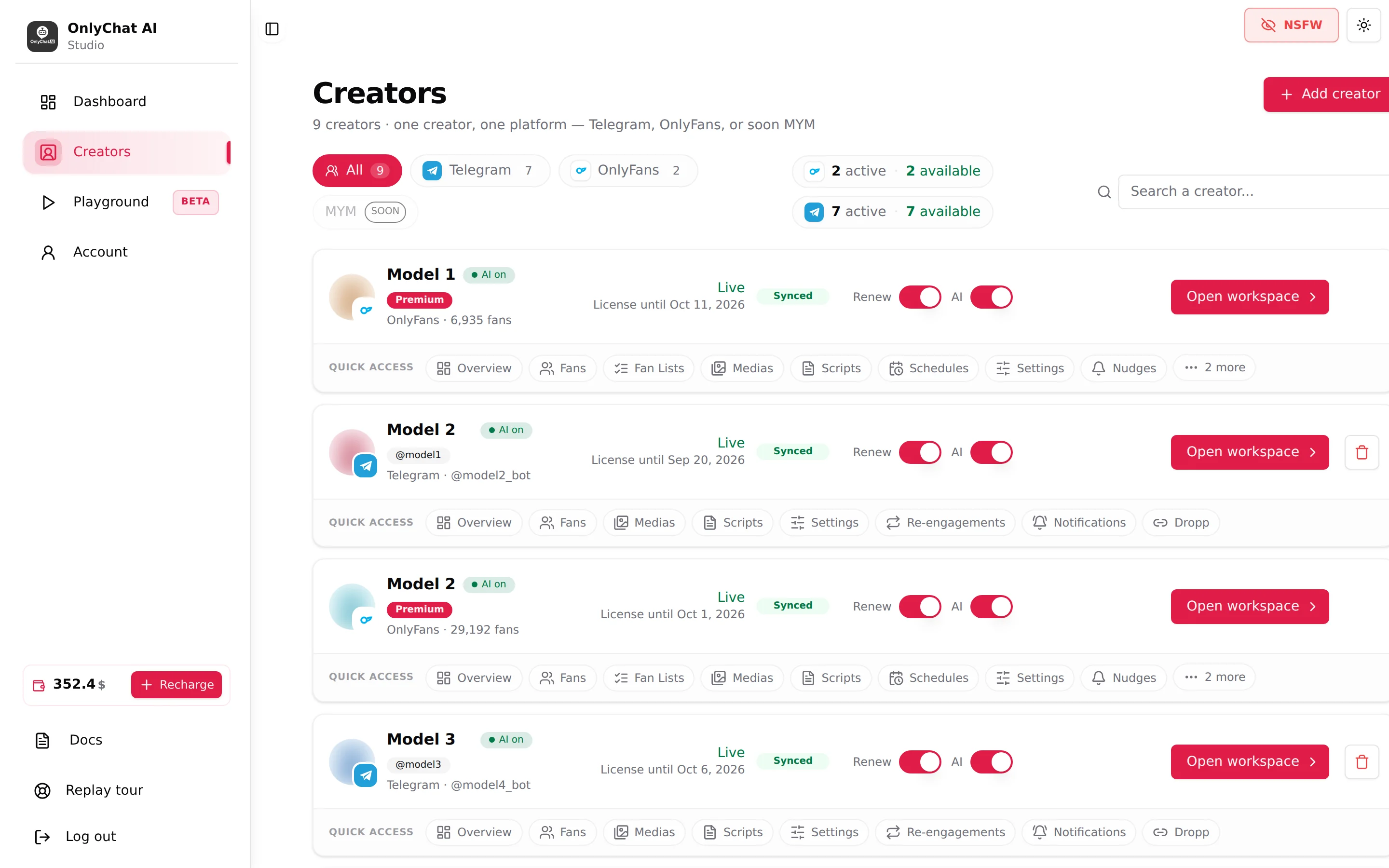
What the dashboard gives you
- Creators: one card per creator with its status ("Live", "Ready to launch", "No active license"), the sync state, the Renew switch and the AI switch.
- Dashboard: revenue, AI revenue, AI sales, unlock rate, best script, for one platform or both, over any date range.
- Creator workspace: Overview, Fans, Medias, Scripts, Settings and the platform-specific tabs. See The OnlyFans workspace.
- Playground: a sandbox where you chat with the AI as if you were a fan before going live. See Playground.
- Account: balance, licenses, team members and permissions, integrations, alerts.
Read Tour of the dashboard for the full walk-through.