
A license is bought first, then assigned. Buying puts it in your stock (the Available counters on the Account page); assigning attaches it to one creator for one month and starts the clock. The two steps are separate so that an agency can buy ten licenses at once and hand them out as creators come online. The Renew switch on each creator card decides what happens on the expiry date.
Where to find it
- Buying: Account, Balance & Licenses, button Buy Licenses (permission Buy licenses).
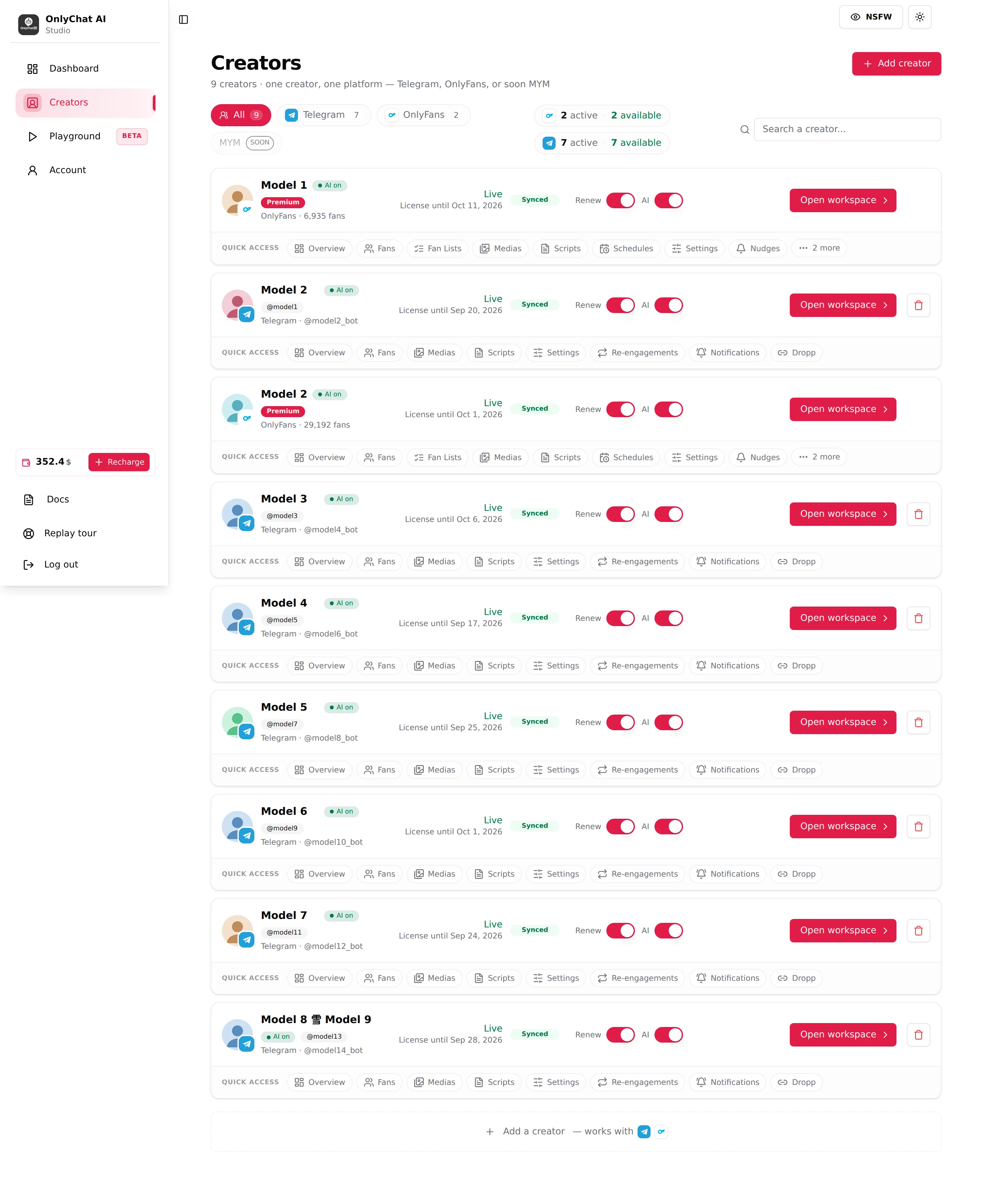
- Assigning: Creators board, button Assign License on a creator card that has no active license (permission Assign license to creator).
- Renewing: Renew switch on the creator card (permission Toggle auto-renew).
The Purchase Licenses modal
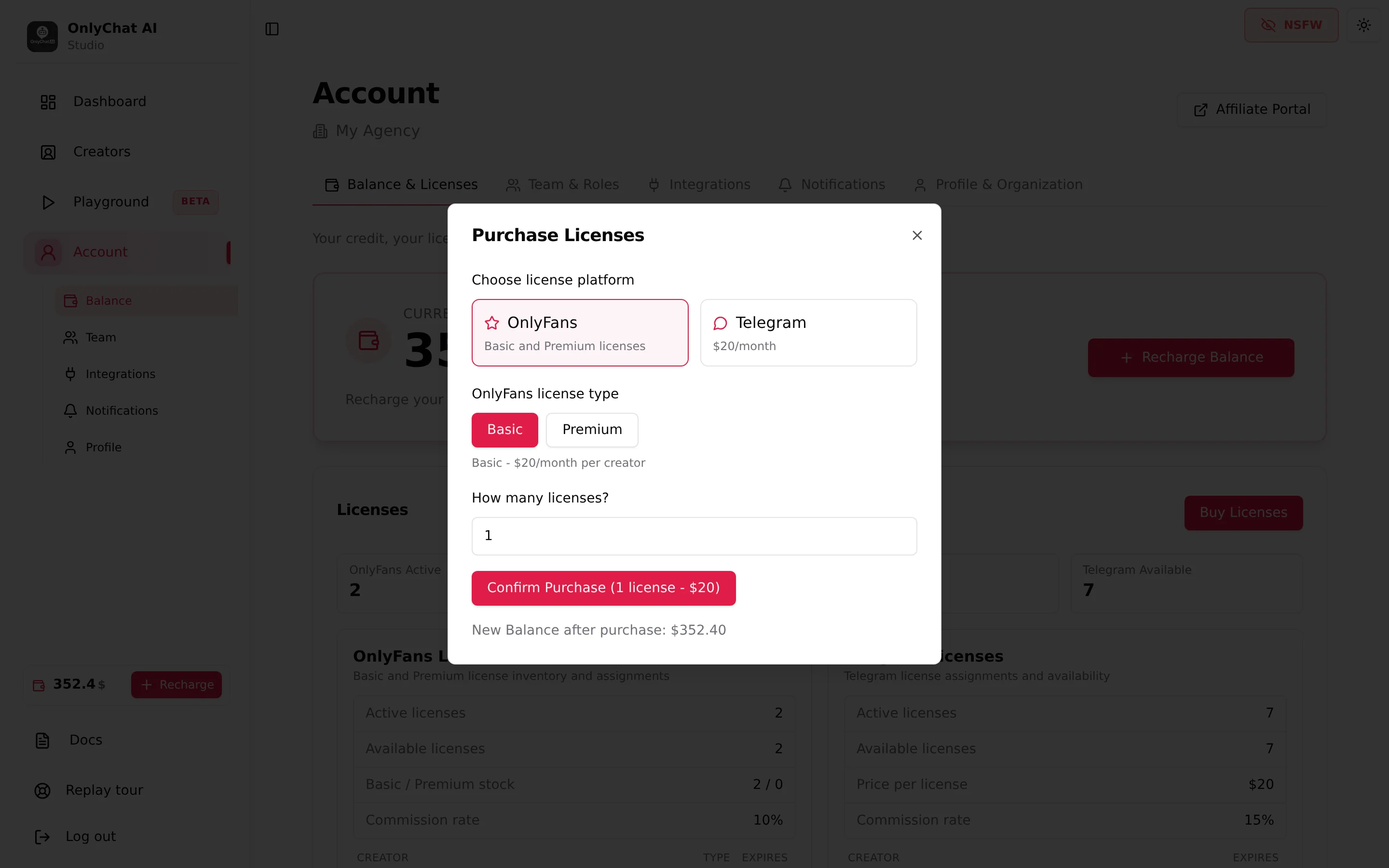
Choose license platform
Two tiles: OnlyFans ("Basic and Premium licenses") and Telegram ("$20/month"). The pools are separate; pick the platform of the creator you plan to assign to.
OnlyFans license type
Shown for OnlyFans: Basic ("Basic - $20/month per creator") or Premium ("Premium - $70/month per creator"). The tier is fixed at purchase; a Basic license can later be upgraded in place, pro-rata, from the creator's Premium tabs, see What Premium adds. A Premium license cannot be turned back into a Basic one.
Telegram offer
Shown for Telegram: Single license ("$20/month, Choose your own quantity") or Bulk packs with their discount, see Plans and commission.
How many licenses?
Number field. Buy what you will assign this month; licenses in stock do not expire in the interface but they are money sitting idle.
Confirm Purchase
The button reads Confirm Purchase (N license(s) - $X) and the line under it shows New Balance after purchase: $Y, in red when the purchase would take the balance below zero. Toasts: "Licenses purchased successfully." or "Telegram licenses purchased successfully."; errors "Failed to purchase licenses." / "Failed to purchase Telegram licenses." The purchase appears in Transaction History as "OnlyFans license purchase (N basic|premium)" or "Telegram license purchase (N)".
- Check the balanceThe modal shows the new balance after purchase; recharge first if it turns red, see Balance and licenses.
- Open Buy Licenses and pick the platformOnlyFans or Telegram.
- Pick the tier or the offer, then the quantityBasic or Premium for OnlyFans; single or pack for Telegram.
- Confirm PurchaseThe Available counter on the Account page and the chip on the Creators board go up.
Assign a license to a creator
A creator without a license shows No active license with the hint "Assign a license to start" and the button Assign License. The AI switch refuses with "No Active License, You cannot enable AI for this creator because it does not have an active license."
OnlyFans: Assign License modal
Title Assign License to <name>, text "Select which type of license to assign:", select "Select license type" listing Basic (N available) and Premium (N available), then Confirm. With nothing in stock, the dialog is replaced by No Available Licenses: "You don't have any available licenses. Please purchase one from the Account page." with an OK button.
Telegram: Assign Telegram License modal
Title Assign Telegram License to <name>, text "Telegram licenses are separate from OF licenses and cost $N each." and the line "Available Telegram licenses: N", then Confirm. Toasts: "Telegram license assigned." / "Failed to assign Telegram license." / "Missing organization context." (reload the page and retry).
After assignment the card switches to Ready to launch ("Flip the AI toggle to go live") and, once the AI switch is on, to Live with "License until MMM D, YYYY". The creator's Overview tab shows the same under License: "Premium · expires Oct 1" or "Standard · expires Oct 11", with an Auto-renew badge when the Renew switch is on.

The Renew switch
Tooltip, verbatim: "On, this license is bought again from your balance when it expires. Off, the creator goes offline on the expiry date." The switch appears only once a license is assigned.
| Renew | On the expiry date | When to use |
|---|---|---|
| On | A license of the same platform and tier is charged to the balance and the creator keeps running. If the balance cannot cover it, the renewal fails and the creator goes offline. | Every creator you intend to keep. Pair it with a balance alert. |
| Off | The license ends, the card goes back to No active license, the AI stops replying. | Creators you are winding down, or when you plan to change tier at the next cycle. |
The renewal shows in Transaction History like a purchase. On Telegram the switch works the same way and is per license as well.
Reassign a license to another creator
There is no "move license" button. A license belongs to the creator it was assigned to until it expires. To put a creator on hold and use the money elsewhere:
- Turn Renew off on the creator you stop. The license runs until its expiry date.
- Buy or use an available license for the new creator and assign it.
Deleting a creator (Telegram creators can be deleted from the card) does not put its license back in stock: a month that has started is consumed. Let the license run to its expiry, with Renew off, before deleting the creator.
Good to know
- Two pools, two chips. The Creators board shows "N active · N available" per platform; the tooltip spells it out: "OnlyFans licenses: N assigned to a creator and still valid, N basic and N premium waiting to be assigned. Click to manage them on the Account page." and "Telegram and OnlyFans licenses are separate pools."
- A license is not enough to go live. The AI switch also needs a positive balance, at least two active scripts, and on Telegram an active business connection. See Turn the AI on.
- Premium tabs on a Basic license show the locked card; assign a Premium license or upgrade in place.
- Permissions: Buy licenses, Assign license to creator, Toggle auto-renew are separate; a moderator can be allowed to assign without being allowed to buy.