
The app has one fixed frame: a sidebar on the left with four pages (Dashboard, Creators, Playground, Account), your balance at the bottom, and a header with two toggles (NSFW blur and theme). Everything else opens inside that frame. This page names every element of the frame so the other articles can point to them without re-explaining.
Where to find it
You land on the Creators board (/creators) after sign-in. The sidebar and header are the same on every page.
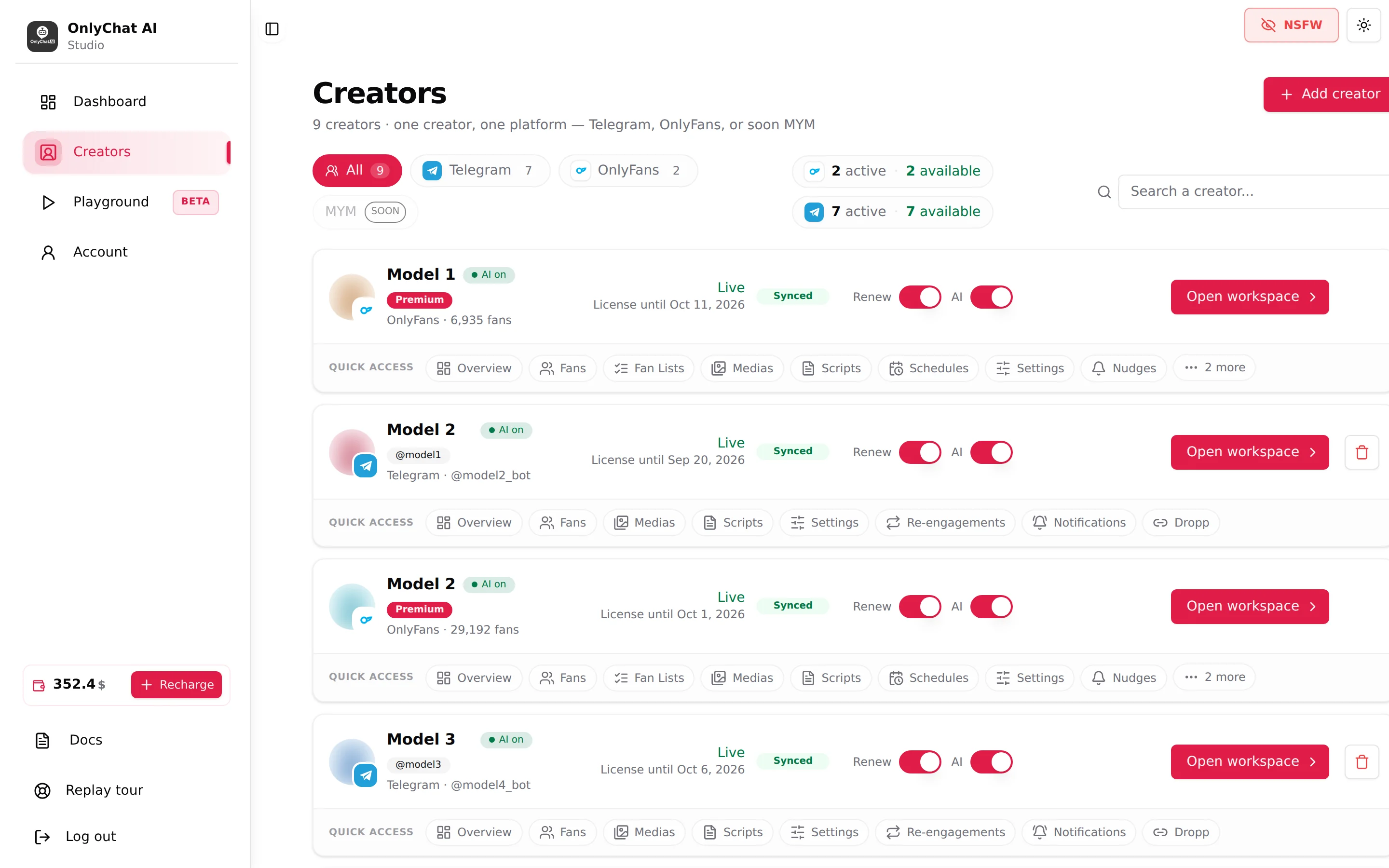
The sidebar
The sidebar shows the OnlyChat AI logo with the "Studio" wordmark, then the navigation. The Toggle Sidebar button (top of the content area) collapses it to icons only; hover an icon to read its tooltip.
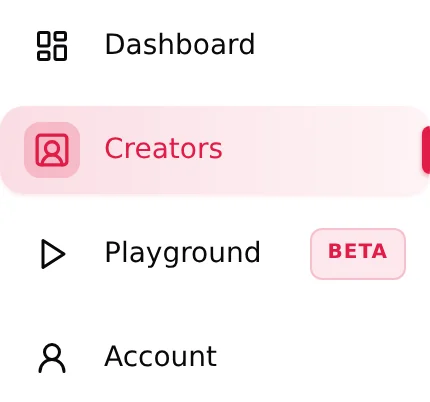
Dashboard
Analytics across your organization. You pick a platform (All platforms, OnlyFans, Telegram), one or several creators, and a date range with presets (Today, Last 7 Days, This Week, Last Week, This Month, Last Month, This Year, Last Year) plus a timezone. Two tabs: Overview (Total Revenue, AI Revenue, AI Sales, Unlock Rate, Best Script, daily chart, Recent Sales) and Scripts (a leaderboard of scripts sorted by Best revenue or Best conversion, with a Steps Detail per script). On OnlyFans you can switch between Net Revenue and Gross Revenue; net subtracts the OnlyFans cut. See Activate and monitor scripts.
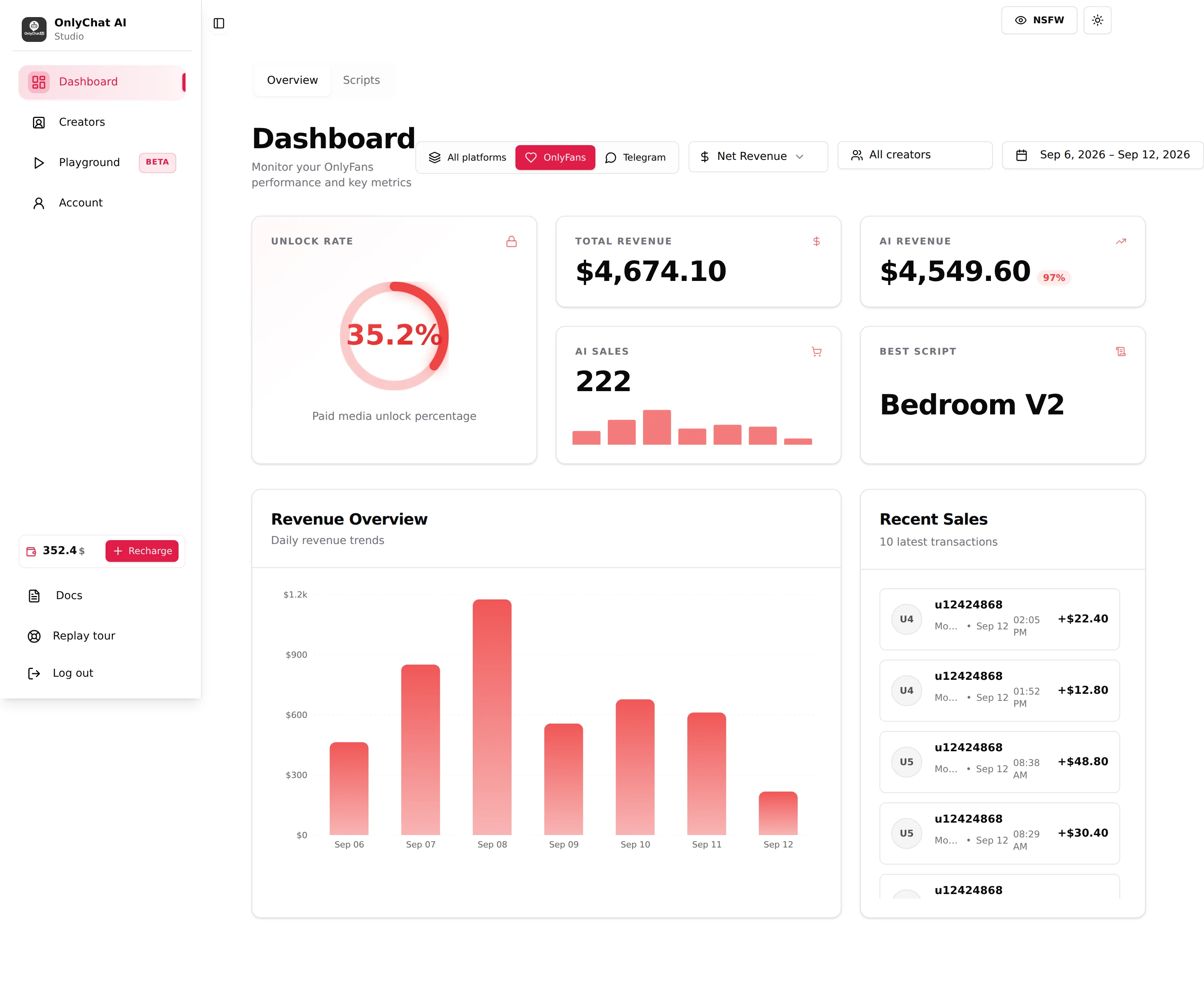
Creators
The board: "Creators · N creators · one creator, one platform". Filter chips All, Telegram, OnlyFans, MYM (marked "Soon", disabled), a search field "Search a creator...", license chips per platform ("2 active · 2 available") that link to the Account billing tab, and one card per creator. Each card carries the creator's status, the Renew switch, the AI switch, Open workspace and a Quick access row to the creator's tabs. The board is paginated: "Page x of y · N creators in total". Details in Your first creator and Running many creators.
Playground
Marked Beta. A chat sandbox where you play the fan and the AI answers as one of your OnlyFans creators, with the creator's real settings and scripts. Credits are bought in packs ("Buy 100 / $3"). Telegram creators cannot be tested there yet: "OnlyFans creators only". See Playground.
Account
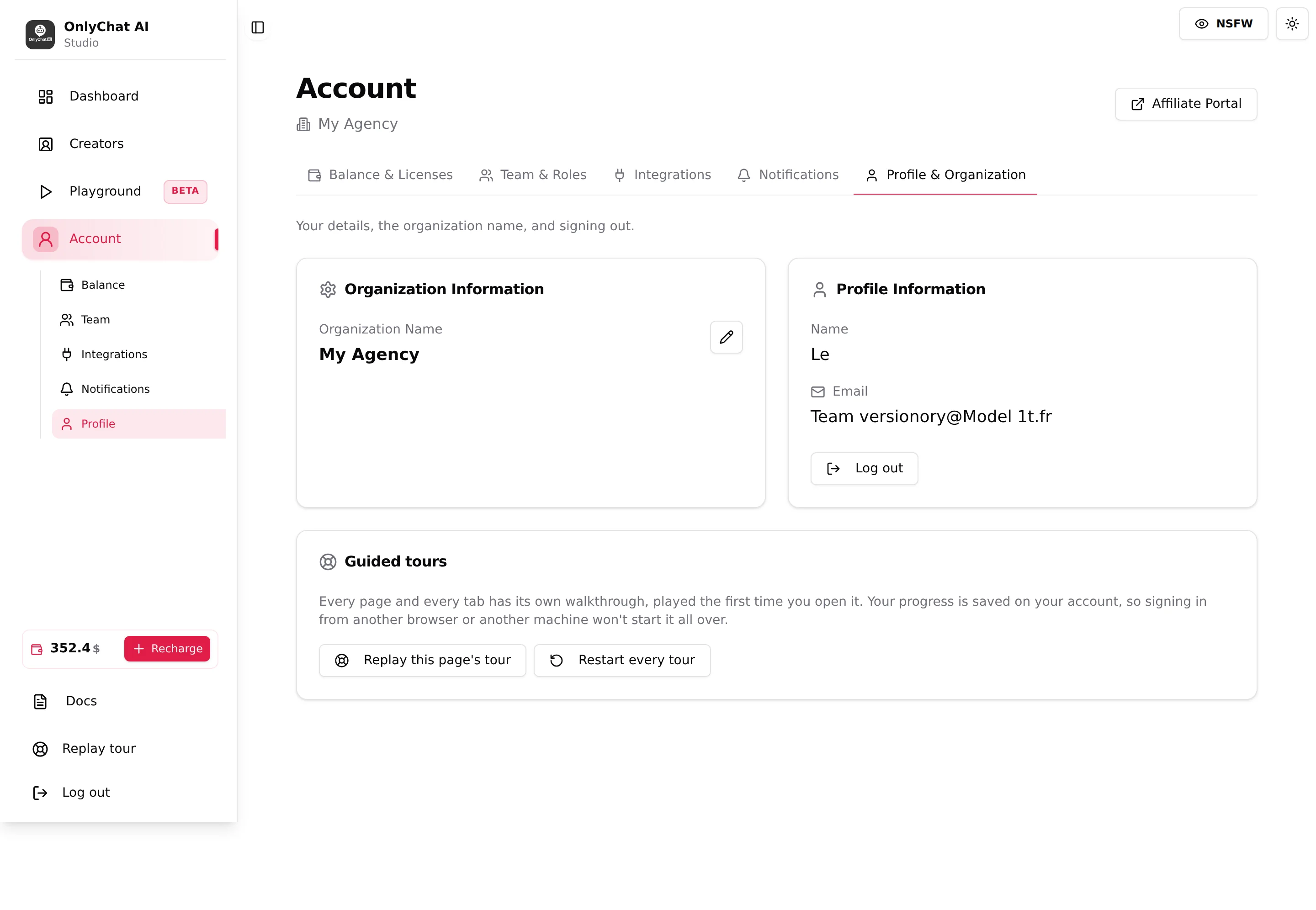
When Account is selected, sub-items appear under it: Balance, Team, Integrations, Notifications, Profile. They match the five tabs of the Account page: Balance & Licenses, Team & Roles, Integrations, Notifications, Profile & Organization. The header of the Account page also shows the organization name and an Affiliate Portal button (external link). See Balance and licenses, Members and roles, Integrations.
Balance widget and Recharge
At the bottom of the sidebar, the balance is shown rounded ("352.4 $" for example, "12.4K $" past ten thousand; hover it for the full amount). The Recharge button opens the "Recharge Your Balance" modal directly, without going through the Account page. The widget is visible only to members with the "View balance" permission; the button needs "Recharge balance".
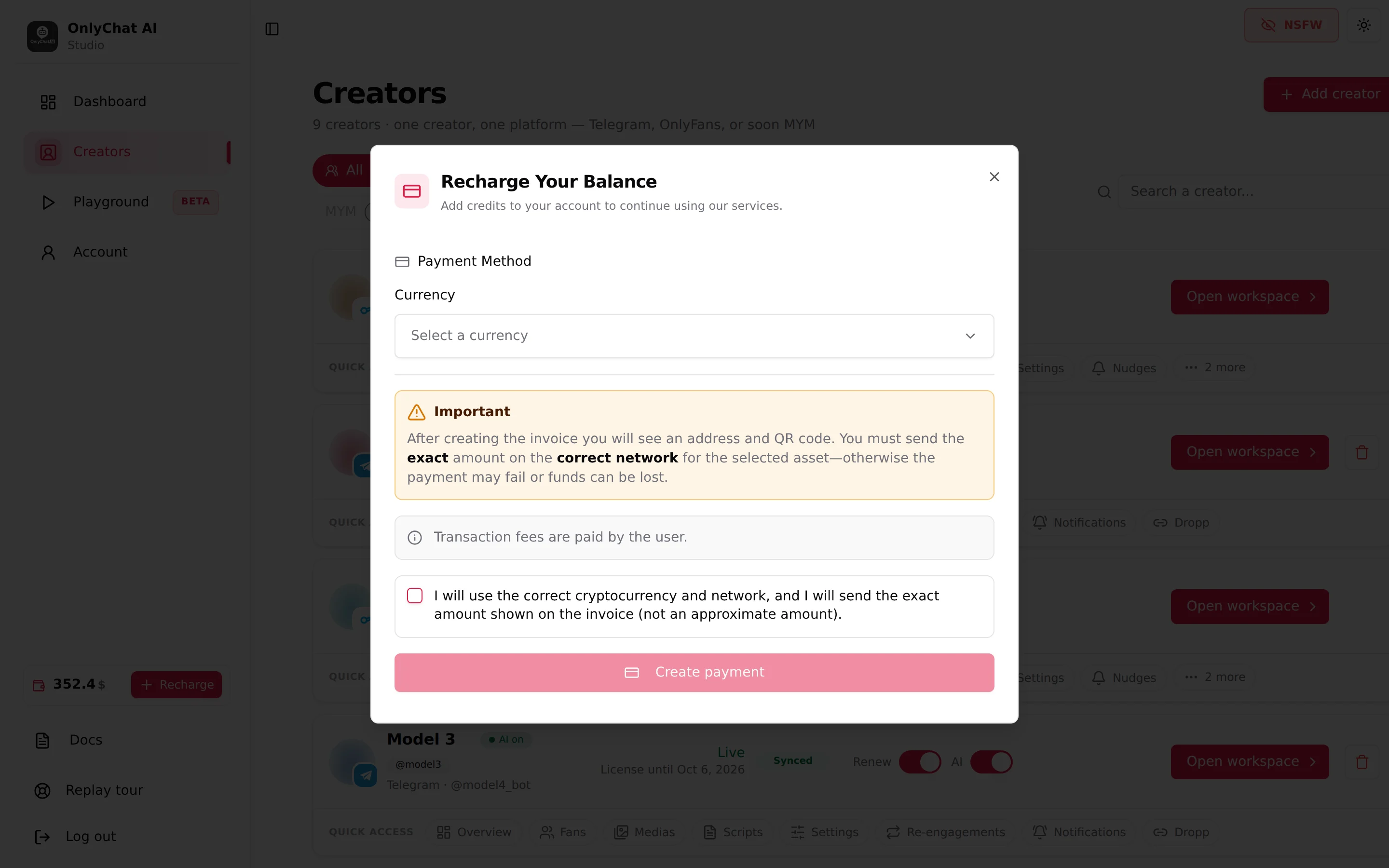
The recharge flow itself (currency, amount, invoice, QR code, statuses) is described in Balance and licenses.
Docs, Replay tour, Log out
- Docs (tooltip "Documentation") opens this help center in a new tab.
- Replay tour (tooltip "Replay the tour for this page") appears only on pages that have a guided tour. Clicking it restarts that page's tour from step 1.
- Log out (tooltip "Sign out of OnlyChat") ends your session. It does not stop the AI: creators keep running.
The header
NSFW blur mode
The NSFW toggle (aria label "Toggle blur mode") sits top right on every page. When on, every fan photo and media thumbnail across the app is blurred: creator avatars on the board, media thumbnails in the Medias tab, previews in the media picker of a script, thumbnails in conversations. The tour describes it as "Working in public": turn it on before opening the app in a shared office, a call or a screen recording. It stays on until you turn it off, on this browser.
The blur is cosmetic and local to your screen. It changes nothing for fans and nothing in what the AI sends.
Theme
The sun icon next to NSFW is Toggle theme: it switches the app between the light and dark appearance. Purely visual, remembered on this browser.
Guided tours
Every page and tab has its own guided tour, played automatically the first time you open it. A tour is a series of cards pinned to the element they describe, with the page name on top, a title, a short explanation, a step counter ("1 / 11"), Skip and Next. Progress is saved on your account, so a tour you finished on one computer does not play again on another.
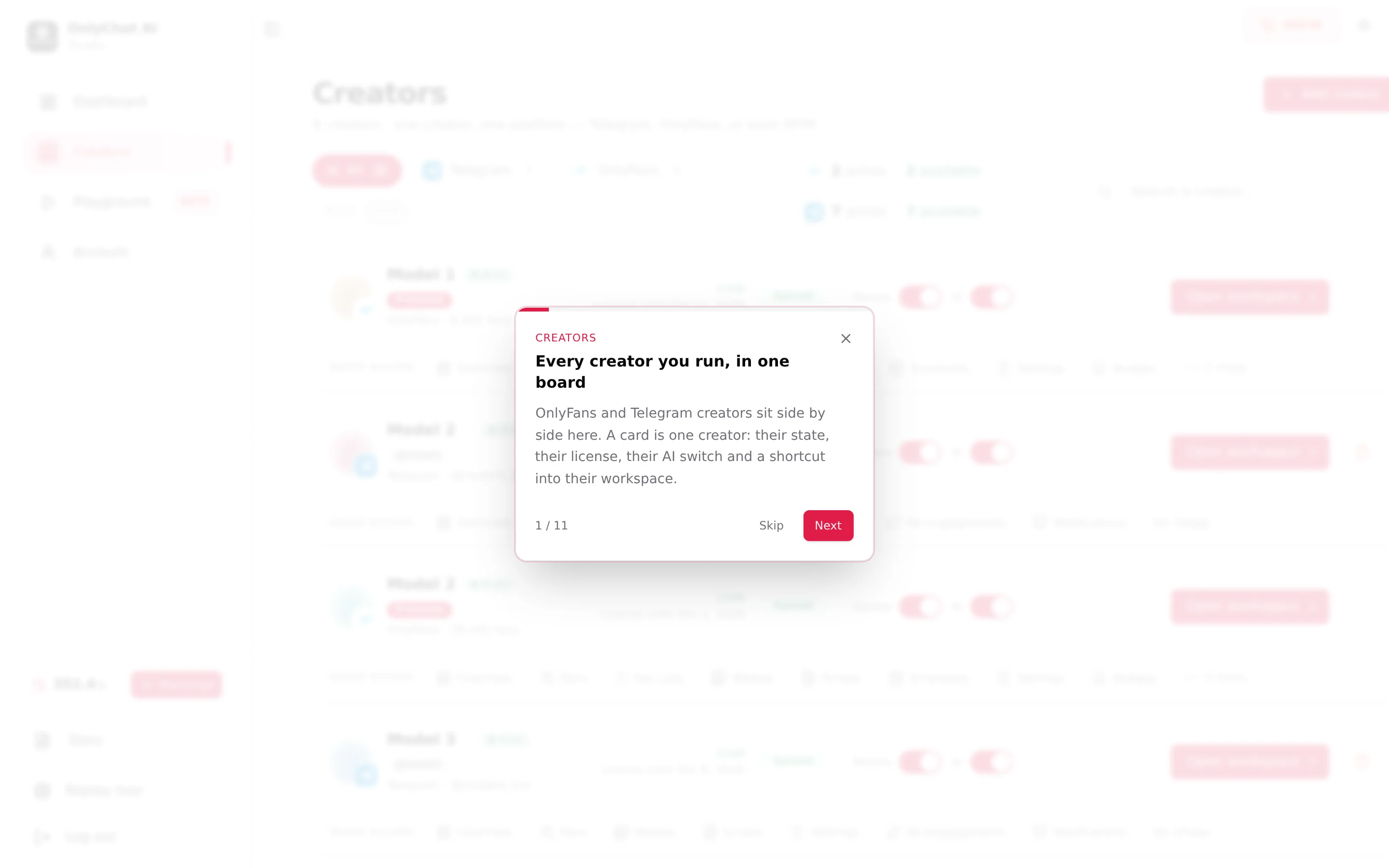
Three ways to control tours:
| Control | Where | What it does |
|---|---|---|
| Skip | On any tour card | Closes the tour of this page. It will not play again by itself. |
| Replay tour | Sidebar, bottom | Replays the tour of the page you are on. |
| Guided tours card | Account, Profile and Organization | "Replay this page's tour" (the Account page tour) and "Restart every tour", which resets all of them: "Done. The guide will play again as you visit each page." |
Permissions change what you see
The sidebar and the tabs adapt to the permissions of the member who is signed in. A member without "View balance" does not see the balance widget; a member without "View Scripts tab" does not see the Scripts tab in a creator's workspace; a member without "Use playground" sees "Access Denied. You are not authorized to use the Playground." If a page or tab is missing for a teammate, check their permissions in Account, Team and Roles rather than assuming a bug. See Members and roles.
Error page
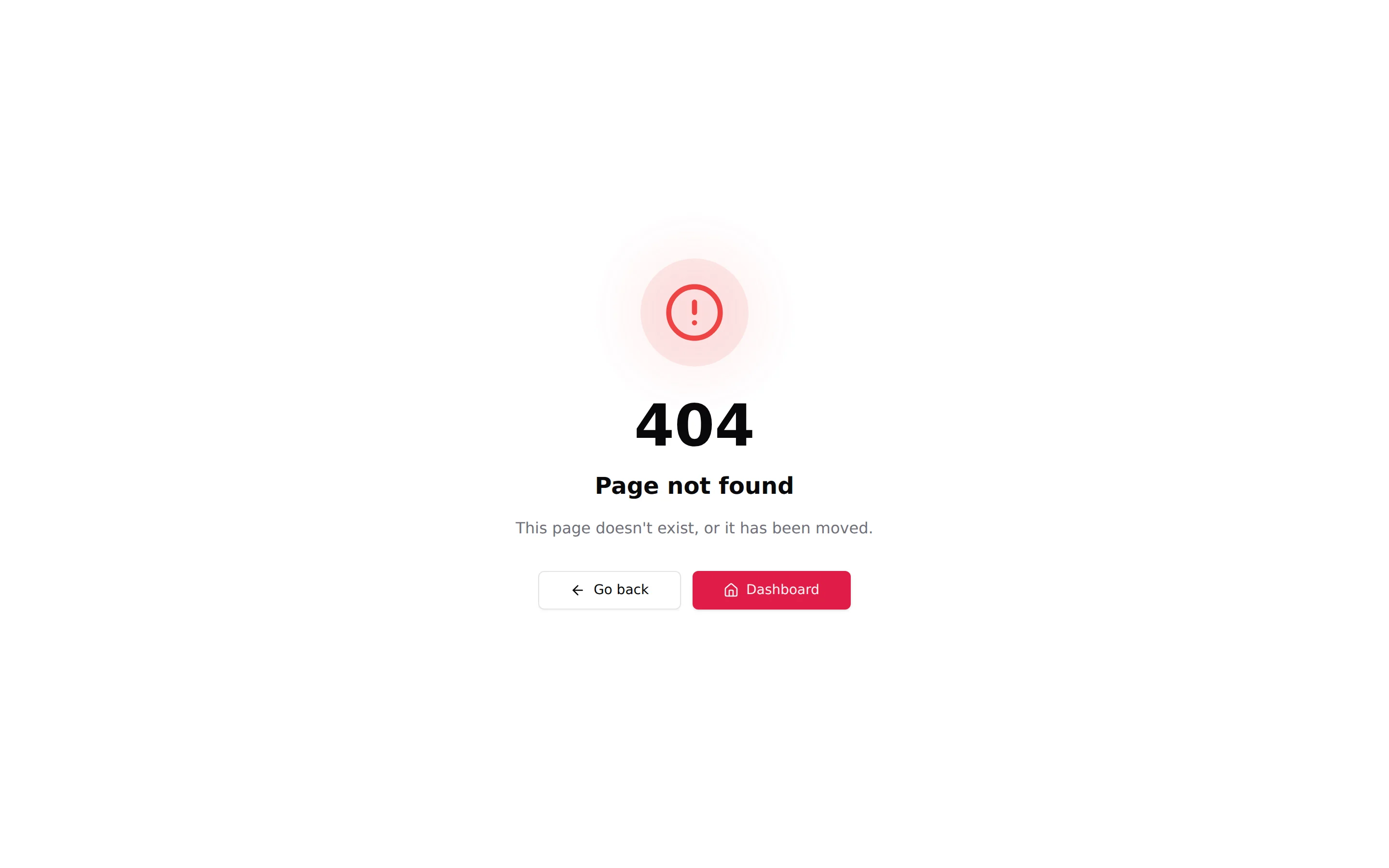
A wrong or moved address shows "Page not found" with "This page doesn't exist, or it has been moved." and a Go back button. A page that fails to load shows "Something went wrong" and "This page failed to load. The details below are what broke." The details are useful if you contact the team.
Good to know
- The app is built for a desktop browser. The sidebar collapses on narrow windows, but drawing timeslots on the Schedules grid or picking media in a script is much easier on a wide screen.
- One browser tab is enough. Uploads on Telegram run in a background tray, but the tray says "keep this tab open" while files are in progress.
- The balance in the sidebar refreshes when a recharge is confirmed and when a license is bought or renewed. If a number looks stale, reload the page.