
The AI replies only where a switch says so. There are three levels: the creator switch (everything on or off for that creator), the per-fan switch (one fan paused while the rest runs), and the bulk buttons that flip every fan of a creator at once. This page shows each switch, the four dialogs that can refuse to turn the creator on, and what changes for fans mid-conversation. The three levels multiply: a fan gets automatic replies only when the creator switch and his own switch are both on (and, on OnlyFans, when he passes the fan lists).
Where the creator switch is
Two places, same switch:
- On the Creators board, the AI switch on the creator's card, next to Renew. The badge next to the name reads "AI on" or "AI off".
- In the creator workspace, the Enable AI switch in the header, next to the name. On Telegram creators the header label reads "Enable IA".

Flipping the switch needs the "Toggle AI for creator" permission. Members without it see the switch greyed out or absent.
The three states on the card
| Status | Hint under it | Meaning |
|---|---|---|
| Live | "License until MMM D, YYYY" or "AI is replying automatically" | Switch on, license valid, AI answering. |
| Ready to launch | "Flip the AI toggle to go live" | License assigned, switch off. Nothing is being sent. |
| No active license | "Assign a license to start" | No license, the switch cannot be turned on. Use Assign License. |
The Overview tab of the workspace says the same thing in its Creator health block: "Live, replying to fans 24/7" or "Paused, no automatic replies".
The four refusal dialogs
When you flip the switch on and a condition is missing, the switch stays off and a dialog explains why. The AI never starts half-configured.
| Dialog title | Text | Fix |
|---|---|---|
| Insufficient Balance | "You need a positive balance to enable AI for this creator." | Click Recharge in the sidebar and top up. See Balance and licenses. |
| Not Enough Scripts | OnlyFans: "You must have at least 2 scripts to enable AI for this creator." Telegram: "You must have at least 2 active scripts to enable AI for this Telegram creator." | Create or activate scripts on the Scripts tab. Two active scripts is the floor. See Create a script. |
| No Active License | "You cannot enable AI for this creator because it does not have an active license." | Click Assign License on the card. Buy one first in Account, Balance & Licenses if none is available. |
| No Business Connection telegram | "You cannot enable AI for this Telegram creator because it does not have an active business connection. Please connect a Telegram Business account first." | Finish the Telegram setup page and verify the connection. |
Per-fan switch
Every row of the Fans tab has an Enable AI switch. Off pauses the AI for that fan only; the creator stays Live for everyone else. Needs the "Toggle AI for individual fans" permission. Full detail, including when to pause a fan, in Enable AI per fan.
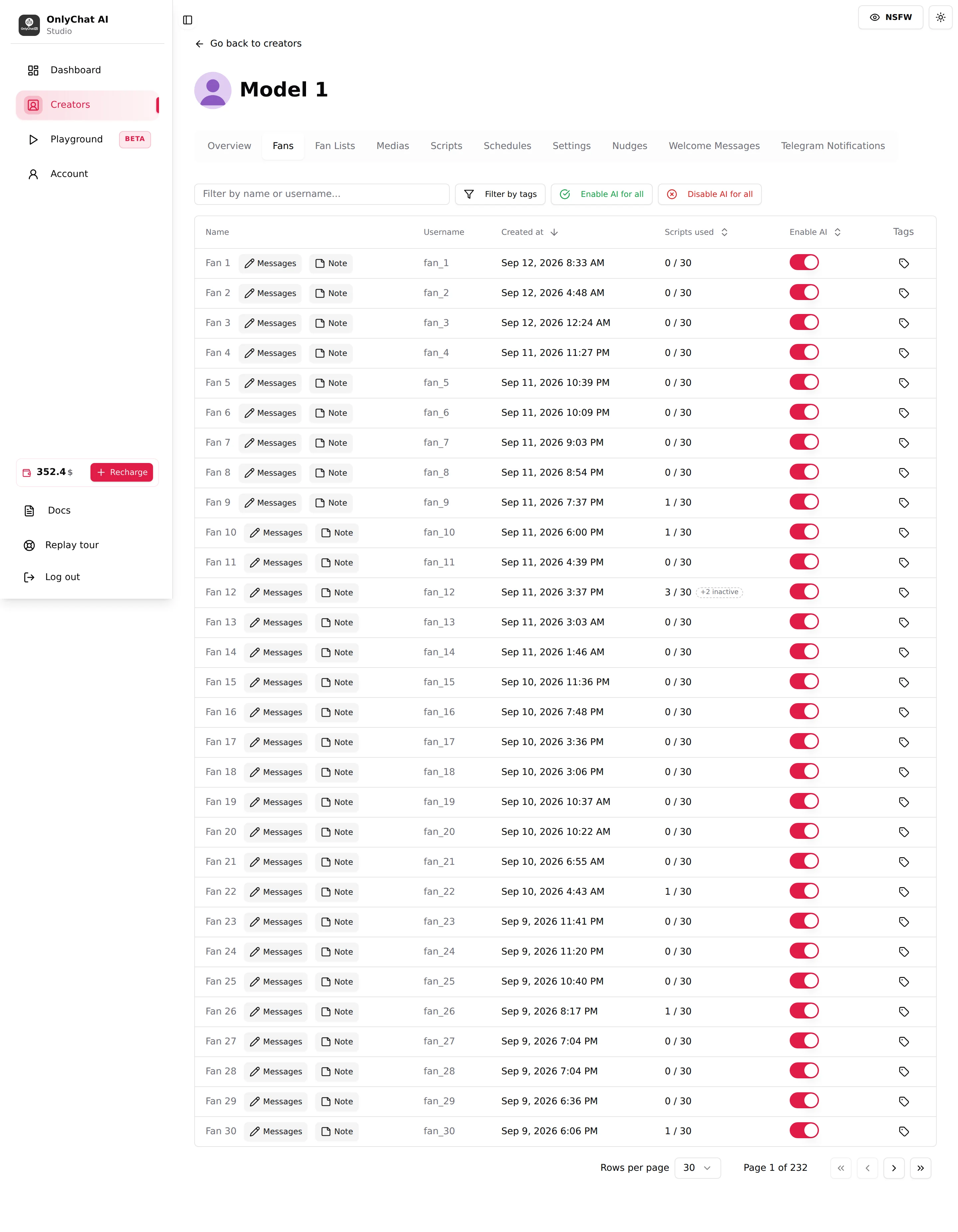
Bulk: Enable AI for all, Disable AI for all
Two buttons in the Fans toolbar. Each opens a confirmation: "Enable AI for all fans?" / "Disable AI for all fans?" (on Telegram: "Enable AI for all Telegram fans?") with the text "This will update AI status for all fans of this creator immediately." Confirm and every per-fan switch of the creator flips. Toast: "AI enabled for N fan(s)" or "AI disabled for N fan(s)"; on failure, "Failed to update AI status".
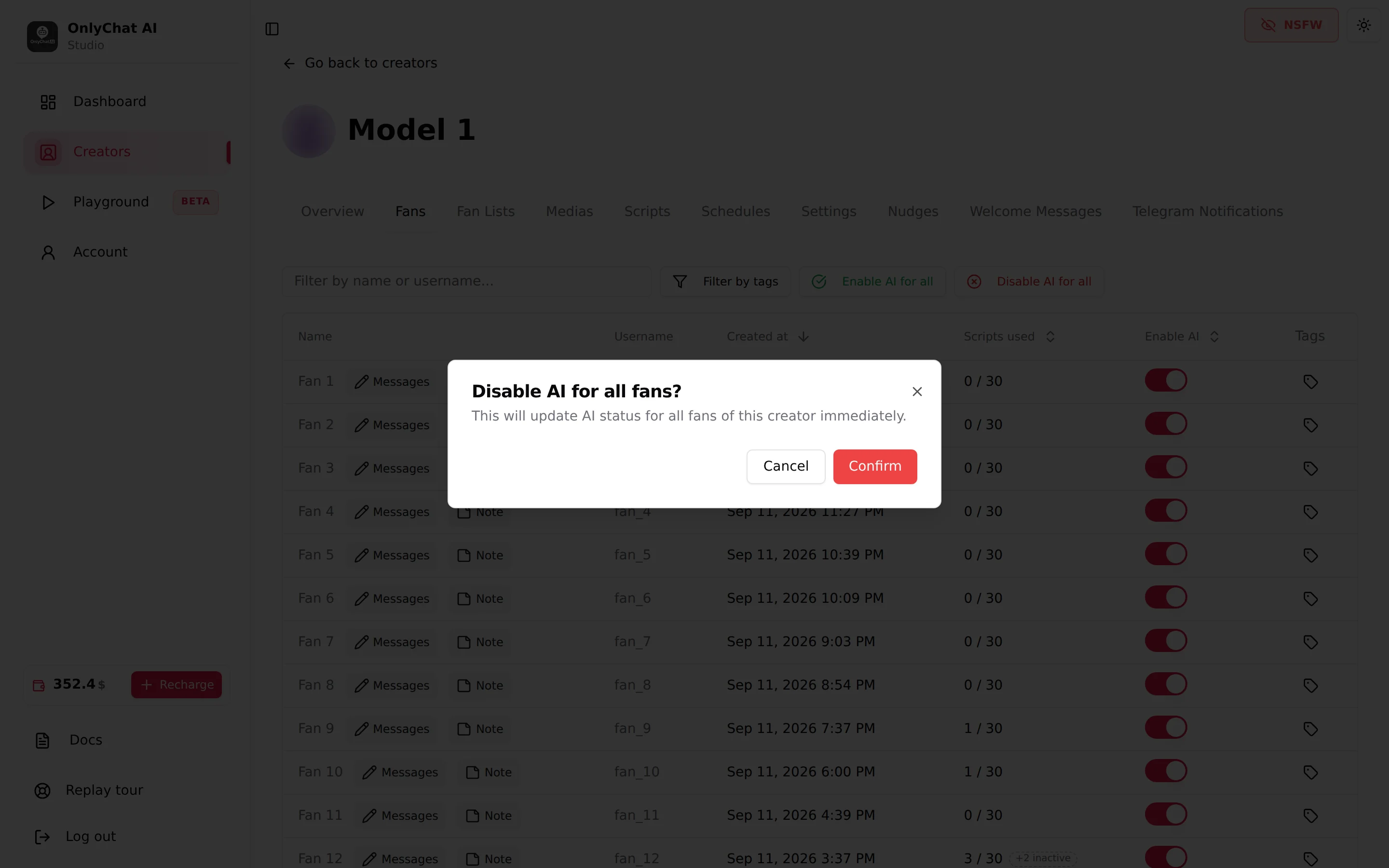
Use Disable AI for all when a human team takes over a creator for a session and you want to keep the creator switch on (so the schedule, nudges and alerts keep running). Use Enable AI for all after such a session, and after importing a creator whose fans were paused one by one.
What happens to conversations already running
- Creator switch off: no more automatic replies to any fan. Fans who write get no answer until you turn it back on or reply yourself from the composer (OnlyFans) or from the creator's Telegram (Telegram). Whether a script in progress resumes where it stopped when you turn the AI back on is not shown in the interface.
- Per-fan switch off: same, for that fan only. Turn it off before you write to a fan yourself so the AI does not answer over you.
- Turning the AI on: the AI starts answering new messages. Whether it also answers the messages received while it was off is not shown in the interface; read the first conversations after switching on.
Notifications when the AI goes off
With the Telegram notifications bot connected, the AI Disabled toggle ("Receive notifications when AI is automatically disabled") warns you when a creator drops off by itself, and No Script Left warns when scripts run out. On OnlyFans this needs a Premium license; on Telegram it is in the Notifications tab. See Telegram alerts.
Turn a creator on for the first time
- Check the balanceThe sidebar shows your balance. It must be positive.
- Assign a licenseOn the card, Assign License, pick Basic or Premium (OnlyFans) or confirm the Telegram license. Status becomes "Ready to launch".
- Have two active scriptsScripts tab: at least two rows with the Active switch on. Starring one as first is optional: without a star, the AI picks the first script from the descriptions.
- Check who the AI may answerOnlyFans: at least one Active list on the Fan Lists tab. Telegram: the business connection verified.
- Flip the AI switchOn the card or in the header. Status becomes "Live". Open the Fans tab a few minutes later and click a row to read the first replies.