
OnlyChat runs on a prepaid balance. You add funds (crypto in the interface, bank transfer through the official payment bot on Telegram, card on request for larger agencies, see Good to know), and everything is taken from that balance: license purchases, license renewals, the commission on each sale the AI closes, playground credits. No card on file, no monthly invoice. The balance is shared by the whole organization (all creators, all members). When it reaches zero the AI stops selling, so the Account page puts the balance, the licenses and every transaction on one tab.
Where to find it
Click Account in the sidebar, tab Balance & Licenses ("Your credit, your licenses and every transaction."). The sidebar also shows the balance at all times, with a Recharge shortcut, for members who hold the View balance permission.
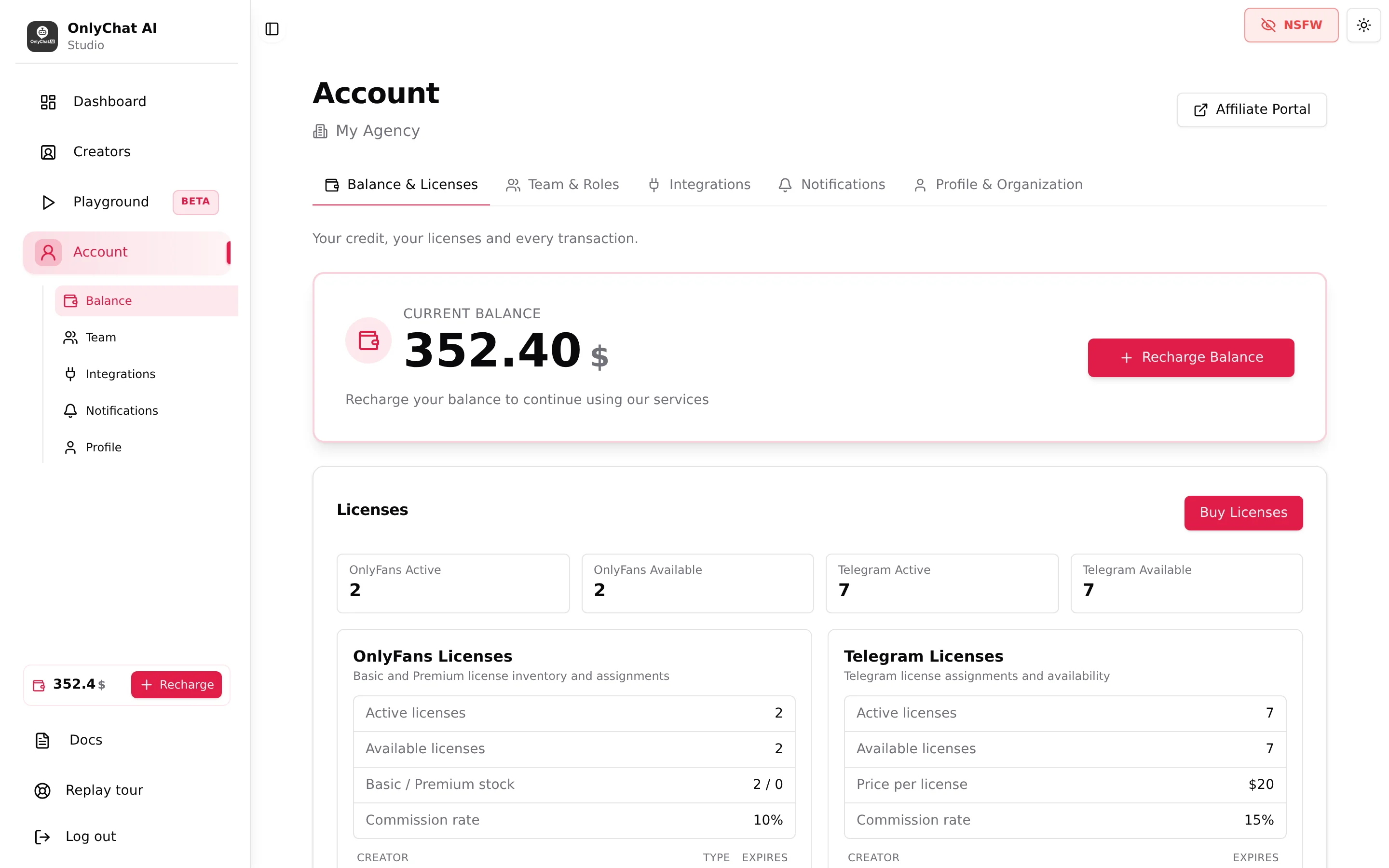
The Current Balance card
Shows the balance in dollars and the line "Recharge your balance to continue using our services", with the button Recharge Balance (permission Recharge balance). The balance is what remains after every purchase and every commission; it can go negative when commissions keep being charged on sales while nothing has been added, see Low balance alerts.
Recharge Balance, step 1: create the invoice
Recharge Balance (or Recharge in the sidebar) opens Recharge Your Balance, "Add credits to your account to continue using our services." The first step is titled Payment Method.
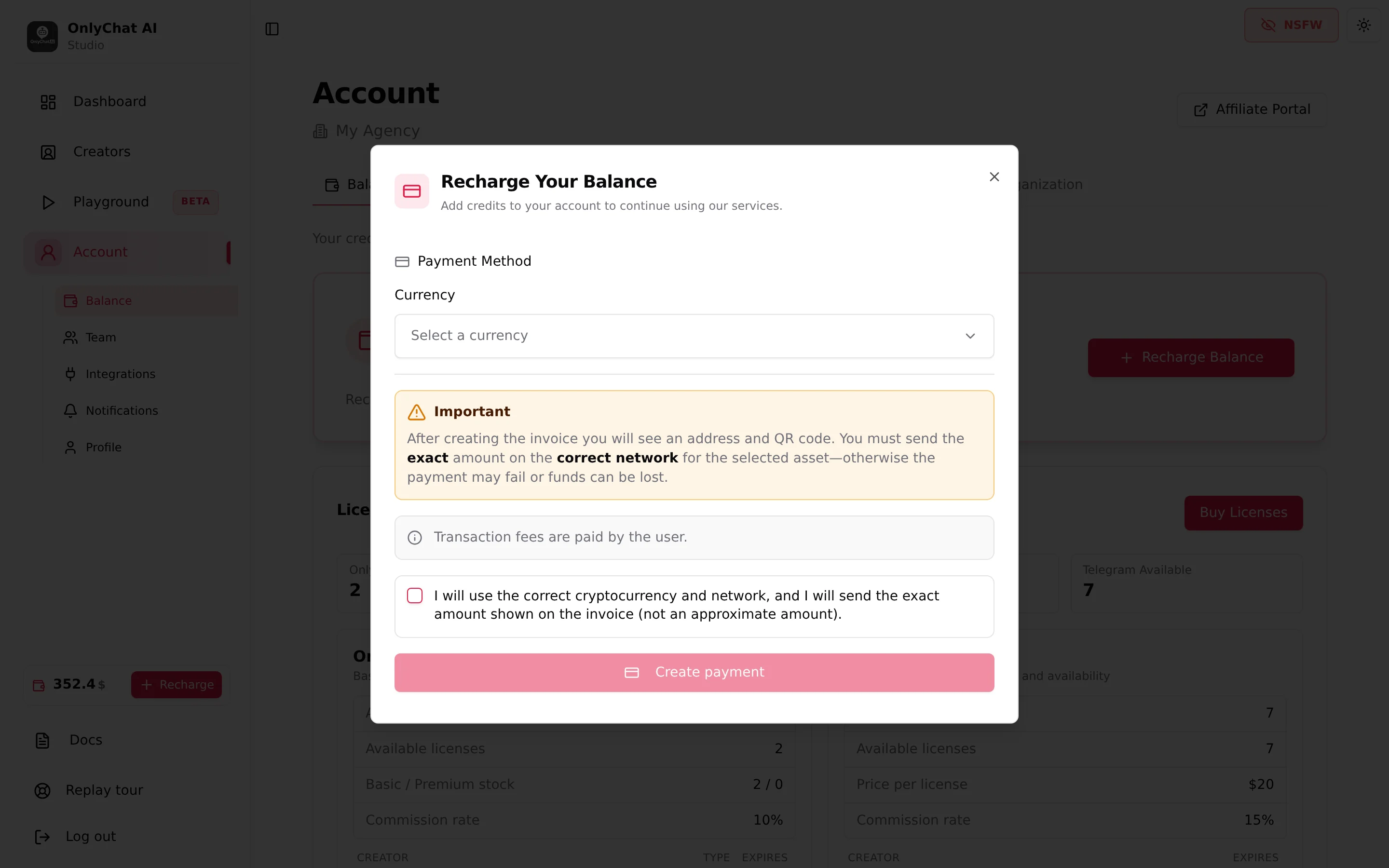
Currency
Select "Select a currency" with a search field "Search for a currency..." ("No results found / Try another search term" when nothing matches). Pick the asset you hold and can send from your wallet. The asset also fixes the network: the invoice is valid for that asset on that network only.
Amount
Once a currency is chosen, the amount field appears as Amount in USD or Amount in <ASSET>, with the line "Minimum: N". Type what you want to add. The minimum depends on the asset and is displayed under the field; "Please enter an amount greater than N <ASSET>." blocks smaller values.
The Important box and the checkbox
The modal states, verbatim: "After creating the invoice you will see an address and QR code. You must send the exact amount on the correct network for the selected asset, otherwise the payment may fail or funds can be lost." and "Transaction fees are paid by the user."
The checkbox "I will use the correct cryptocurrency and network, and I will send the exact amount shown on the invoice (not an approximate amount)." is mandatory. Skipping it shows "Please confirm the checkbox: correct network, asset, and exact invoice amount."
Create payment
Button Create payment ("Creating invoice…" while it runs). Error: "Error while creating the payment". Success moves to step 2.
Recharge Balance, step 2: pay the invoice
The modal now reads "Invoice ready, send crypto from your wallet." with:
| Element | What to do with it |
|---|---|
| "Before you send" | "send exactly <amount>, not more, not less. Wrong asset or chain often means lost funds." Read it twice. |
| "Network fees come from your wallet" | "leave enough so the received amount matches the invoice." Set the fee on top of the amount in your wallet, not inside it. |
| Amount to send | The exact figure in the chosen asset. Copy it, do not round it. |
| Receiving Address | Copy button, toast "Address copied!". |
| QR code | "Scan to copy address" from a mobile wallet. |
| Network line | "the network shown in your wallet" must be the one of the selected asset. |
The invoice description on the payment side reads "OF Credits Recharge".
Payment statuses
A status tracker follows the invoice while the modal is open:
| Status | Meaning |
|---|---|
| Waiting for payment | Invoice created, nothing received yet. Send now. |
| Confirming | The transfer is seen on the network and waits for confirmations. |
| Confirmed | Confirmations reached. |
| Sending in progress | Funds are being moved to your balance. |
| Partial payment received | Less than the invoice amount arrived (usually fees taken out of the amount). The balance is not credited until the rest arrives; see Payments and balance issues. |
| Payment completed | "Payment completed !" then "Credits recharged successfully!". The balance updates. |
| Payment failed / Payment refunded / Payment expired | The invoice did not complete. If you have not sent anything, create a new one; do not reuse an expired address. If you did send funds, check the transaction in your wallet and contact the team with its hash before paying again. |
| "Unknown status..." / "Payment not completed: <status>" | The gateway returned something the app does not map. Wait, then check the transaction history. |
- Open Recharge BalanceFrom Account, Balance & Licenses, or the Recharge button in the sidebar.
- Pick the currency and type the amountCheck the minimum under the field.
- Tick the checkbox and click Create paymentThe invoice appears with the amount, the address and the QR code.
- Send the exact amount from your walletSame asset, same network, fees on top. Keep the modal open to follow the status.
- Wait for Payment completedThe balance card and the sidebar widget update. The recharge appears in Transaction History.
The Licenses block
Under the balance, the header Licenses with the button Buy Licenses (permission Buy licenses), four counters, and two cards.
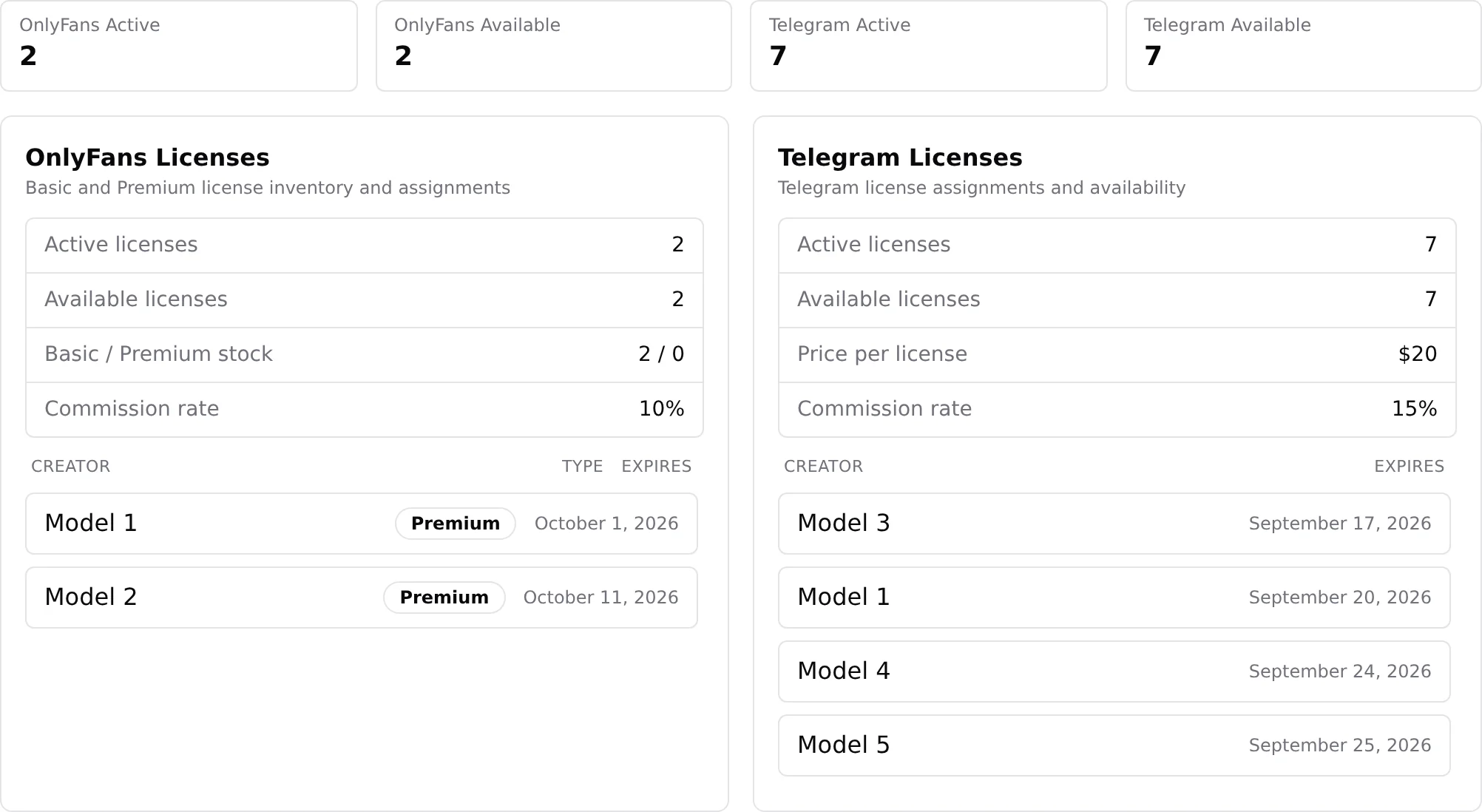
| Counter | Meaning |
|---|---|
| OnlyFans Active | OnlyFans licenses assigned to a creator and still valid. |
| OnlyFans Available | OnlyFans licenses bought but not assigned (Basic plus Premium). |
| Telegram Active | Telegram licenses assigned and valid. |
| Telegram Available | Telegram licenses in stock. |
"No license data." appears when nothing has been bought yet.
OnlyFans Licenses card
Subtitle "Basic and Premium license inventory and assignments". Lines Active licenses, Available licenses, Basic / Premium stock (available licenses split by tier, "2 / 0" means two Basic, no Premium), Commission rate 10%. Then a table Creator · Type · Expires with one row per assigned license (Type shows Basic or Premium; "Unknown Creator" if the creator was removed). Empty state: "No active OnlyFans licenses."
Telegram Licenses card
Subtitle "Telegram license assignments and availability". Lines Active licenses, Available licenses, Price per license ($20), Commission rate 15%. Table Creator · Expires. Empty state: "No active Telegram licenses."
The two pools are separate: a Telegram license cannot be assigned to an OnlyFans creator, and the other way round. Buying and assigning is covered in Buy and assign licenses; what the commission rate means is in Plans and commission.
Transaction History
At the bottom, the table Transaction History with the columns Date, Amount and Description, 10 rows per page ("Rows per page"), pagination "Page x of y" with first, previous, next and last buttons.
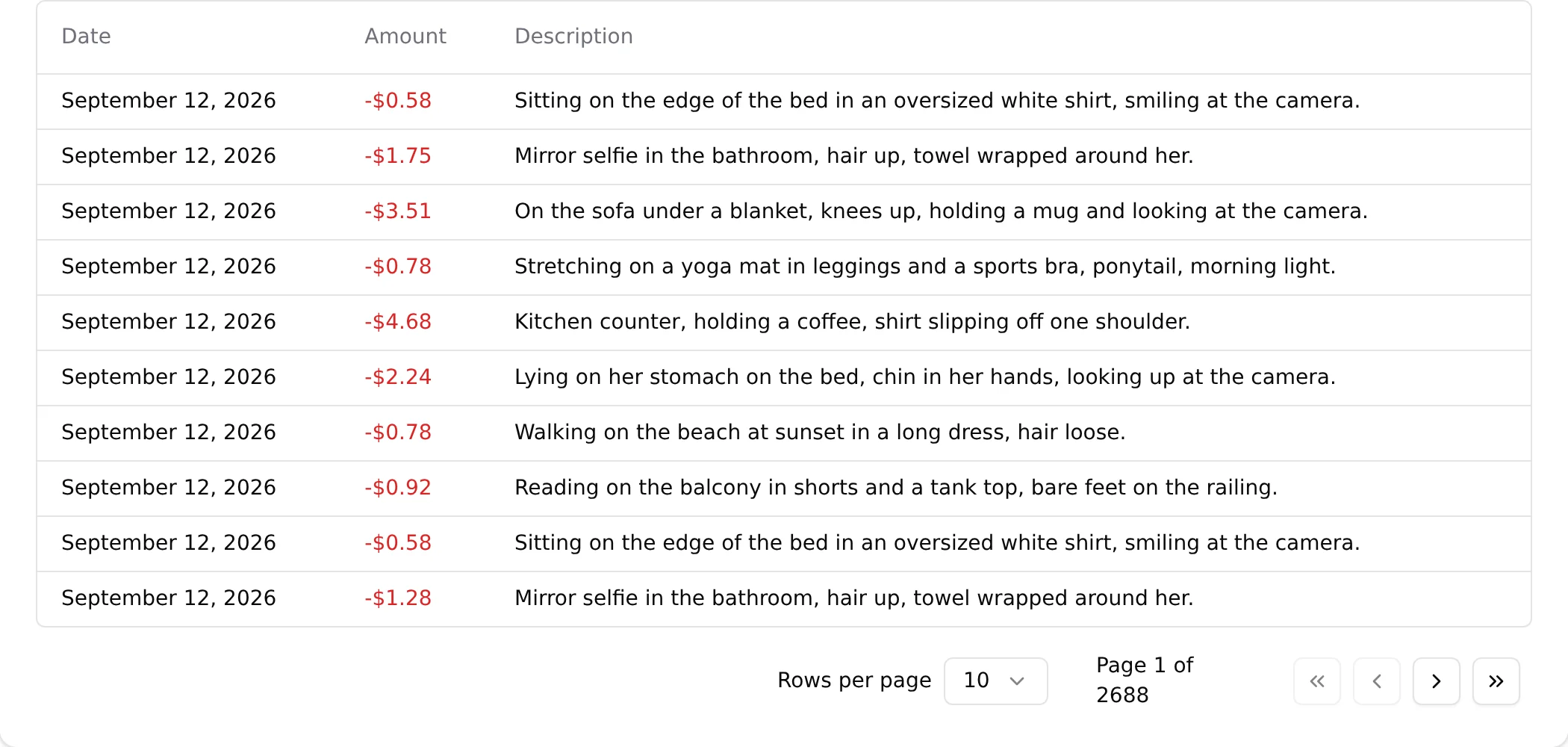
Every movement of the balance is a row. Debits are in red with a minus sign. Descriptions you will see:
| Description | What it is |
|---|---|
| "Telegram sale commission (saleId=…)" | The 15% commission on one sale closed by the AI on a Telegram creator. One row per sale, often under a dollar. |
| "OnlyFans license purchase (N basic|premium)" | A purchase from Buy Licenses, with the count and tier. |
| "Telegram license purchase (N)" | Same for Telegram. |
| "Purchase of 100 playground message credits" | The $3 pack bought in the Playground, see Playground. |
| Recharges and renewals | Credits from a completed invoice; the automatic re-purchase of a license with the Renew switch on. |
"No transactions found." shows on a fresh organization. The history is the place to reconcile: filter mentally by date, count the commissions of a day, and compare with the Dashboard revenue for the same day.
Good to know
- Crypto in the interface, bank transfer through the payment bot, card on request. The Recharge button offers crypto, which is what most accounts use. A bank transfer (from 90 EUR, about $100) goes through the official OnlyChat payment bot on Telegram: it gives you the bank details and a payment reference, credits your balance automatically when the transfer arrives, and sends the invoice in one tap, see Pay by bank transfer. Card payment is also possible, but it is reserved for larger agencies (several creators, sizeable monthly top-ups), the way onboarding calls are: card fees make it unsuitable as a default for everyone; ask the team.
- Fees are yours. If your wallet takes the network fee out of the amount, the invoice receives less than expected and stays in "Partial payment received".
- Keep the modal open until "Payment completed" if you can; the balance still updates if you close it, and the recharge shows in the history once confirmed.
- Permissions: View balance to see the figure (including the sidebar widget), Recharge balance to open the modal, Buy licenses to purchase. A member without View balance sees "Permission Required" when trying to upgrade a license.
- Negative balance stops the AI: the Enable AI switch refuses with "Insufficient Balance, You need a positive balance to enable AI for this creator." Recharge before re-enabling.
Can I pay by card or bank transfer?
Yes. The Recharge button in the interface offers crypto, and that is what most accounts use. Two other ways exist:
- Bank transfer, from 90 EUR (about $100), with the official OnlyChat payment bot on Telegram: your account e-mail, the amount, the bank details with a payment reference, the credit in dollars automatically when the transfer arrives, and the invoice in one tap. See Pay by bank transfer.
- Card payment, on request, reserved for larger agencies (several creators, sizeable monthly top-ups), the same way onboarding calls are: card fees make it unsuitable as the default for everyone. Ask the team, see Contact the team.
OnlyVault is separate and takes crypto only.