
When the AI does not answer, one of nine gates is closed. Go through them in this order: the creator's AI switch, the license, the balance, the number of active scripts, the schedule, the per-fan switch, the fan lists (OnlyFans) or the business connection (Telegram), the extension sync (OnlyFans), and, for a single fan who went quiet, the scripts he has already seen. Each gate has a visible state in the dashboard; you never have to guess. Most cases are solved by the first four.
Start on the creator card
Open Creators. The card shows the state of the first gates at a glance.

| What you see | Meaning | Do this |
|---|---|---|
| Badge "AI off", switch AI off | The creator-level switch is off | Flip AI on. If a dialog refuses, read the next rows |
| "No active license" with "Assign a license to start" | No license on this creator | Click Assign License, see Buy and assign licenses |
| "Ready to launch" with "Flip the AI toggle to go live" | License present, AI off | Flip AI on |
| "Live" with "License until date" | AI on and licensed | Move on to balance, scripts and the per-fan gates |
| "Sync warning" or "Sync error" (OnlyFans) | The extension session is broken | See Extension and sync issues |
| "Not connected" (Telegram) | No business connection | See Telegram connection issues |
The four refusal dialogs
Flipping the AI switch on runs the checks. If one fails, a dialog names it:
- "Insufficient Balance. You need a positive balance to enable AI for this creator." Go to Account, Balance & Licenses, Recharge Balance.
- "Not Enough Scripts. You must have at least 2 scripts to enable AI for this creator." (Telegram: "at least 2 active scripts"). Activate or create scripts on the Scripts tab.
- "No Active License. You cannot enable AI for this creator because it does not have an active license." Assign one.
- "No Business Connection. You cannot enable AI for this Telegram creator because it does not have an active business connection. Please connect a Telegram Business account first." Finish the Telegram setup.
Gate 1: the license
A license expires on the date shown on the card ("License until MMM D, YYYY") and in the Overview tab's Creator health ("expires MMM D" or "expired MMM D"). When it expires, the creator goes offline unless Renew is on: "On, this license is bought again from your balance when it expires. Off, the creator goes offline on the expiry date." Renewal itself needs balance.
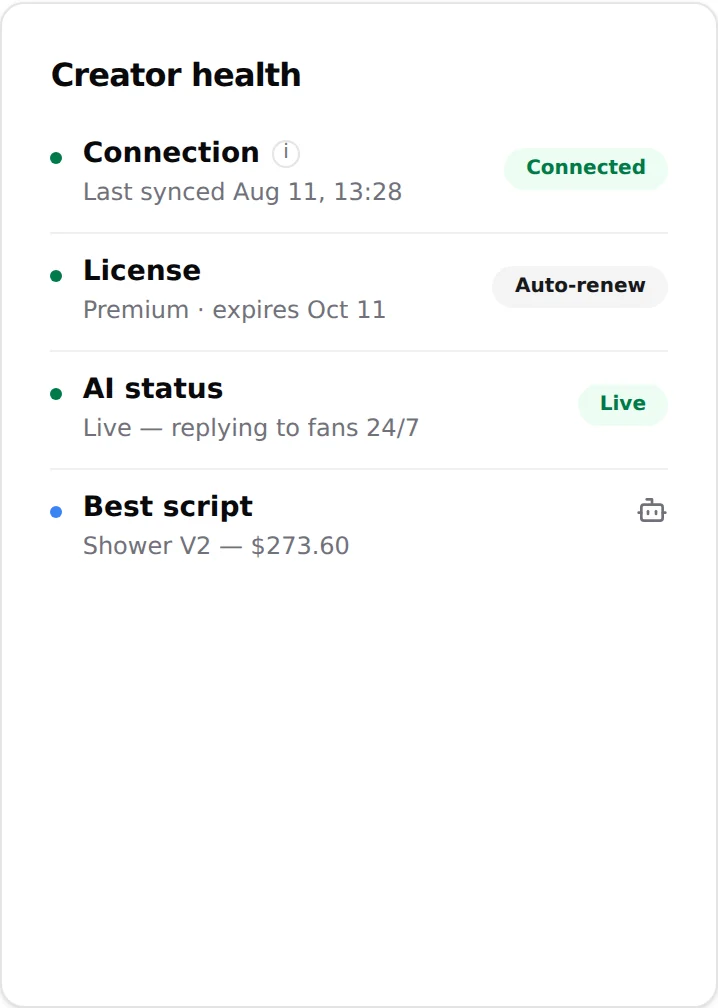
Open the workspace, Overview tab, and read the "Creator health" card: Connection, License, AI status ("Live, replying to fans 24/7" or "Paused, no automatic replies"), Best script. A "Needs attention" badge on the card means at least one line is red.
Gate 2: the balance
The AI needs a positive organization balance to run. Check the sidebar balance widget or Account, Balance & Licenses.

A negative or zero balance stops replies on every creator of the organization at once. If several creators went silent at the same time, this is the first thing to check. Set an alert in Account, Notifications ("Receive email alerts", "Alert threshold ($)") so it does not happen again. See Payments and balance issues.
Gate 3: at least two active scripts
The AI cannot go live with fewer than two active scripts, and it switches itself off when you drop below two: "Script deactivated. AI has been disabled because you have less than 2 active scripts." The same happens with Disable all on a folder: "Scripts deactivated. AI has been disabled because you have less than 2 active scripts."

Open the Scripts tab and count the rows whose Active switch is on (tooltip "Script is active and will be used by the bot"). If the AI turned itself off after you edited scripts, re-activate at least two, then flip AI back on: it does not come back on its own.
Gate 4: the schedule (OnlyFans)
On the Schedules tab, "Inside a timeslot the AI switches itself ON; outside, it switches OFF." If Schedule Automation is on and no timeslot covers the current time, the AI is off, even if the card said Live an hour ago.

Check three things: the Schedule Automation switch, the Schedule timezone (the live clock reads "It is currently HH:mm UTC · in timezone"), and the per-slot switches in the Timeslots list ("Enable Day timeslot"). A slot that "crosses midnight" is edited from the list below the grid. When in doubt, turn Schedule Automation off and flip the creator AI on manually. See Schedules.
Gate 5: the per-fan switch
The AI can be on for the creator and off for one fan. Open the Fans tab, search the fan ("Filter by name or username...") and look at the Enable AI column.

- Switch off on that row: someone paused this fan (often on purpose, after a human took over). Flip it on.
- Enable AI for all re-enables every fan of the creator after the confirm "Enable AI for all fans? This will update AI status for all fans of this creator immediately."
- Scripts used shows "x / y" in red when the fan has seen every active script: the AI has nothing left to sell him and will only chat. Add scripts or a variation. See Versions and variations.
Gate 6 (OnlyFans): fan lists
The AI only answers fans who are in at least one Active list and in no Excluded list. Open the Fan Lists tab.

- Summary "N active · N excluded · N lists on OnlyFans": if "0 active", nobody is answered. Add a list under Active lists or click Activate all lists.
- A fan in an Excluded list is never answered, "even if they sit in an active list". Check the fan's lists on OnlyFans.
- Lists are read live from OnlyFans before every reply. If you moved fans between lists on OnlyFans, click Update lists; if it fails, "Unable to reach OnlyFans, try again" points to the extension. See Fan lists.
Gate 6 (Telegram): the business connection
Open the Telegram creator's Overview tab and read Creator health.
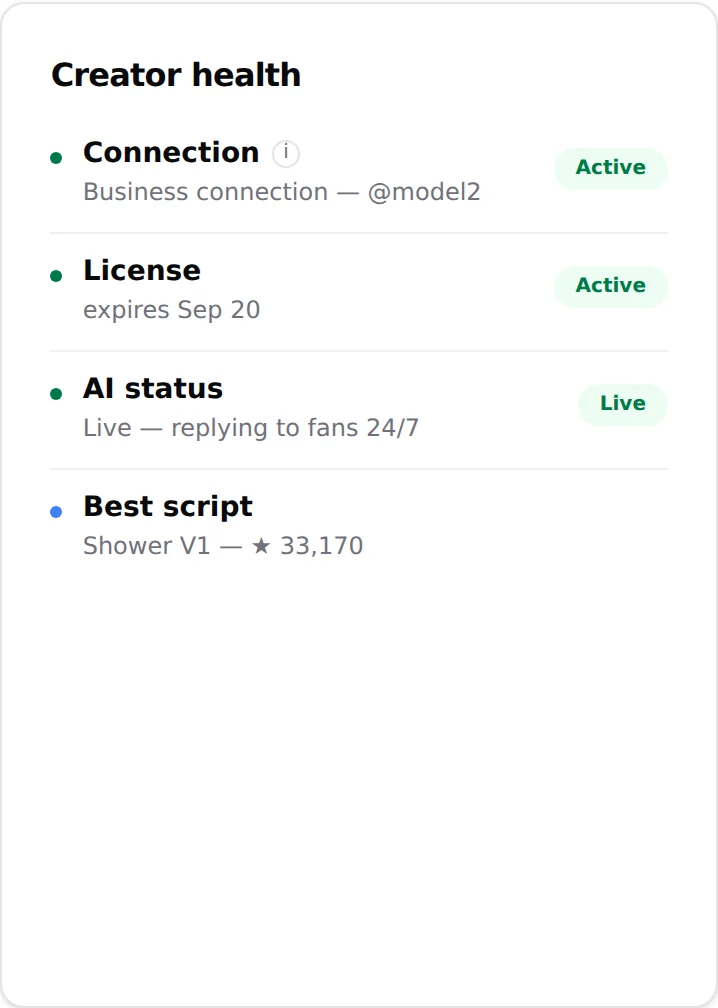
- Connection must read "Business connection @username" with an "Active" pill. "No business connection, the bot can't reply" means the link between the bot and the creator's Telegram account is gone: Secretary Mode off, permissions removed, the account lost Telegram Premium, or the bot key was revoked. Follow Telegram connection issues.
- If the creator page shows the "Telegram setup for name" checklist instead of the workspace, the connection was never detected. Complete the 8 items and click Verify business connection.
Gate 7 (OnlyFans): the extension
The AI reads and sends OnlyFans messages through the session opened by the browser extension. If the card shows "Sync warning" or "Sync error", or the Overview says "Never synced" or an old "Last synced" time, the AI is blind. Open the browser where the extension is installed, make sure the creator's OnlyFans account is logged in, and re-sync. See Extension and sync issues.
Gate 8: no script left for this fan
If the AI answers everyone except one fan, or one sub who used to buy, check what he has already seen before anything else. Open the Fans tab and read the Scripts used column for him: "x / y" is the number of scripts already sent to him out of the scripts currently active, and it turns red when x equals y. Red means he has been through every active script: the AI has nothing new to sell him.
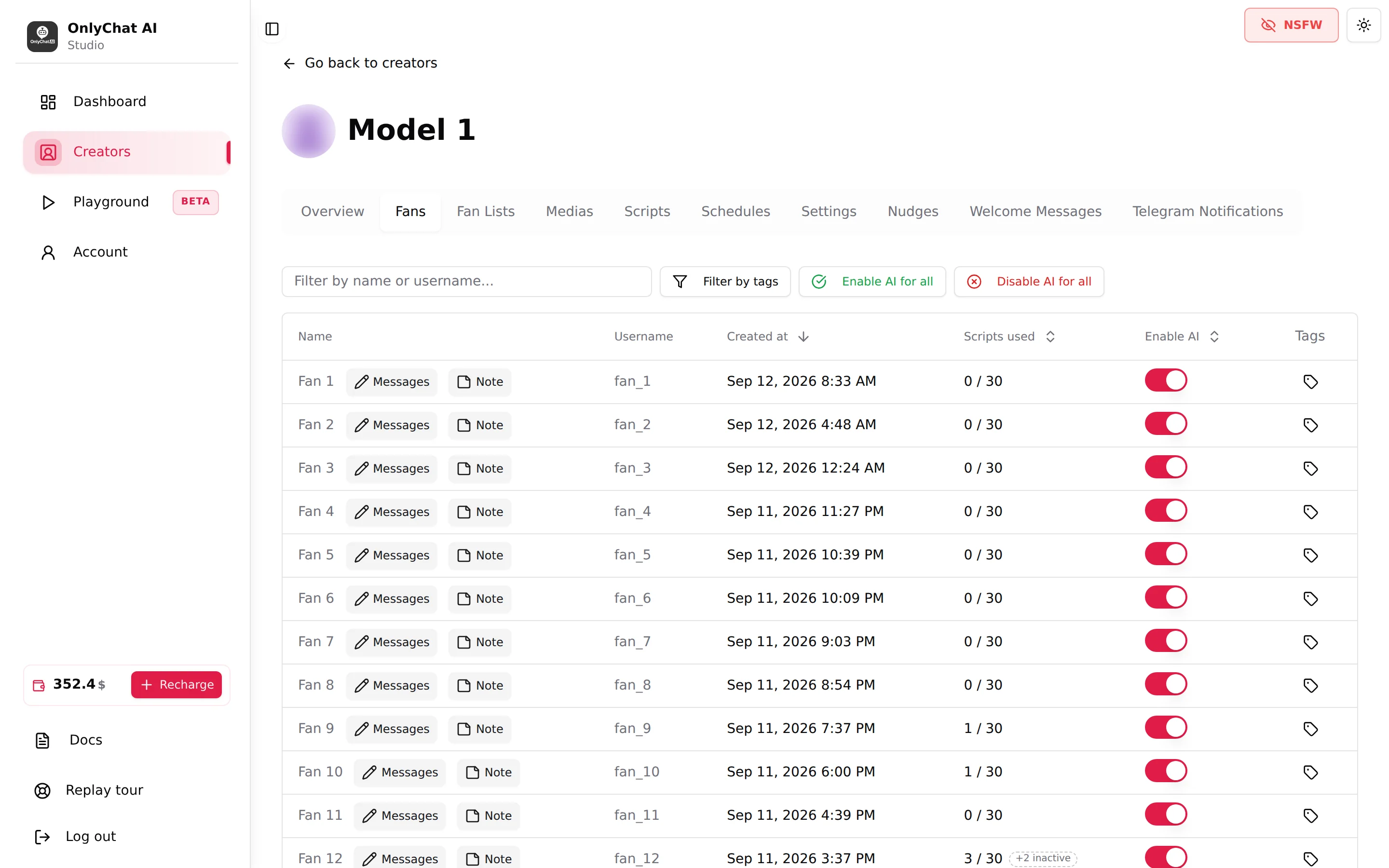
From that moment the AI keeps chatting with him, with nothing to sell, for 24 hours on a Basic OnlyFans license or on Telegram, and for 5 days on a Premium OnlyFans license, then it stops answering him. On Telegram the No Script Left notification warns you at that point. The fix is never to pause or re-enable the fan: activate a new script, import one, or create a version of the script he liked most, and the AI resumes with him. See Versions and variations and Fans list.
Still silent
- The fan sent a message while the AI was off. Once turned back on, the AI reads what arrived in between and answers; give it the Response Delay before concluding.
- The Response Delay (minutes) in Settings, Behavior is 1 to 15 minutes: the AI is not silent, it is waiting. Check the value before concluding.
- Strict Script Cooldown (0 to 24 hours) and Minimum Sexualization Cooldown (0 to 5 days after each script) do not silence the AI; they only stop it from launching a new script or pushing sex. If the fan asks for content and gets small talk, that is a cooldown, not a failure. See Cooldowns.
- No script left for this fan. When a fan has been through every active script, the AI keeps chatting for 24 hours (Basic OnlyFans license, Telegram) or 5 days (Premium OnlyFans license), then stops answering him. Add a script or a version, see Versions and variations.
- The fan raised a forbidden topic. The AI cuts the conversation on its own to keep the creator safe, and does not come back to that fan by itself. Read the conversation before deciding whether to answer by hand.
- The conversation was marked as read on OnlyFans. The AI only picks up unread messages. If someone opened the chat from the OnlyFans app, set it back to unread (press and hold the conversation, swipe left, "Unread"), and the AI takes it from there.
- On Telegram, a "Rate Limit" notification means Telegram asked the bot to wait; replies resume on their own.
If everything above is green and the fan still gets no answer, contact the team with the creator name, the fan's username, the time of the fan's message and a screenshot of the Creator health card.