
Most creators that stop earning with the AI did not break: they ran out of scripts, lost a license, drifted off a schedule, or got a media description wrong. None of that shows up as an error. This page is the list of habits that catch those cases early, ordered by how often they cost money. Each tip points to the screen where you act.
Read the dashboard, not the inbox
The Dashboard is the only place that tells you whether the AI is selling. Two numbers matter every day:
- AI Revenue, "Share closed with no human touch". If it falls while Total Revenue holds, the AI is being switched off or starved of scripts.
- Unlock Rate, "Percentage of paid media content that has been unlocked by fans". If it falls, check in this order: who the new fans are (a traffic source can change the audience), which scripts they receive, and whether prices crept up.
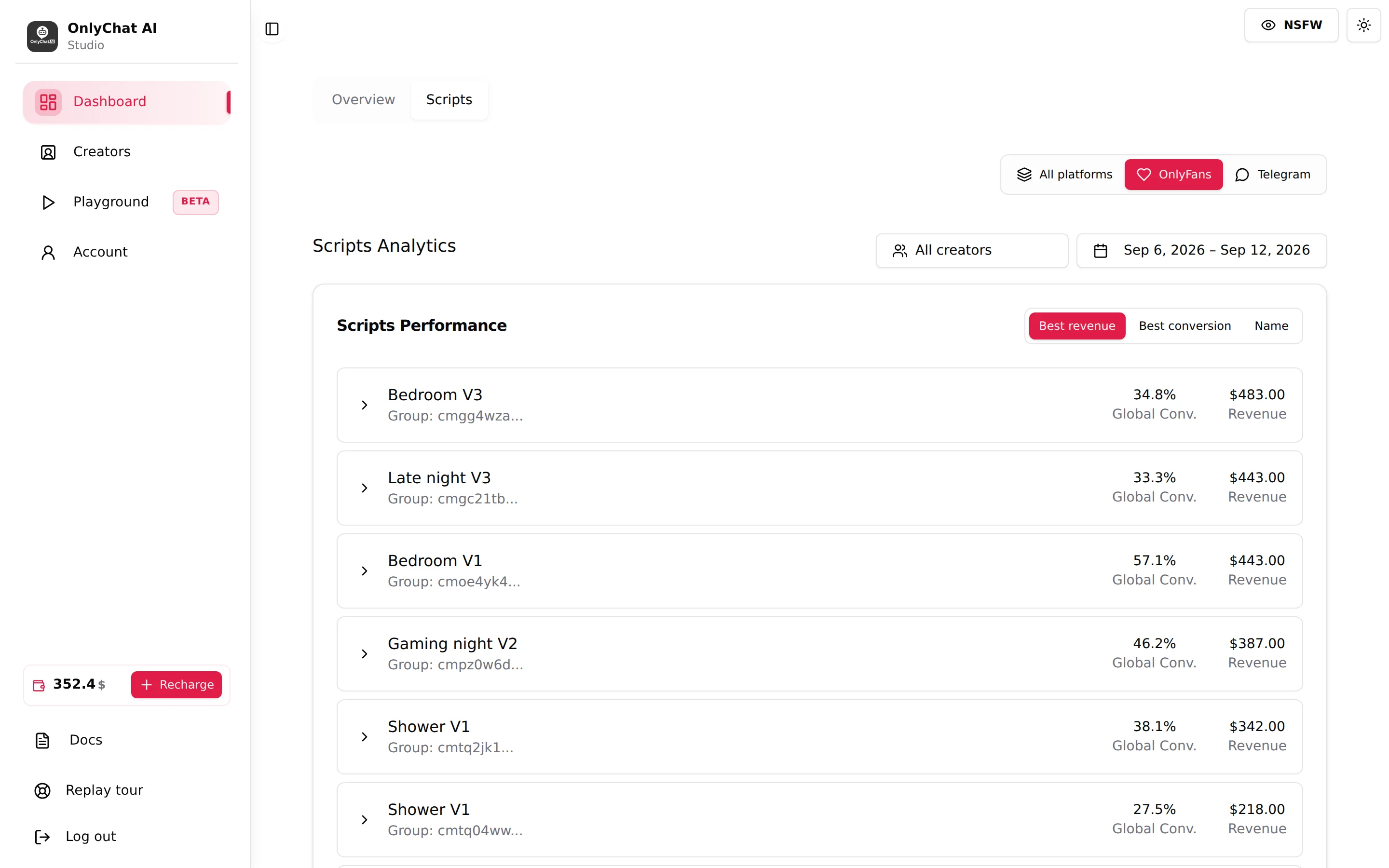
Then the Scripts tab of the dashboard: Scripts Performance sorted by Best conversion, and the Steps Detail of the top and bottom scripts. The tour says it in four words: "duplicate winners, retire losers".
Never let a creator run out of scripts
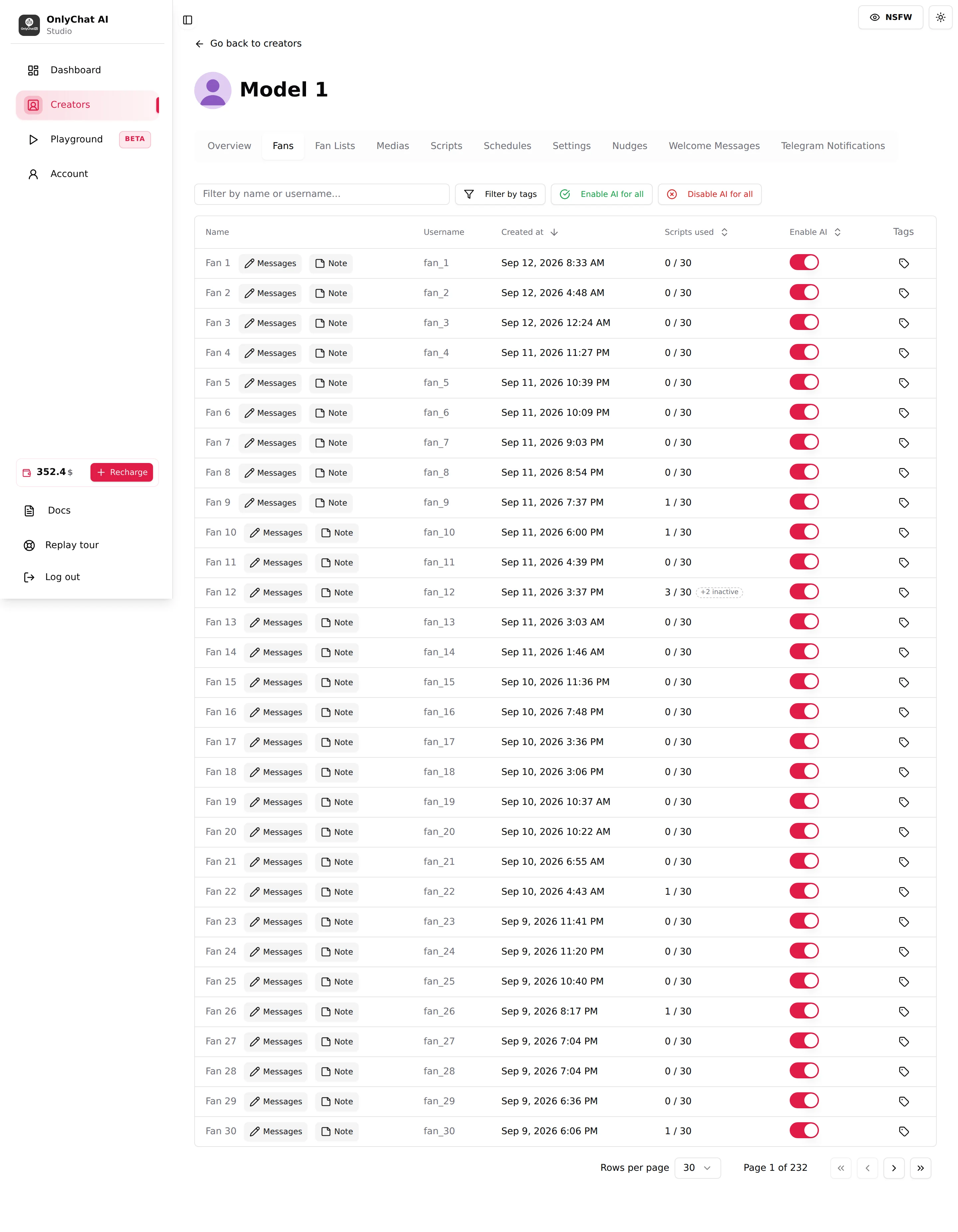
The Scripts used column of the Fans tab reads "x / y" per fan and turns red when the fan has seen every active script. A red counter is a fan the AI can no longer sell to. When you see red on your best spenders, add scripts or create variations. See Versions and variations.
Related reminder: the AI turns itself off below two active scripts ("AI has been disabled because you have less than 2 active scripts."). Count before you deactivate.
Describe every media
A media without a description is not "Ready for AI" on the Medias tab, and a step with such a media sends something the AI cannot talk about. The script editor's own reminder: "its description is what tells the AI what it is sending". After every sync or upload, open the list and fill the empty descriptions. See Media library.
Keep the persona consistent
The AI states the Details fields as facts and reads Additional info verbatim. Three checks, once per creator and again after any edit:
- Age and Date of Birth agree.
- Ethnicity, hair and eye colour match the current photos.
- Additional info does not contradict Details (city, roommate, job).
Test the result on the Playground with the questions fans ask ("where are you from", "are you a bot", "can we meet") before the AI goes live.
Change one setting at a time
Settings and Strategies are saved together with Submit, and every change applies to the next replies. Change one thing, wait a week, read the dashboard, then change the next. Two changes in the same week and you cannot tell which one moved the numbers. Custom strategies especially: draft them on the Playground's Custom Parameters, not on a live creator.
Use the cooldowns as brakes, not as an afterthought
- Strict Script Cooldown (hours), default 10: spaces pitches so each script lands as an event.
- Minimum Sexualization Cooldown (days), default 2: keeps the AI from pushing sex on a fan again for that many days after a script ends, unless the fan initiates.
- Script inactivity timeout (hours), per script, default 1.5: how long a script stays open for a silent fan.
If a creator reads as pushy in the conversations, raise the first two before you rewrite a script. See Cooldowns.
Give the AI hours that match the story
On OnlyFans, the Schedules tab turns the AI on and off on a weekly grid, in the creator's timezone. A persona who answers at 05:00 every day reads as a bot. If the creator also chats herself, give her slots and give the AI the rest. Remember that a slot cannot turn the AI on without a license, a positive balance and two active scripts.
Pause the AI before you step in
On OnlyFans you can write to a fan from the conversation composer. Turn off that fan's Enable AI switch first, otherwise the AI answers on top of you. Turn it back on when you leave. Tag the fans you handle yourself so you find them again: tags are yours, "the AI doesn't read them". See Enable AI per fan and Tags.
Check the fan lists after every change on OnlyFans
The AI "replies only to fans in at least one Active list and in no Excluded list, exclusion always wins". Lists you create or rename on OnlyFans appear here only after Update lists. A creator with zero active lists is a creator with zero AI replies, and no error anywhere. See Fan lists.
Watch the balance and the licenses
The AI stops when the balance is not positive and when a license expires. The Renew switch on the creator card buys the license again from your balance at expiry; with it off, "the creator goes offline on the expiry date". Set the organization balance alert in Account, Notifications, and the Low/Negative Balance and AI Disabled Telegram alerts if you use the notifications bot. See Low balance alerts.
A weekly routine that fits on one screen
| When | Where | What |
|---|---|---|
| Daily | Dashboard, Overview | AI Revenue and Unlock Rate, per creator. |
| Daily | Creators board | Every card Live, no "Sync warning", no "AI off" you did not choose. |
| Daily | Fans tab | Read three conversations with the AI marker, including one that stopped at a paid step. |
| Weekly | Dashboard, Scripts | Sort by Best conversion; duplicate the top script, fix or retire the bottom one. |
| Weekly | Fans tab | Count red "Scripts used" counters; add scripts if they grow. |
| Weekly | Medias tab | Zero media without description. |
| Monthly | Settings | Re-read Details and Additional info against the current content. |
See also Daily routine.