
A saved script does nothing until you activate it. The Active switch on the Scripts tab makes it available to the AI; the First star tells the AI which script opens with every new fan; the dashboard's Scripts tab tells you, per script and per step, how many fans received it, how many paid and how much it made. This page covers the switch, the star, the two-active-scripts rule and how to read the numbers.
Activate a script
The Active switch
On the creator's Scripts tab, each row starts with the Active switch. Tooltips: "Script is active and will be used by the bot" / "Script is inactive and will not be used by the bot". Flip it: "Script activated" or "Script deactivated". "Failed to update script status" means the change did not go through; retry.
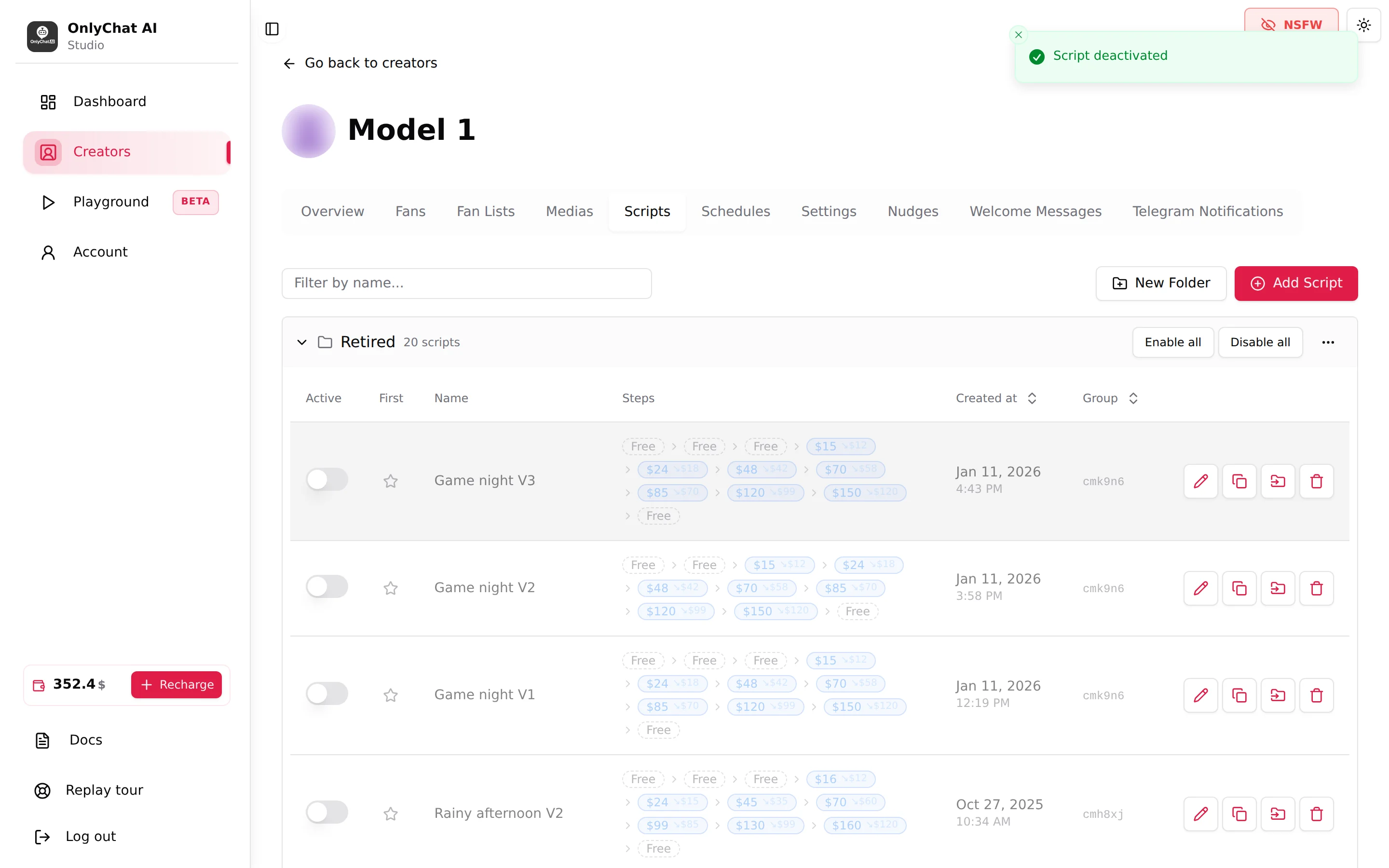
What "active" changes in a conversation: an active script is in the pool the AI chooses from when the launch conditions are met and the fan has not seen it. An inactive script is invisible to the AI; fans who already received it keep it in their "Scripts used" count.
Activation needs the "Activate/deactivate scripts" permission. Folder headers offer Enable all and Disable all for bulk changes; see Folders and organisation.
The two-active-scripts rule
The AI requires at least two active scripts on a creator:
- Enabling the AI with fewer shows "Not Enough Scripts" ("You must have at least 2 scripts to enable AI for this creator."; on Telegram "at least 2 active scripts"). See Turn the AI on.
- Deactivating a script when only two are active switches the AI off with the toast "Scripts deactivated. AI has been disabled because you have less than 2 active scripts." The creator's card goes from "Live" to "Ready to launch". You have to re-enable the AI after activating another script.
- The No Script Left alert of the notification tabs warns you when a fan has used every active script ("Receive notifications when scripts run out"). See Telegram alerts for OnlyFans creators and Telegram notifications for Telegram creators.
The First star
The star in the First column flags the script the AI sends first to every new fan. Tooltips: "Flag this script as the first to use" and, once set, "This script will be used first, click to unset". Toasts: "Script flagged as first to use", "Script unflagged".
Rules: only an active script can be starred ("Cannot flag an inactive script as first to use"), and a starred script cannot be deactivated ("Cannot deactivate: this script is flagged as first to use"). To retire the starred script, unstar it first.
Star the script that converts best with fans who have never bought: a soft scene, strong free teasers, a low first price. Without a star, the AI picks the first script from the descriptions.
Monitor scripts
Best script on the Overview
The creator's Overview tab and the main Dashboard show a Best Script tile ("Most profitable script based on total revenue generated") and, in the creator health card, a "Best script" line (or "No sale attributed to a script yet"). It is the quickest health check: if the best script has not changed in a month, the stock needs new scenes.
The Scripts tab of the dashboard
Open Dashboard in the sidebar, then the Scripts tab. The title reads "Scripts Analytics" (or "Telegram Scripts Analytics" with the Telegram platform selected). The filters at the top apply: platform (All platforms, OnlyFans, Telegram), creators (All creators or a selection), the date range (last 7 days by default) and its timezone; Telegram adds the revenue view Stars, Dropp, Total. See Overview tab for the filters.
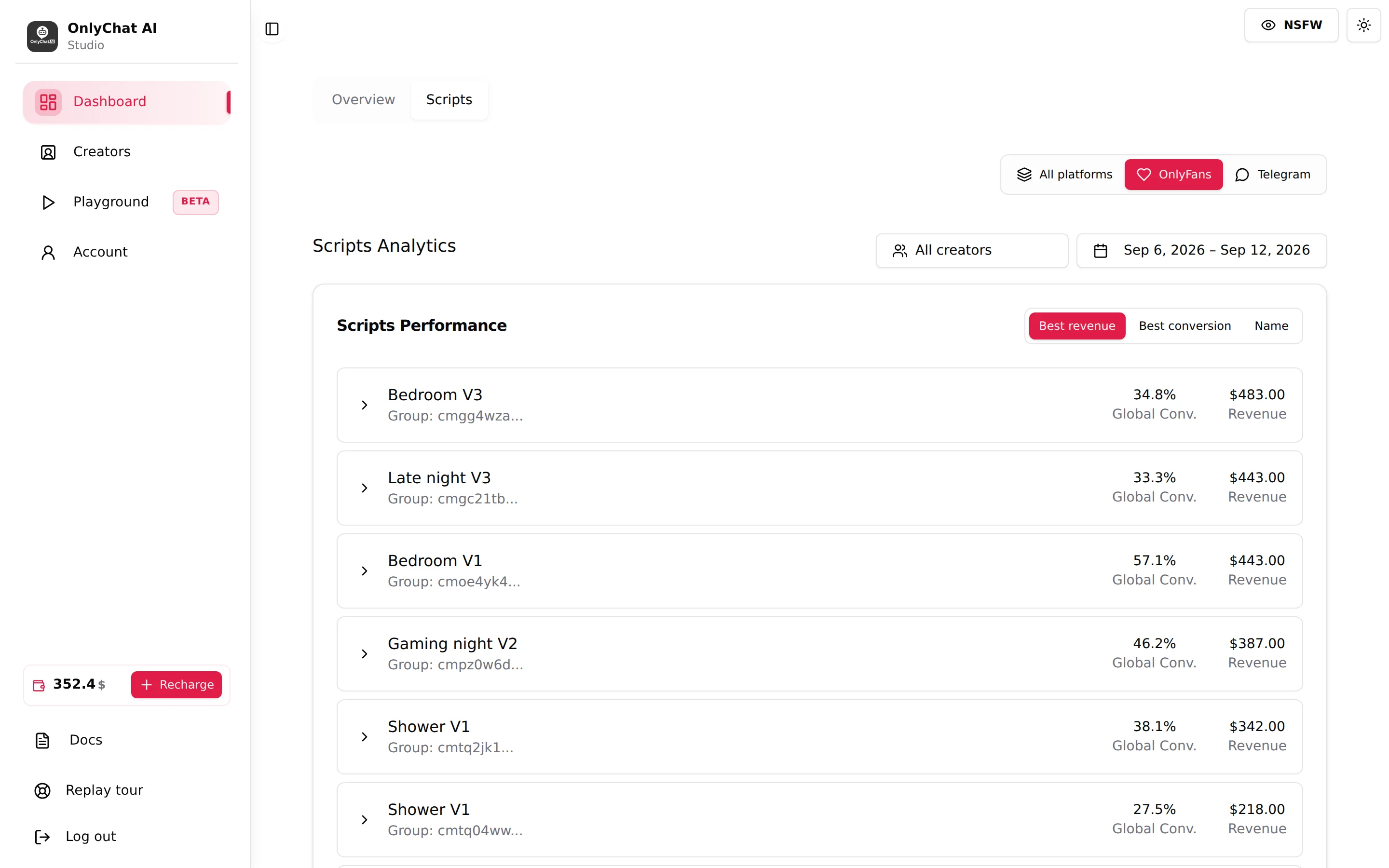
The Scripts Performance table has one row per script with:
| Column | Meaning |
|---|---|
| Name and "Group:" | The script name, and the variation group it belongs to. Versions of one scene share the group. |
| Revenue | What the script made over the period (dollars, or Stars on Telegram with the Stars view). |
| Global Conv. | The script's overall conversion over the period, as a percentage. |
Sort with Best revenue, Best conversion or Name. "No script data found for the selected filters." means no script was sent to any fan in that period for those creators: widen the date range.
Steps Detail
Click a row to expand Steps Detail: one line per step ("Step 1", "Step 2"...) with Sent, Paid, Conv. and Rev.. Sales at the discounted price are shown next to the step ("($ discount)" on OnlyFans, "(Stars discount)" on Telegram).

How to read a ladder:
| What you see | What it means | What to do |
|---|---|---|
| Sent drops a little at each free step | Normal attrition during the warm-up. | Nothing. |
| Sent drops hard at the first paid step and Paid is low | The paywall is the problem: price too high for the content, or free teasers that already showed everything. | Lower the first price, or make the first paid step visibly more than the teasers. See Media per step. |
| A paid step with Conv. well above the others | Probably underpriced: fans buy without hesitating. | Test a higher price in a variation. |
| Most Paid on a step are discounted | The full price is rarely accepted on that step. | Raise the discounted price, or lower the price and remove the discount. |
| Steps 7 and beyond with a handful of Sent | Normal: very few fans go that far. | Do not spend writing time there. |
| Free steps showing 0% or 100% Conv. | Free steps have no sale, so their percentage carries no information. | Ignore Conv. on free steps; read Sent only. |
Compare scripts of the same scene and steps at the same position. A different scene with a different ladder is not a comparison.
Unlock Rate
The dashboard Overview also shows Unlock Rate ("Percentage of paid media content that has been unlocked by fans"). It is the global version of the per-step Conv.: a single number for the health of your pricing. Read it weekly; act on the per-step numbers.
A weekly routine
- Open the dashboard's Scripts tabLast 7 days, one creator at a time. Sort by Best revenue.
- Check the bottomScripts with many Sent and almost no Revenue are losers. Before deactivating, count the scripts that will stay active: the creator needs at least two, otherwise the AI pauses. Then deactivate them (unstar first if needed) and move them to a "Retired" folder.
- Check the topFor the two or three best scripts, expand Steps Detail. A first paid step converting far above the others is a price worth testing higher; a step where most sales are discounted is a discount to tighten. Do it in a variation, not on the live script. See Versions and variations.
- Check the stockOn the Fans tab, the Scripts used column shows fans who have seen every script ("x / y", red when the counter is full). If many are full, add a new scene. See Fans list.
- Confirm the AI is still onAt least two active scripts, the starred one among them, and the creator's card still says "Live".