
Three texts decide most of what the AI does: the description of each media item (what it is sending), the description of each script (when to send it and to whom) and the creator's Additional info (who she is). OnlyChat can now write all three for you, from the creator's own workspace. The three paths differ in how the result is applied: a media description is written straight onto the media item, which becomes "Ready for AI" at once; a script description is placed in the editor's Description field and kept when you save the script; a persona sheet is generated, shown to you, and only reaches Additional info when you click Use as Additional info, then Submit. The three generators share one set of organization quotas, need an active license on the creator, and show today's usage in a small pill next to each button: "AI descriptions today 0 / 300", "AI scripts today 0 / 10", "AI personas today 0 / 3" (used today / daily limit).
This page is the hub: where each generator is, what it needs, what it costs in quota, and what the messages mean. The three detailed pages stay the reference for what makes a good text: Media library and Media on Telegram, Write a script description, Additional info.
Before you start: license and quotas
- License. Every generation needs an active license on the creator. Without one the buttons show AI locked and the message reads "This creator needs an active license to use AI generation." See Assign a license and Balance and licenses.
- Quotas. The counts are shared by every creator of your organization and reset at midnight UTC (the pill's tooltip says it: "Shared by every creator of your organization. Quotas reset at midnight UTC.", and shows the month: "This month: n / m"). There is also a monthly ceiling. Current limits:
| Generator | Pill | Per day (UTC) | Per month |
|---|---|---|---|
| Media descriptions | AI descriptions | 300 | 2,000 |
| Script descriptions | AI scripts | 10 | 30 |
| Persona sheets | AI personas | 3 | 10 |
The pill reads "AI descriptions today n / m": n is what the organization has used today, m is the daily limit. It turns amber when 15 % or less of the daily quota is left and red with "exhausted" when nothing is left. When a quota is reached the button is disabled and the message is "Daily AI quota reached for your organization. It resets at midnight UTC." or "Monthly AI quota reached for your organization." Plan batches accordingly: describing a 400-media vault takes two days.
1. Media descriptions: Describe with AI
The description of a media item is what tells the AI what it is sending; an item without one is not "Ready for AI". Open the creator, the Medias tab, then a media list (OnlyFans) or a folder (Telegram). The header of the list shows the pill AI descriptions today n / 300, a Select all button and Describe with AI.

- Select the mediaTick the media items you want described, or click Select all. The button then reads Describe n media with AI. Up to 500 items can go in one batch.
- Click Describe with AIItems that already have a description, that are already being described, or that would exceed what the organization's quota has left are skipped, and the message says how many ("already described", "already in progress", "over quota"). If the selection is larger than the quota left, OnlyChat selects the first items without a description up to that number and tells you.
- Let it runThe button reads Describing... while the batch runs. Each description is written onto its media item as soon as it is ready, with no confirmation step: it appears in the Description column and the item becomes "Ready for AI" at once.
- Reread and fixOpen any item whose text is not right, edit the Description, Update. On an item that already has a description the button reads Regenerate with AI, which rewrites it and counts one more in the quota.
What the AI writes depends on what it can see in the file and on the creator's Distinctive features (below). It does not know the price, the step or the script the media belongs to: that is the script description's job.
Distinctive features
In Settings, Add infos, under the Additional info field, a card titled Distinctive features for AI media descriptions reads: "Tattoos, piercings, scars, anything the AI should name when it describes this creator's photos and videos. Saved on its own, separately from the settings below." It is one text field of 500 characters with its own Save features button (the confirmation reads "Distinctive features saved"); the form's Submit does not save it.
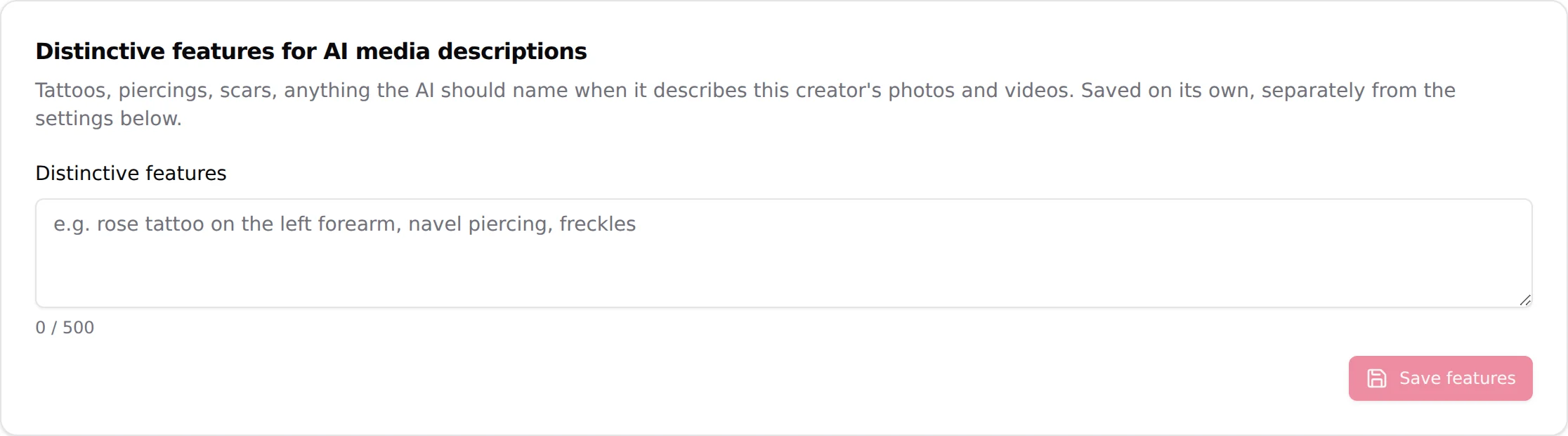
Fill it before the first batch. A description that says "the tattoo on her left forearm" instead of "a tattoo" is what lets the AI answer a fan who asks about it. Keep it to visible, permanent things; the creator's personality and story belong in Additional info.
2. Script descriptions: Generate with AI
The description of a script is read by the AI to decide which script to send, to whom and when; fans never see it. In the script editor (Scripts tab, create a script or open one), the Description field has a Generate with AI button next to it. The organization's usage for the day is counted in the AI scripts quota (10 a day, 30 a month).
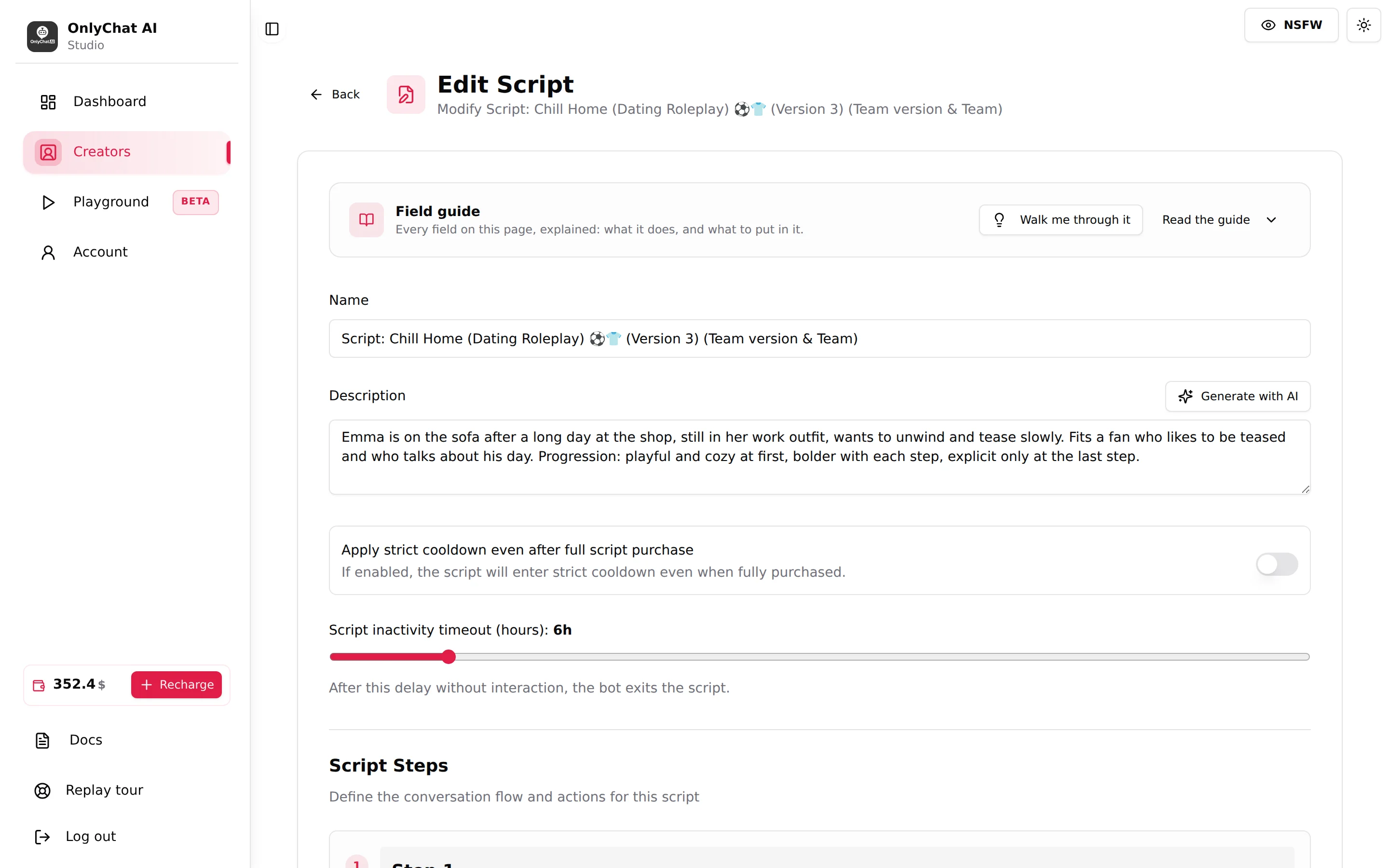
Click it: the AI relies on the captions already written in the script (the free teaser and the PPV steps), so fill them in first. The description is placed in the field; reread it against the real steps and media, change what does not match, then save the script as usual (it is kept only when you save). The quota is small (10 a day, 30 a month for the organization): use it on the scripts that run most, and write the others by hand with the same structure.
3. Persona sheet: the Additional info written from a questionnaire
In Settings, Add infos, above the Additional info field, the card Persona sheet by AI reads: "Answer a short questionnaire in the creator's name and the AI writes the whole Additional info sheet: backstory, personality, limits, selling style. Review it before applying it below." Next to it, the pill AI personas today n / 3 and the button Fill the questionnaire.
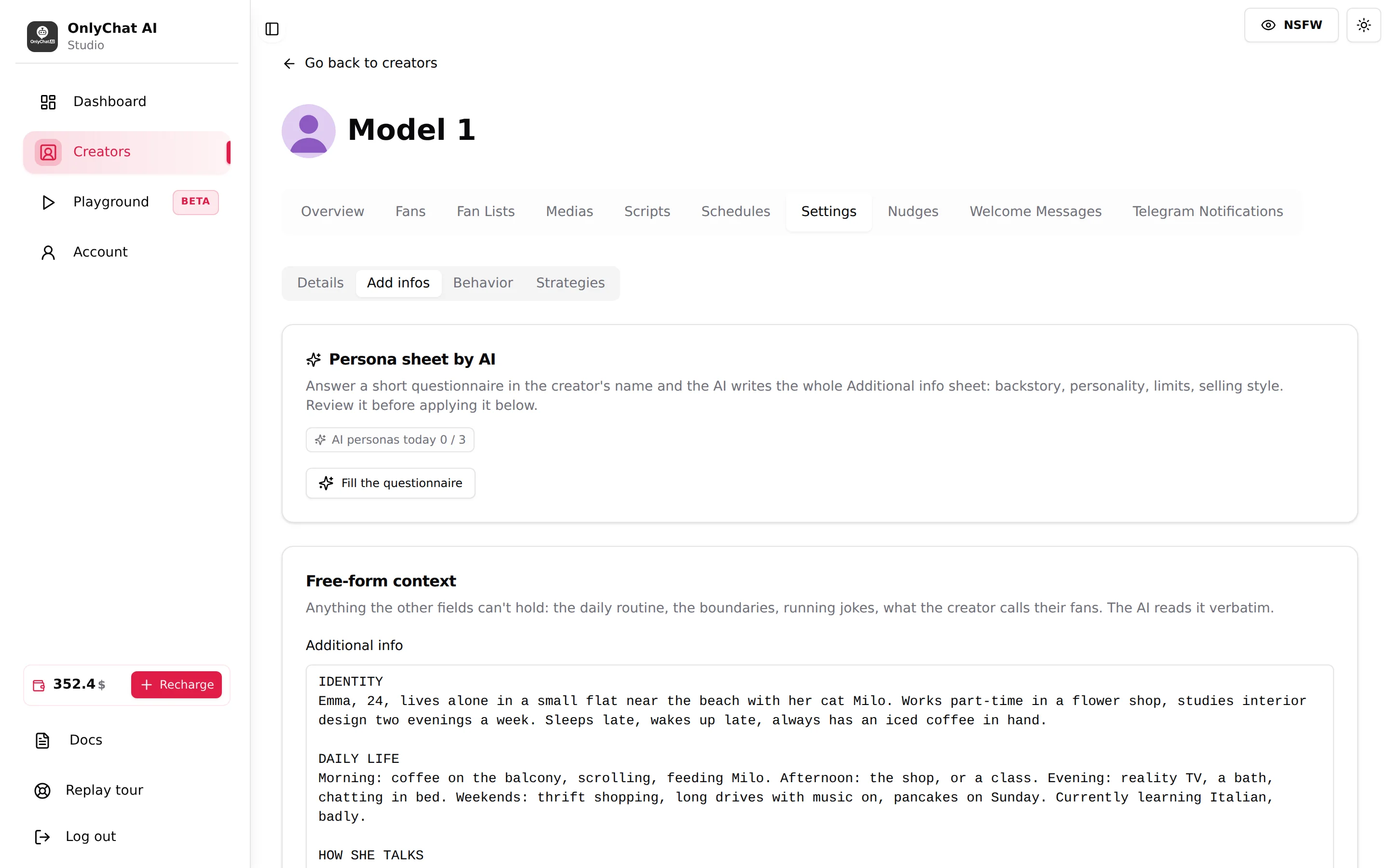
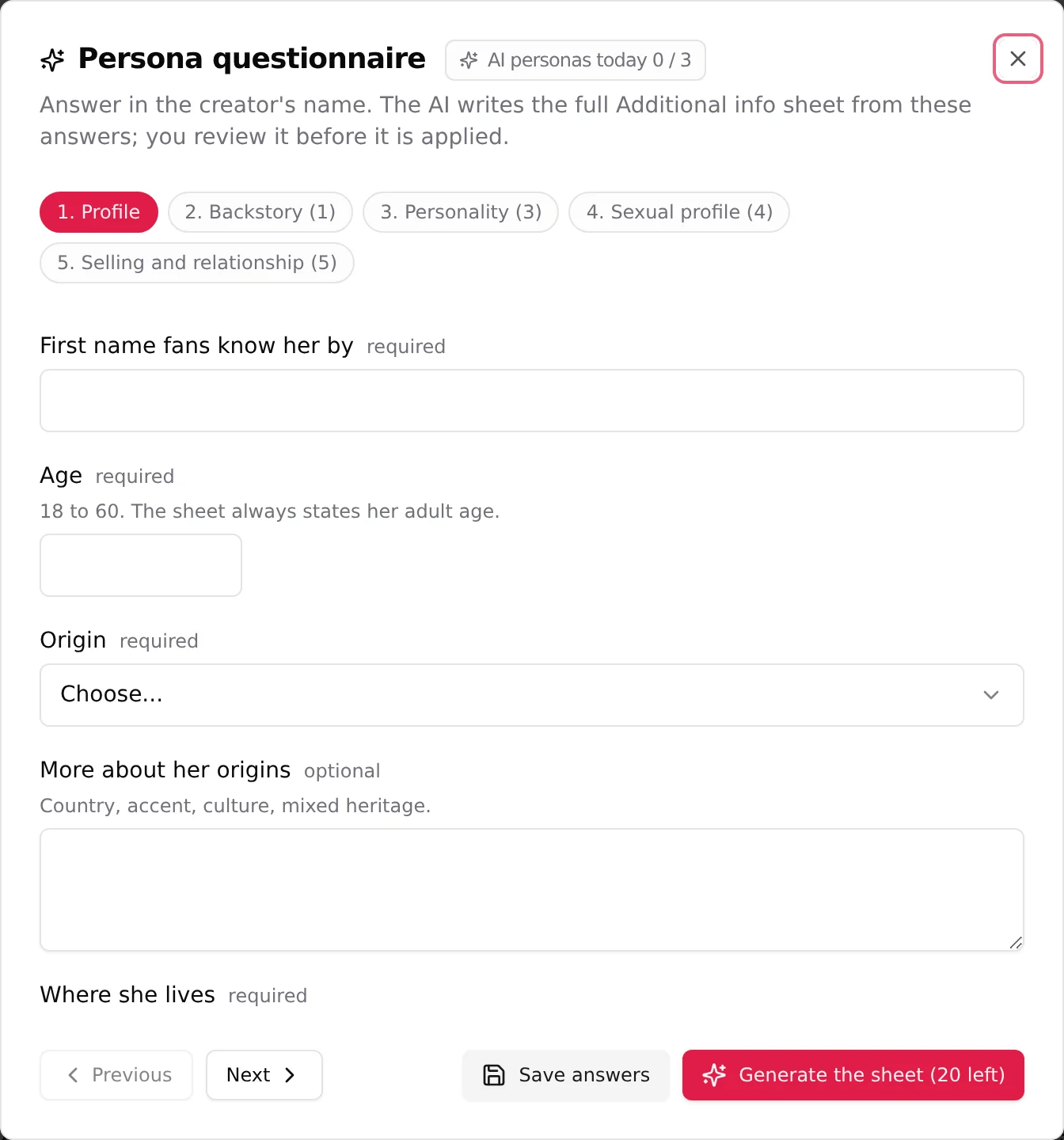
- Open the questionnaireClick Fill the questionnaire. The dialog Persona questionnaire says: "Answer in the creator's name. The AI writes the full Additional info sheet from these answers; you review it before it is applied." Five sections: Profile, Backstory, Personality, Sexual profile, Selling and relationship.
- AnswerMenus for what must be exact (origin, where she lives, who knows about her content), short free text for what makes her unique. Fields marked "required" must be filled; "optional" ones can be skipped. The Age field accepts 18 to 60 and the sheet always states her adult age. Previous and Next move between sections; Save answers keeps what you typed without generating.
- GenerateThe Generate the sheet button shows how many required answers are still missing; it becomes active when none are. Click it: "Persona sheet queued. It usually takes a minute or two." Then "Persona sheet ready".
- Review and applyThe sheet opens for reading. Click Use as Additional info: "Sheet placed in Additional info. Save the settings to keep it." It replaces the current Additional info text in the field, so copy the old text first if you want to keep parts of it. Reread, edit if needed, then Submit at the bottom of the form. On Telegram the 6,000-character counter applies to the result like to any text.
Three sheets a day and ten a month for the whole organization: answer carefully once rather than regenerating. If the result needs a different tone or a detail, edit the text in the field; it is yours from then on.
Messages you may see
| Message | Where | What to do |
|---|---|---|
| "AI locked" (on the pill) and "This creator needs an active license to use AI generation." | Any generator | Assign or renew the creator's license |
| "AI descriptions today n / m", "AI scripts today n / m", "AI personas today n / m" | Pill next to the button | n = used today by your organization, m = daily limit; amber when 15 % or less is left, "exhausted" at zero; hover for the month and the reset rule |
| "Daily AI quota reached for your organization. It resets at midnight UTC." | Any generator | Wait for midnight UTC, or write by hand |
| "Monthly AI quota reached for your organization." | Any generator | Wait for the next month, or write by hand |
| "AI quota reached for your organization (n/m this day)" or "(n/m this month)" | Returned by a generation | Same as above |
| "Selected the first n media without a description: that is what your organization's AI quota has left." | Media list | The batch was trimmed to the quota; run the rest later |
| "n already described", "n already in progress", "n over quota" | Media list, after a batch | Media skipped on purpose; nothing to do |
| "Select 500 media or fewer at a time." | Media list | Split the selection |
| "This AI generator is disabled." | Any generator | This generator is turned off; contact the team |
| "AI description failed.", "Persona generation failed." | A single media or sheet | Try again; if it repeats, contact the team |
| "Distinctive features saved" | Settings, Add infos | Confirmation; the field is saved on its own |
| "Sheet placed in Additional info. Save the settings to keep it." | Settings, Add infos | Click Submit |
Good to know
- The quotas are per organization, not per creator or per member: two people describing media at the same time share the same 300.
- Seeing the Medias tab needs the "View Medias tab" permission and editing a description needs "Edit media descriptions"; members without them do not see the buttons. See Members and roles.
- Describing media does not upload or move anything: it only fills the Description field of media already synced or uploaded.
- On OnlyFans, test a fresh persona sheet in the Playground before turning the AI on for new fans.