
On Telegram, the AI replies from the creator's own Telegram account through Telegram Business: a bot you created in BotFather is connected to the creator's account as its chatbot (Secretary Mode), and OnlyChat drives that bot. Three things can break: the business connection between the bot and the account, the bot token (the secret key from BotFather), and Telegram's rate limits. Each shows a distinct state in the dashboard. This page goes from the most common to the rarest.
Read the state first
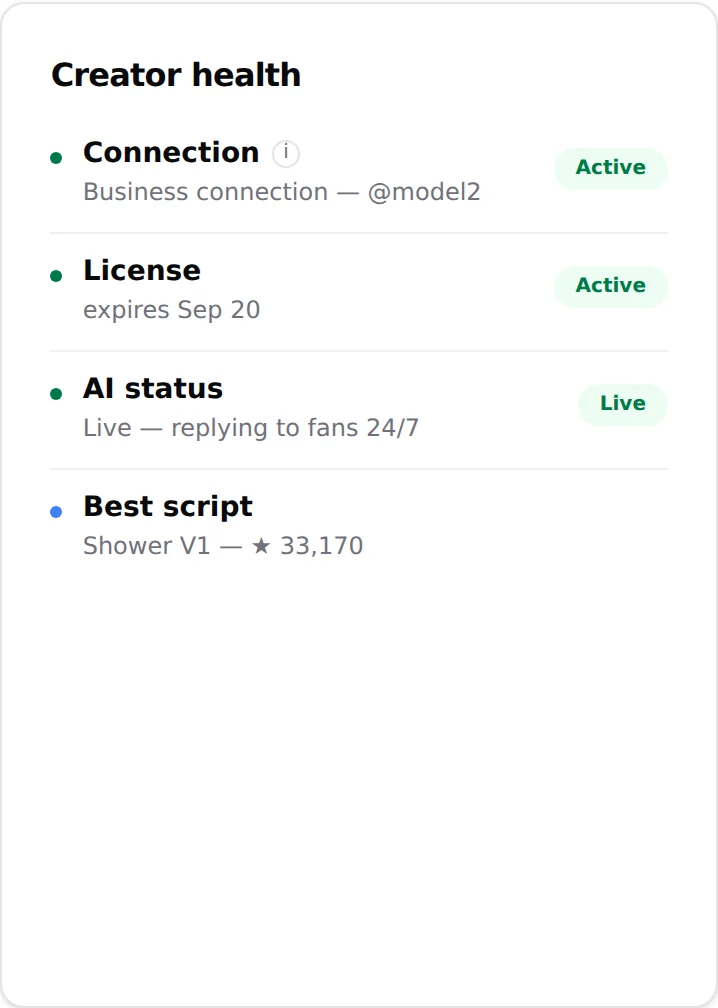
Open the Telegram creator, Overview tab, "Creator health":
| Line | Healthy | Broken |
|---|---|---|
| Connection | "Business connection @username" with an "Active" pill | "No business connection, the bot can't reply" |
| License | "expires MMM D" | "expired MMM D" or "No license assigned" |
| AI status | "Live, replying to fans 24/7" | "Paused, no automatic replies" |
On the creators board, the Telegram card shows "@username" of the connected business account, or "Not connected".
No business connection
This is the state where the bot exists but is not attached to the creator's account, or was detached. Causes: the creator's account has no public @username (by far the most frequent, see just below), Secretary Mode was turned off in BotFather, the bot was disconnected in Telegram Business, one of the five permissions was removed, the creator's account lost Telegram Premium (Telegram Business is included in Premium), or the token was revoked.
Check the username first
The most frequent cause is simpler than all the others: the creator's Telegram account has no public @username. Without one, the business connection is never detected, whatever the permissions say. Check this before touching anything else.
- On the creator's phone, set a username: Settings, Username, choose a public handle and save it. Pick it with care (see the callout below).
- Disconnect the chatbot and connect it again: Settings, Telegram Business, Chatbots, open the bot, disconnect it, then Connect your bot again with all 5 permissions, and press Back.
- In OnlyChat, click Verify business connection. The Connection line should now read "Business connection @username".
When OnlyChat has never detected the connection, the creator page shows the setup gate instead of the workspace: "Telegram setup for name", "Follow each step in order, check every item, then click the verification button. The dashboard will unlock automatically once OnlyChat detects the business connection."
- Secretary Mode in BotFather"Open BotFather, /mybots, select your bot, Bot Settings, Secretary Mode, Turn secretary mode on (or confirm it is already on)."
- Telegram Premium on the creator's account"The account you link to this bot must have an active Premium subscription." If Premium lapsed, the connection drops.
- Connect the bot to the account"In the Telegram app: Settings, Telegram Business, Chatbots, Connect your bot."
- Enable all 5 permissions"Settings, Telegram Business, Chatbots, your bot, Permissions. Enable all of the following (Manage Messages 5/5)": Read Messages, Reply to Messages, Mark Messages as Read, Delete Sent Messages, Delete Received Messages.
- Trigger the event"Once you go back in Telegram after enabling the permissions, a business connection event is sent to OnlyChat. If the bot was already connected, simply toggling any permission off and back on will trigger an update."
- VerifyTick every item ("button unlocks at 8/8") and click Verify business connection ("Checking connection…"). Success unlocks the workspace.
If you get "No business connection detected. OnlyChat hasn't received a business connection event yet. Make sure you've completed all the steps above and toggled a permission off and back on in Telegram to trigger the event. Then try again.", the event never reached OnlyChat. First make sure the creator's account has a username (see Check the username first). Then toggle one permission off and on again in the Telegram app, wait ten seconds, verify again. If that is not enough, unlink and relink the bot: Settings, Telegram Business, Chatbots, disconnect the bot, then Connect your bot again with the 5 permissions; this fixes it almost every time. If it still fails, the bot token in OnlyChat may not be the current one: see below.
See Telegram setup for the full walkthrough with the Telegram app screens.
Still Not connected: unlink and relink the bot
When every step is done and the badge still says "Not connected" or the setup page still answers "No business connection detected", disconnect the bot from the creator's account and connect it again. This fixes the problem almost every time. Before relinking, make sure the account has a username: see Check the username first.
- On the creator's phone: Settings, Telegram Business, Chatbots, open the bot, disconnect it.
- Back in Chatbots: Connect your bot, pick the same bot, keep all private chats included.
- Enable the 5 permissions again, press Back.
- In OnlyChat, click Verify business connection (or wait a few seconds for the badge to turn to "Business connection @username").
Nothing is lost: the creator's fans, scripts and settings in OnlyChat stay as they are; only the link between the bot and the account is recreated.
Invalid or rotated bot token
The token is validated when you add the creator (wizard step 2, "Verifying token...", error "Invalid bot token."). If it was revoked later in BotFather (API Token, Revoke current token), OnlyChat cannot talk to the bot anymore: no replies, and "Couldn't reach Telegram. Try again." when you click Refresh from Telegram on the Overview tab.

- Get the new token"Open BotFather, select your bot, API Token, Revoke current token", then copy the new one.
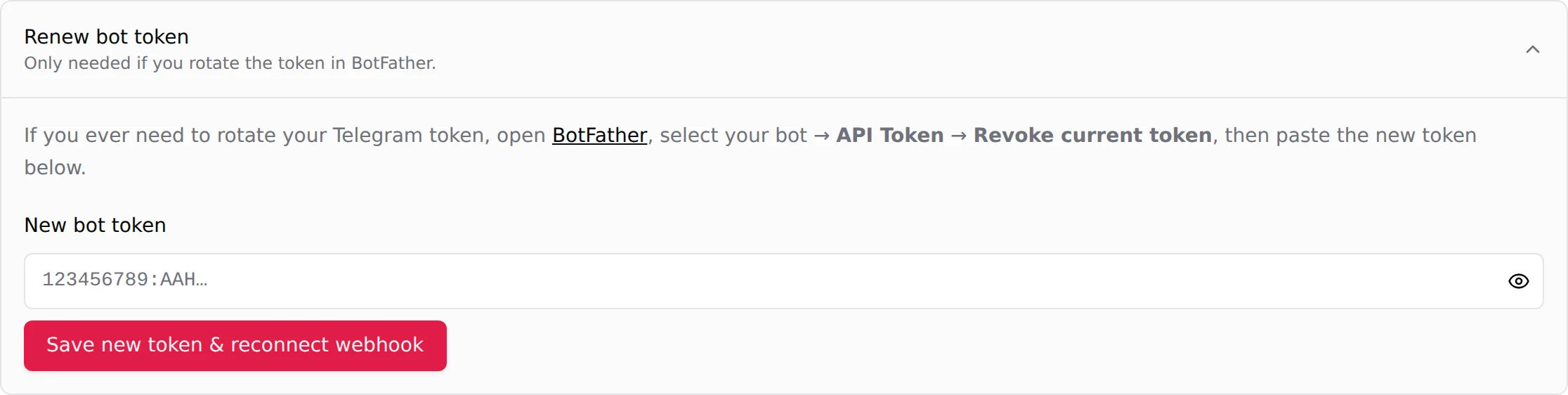
- Open Renew bot tokenOn the creator's Overview tab, expand "Renew bot token. Only needed if you rotate the token in BotFather."
- Paste and savePaste into New bot token and click Save new token & reconnect webhook ("Updating…"). Success: "Bot token updated and webhook re-registered."
- Re-check the connectionGo back to Creator health. If the Connection line is still red, toggle a permission off and on in the Telegram app to resend the business connection event.
Errors and meaning:
| Message | Meaning | Fix |
|---|---|---|
| "Paste your new bot token first." | Field empty | Paste the token |
| "Could not validate the token. Check and try again." | Telegram rejected it | Copy the full token again from BotFather; the format is 123456789:AAH... |
| "Couldn't save the bot token. Try again, or remove the bot from the other creator first." | The same bot is already used by another creator in OnlyChat | One bot, one creator: delete the other creator or use a different bot |
| "Invalid bot token." (wizard) | Wrong or revoked token | Same as above |
The bot picture and handle look wrong
The Overview bot card reads "Bot picture and handle, as Telegram have them." Click Refresh from Telegram: "Bot profile updated." or "Bot profile updated, no picture set in BotFather yet." To set a picture, send /setuserpic to BotFather and pick the bot. This is cosmetic and does not affect replies.
Rate limit
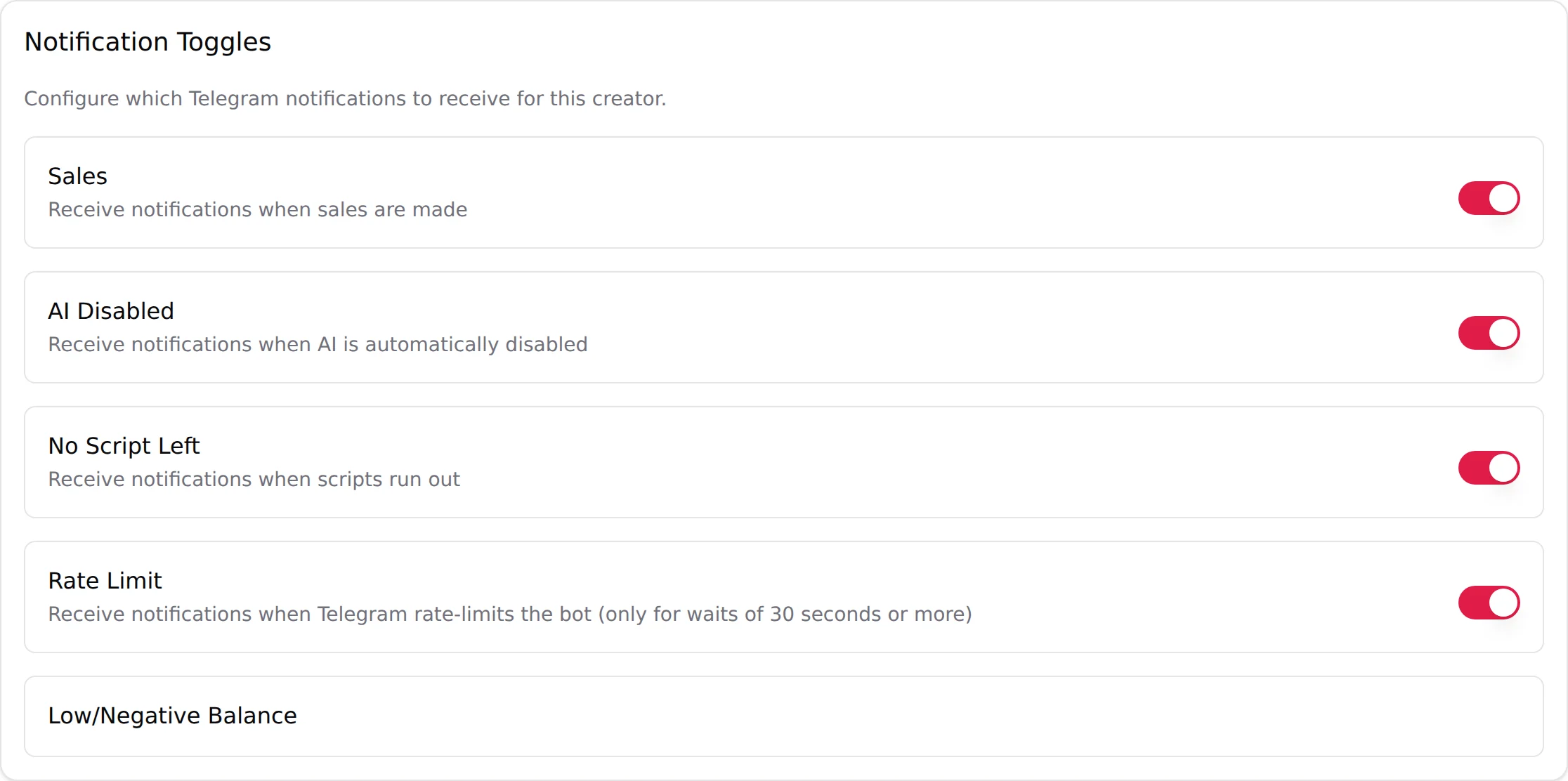
Telegram limits how fast a bot can send. When it asks the bot to wait, the AI queues and resumes on its own. You can be notified: Telegram creator, Notifications tab, toggle Rate Limit ("Receive notifications when Telegram rate-limits the bot (only for waits of 30 seconds or more)").
A rate limit is not a failure. If it happens daily, spread traffic across more creators rather than pushing one bot harder.
The AI is on but silent on one fan
The business connection is fine, the fan just does not get replies. Check the per-fan Enable AI switch on the Fans tab, and the "Scripts used" column. On Telegram there is no composer: to talk to the fan yourself, write from the creator's Telegram app. See Fans on Telegram and Human takeover.
Good to know
- "Enable AI" needs at least two active scripts and an active business connection; the refusal dialog names the missing one.
- Deleting a Telegram creator ("Delete Telegram bot. You are about to delete name. This action cannot be undone.") removes it from OnlyChat only; the bot still exists in BotFather.
- A bot username must match exactly in the wizard ("The @username is your bot's real handle on Telegram, it has to match exactly.").
- Telegram license and business connection are independent: a valid license with no connection still gives "No business connection".