
telegram On Telegram, a script written for one creator can be copied to another creator of the same organisation with Import Script. This is how an agency reuses a scene across creators, or moves a whole stock of scripts to a new bot without rebuilding every step. The copy arrives inactive, with its steps, prices and follow-ups, provided the media it uses has been imported first. On OnlyFans there is no import: scripts are rebuilt per creator, since media comes from each creator's own vault.
Where to find it
On the Telegram creator's Scripts tab, the toolbar has Import Script between the name filter and New Folder.
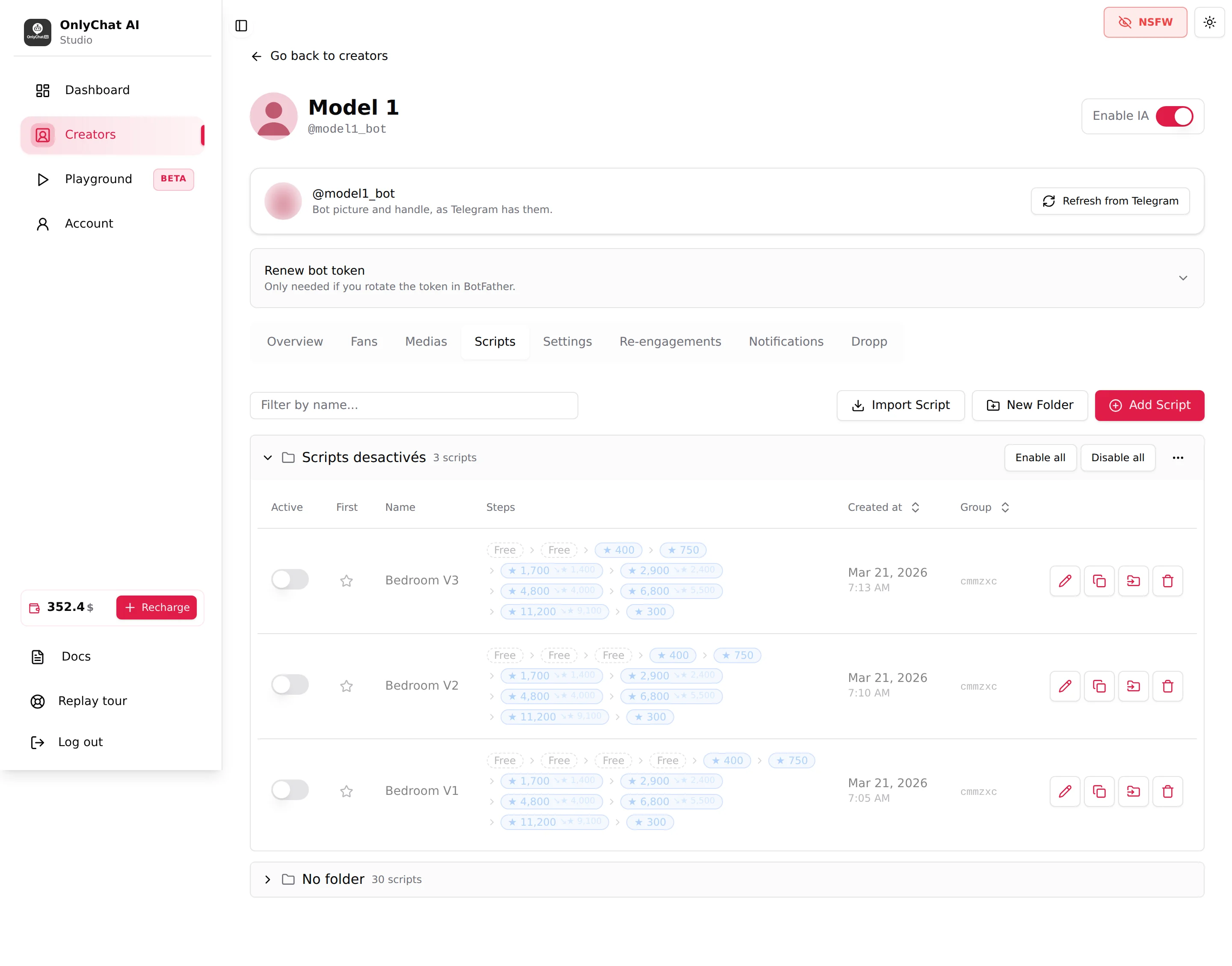
In the interface, the other creator is called a "bot": each Telegram creator is connected through its own Telegram bot, and media and scripts are stored per bot. The fan still talks to the creator's own Telegram profile.
The order that works: folder, media, script
Three steps, always in this order, on the destination creator: create a media folder, import the media of the scene from the source creator, then import the script. The script arrives complete: name, description, timers, every step with its message, its price in Stars, its pre-media and post-media messages, and its media mapped to the items you just imported (with their descriptions). Skip the media step and the script simply does not appear in the import list.
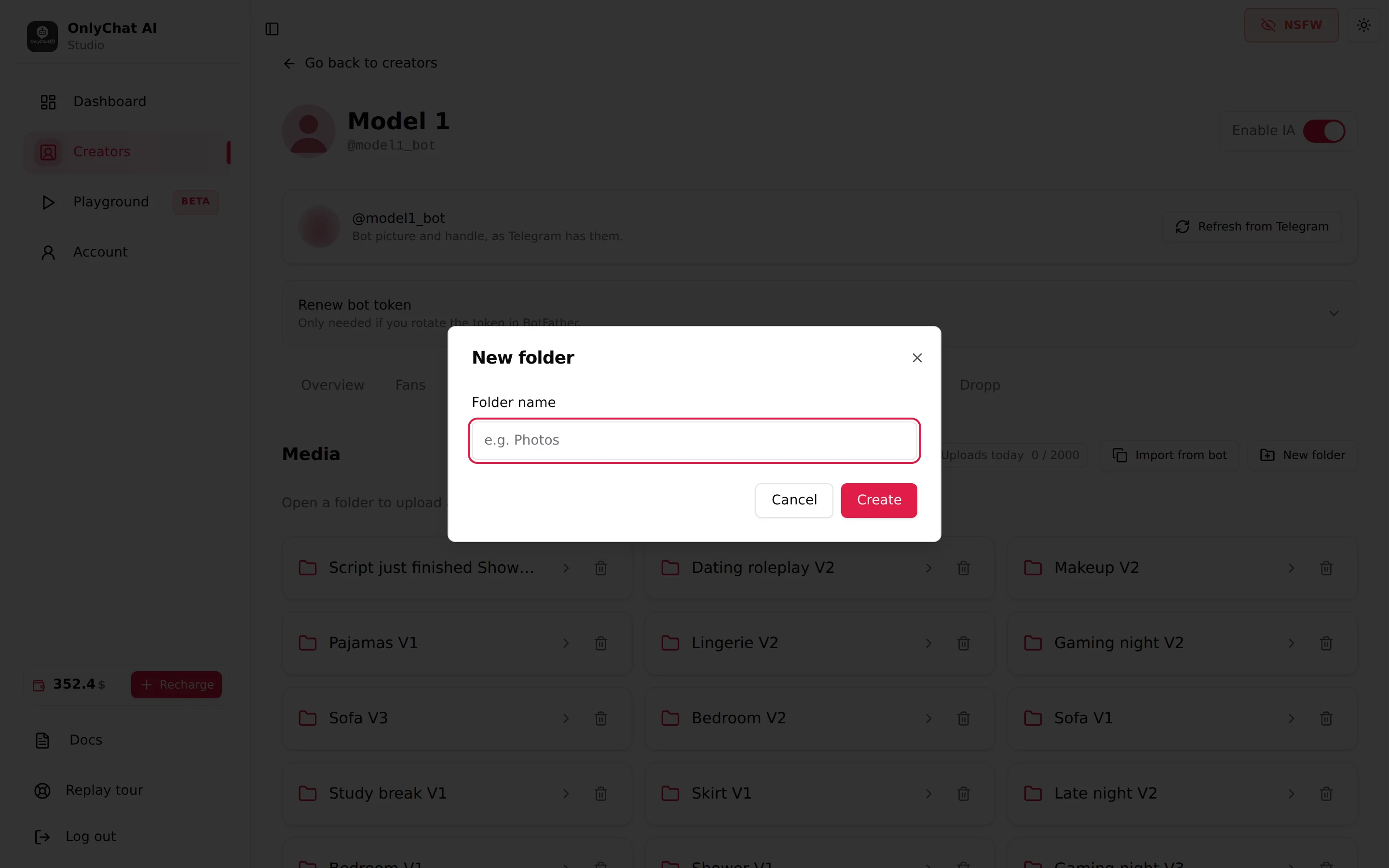
Step 1: create a folder on the destination creator
Open the destination creator, Medias tab, New folder, give it the name of the scene. The import needs a destination folder ("Create a folder first before importing.").
Step 2: import the media first
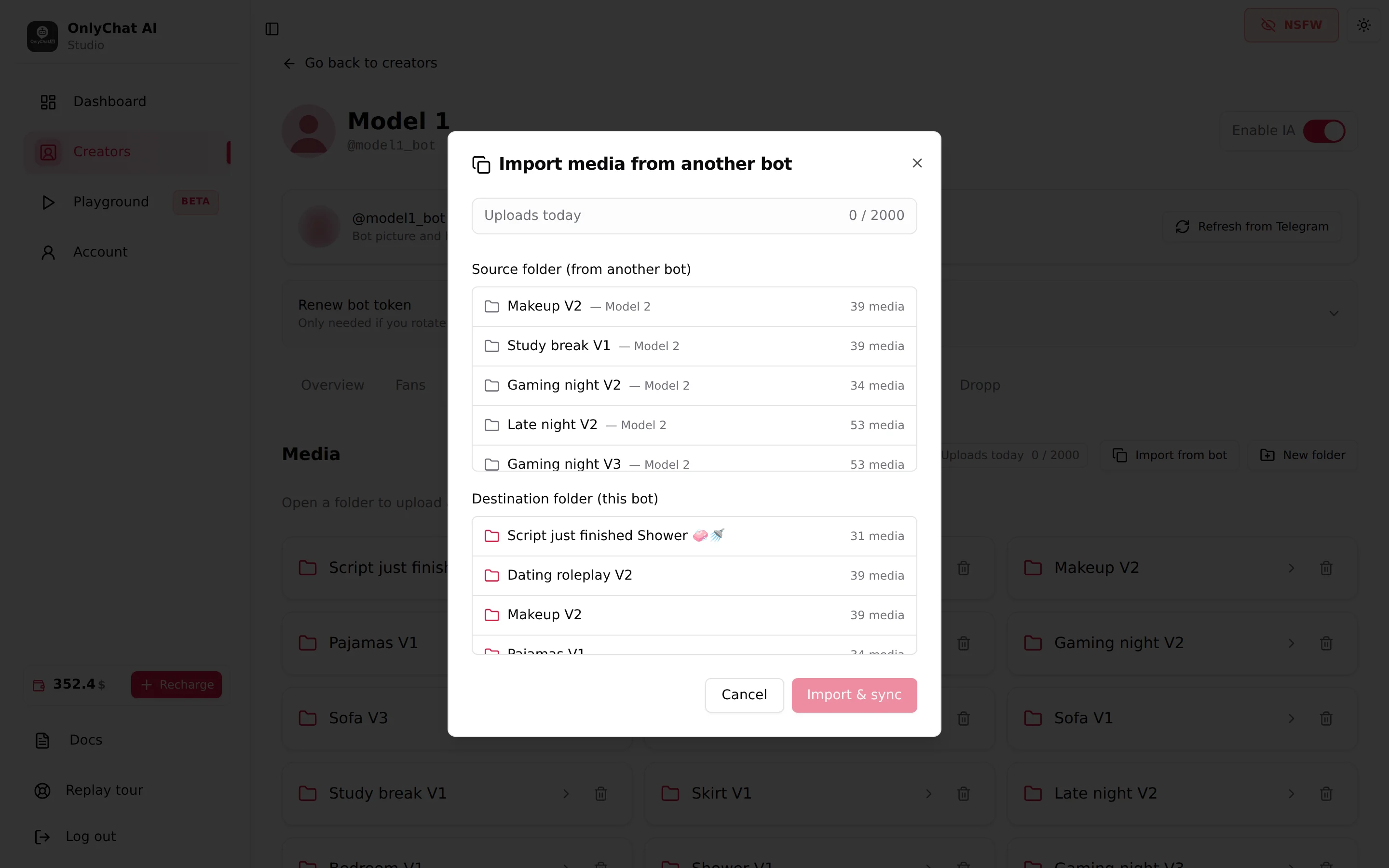
A script is only importable when every media it uses already exists on the destination creator. The modal says it: "A script is importable only when all its media have been imported into this bot via "Import from bot" in the Media tab."
- Open the destination creator's Medias tabCreate a folder if there is none yet (New folder): the import needs a destination folder ("Create a folder first before importing.").
- Import from botClick Import from bot. In "Import media from another bot", pick the Source folder (from another bot) (the folder of the source creator that holds the scene) and the Destination folder (this bot). The line "Uploads today x / y" shows how much of today's upload quota remains.
- Import and syncClick Import & sync. The result reads "N media imported", or "N already present (description synced)" for items that were already there (their descriptions are refreshed), or "Nothing to import". "Import failed" means retry.
- Repeat per folderIf the script uses media from several source folders, import each one. One missing item makes the script non-importable.
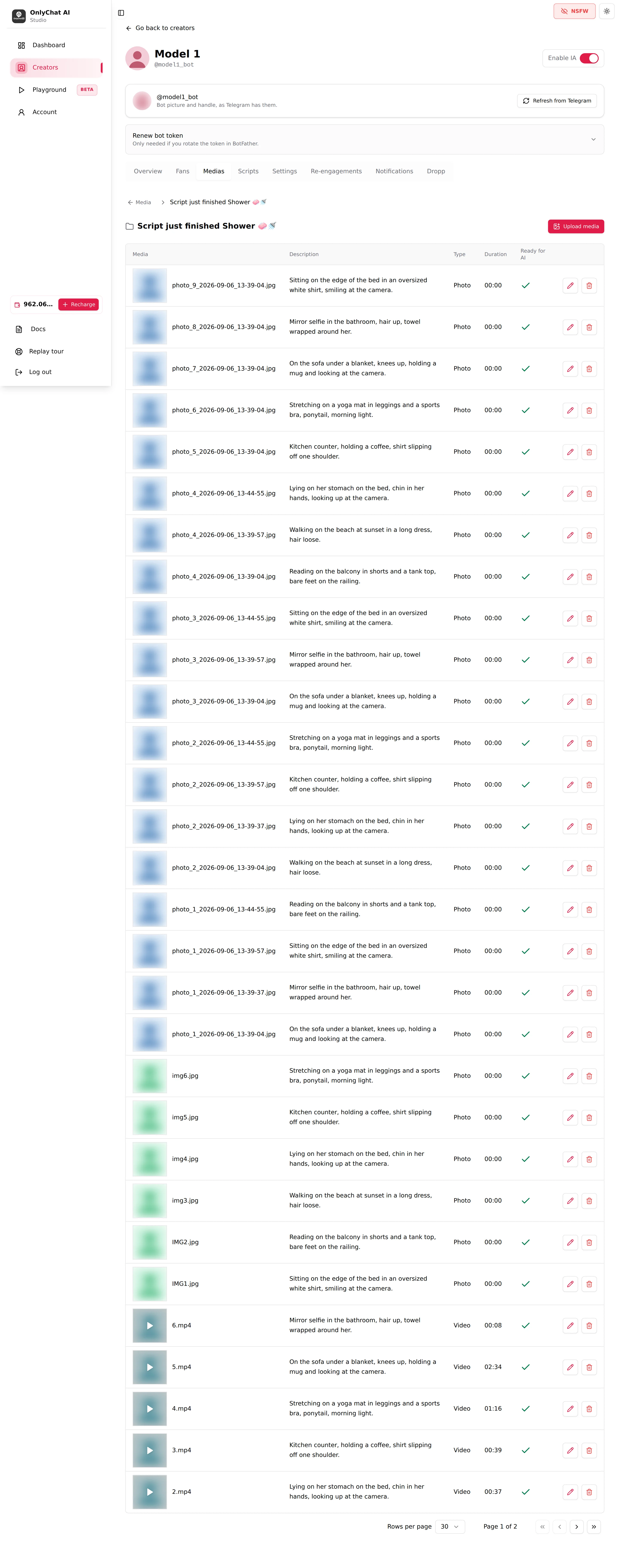
Details of the Medias tab, quotas and statuses are in Media on Telegram.
Step 3: import the script
The Import Script modal
Click Import Script. The modal "Import a script from another bot" lists the scripts of the organisation's other Telegram creators that can be imported here, each with its step count and its source ("N step(s)", then the bot). A script already copied shows the badge Imported.
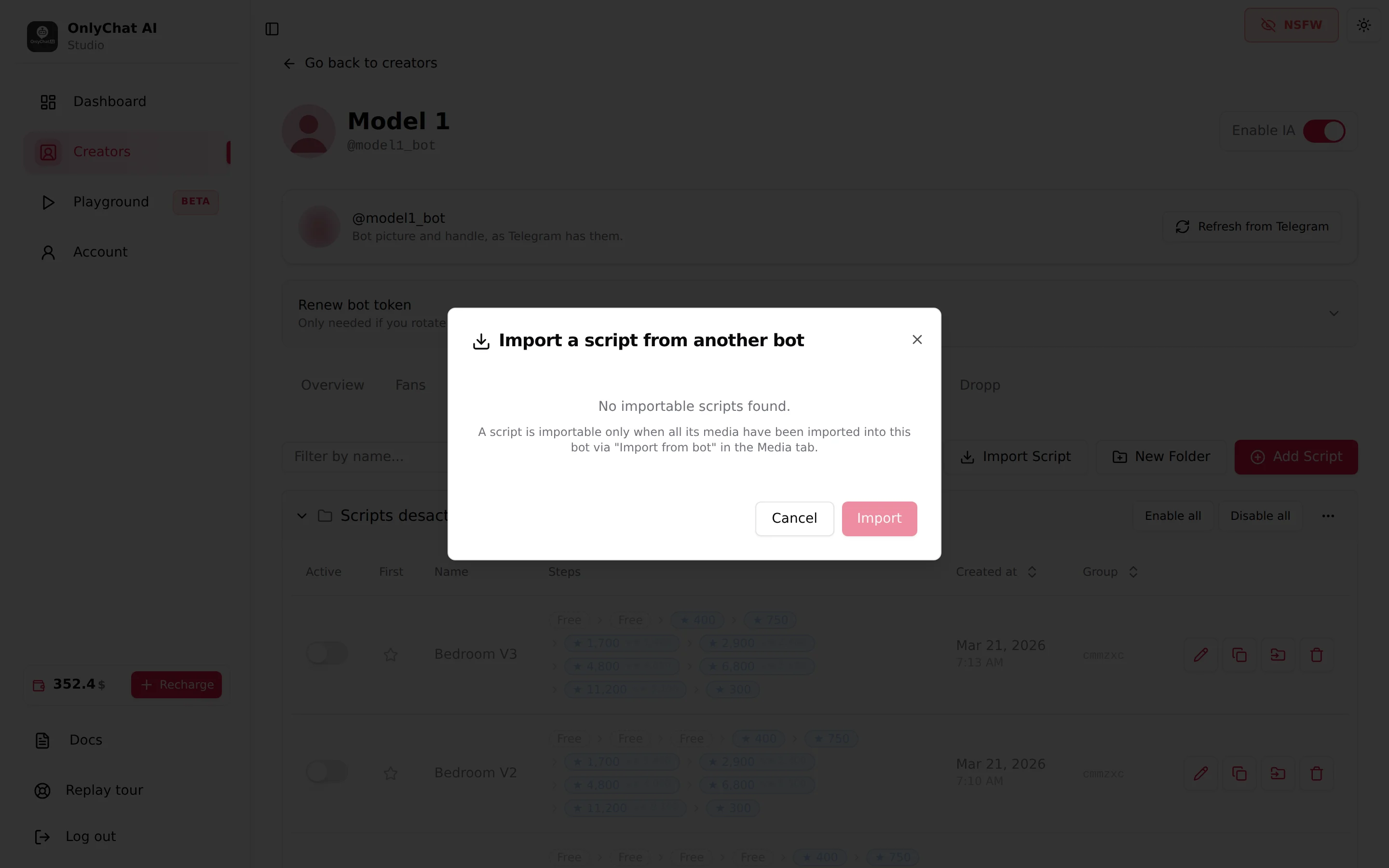
- Select a script and click Import. The toast confirms with the script name: "imported (inactive, review before enabling)".
- "No importable scripts found." means no script of the other creators has all its media here. Go back to the media step.
- "This script has already been imported. Delete the existing copy first if you want to re-import it." A script can exist once per destination; delete the copy from the Scripts tab to import a fresh one.
- "Import failed": retry; if it persists, check that the source creator still has the script.
What is copied, and what to review
The copy appears on the Scripts tab in No folder, inactive, with the source script's name and its steps (the Steps column shows the ladder). Open it with Edit to see the description, the timers and every step card with its media mapped to the items you imported.
Before flipping Active, open it with Edit and check:
| Check | Why |
|---|---|
| Every step still has its media, and the thumbnails are the right ones. | The field guide lists "Importing a script without its media" among the things that block a script. |
| The messages fit this creator. | A first name in a message, a running joke, a way of speaking that belongs to the source creator. |
| The description matches this creator's persona. | The AI launches the script based on it. See Write a script description. |
| The prices fit this audience. | A ladder tuned for a big account may be too high for a new one. See Prices and discounts. |
| Dropp.fans links, if any. | Links belong to a Dropp profile; a step "paid on Dropp" must point to a link of this creator's Dropp folders. See Dropp.fans. |
Then rename it if needed, move it to a folder, and activate it. See Activate and monitor a script.