
A creator that sells has dozens of scripts: several scenes, two or three versions of each, a few retired ones kept for their numbers. The Scripts tab gives you folders, a name filter, bulk activation per folder and a star for the script that goes first. This page covers all of them, for OnlyFans and Telegram (the tab is the same, Telegram adds Import Script).
Where to find it
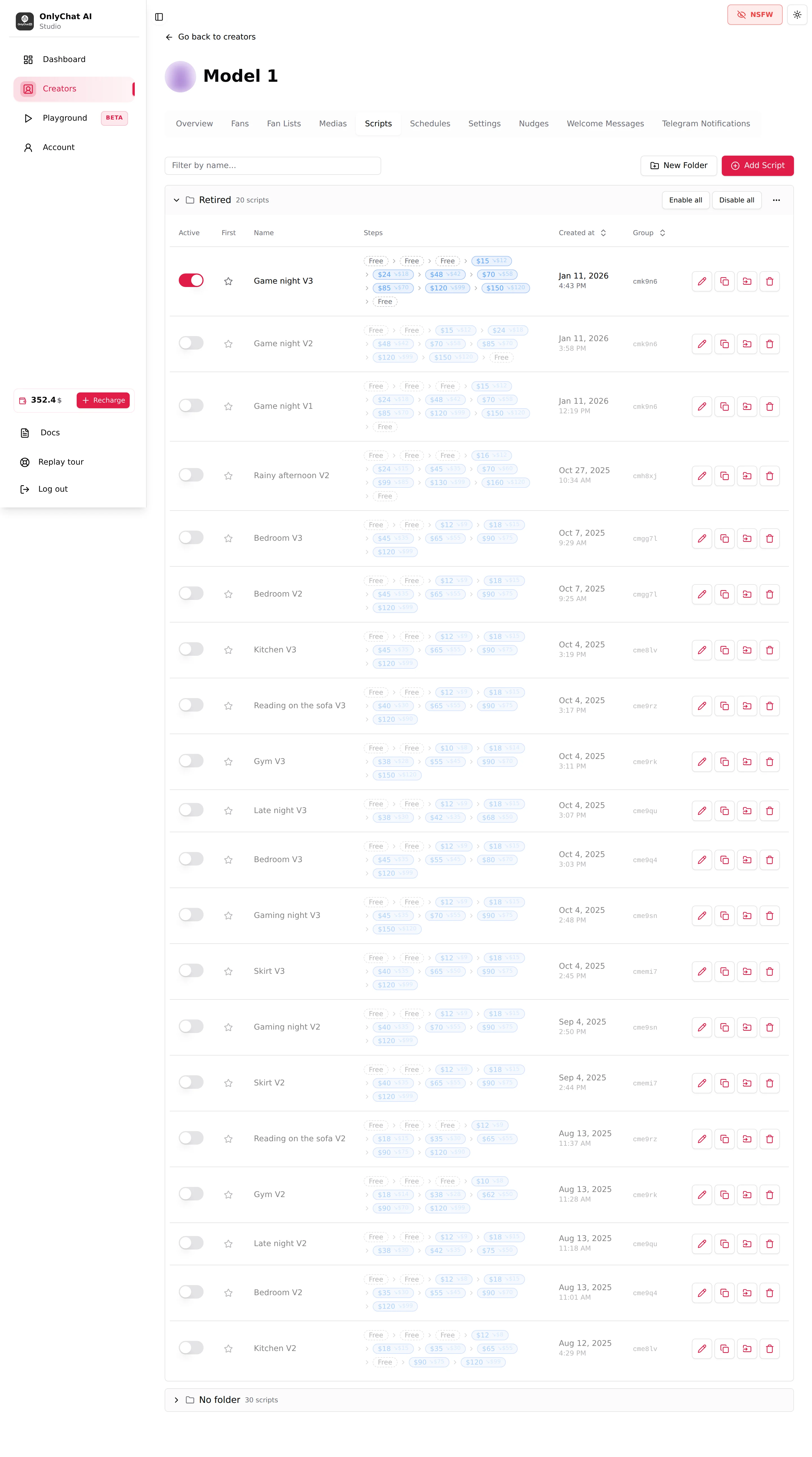
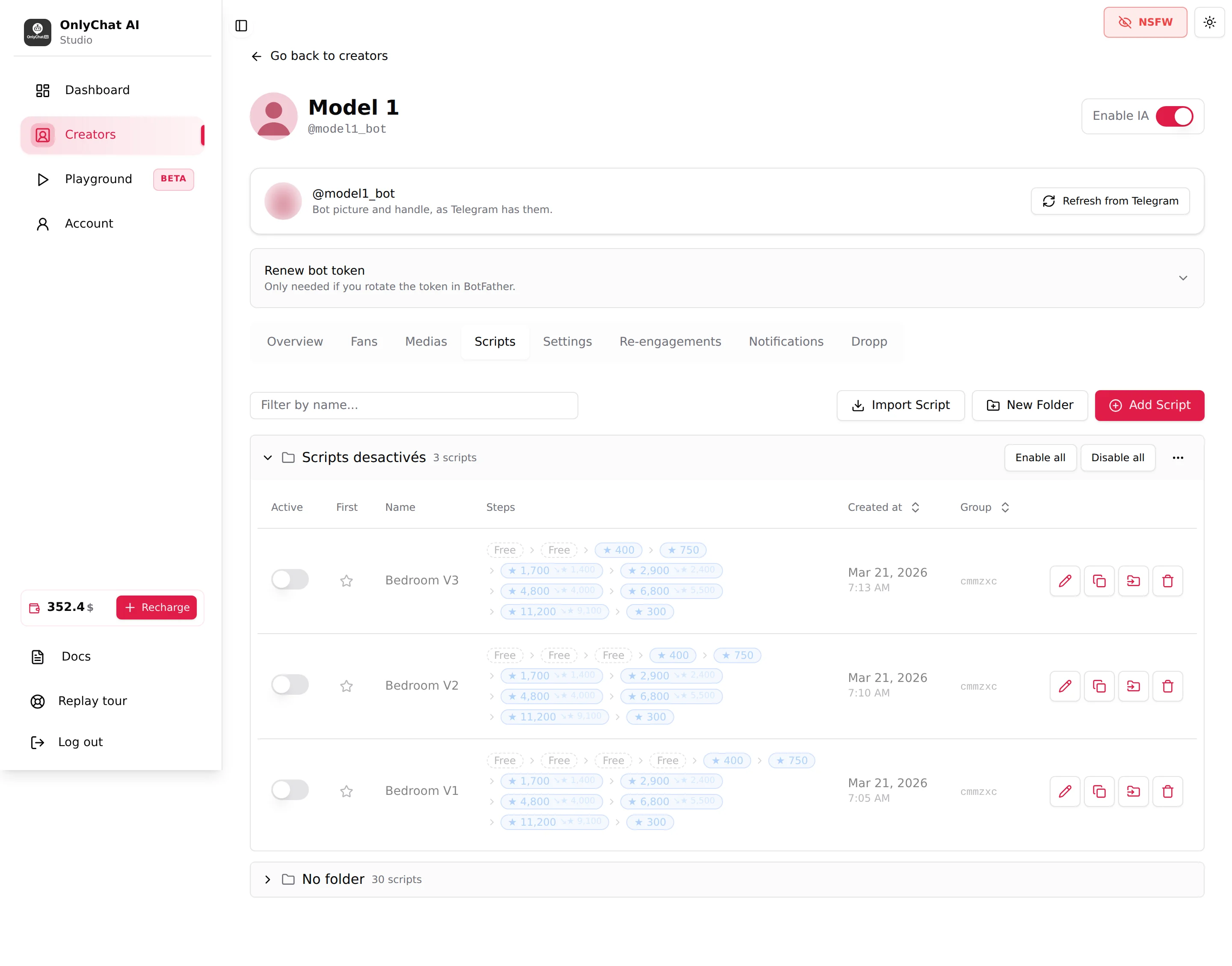
The toolbar of the Scripts tab: the filter Filter by name..., New Folder, Add Script (and Import Script on Telegram). Below, one collapsible group per folder, plus a No folder group for scripts that are not filed.
Filter by name
Type in Filter by name... to keep only the scripts whose name contains the text, across all folders. It is the fastest way to find every version of a scene ("gaming") or every script of a batch if you put a tag in the names ("V2", "soft"). Clear the field to see everything again. Folders that have no matching script show "No scripts in this folder."
Folders
A folder is a label that groups scripts on this tab. It changes nothing for the AI: an active script in any folder is available, an inactive one is not. Folders exist so that you can read and bulk-switch a stock of fifty scripts.
New Folder
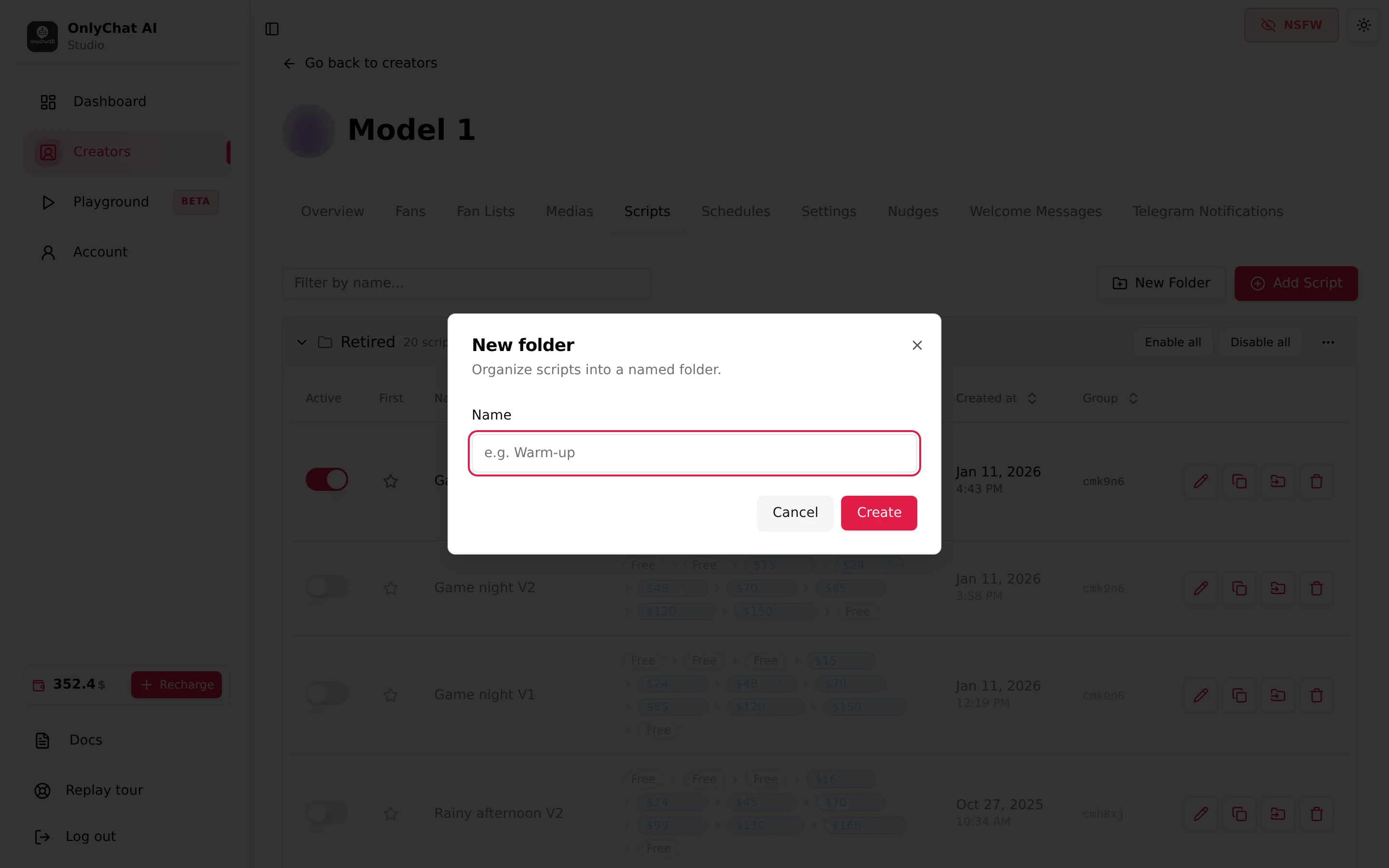
Click New Folder. The modal "New folder" ("Organize scripts into a named folder.") has one field, Name (placeholder "e.g. Warm-up"). Click Create: "Folder created". An empty name is refused: "Folder name is required".
Ways to use folders that work:
| Folder scheme | Example folders | Why |
|---|---|---|
| By state | "Live", "Testing", "Retired" | Enable all / Disable all becomes a one-click rotation. |
| By scene family | "Gaming", "Bedroom", "Bathroom" | All versions of a scene together; easy to see which family lacks a fresh version. |
| By audience or language | "Spanish", "Whales" | If you cut scripts per audience, switch a whole audience on or off at once. |
The folder menu
The three dots at the right of a folder header open its menu:
- Rename: modal "Rename folder" ("Choose a new name for this folder."). Failure shows "Failed to rename folder".
- Delete folder: dialog "Delete folder?" with the explanation "Scripts inside will be moved to "No folder". The scripts themselves will not be deleted." Confirm: "Folder deleted. Scripts moved to No folder." Deleting a folder never deletes a script.
Next to the menu, each folder header shows its count ("N script(s)") and the two bulk buttons.
Enable all and Disable all
Enable all activates every script of the folder ("All scripts in folder activated"); Disable all deactivates them ("All scripts in folder deactivated"). Same effect as flipping every Active switch of the group, with the same rules:
- A script flagged First cannot be deactivated. Unstar it first.
- If the operation leaves the creator with fewer than two active scripts, the AI is switched off: "Scripts deactivated. AI has been disabled because you have less than 2 active scripts." Check the creator's card after a bulk disable.
- "Failed to update folder scripts" means the change did not go through; reload and retry.
Move to folder
On a script's row, the Move to folder action opens the list of folders (and "No folder"). Pick one: "Script moved" ("Failed to move script" on error). A script can be in one folder at a time. New scripts land in No folder; file them right after creating them.

The script row
Each row has, in order:
| Column | What it is |
|---|---|
| Active | The switch that makes the script available to the AI. Tooltip: "Script is active and will be used by the bot" / "Script is inactive and will not be used by the bot". Toasts "Script activated" / "Script deactivated". See Activate and monitor a script. |
| First | A star that flags the script the AI sends first (see below). |
| Name | The script name. |
| Steps | The ladder: "Free" chips, price chips with their discounted value, "paid on Dropp" for Dropp.fans steps on Telegram. |
| Created at | Date and time of creation; the column header sorts. |
| Group | The variation group identifier, shared by a script and its variations; the header sorts, so all versions of a scene line up. See Versions and variations. |
| Actions | Edit ("Edit the details and steps of this script"), Create Variation ("Create a new variation of this script, starting from the first paid step"), Move to folder, Delete. |
The First star
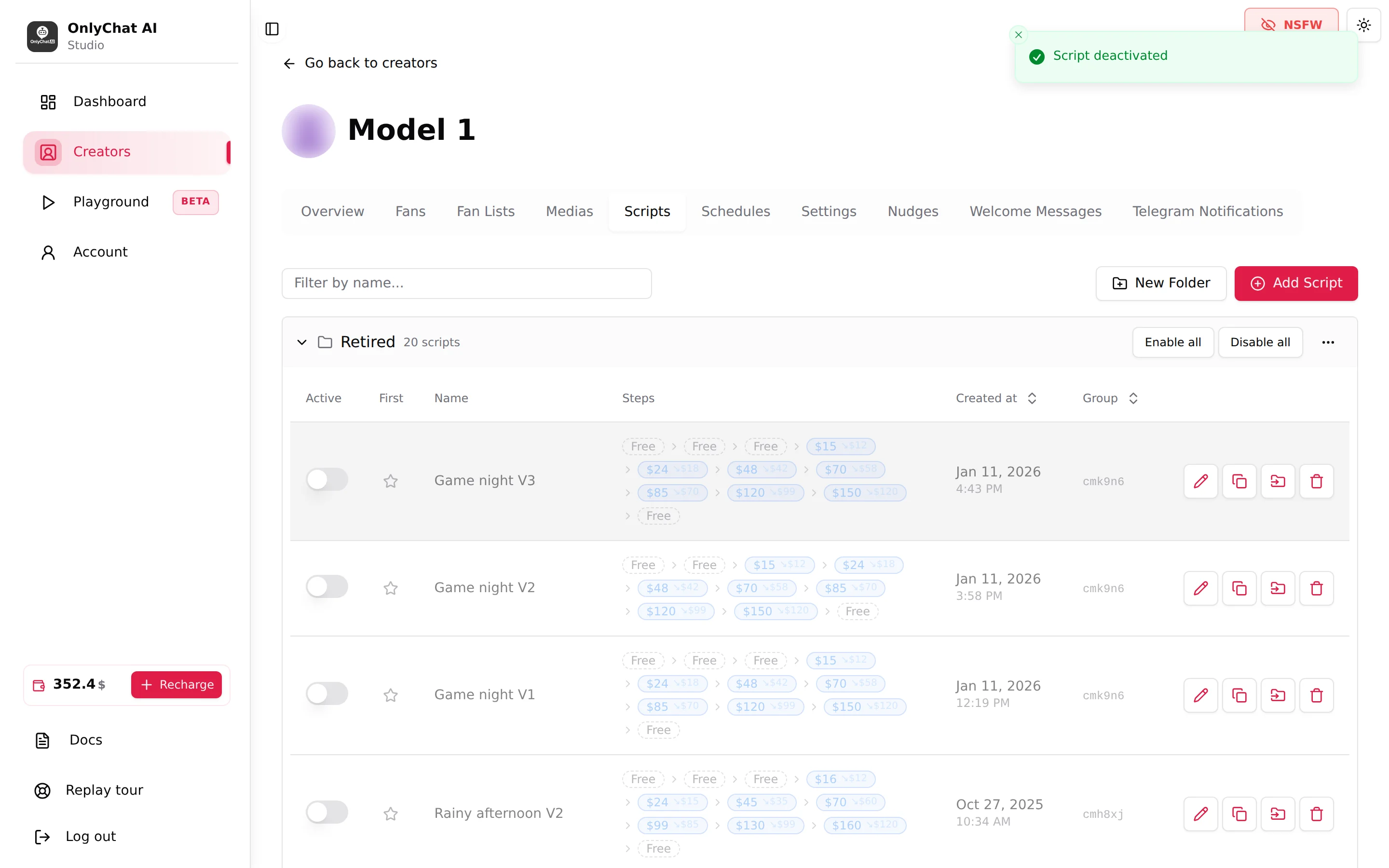
Clicking the star flags one script as the first to use: tooltip "Flag this script as the first to use", toast "Script flagged as first to use". The flagged script is the first scene the AI launches with every new fan, whatever the other scripts' descriptions say. Click it again to unset ("This script will be used first, click to unset", toast "Script unflagged").
Two constraints: an inactive script cannot be starred ("Cannot flag an inactive script as first to use"), and a starred script cannot be deactivated ("Cannot deactivate: this script is flagged as first to use").
Use it for the script that converts best on a cold fan: soft scene, low first price, strong free teasers. Without a star, the AI chooses the first script from the descriptions, which is fine once your descriptions are good and your scenes varied.
Delete
The trash icon ("Permanently delete this script. This action cannot be undone") opens "Are you sure?" ("Deleting this script will remove it from your creator profile."). Confirm: "Script successfully deleted!".
A deleted script keeps its rows in the dashboard's Scripts analytics: the sales it made stay in the data. Still, to retire a script you may want to reread later, deactivate it and move it to a "Retired" folder rather than deleting it. Deleting needs the "Delete scripts" permission.
A routine for a busy creator
- Create three folders"Live", "Testing", "Retired". Move every script into one of them so that "No folder" stays empty.
- File new scripts into TestingCreate or import, then Move to folder to "Testing" and activate. Give them a week.
- Promote or retireFrom the dashboard's Scripts tab, move the winners to "Live" and the losers to "Retired", then Disable all on "Retired".
- Check the countAfter any bulk disable, make sure at least two scripts are still active, and that the starred one is among them.