
A template is a reusable skeleton for a script: a step ladder (a free teaser, then paid steps with rising prices and discounts) that you build once and reuse on every creator instead of rebuilding it each time. Templates save the shape of a script; you still adjust the wording per creator before going live.
Where to find it
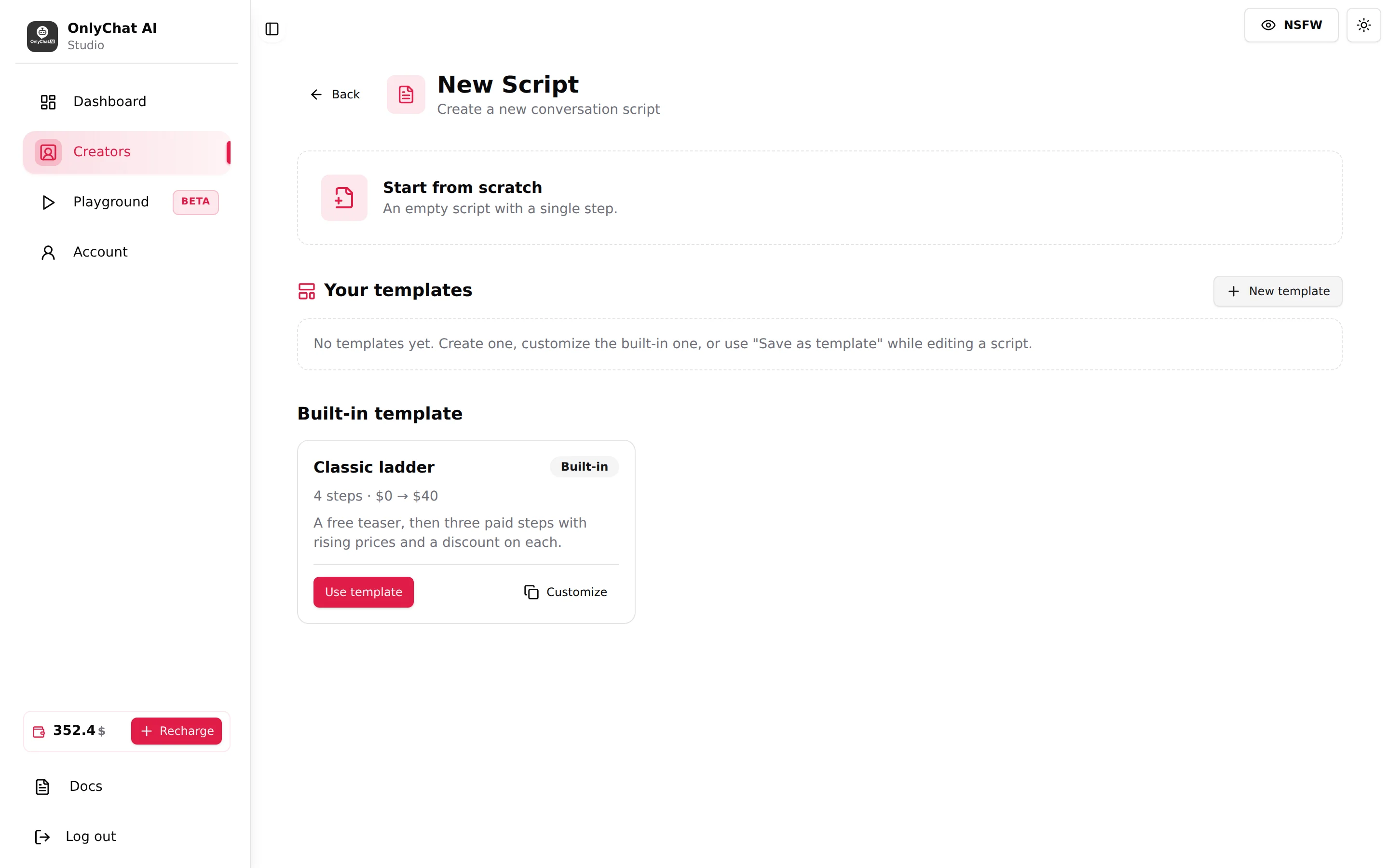
Open the Scripts tab and click Add Script. The New Script screen ("Create a new conversation script") opens with two starting points: Start from scratch ("An empty script with a single step.") and a Your templates section below it.
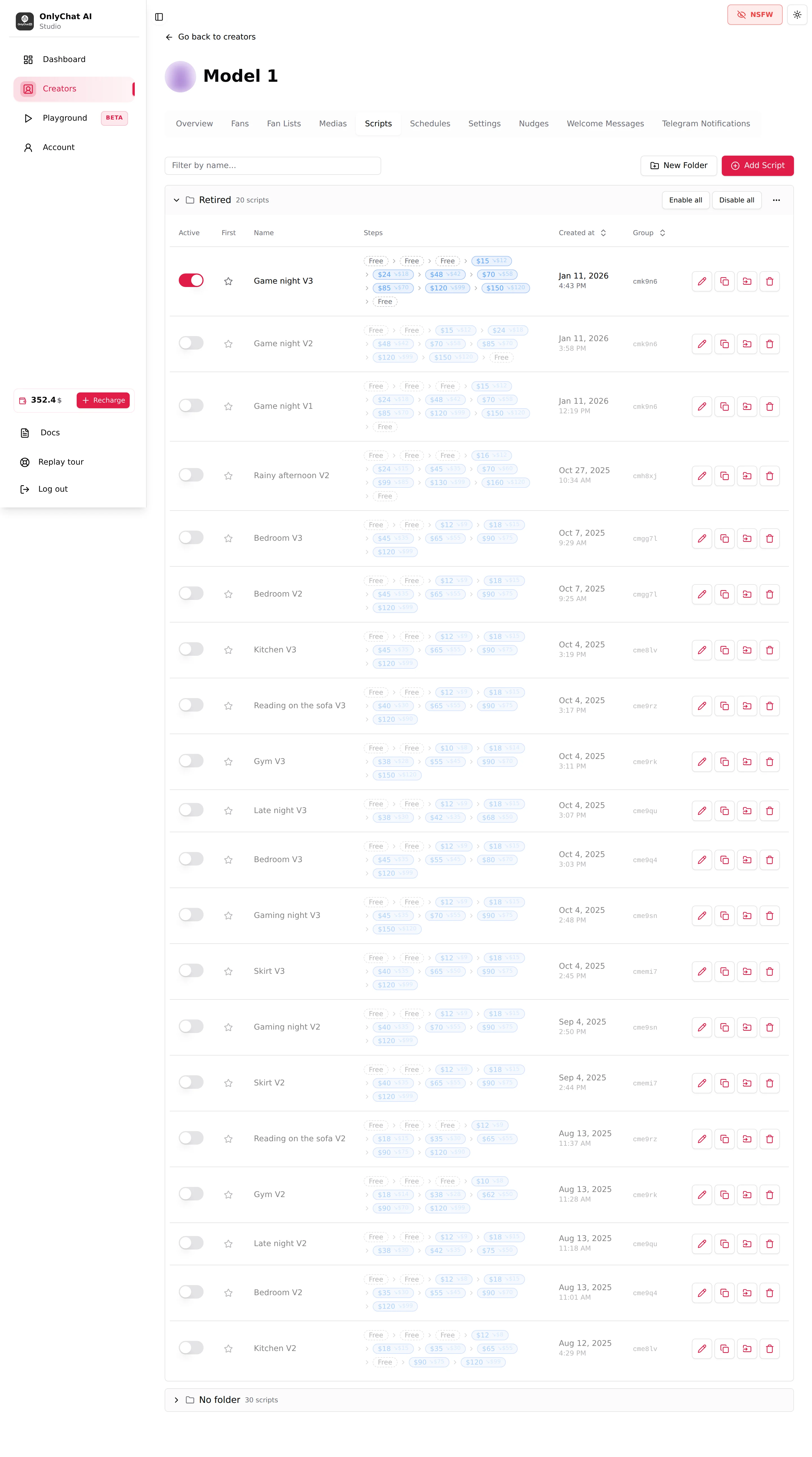
Your templates
This section holds the templates you can start a script from:
- New template, to build your own from scratch.
- A built-in one, Classic ladder (marked "Built-in", "4 steps, $0 to $40"), described as "A free teaser, then three paid steps with rising prices and a discount on each." Each template offers Use template and Customize.
- When you have none of your own yet, the empty line reads: "No templates yet. Create one, customize the built-in one, or use Save as template while editing a script."
Build your own with New template
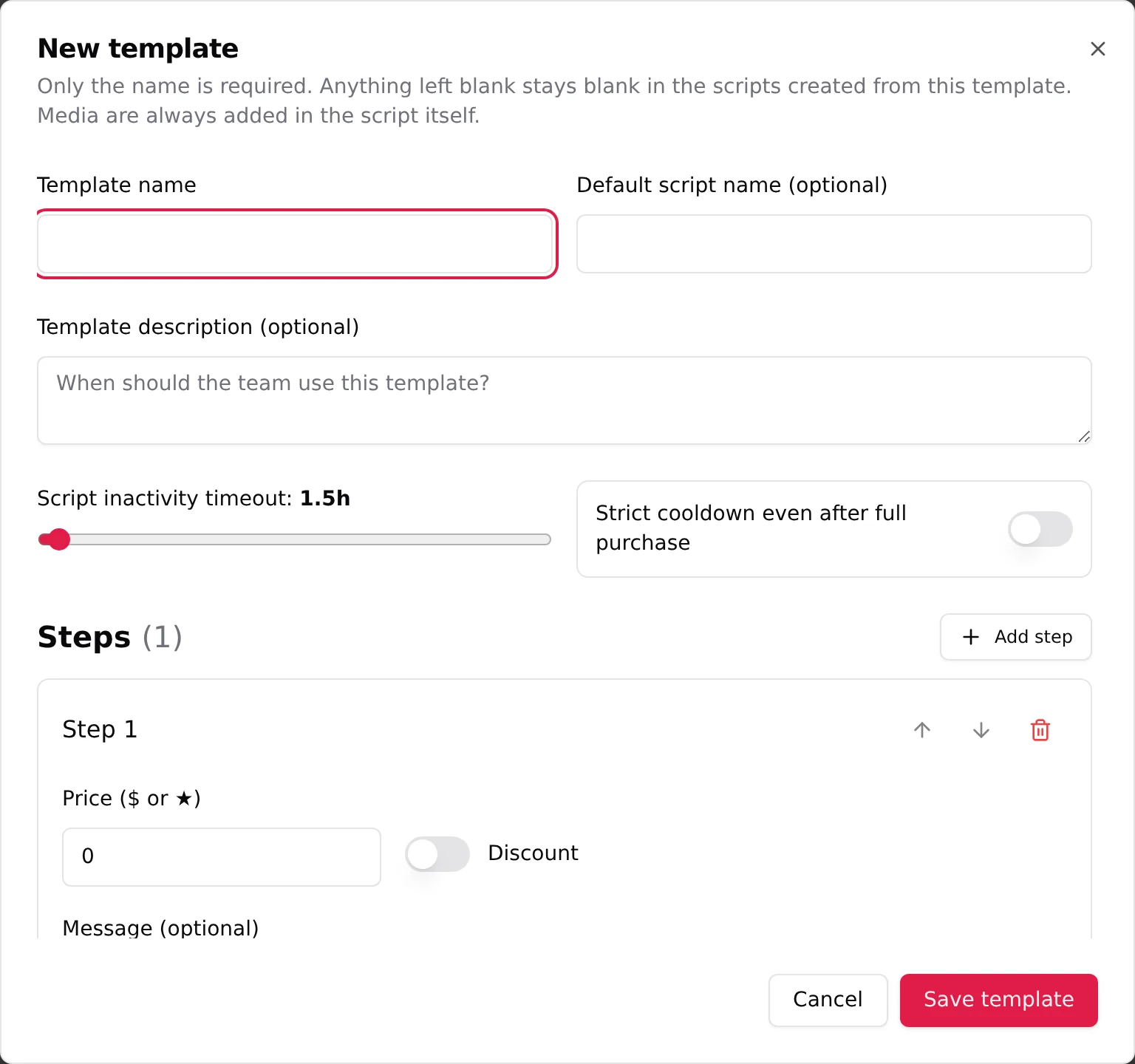
New template opens a form. The note at the top is explicit: "Only the name is required. Anything left blank stays blank in the scripts created from this template. Media are always added in the script itself." So a template holds the shape and the prices, not the media.
At the top you set Template name (the only required field), an optional Default script name (used when you start a script from it), and an optional Template description with the prompt "When should the team use this template?". Below that are two script-wide settings you can preset: Script inactivity timeout and Strict cooldown even after full purchase.
Then you build the ladder under Steps: Add step for each new step, and per step a Price (in dollars or Stars) with an optional Discount, a Message, and Post-media messages. These are the same fields as a live script, covered in Script steps and Prices and discounts. Finish with Save template, and it joins Your templates.
Save as template
You do not have to start from the template screen. While editing any script, use Save as template to turn the script you are working on into a reusable template, ready to apply on the next creator.
Use a template
Use template starts a new script pre-filled with that template's steps. From there you adjust the copy for the creator, set the price path, and activate it like any other script. Customize lets you tweak the template itself before you use it.