
A message to the team is fastest when the message contains what the team needs to reproduce the problem: which creator, which fan, which screen, the exact error text, the time, and a screenshot. Most tickets are answered by pointing at one of the checklists in this section, so run the matching one first. This page gives you the template and the channels.
Before you write
- Run the matching checklistSilent AI: The AI is not replying. OnlyFans badge not Synced: Extension and sync issues. Telegram "No business connection": Telegram connection issues. Invoice or balance: Payments and balance issues. Any message you do not understand: Error messages.
- Reload onceMany "Failed to..." toasts are a single request that did not go through. Copy any text you were typing (a script step, a persona sheet) somewhere safe, then reload the page and try the action again before reporting.
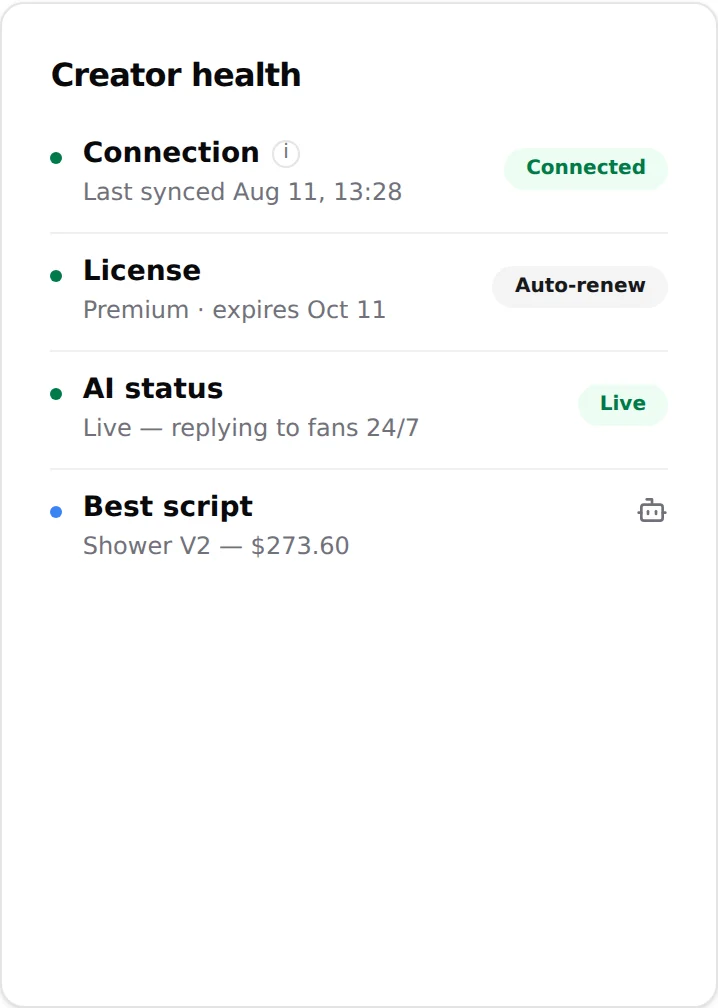
- Read the Creator health cardOpen the creator's Overview tab. Connection, License, AI status and Best script tell most of the story. Take a screenshot of it; you will attach it.
What to send
| Item | Why | Example |
|---|---|---|
| Your account email | Finds your organization | The email you sign in with |
| Creator name and platform | One creator, one platform | "Model 1, OnlyFans" |
| The fan, if one is concerned | Lets the team read that conversation | Username as shown in the Fans tab |
| Date and time, with your timezone | Logs are time-based | "12 Sep, 14:35, UTC+2" |
| The exact message | Distinguishes causes that look alike | Copy the toast or dialog word for word |
| What you did just before | Reproduces the problem | "Clicked Update Script after adding a post-media message" |
| Screenshot of the screen and of Creator health | Shows the states the checklists rely on | Use the NSFW blur toggle before capturing if fans' media is visible |
| For a script problem (a step skipped, a wrong media, a price not applied): the script name and the step number | Points the team to the exact step | "Script: Shower (Version 2), step 2" |
| For payments: transaction hash, asset, network, amount | Finds the transfer on the network | From your wallet's history |
Where to reach the team
- Our lead developer, one of the founders of OnlyChat, on Telegram, in private: @OnlychatAIsupport. He built the product and reads every message himself; this is the channel for anything that involves a fan, a payment or an account.
- The OnlyChat Telegram group: t.me/OnlyChat_AI. Other operators read it too, so keep fan details for a private message with the team.
- Two official bots do not need the team at all: the payment bot t.me/OnlyChatPayBot for a top-up by bank transfer and its invoice, see Pay by bank transfer; and the review bot t.me/OnlyChatReviewBot for a prioritized review of a creator's configuration, see Get your setup reviewed.
- Your usual OnlyChat contact, if your agency has one.
- From the dashboard, the Docs link in the sidebar opens this help center.
For OnlyVault (captions, persona setup, script descriptions, credits), write to Greg, our CEO, on Telegram: @YumitG. He runs OnlyVault himself. Mention "OnlyVault" in the first line, with the email of the OnlyVault account. Typical OnlyVault requests that only he can handle: a lost verification email, a top-up that stayed "partially_paid", and the deletion of stored answers.
What the team cannot change
- OnlyFans or Telegram decisions: an OnlyFans session that keeps logging out, a Telegram account that lost Premium, a bot restricted by Telegram.
- A crypto transfer sent to the wrong network: recovery depends on the network and is not guaranteed.
- Conversations the AI already sent. Pause the fan with the per-fan Enable AI switch and take over yourself if needed. See Human takeover.
Good to know
- Screenshots in the help center are anonymized; yours do not need to be, but blur fans' media with the NSFW toggle when you can.
- Keep the creator's AI switch as it is when you report; flipping it changes the state the team wants to see. The exception is an AI that keeps sending problematic replies to fans: switch it off, and note the time you did it in the report.
- The Replay tour button in the sidebar replays the guided tour of the current page; it answers many "where is..." questions without a ticket.