
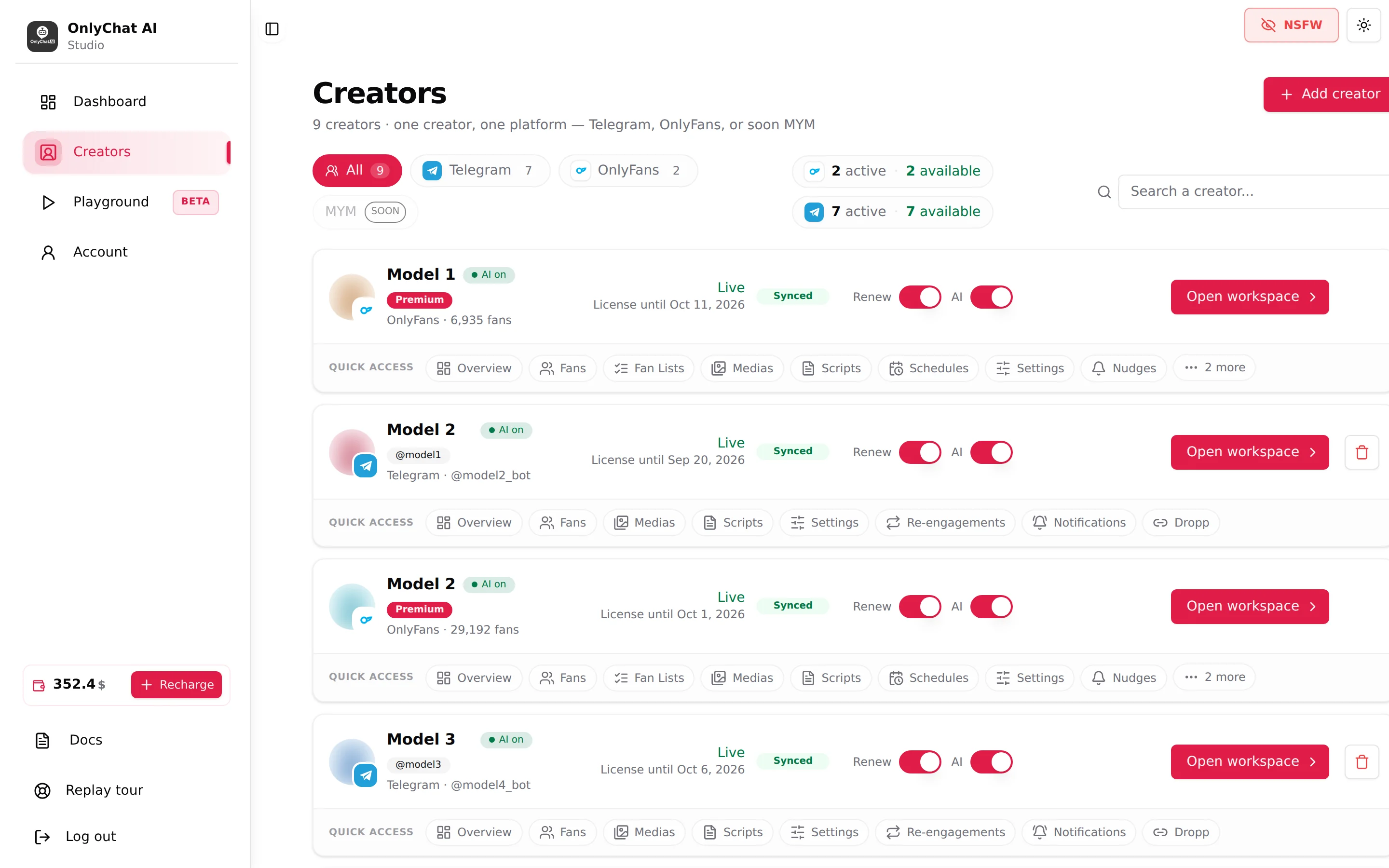
With two creators you open each workspace and look around. With twenty, you need the board to tell you in one glance who is live, who is about to expire, who lost sync, and to get you to the right tab in one click. The Creators board is built for that: one card per creator, one platform per creator, the state on the card, the licenses in the header, and a Quick access row under each card. This page is the operating manual for an agency that runs many creators, and the routine that keeps them selling.
Where to find it
Creators in the sidebar (it is also the landing page after sign-in). Header: "Creators" and "N creators · one creator, one platform, Telegram, OnlyFans, or soon MYM", button Add creator.
The toolbar
Platform filter
Chips All, Telegram, OnlyFans, each with its count, and MYM with a "Soon" badge, disabled. The filter stacks with the search. Use it when a task is platform-specific: checking business connections is a Telegram job, checking sync badges is an OnlyFans job.

Search a creator...
Filters the cards by name as you type. "No result for this search." when nothing matches. With many creators, name them consistently (first name, then a niche or market tag) so the search finds groups: "Model 1 ES", "Model 2 ES".
License chips
Two chips, one per platform: "N active · N available". Tooltips: "OnlyFans licenses: N assigned to a creator and still valid, N basic and N premium waiting to be assigned. Click to manage them on the Account page." and "Telegram licenses: N assigned … Telegram and OnlyFans licenses are separate pools." Clicking a chip opens Account, Balance & Licenses.
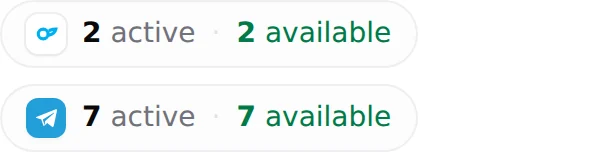
Read them every morning: available going to zero on a growing roster means the next creator will wait; active lower than the number of cards means someone is not licensed.
Pagination
"Page x of y · N creators in total" at the bottom. The search and the filter apply across pages.
Reading a card

| Element | Values | What to do when it is wrong |
|---|---|---|
| Name and platform glyph | Inline rename with the pencil ("Rename creator", Enter to confirm, Escape to cancel). | Rename so the search works for your team. |
| Badges | AI on / AI off; Premium; Telegram: "@businessConnectionUsername" or Not connected. | "Not connected" on Telegram means the AI cannot reply: open the workspace, the setup gate explains the missing business connection, see Telegram setup. |
| Line | "OnlyFans · handle · N fans" or "Telegram · @bot". | |
| State | Live ("License until MMM D, YYYY" or "AI is replying automatically"), Ready to launch ("Flip the AI toggle to go live"), No active license ("Assign a license to start"). | Ready to launch: turn the AI on. No active license: Assign License. |
| Sync badge (OnlyFans) | Synced, Sync warning, Sync error. | Warning or error: reconnect from the extension, see Connect a creator. |
| Renew | Auto-renew of the license at expiry. | Off on a creator you keep means an outage on the expiry date. |
| AI | The creator-level switch. Refusals: Insufficient Balance, Not Enough Scripts, No Active License, No Business Connection (Telegram). | See Turn the AI on. |
| Open workspace | Opens the Overview tab. Telegram cards also have a delete button ("Delete Telegram bot, You are about to delete <name>. This action cannot be undone."). |
Quick access
The row under each card lists the creator's tabs: Overview, Fans, Fan Lists, Medias, Scripts, Schedules, Settings, Nudges and "N more" on OnlyFans; Overview, Fans, Medias, Scripts, Settings, Re-engagements, Notifications, Dropp on Telegram. One click lands on the tab. For an agency this replaces "open workspace, then click the tab" on every creator, which at twenty creators is twenty clicks saved per pass.

Daily pass
- Board: states and badgesFilter All. Every card should read Live with AI on and, for OnlyFans, Synced. Anything else is the first task of the day.
- Board: license chips and sidebar balanceAvailable licenses for the creators coming this week; balance above your alert threshold, see Low balance alerts.
- Dashboard: yesterdayPlatform All, Last 7 Days, look for a creator whose revenue dropped to zero: that is usually AI off, no script left or a lost connection, not a bad day.
- Telegram groupRead the AI Disabled and No Script Left alerts overnight, see Telegram alerts.
- Quick access: Fans on the creators that alertedFans whose Scripts used counter turned red have seen every script; add a variation, see Versions and variations.
Weekly pass
- Scripts analytics on the Dashboard, sorted by Best conversion: duplicate winners, deactivate losers, per creator. See Activate and monitor.
- Overview tab of each creator: Unlock rate and AI revenue share. A creator with high revenue and low AI share is one where a human is doing the selling; check whether that is intended.
- Expiry dates: the License tables on the Account page list every creator with its expiry. Renew off plus expiry within seven days is a decision to make now.
- Settings drift: after a script batch, open Settings once per creator and check the Add infos still match what the scripts sell.
- Media: sync the vault lists that changed (OnlyFans) or upload the new folder (Telegram) before writing the next scripts.
Patterns that work at scale
- One platform per creator card. The same person on OnlyFans and on Telegram is two cards, two licenses, two sets of scripts and settings. Give them the same name plus the platform.
- Templates through duplication. Build one creator's scripts well, then use Create Variation and, on Telegram, Import Script from another bot to seed the others, see Import a script.
- Members per platform. Give chatters View creators plus the Fans permissions only, so the board stays their only entry point, see Members and roles.
- Blur mode on shared screens. The NSFW toggle blurs every thumbnail on the board and in the workspaces.
- Replay the tours for a new hire: each page explains itself on first visit.
Good to know
- Rename is board-only: the workspace header has no rename control.
- Deleting exists for Telegram creators only; OnlyFans creators are managed from the extension.
- Access Denied, You are not authorized to view creators. means the member lacks View creators.
- Empty states: "No creator here yet" and "Add a creator to get started." on a fresh organization.