
Your OnlyChat account belongs to an organization: the agency, or the creator's own structure. The organization owns the balance, the licenses, the creators and the members. The Profile & Organization tab is where the organization gets its name, where you see which account you are signed in with, and where you control the guided tours that play on every page. It is a small tab, visited once at setup and then when someone new joins and needs the tours again.
Where to find it
Account in the sidebar, then the tab Profile & Organization ("Your details, the organization name, and signing out."). The sidebar sub-item is Profile. The organization name is also printed under the "Account" title, on every Account tab.
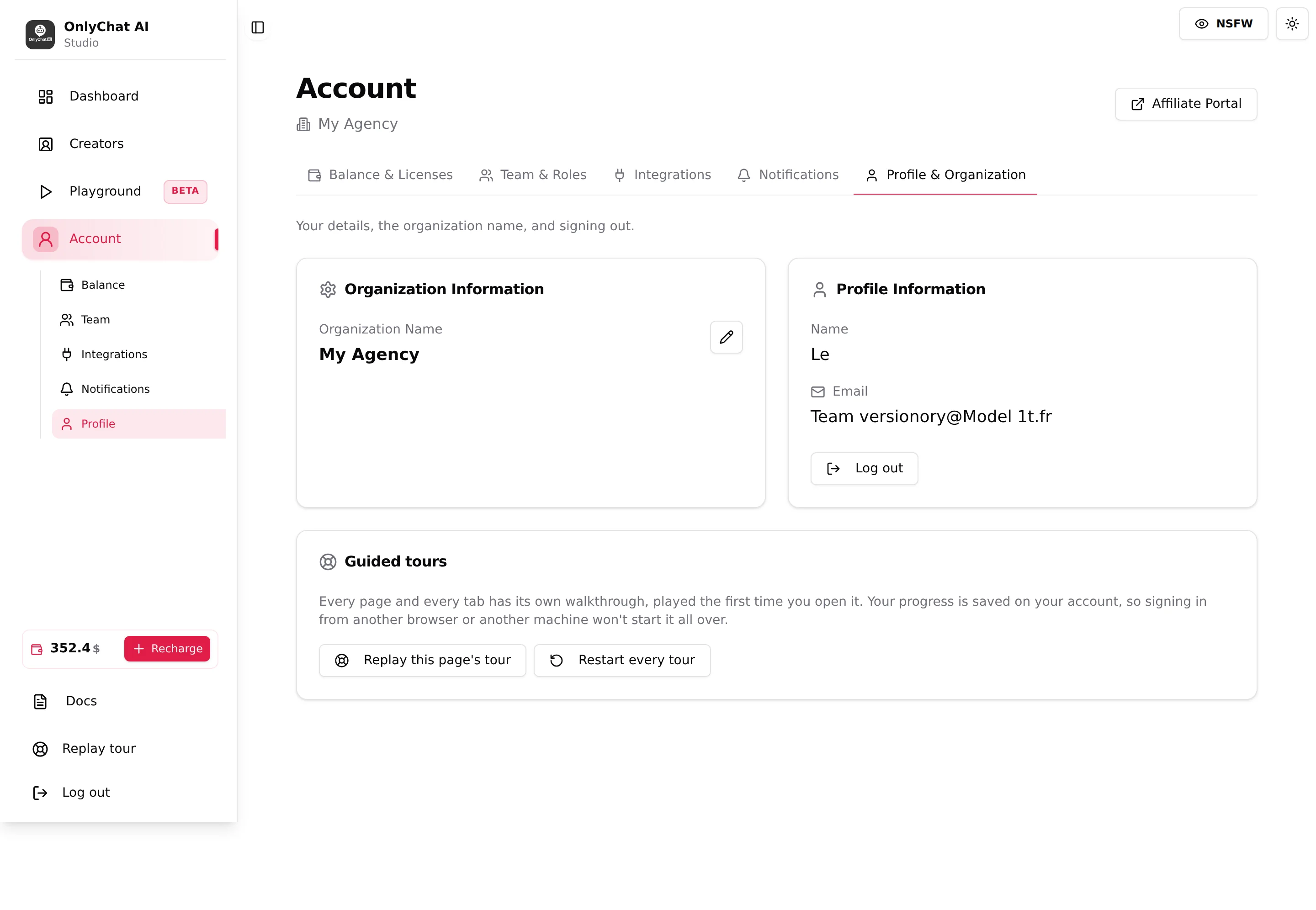
Organization Information
Organization Name
The name shown under "Account", in the members card ("Organization Members" then the name), and in the invitation page a new member sees ("Create your account to join <Org> as a <Role>"). Click the pencil to edit inline, confirm to save. Validation: "Organization name cannot be empty." Permission: Edit organization name.
Pick the name your team recognises; it is the only label a member sees when accepting an invitation, so an agency inviting chatters should use its public name, not an internal code.
Profile Information
Two read-only lines and a button:
| Item | What it shows |
|---|---|
| Name | The first name given at sign-up or when the invitation was accepted. |
| The sign-in email. Also the address that receives the organization balance alert when you are the owner, see Low balance alerts. | |
| Log out | Signs you out of OnlyChat on this browser. The sidebar has the same button ("Sign out of OnlyChat"). |
Changing the name, the email or the password from this tab is not available in the interface. The password can be reset from the sign-in page with "Forgot your password?", see Create an account.
Guided tours
Every page and tab of the app plays a walkthrough the first time you open it, with a step counter and a "Skip this tour" button. The card text: "Every page and every tab has its own walkthrough, played the first time you open it. Your progress is saved on your account, so signing in from another browser or another machine won't start it all over."
| Button | What it does |
|---|---|
| Replay this page's tour | Plays the tour of the Account page again, now. Equivalent to the sidebar entry Replay tour, which exists on every page that has a tour. |
| Restart every tour | Resets the progress: the toast reads "Done, the guide will play again as you visit each page." Every page will play its tour again on the next visit. |
When to use them: a new team member who skipped everything on day one, or after a feature changes and you want the tour text again. The tours are worth reading: their sentences are the shortest explanation of each field, and this help center quotes them.
- Open Account, Profile & OrganizationCheck the organization name under the "Account" title.
- Click the pencil next to Organization NameType the new name and confirm. An empty name is refused.
- Optional: Restart every tourIf the team is new to the app, restart the tours so each page explains itself on first visit.
Good to know
- One organization per sign-in. The tour mentions switching organizations from the sidebar; no such switcher is shown in the interface. If you work for two agencies, you need two accounts.
- The owner is the account that created the organization. Ownership transfer is not available in the interface. Some permissions are marked "(Owner only)" in the Team tab, see Members and roles.
- Blur mode and theme are per browser, not per profile: the NSFW toggle in the top bar blurs fan photos and media thumbnails until you turn it off, see Tour of the dashboard.
- Affiliate Portal: the button at the top right of every Account tab opens the affiliate programme on an external site.