
On a Premium OnlyFans creator, every row of the Fans tab gets two extra buttons: Note and Tags. A note is a free-text "Personal Info" box for one fan. A tag is a coloured label you put on fans to sort them (VIP, time-waster, wants customs, handled by me). Both exist so that an agency running hundreds of fans per creator can keep what it knows about each fan next to the conversation, without a spreadsheet. This page covers the Premium side: what unlocks, where, and how the two tools differ. The detailed how-to lives in the Fans collection.
Where to find it
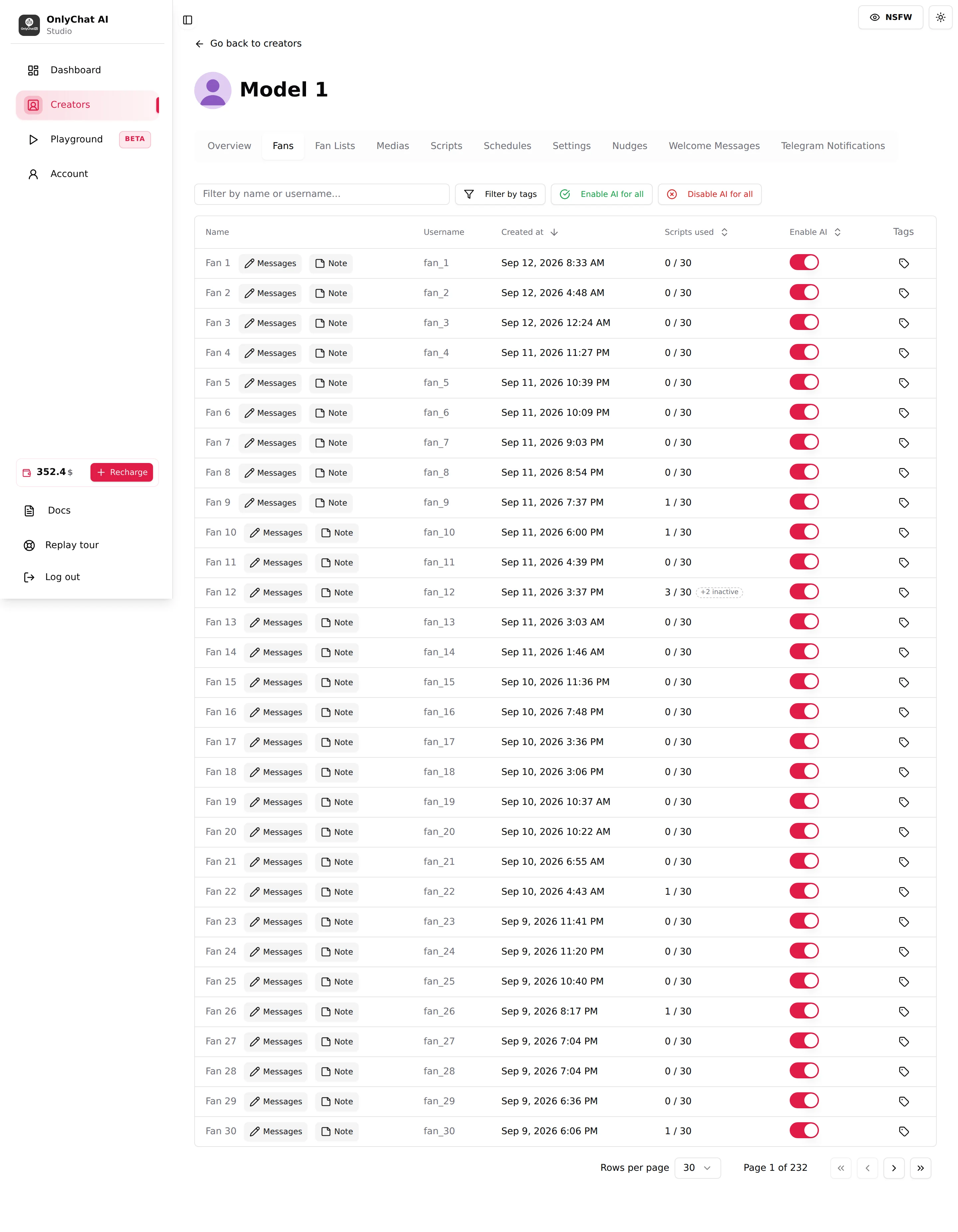
Open the creator's workspace, Fans tab. The toolbar holds Filter by tags; each row ends with Note and Tags.
Fan notes
The Note modal
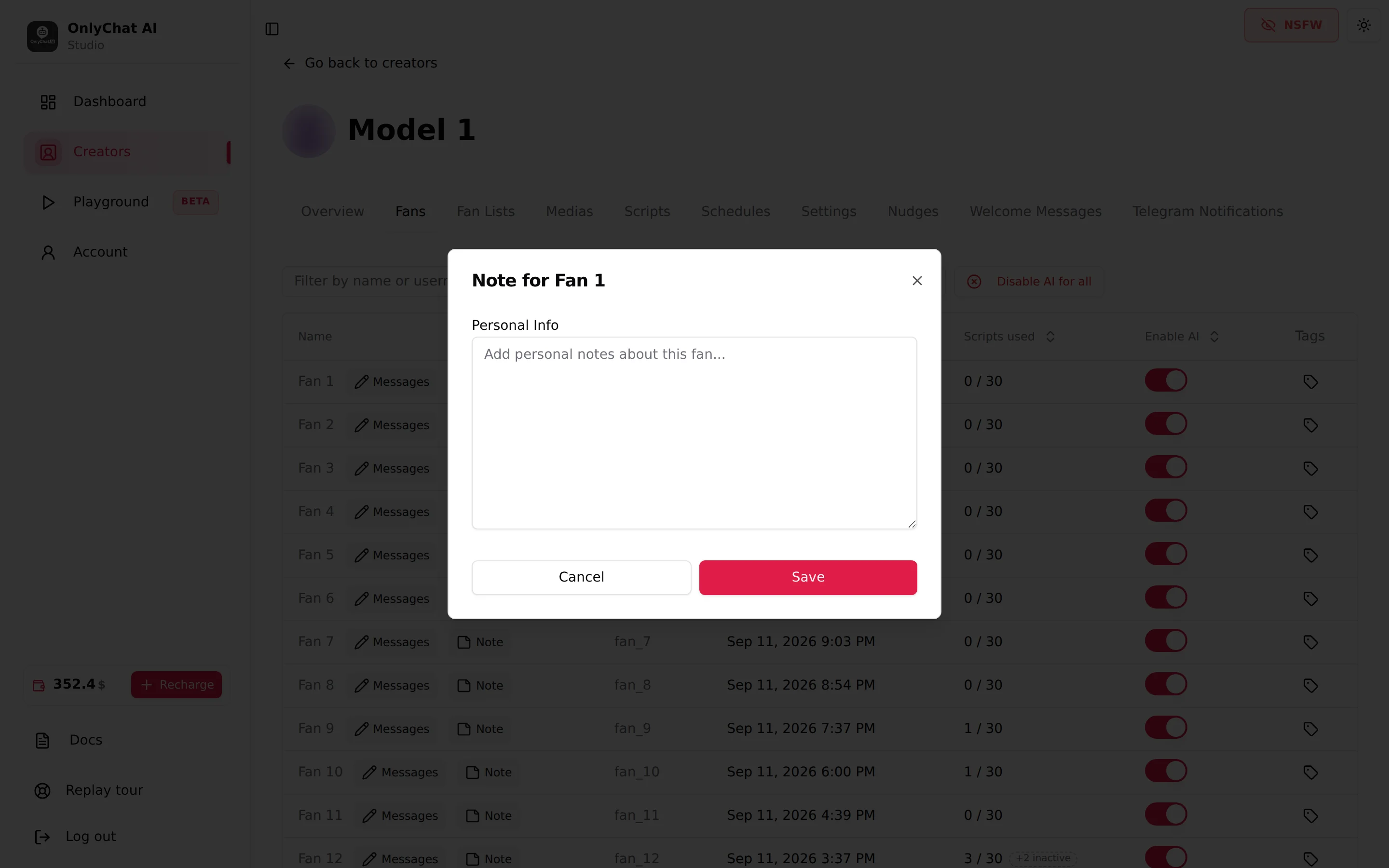
Note opens Note for <fan> with one textarea, Personal Info, placeholder "Add personal notes about this fan...". Save shows "Note saved successfully" or "Failed to save note".
What to write
Facts that change how this fan should be talked to and that the conversation history does not make obvious:
- what the fan told the creator (job, city, relationship, kinks they mentioned), so it is not asked twice;
- what the fan bought and at what price, if you handle part of the selling yourself;
- boundaries: topics to avoid, "never mention his ex", "hates being called babe";
- operational flags: "refund requested on 3 Sep", "chargeback risk", "talks to me directly on Telegram".
Keep it short and factual. A note is per fan and per creator: the same person subscribed to two creators has two notes.
What the AI does with it
The note is the AI's memory of this fan. The AI writes it itself as a condensed extract of the whole conversation history, and reads it before every reply, so what is in the note is applied the next time the fan writes. The Premium license makes that memory visible and editable here: what you type or correct is taken into account the same way. A blank note on an old subscriber is normal when the history predates the AI; fill it in and the AI starts from there. Keep the note about this fan only; anything that must apply to every fan of this creator belongs in the Settings tab (Add infos), see Additional info and Fan notes.
Permissions: View fan notes to open the modal, Edit fan notes to save.
Tags
The Manage Tags modal
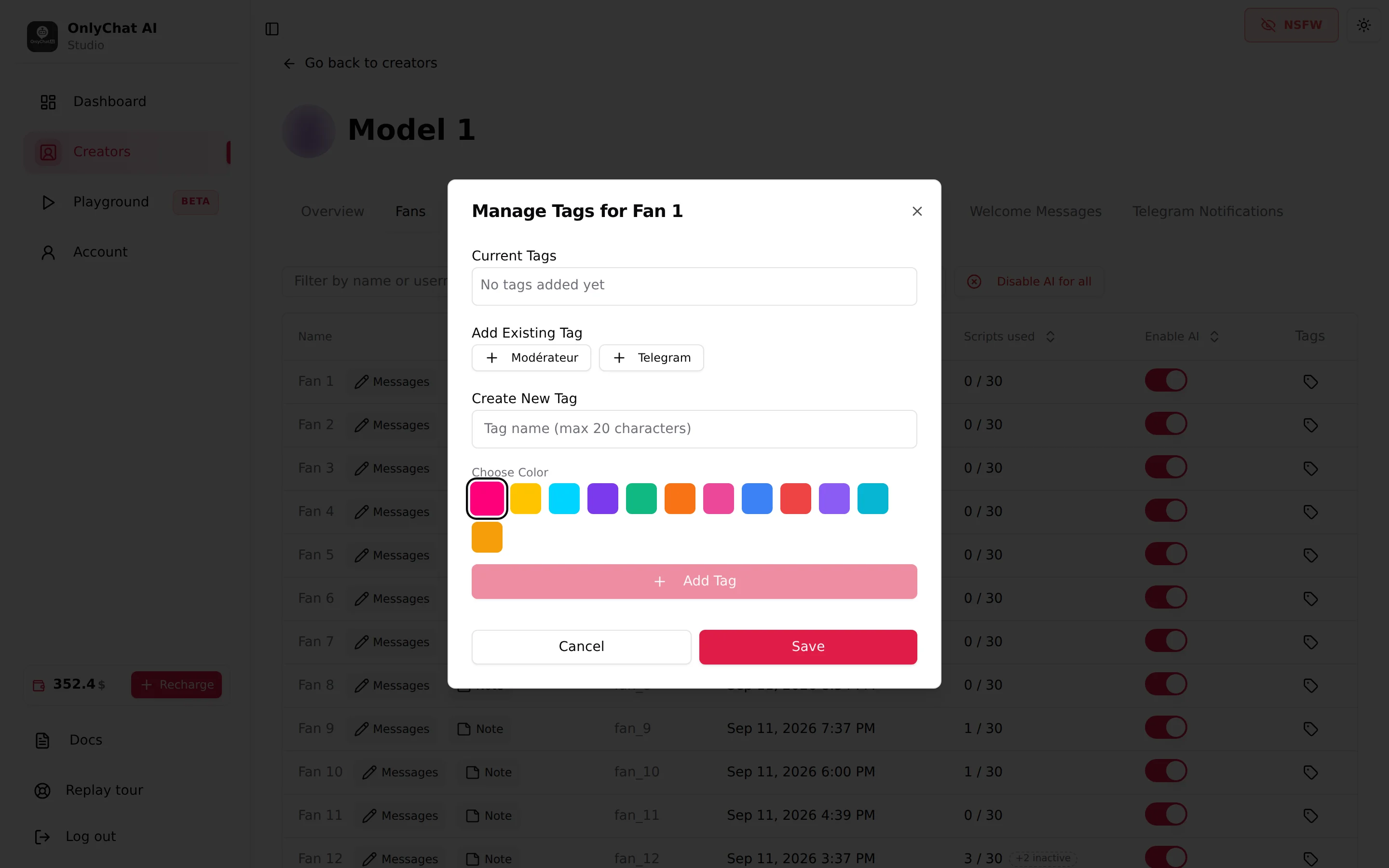
Tags opens Manage Tags for <fan> with three blocks:
| Block | What it does |
|---|---|
| Current Tags | Tags on this fan. Shows "No tags added yet" when empty. Remove one with its cross. |
| Add Existing Tag | Every tag already created on this creator. Click one to add it. "Tag already added" if it is already on the fan. |
| Create New Tag | Field "Tag name (max 20 characters)", the Choose Color palette, then Add Tag. "Tag name must be 20 characters or less" blocks longer names. |
Save shows "Tags updated successfully" or "Failed to update tags".
Filter by tags
The toolbar control Filter by tags (default "All fans") narrows the table to fans carrying the selected tag. It stacks with the name search. This is where tags pay off: filter on "VIP" and check their conversations, filter on "handled by me" and switch their AI off one by one with the per-fan switch of Enable AI per fan. Do not use the creator-wide "all fans" switch for that: it flips every fan of the creator, not only the filtered rows.

The AI does not read tags
The guided tour is explicit: "Tags are yours, the AI doesn't read them." A tag never changes what the AI says or whether it replies. Use the per-fan AI switch for that. Tags are an organisation tool for your team: consistent names and colours across creators make the filter useful for every member.
Suggested set for an agency: VIP (spent a lot), Custom (asks for customs), Manual (a human handles this fan), Risk (refund or chargeback history), New (subscribed this week). Five tags, five colours, same on every creator.
Good to know
- Tags are per creator. A tag created on Model 1 does not exist on Model 2; create it again there.
- No limit on tags per fan is shown in the interface. The name limit is 20 characters.
- After a Premium license expires, whether existing notes and tags are kept until the next Premium license is not shown in the interface. Copy what matters before letting one lapse.
- Telegram: the Fans tab of a Telegram creator has the same Note and Tags buttons and the same Filter by tags; the conversation page adds a Fan note card ("Personal Info (conversation)"), see Fans on Telegram.