
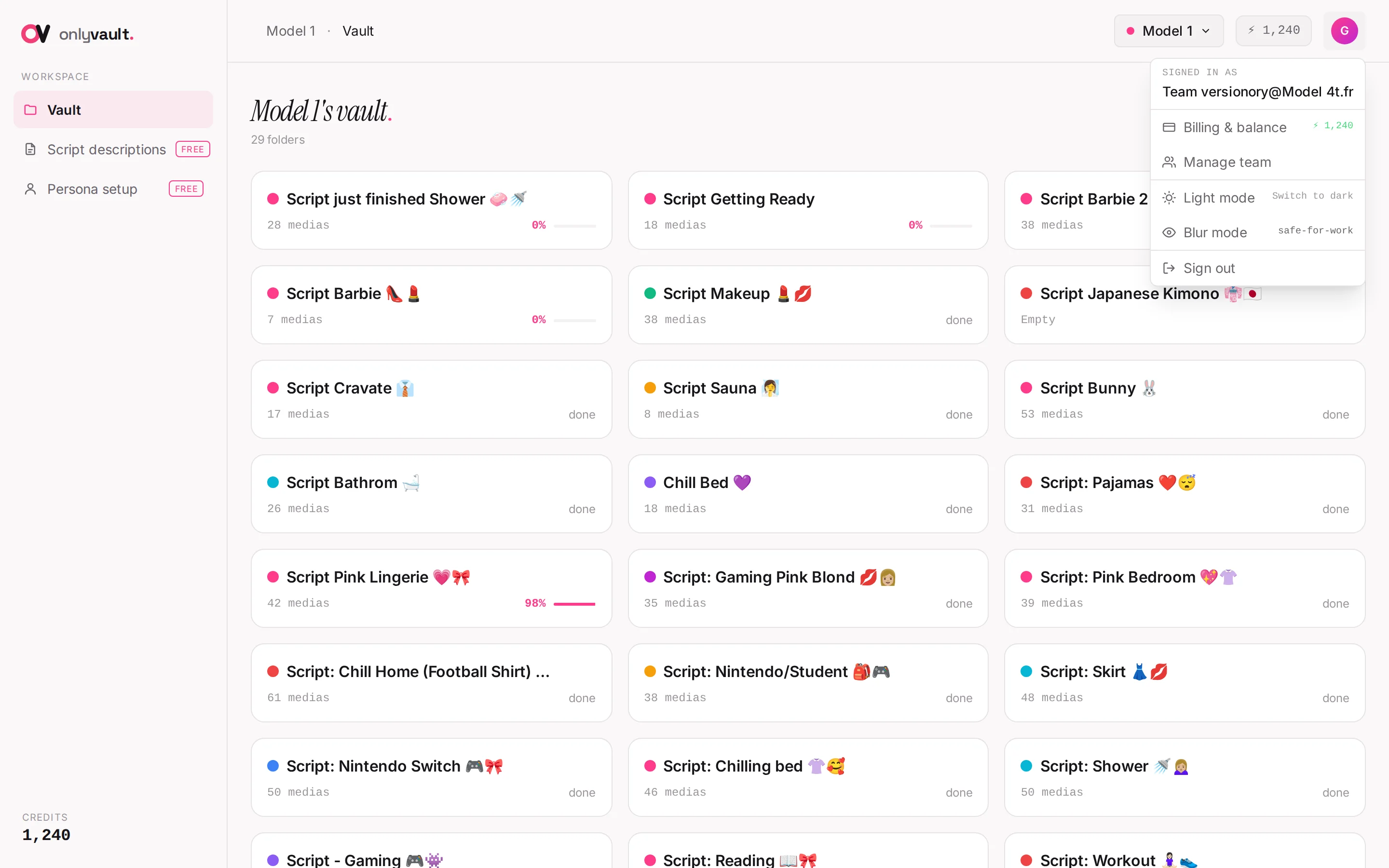
OnlyVault runs on prepaid credits. 1 credit = $0.20, so $20 buys 100 credits and the first top-up adds 20% on top. Credits pay for captions (photo 2, audio 4, video 6) and for the free tools once their quota is used (script description 5, persona sheet 10). Payment is crypto only, through a hosted invoice page: USDC or USDT on several networks. Only the owner of the account has a balance. Editors spend it. Assistants never spend it: they cannot generate captions, script descriptions or persona sheets.
Where to find it
Owners open the Billing & balance modal from three places: the Credits card at the bottom of the sidebar, the balance pill in the header (tooltip "Click to top up", red at 0), or the user menu entry Billing & balance.
Prices
| Action | Credits | In dollars |
|---|---|---|
| Photo caption | 2 | $0.40 |
| Audio caption | 4 | $0.80 |
| Video caption | 6 | $1.20 |
| Regenerate a caption | Same as a new caption | |
| Script description beyond 10/day or 30/month | 5 | $1.00 |
| Persona sheet beyond 3/day or 10/month | 10 | $2.00 |
Free: Re-rewrite, photos recognized "from vault", editing, copying, CSV export, Done and Restore, the free quotas of Script descriptions and Persona setup.
Credits are taken before a generation and refunded automatically when it fails. The refund shows in Recent activity as "Refund: ...". There is no free credit at signup.
The Billing & balance modal
Current balance
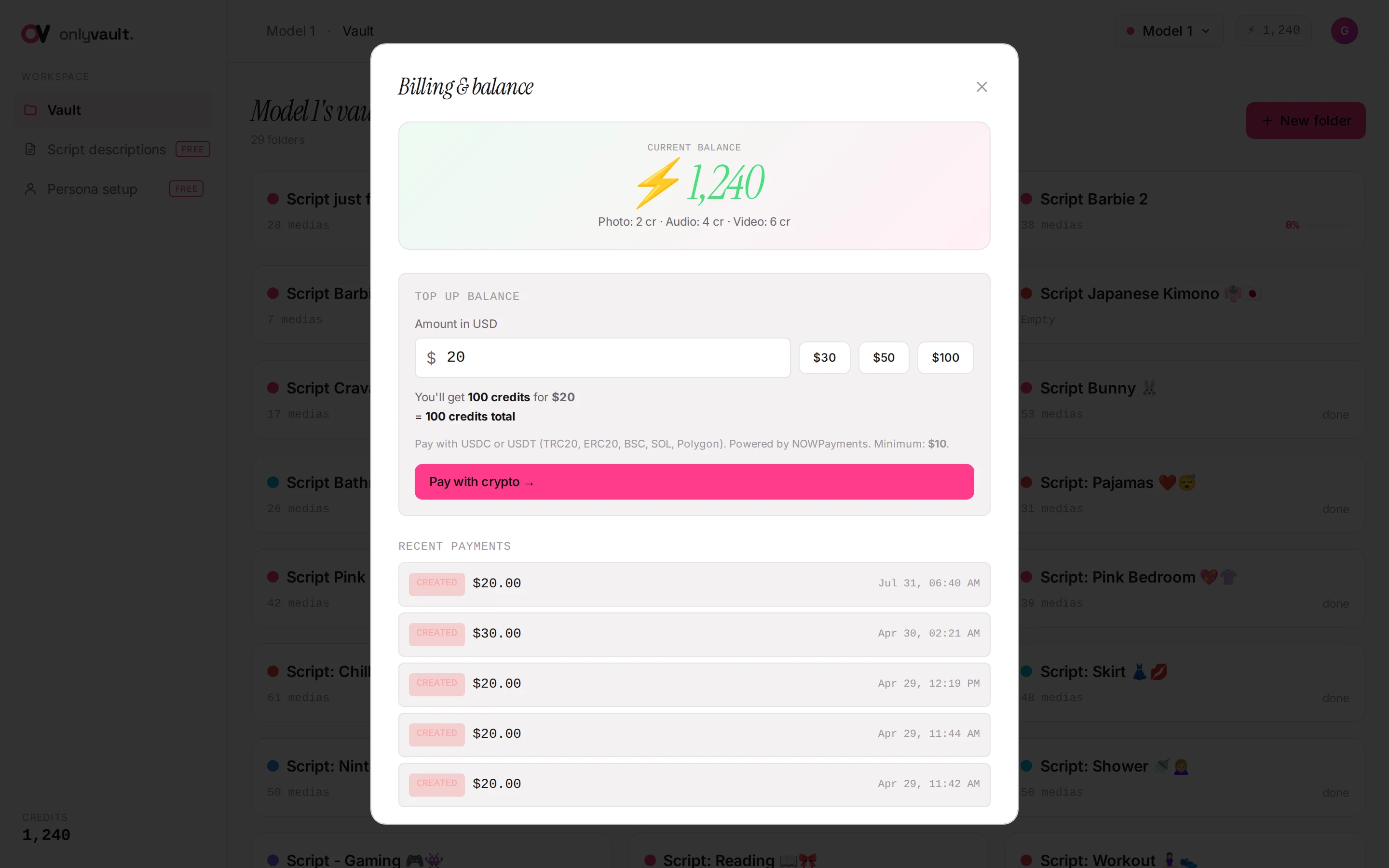
The top card shows "Current balance" with the credit count (red at 0) and the line "Photo: 2 cr · Audio: 4 cr · Video: 6 cr". Until your first top-up, a banner reads "First top-up bonus: get +20% extra!"
Top up balance
- Amount in USD: number field, minimum 10, maximum 10,000, step 10. Quick buttons $30, $50, $100 (the minimum stays $10 even if the smallest quick button is $30).
- Live preview: "You'll get N credits for $X", then "+ N bonus credits (first top-up only)" and "= N credits total". The bonus is computed on the base credits: $50 gives 250 + 50 = 300 credits; $20 gives 100 + 20 = 120.
- Text: "Pay with USDC or USDT (TRC20, ERC20, BSC, SOL, Polygon). Powered by NOWPayments. Minimum: $10."
- Pay with crypto ("Generating invoice...") opens the hosted invoice in a new tab.
Recent payments
The last five invoices with a status pill (created, waiting, finished or failed), the amount, "+N bonus credits" when applicable, and the date.
Recent activity
The last 30 transactions, for example "+100 cr Top-up $20.00 → 100 credits via NOWPayments", "+20 cr Welcome bonus +20 credits (20%)", "-2 cr Photo caption (2 cr), IMG_1.jpg", "Script description (5 cr), beyond free quota", "Persona sheet (10 cr), beyond free quota", "Refund: ..." and credits granted by support.
Top up step by step
- Verify your email firstTop-up is refused with "Please verify your email address first..." until the link in the "Verify your OnlyVault email" message is clicked. Check the spam folder. If the email is gone, write to Greg, our CEO (@YumitG on Telegram): there is no resend button in the app.
- Open Billing & balanceClick the Credits card, the balance pill or the user menu entry.
- Enter the amountType a value or click a quick button. Read the preview line to confirm the credits you will get.
- Click Pay with cryptoA new tab opens on the invoice page and the toast says "Payment page opened, complete payment in the new tab". The modal shows "Waiting for payment confirmation... Balance will update automatically." and keeps checking for up to 30 minutes.
- Pay from your walletOn the invoice page, choose the asset and the network, then send the exact amount shown to the address shown. Wallet network fees are on you; send enough for the received amount to match the invoice.
- Balance updatesOn confirmation the toast reads "Balance updated: N credits". If the payment page sends you back to the app, you see "Top-up confirmed! Balance updating..." or, if you cancelled, "Top-up cancelled". A failed or expired invoice shows "Payment failed/expired".
Errors in the modal
| Message | Meaning | Fix |
|---|---|---|
| "Minimum $10" | Amount under the minimum | Enter 10 or more |
| "Top-up too large" | Amount over $10,000 | Split the top-up |
| "Please verify your email address first..." | Email not verified | Click the link in the verification email |
| "Payments are not configured on this server. Contact support." | Payment page unavailable | Contact support |
| "No payment URL returned" | The invoice could not be created | Wait a minute and retry; if it persists, write to Greg, our CEO (@YumitG on Telegram), before paying anything |
Good to know
- Credits never expire. They stay on the account for as long as it exists; there is no monthly reset and no use-by date.
- The welcome bonus applies to the first top-up only, whatever the amount.
- Editors never see the balance; if they see "Insufficient balance" on a caption card, the owner needs to top up.
- No card, no PayPal: crypto only.
- Greg can grant credits manually; they appear in Recent activity like any other line.
- Keep the invoice tab open until it confirms; the app polls for 30 minutes, then you may need to reload to see the new balance.