
OnlyVault is the companion tool of OnlyChat, hosted at onlyvault.co. It does three jobs that OnlyChat itself does not do: it writes the caption (description) of every photo, video and audio you sell, it rewrites your script descriptions into the text the AI reads to pick a script, and it builds the Additional info sheet of a persona from a questionnaire. Captions cost credits. Script descriptions and Persona setup are free within a quota. There is no automatic link between the two tools: you copy the text out of OnlyVault and paste it into OnlyChat.
Where to find it
OnlyVault is a separate website with its own account. The landing page presents the caption side only; the two free tools appear in the sidebar once you sign in.
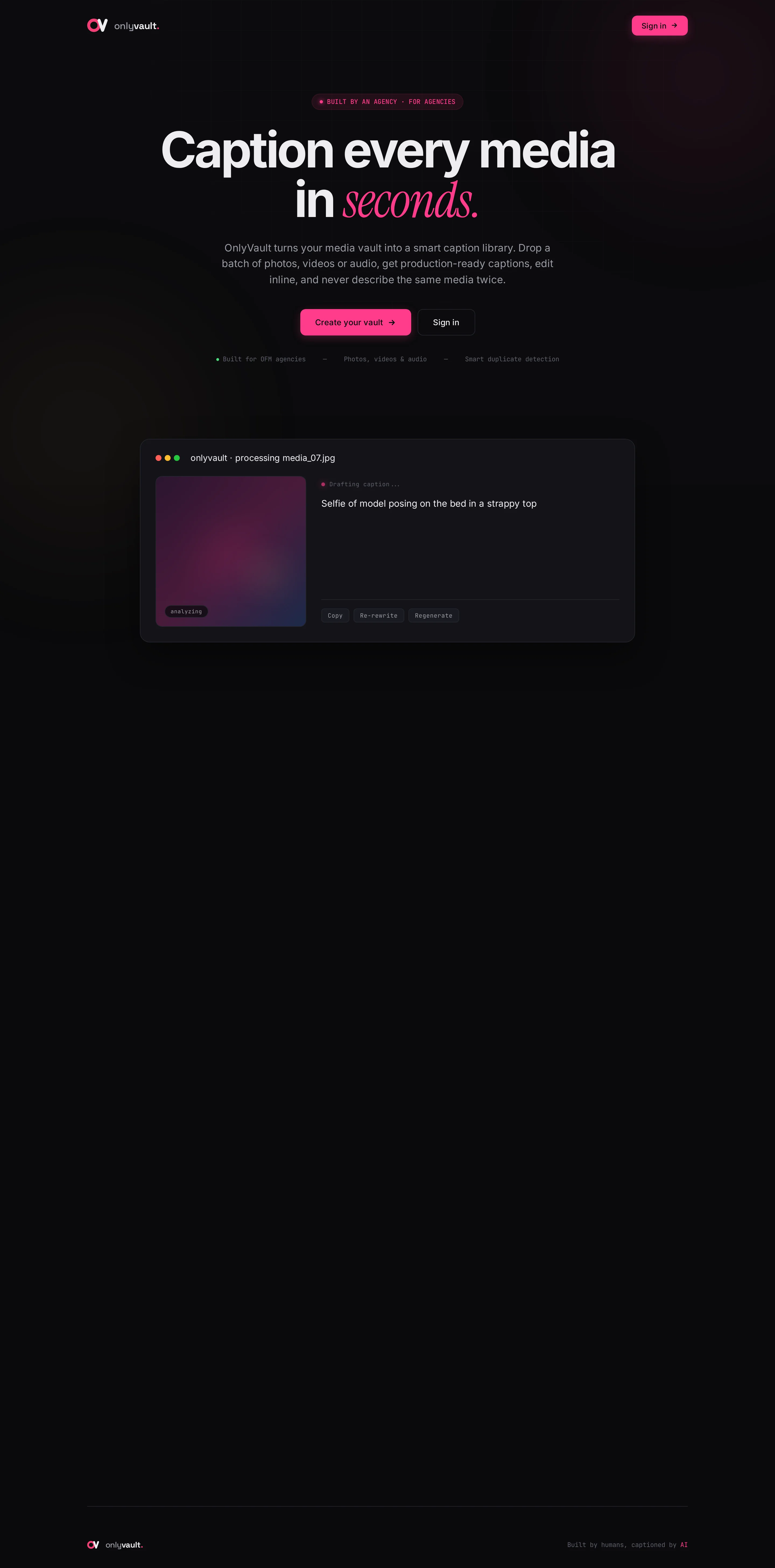
What OnlyVault produces, and where it goes in OnlyChat
| OnlyVault tool | What it produces | Where you paste it in OnlyChat | Price |
|---|---|---|---|
| Vault (captions) | One caption per media, in the creator's name | The Description of the media (Medias tab, Edit Media on OnlyFans, Edit media description on Telegram) | Photo 2 credits, audio 4, video 6 |
| Script descriptions | The internal description of a script | The Description field of the script in the script editor | Free: 10 per day, 30 per month, then 5 credits |
| Persona setup | The ADDITIONAL INFO sheet of a persona | Settings, Add infos, Additional info | Free: 3 per day, 10 per month, then 10 credits |
Why it matters in a real fan conversation: the AI only sends media it can describe, and it picks scripts from their descriptions. A media without a description is not "Ready for AI" in OnlyChat: the step still sends it, but the AI cannot say what is in it when a fan asks before paying, and invents. A script with a thin description is picked less often. A persona with no Additional info answers personal questions generically. OnlyVault fills those three gaps.
The account
Sign up: "Create your vault"
Signup takes two steps.
- Step 1 / 2, Your accountEnter Email and Password (placeholder "At least 8 characters"), then Continue. The button stays disabled until both fields are filled. Client-side checks: "Please enter a valid email." and "Password must be at least 8 characters."
- Step 2 / 2, Your first modelThe intro reads "OnlyVault generates captions tailored to each model you manage. Add the first one now, you can add more later." Fill Model's first name (required, 50 characters max), Her age (18 to 99, optional), Her hair color (optional) and Distinguishing features (optional) (120 characters; help text "Tattoos, piercings, marks, anything that makes her recognizable in photos."). Click Create my vault (label becomes "Creating..."). An invisible captcha runs in the background.
- You land in the appYou are signed in immediately and redirected to the app. A verification email titled "Verify your OnlyVault email" is sent at the same time, with a "Verify my email" button. The email says the link expires in 24 hours.
Errors appear in a red box: "Invalid email", "Disposable / temporary email addresses are not allowed. Please use a permanent email.", "Password must be at least 8 characters", "Password too long", "An account with this email already exists", "Creator name required (max 50 chars)", "Captcha verification failed. Please refresh the page and try again." and "Captcha not ready. Please wait a moment and try again."
The verification page shows "Email verified. Your account is now active. You can open OnlyVault." on success, or "Verification link expired or already used." / "Invalid verification link."
Sign in: "Welcome back"
Enter Email and Password, press Enter or click Sign in ("Signing in..."). A wrong pair returns "Invalid email or password". After several failed attempts on the same email you see "Too many failed attempts. Try again in 15 min or reset your password." The session lasts 30 days in the same browser.
Forgot and reset password
Click Forgot password? on the sign-in page. The text reads "Enter your account email and we'll send you a link to reset your password." Enter the email and click Send reset link. The success state always shows "If an account exists for that email, a reset link is on its way.", whether or not the account exists. The email "Reset your OnlyVault password" contains a "Reset my password" button; the link is single-use and valid 1 hour.
On the reset page ("Choose a new password", "Pick something at least 8 characters long."), fill New password and Confirm new password, then Update password. Errors: "Passwords do not match.", "Password must be at least 8 characters", "Invalid or expired reset link.", "This reset link has expired. Request a new one." Success shows "Your password has been updated." with a "Go to sign in" link.
Sign out and account settings
Open the user menu (the avatar letter, top right) and click Sign out. There is no settings page: the email cannot be changed in the interface, there is no account deletion, and a display name is only set on the invitation page for team members.
The app shell
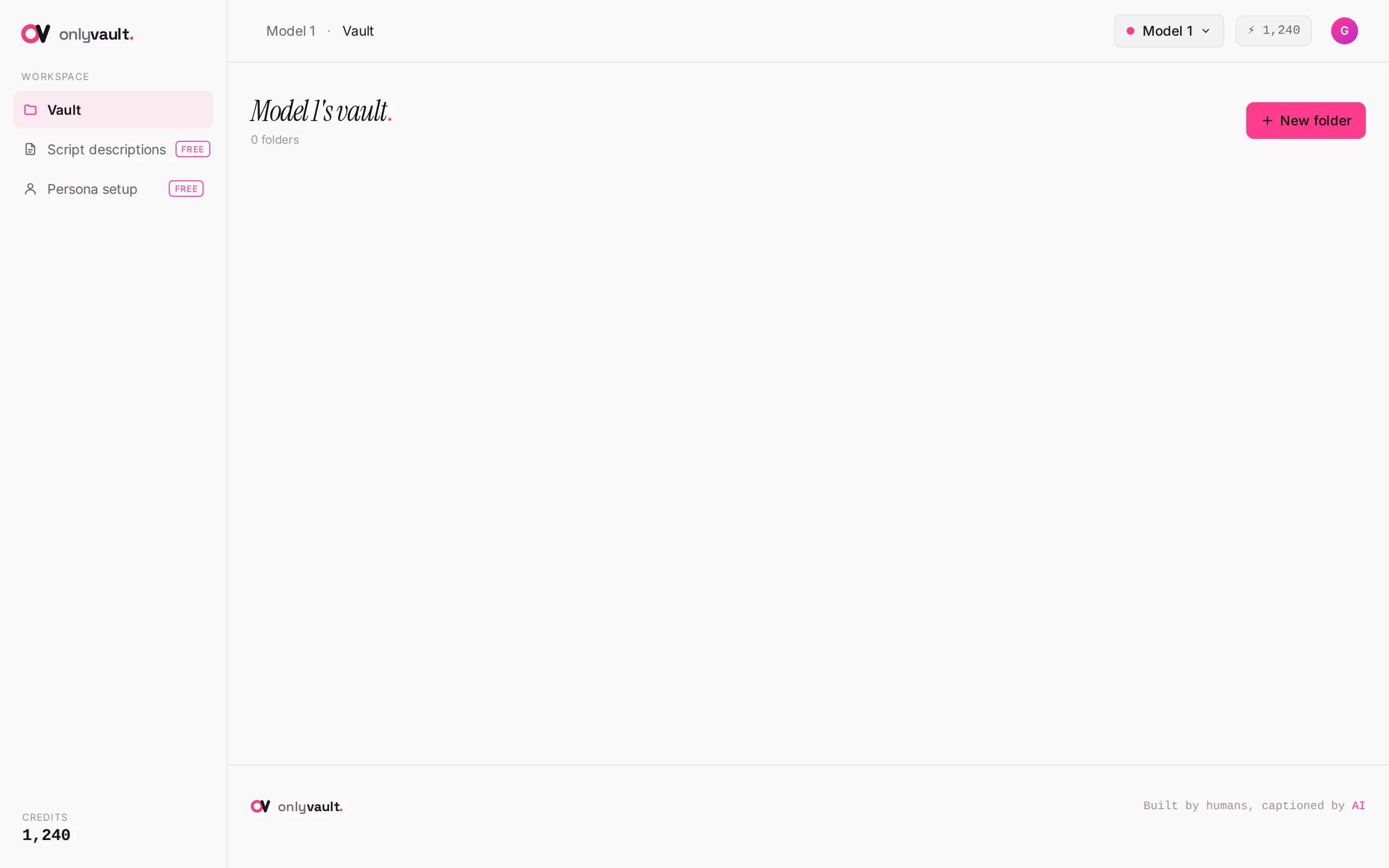
Left sidebar
Under "Workspace" you find Vault (the folders of the current creator), Script descriptions with a "free" pill and Persona setup with a "free" pill. Owners also see a Credits card at the bottom with the balance; clicking it opens the Billing & balance modal. An "Admin" entry can appear on the service owner's account only; it is not part of a customer account.
Top header
- Breadcrumb: "Creator name · Vault" on the folders view, "Creator name / folder name" inside a folder. The creator name acts as a back button.
- Status chip: "N processing" pulses while captions are being written, "ready" once the batch is done.
- Creator selector: a pill with a colored dot and the creator name (or "Pick creator"). The dropdown "Creators" lists each creator with a subtitle like "24yo · blonde" and two footer actions, Add new creator and Edit current creator.
- Role badge: "editor" or "assistant", only for team members.
- Balance pill with the credit count (owners only; tooltip "Click to top up"; red at 0, green otherwise). It opens the Billing & balance modal.
User menu
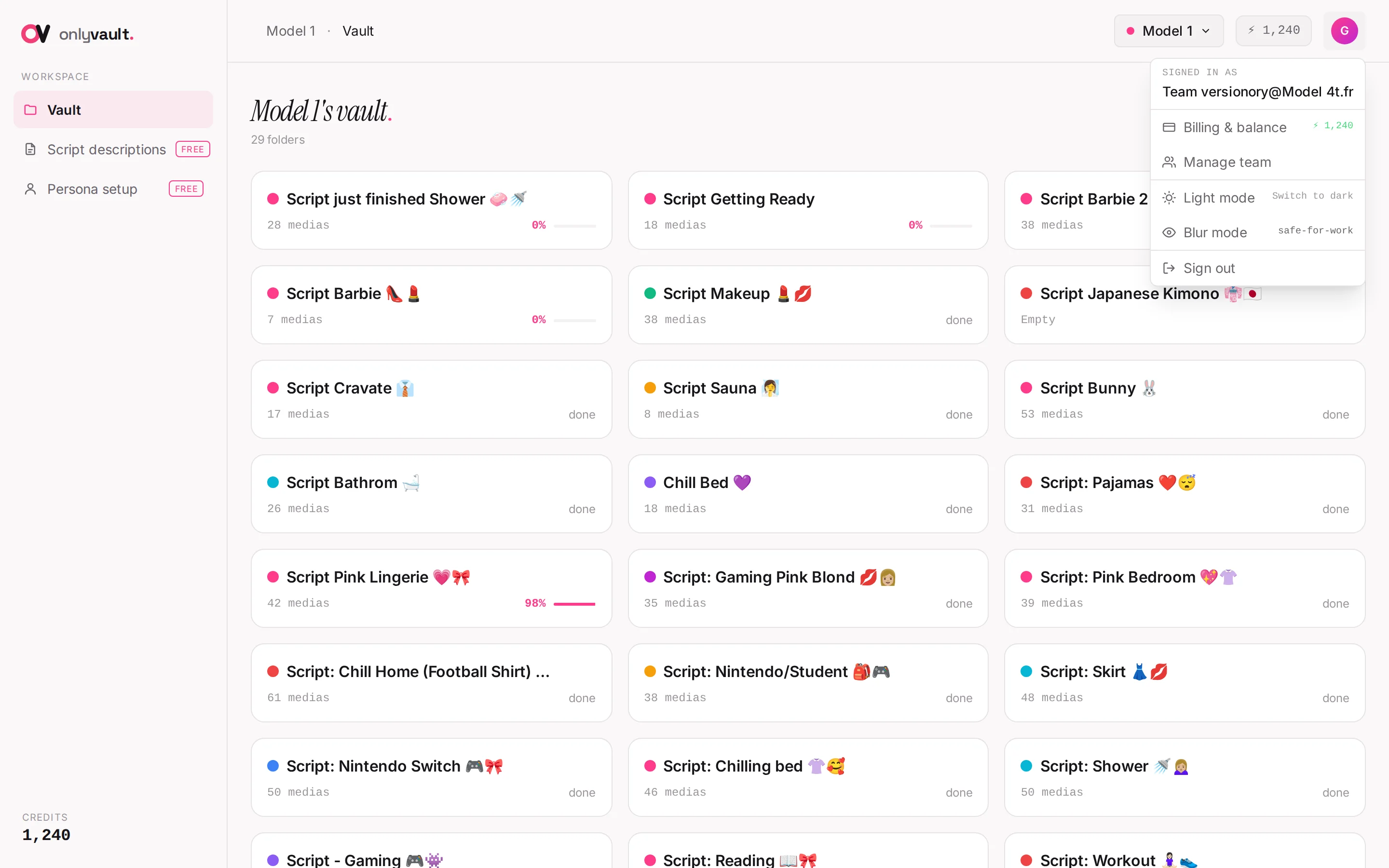
The menu shows "Signed in as" followed by your name or email, then: Billing & balance with the credit count (owners), Manage team (owners), the theme toggle (Light mode / Dark mode, subtitle "Switch to light" or "Switch to dark"; dark is the default), Blur mode (subtitle "safe-for-work"; when on, "Blur mode ON, click media to reveal") and Sign out. Theme, blur mode, the last creator and the last folder are remembered per browser.
Creators (model profiles)
A creator in OnlyVault is a model profile: first name, age, hair color, distinguishing features. Captions are written in her name and the profile stops the AI from describing permanent features (a tattoo, a piercing) as if they were new in every photo. Duplicate detection is per creator.
Open the creator selector and click Add new creator or Edit current creator. The modal ("New creator" / "Edit creator") has:
| Field | Limit | Notes |
|---|---|---|
| First name | Required, 50 characters | Used in every caption |
| Age | 18 to 99 | Optional |
| Hair color | 40 characters | Optional |
| Distinguishing features (optional) | 120 characters in the form | Tattoos, piercings, marks |
Buttons: Cancel, Create or Save (disabled without a name). When editing and more than one creator exists, a red Delete creator button appears with the confirm "This will permanently delete the creator AND all their captions. This can't be undone." Toasts: "Creator created", "Creator updated", "Creator deleted". A name that looks like an instruction to the AI is refused with an error naming the field. You cannot delete your last creator.
Roles: owner, editor, assistant
One account owns the workspace and the credits. Team members join through an invitation link with one of two roles. Non-owners only see the creators the owner granted them.
| Action | Owner | Editor | Assistant |
|---|---|---|---|
| Generate captions, Regenerate, Re-rewrite | Yes | Yes, billed to the owner | No |
| Edit caption text, move captions | Yes | Yes | No |
| Mark done, Restore | Yes | Yes | Yes |
| Create and edit folders and creators | Yes | Yes | No |
| Delete captions, folders with captions, creators | Yes | No | No |
| See credits, open Billing, top up | Yes | No | No |
| Manage team and invitations | Yes | No | No |
| Script descriptions, Persona setup | Yes | Yes | Yes, quotas shared with the owner |
Role refusals read "Your role can't generate captions", "Your role can't edit captions", "Your role can't move captions", "Only owners can delete captions" or "Forbidden, insufficient role". See Team and invitations.
Credits: what costs, what is free
1 credit = $0.20 (5 credits per dollar). The balance is shown as a lightning bolt followed by the number. Only owners hold a balance; editors spend the owner's credits.
| Action | Cost |
|---|---|
| Photo caption | 2 credits |
| Audio caption | 4 credits |
| Video caption | 6 credits |
| Regenerate (full re-analysis of a media) | Same as a new caption |
| Script description beyond the free quota | 5 credits |
| Persona sheet beyond the free quota | 10 credits |
| Re-rewrite, duplicate photos ("from vault"), editing, copying, CSV export, Done/Restore | Free |
| Script descriptions: first 10 per day and 30 per month | Free |
| Persona sheets: first 3 per day and 10 per month | Free |
Credits are taken before a generation and given back automatically if it fails ("Generation failed. Your credits were not charged, please try again."). There is no free credit at signup; the first top-up gets a +20% bonus. Full details in Credits and billing.
Good to know
- Only thumbnails are kept, never your original files. Re-rewrite works forever on a saved caption; Regenerate needs the file to be uploaded again.
- Quotas for the free tools are per account: the owner and the whole team share the same 10/30 and 3/10 counters.
- The interface is in English only. Two rare progress messages ("Connexion coupée, réessai 1/2...", "Serveur occupé (5xx), réessai 1/2...") appear in French during network retries; they mean the upload is retrying on its own.
- Keyboard shortcuts shown in some tooltips are not active. Only Esc closes overlays.