
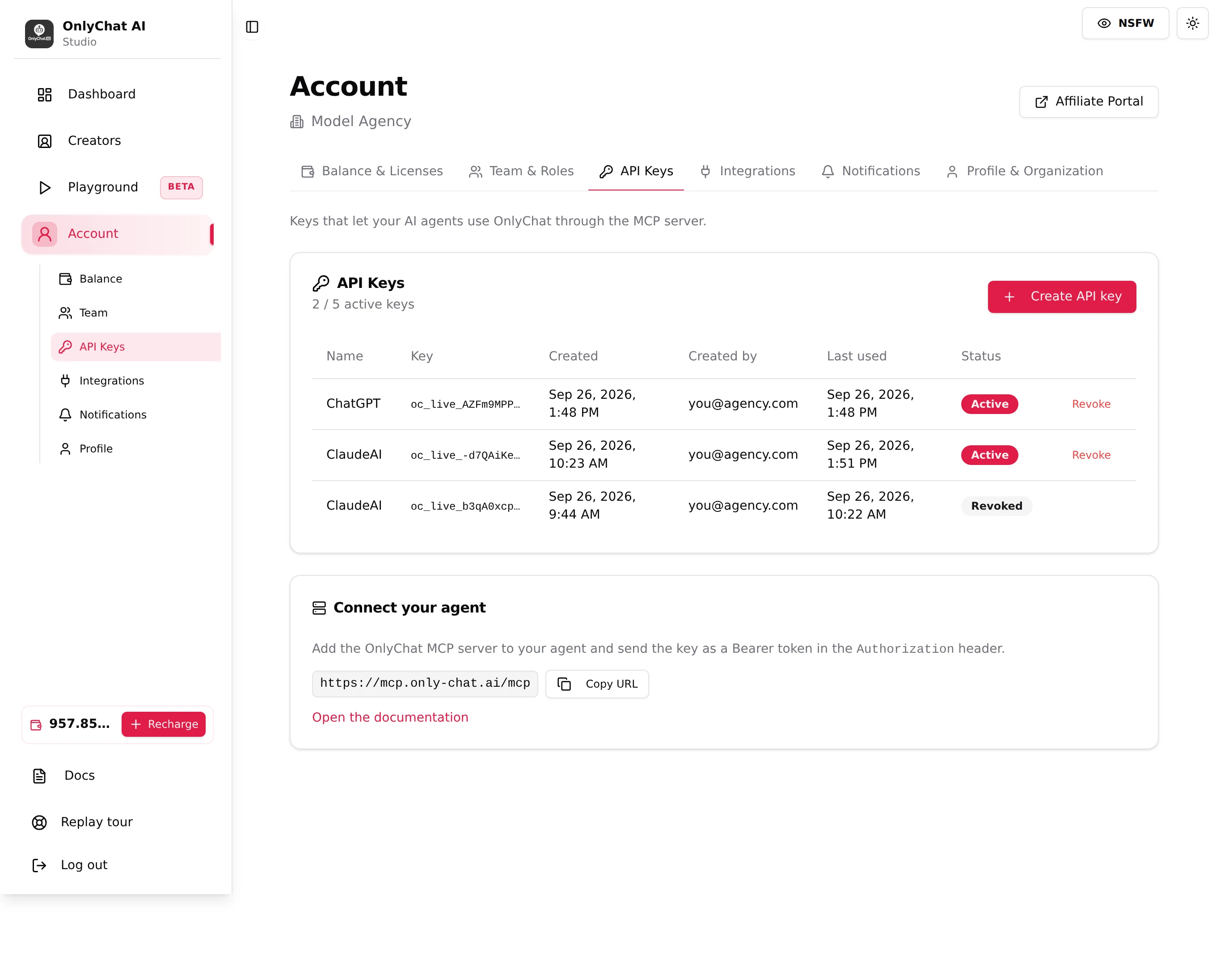
Every agent connects with its own key. You create keys on Account, tab API Keys. You can hold up to five active keys at a time, so one key per assistant is the tidy way to work: name one "Claude", one "ChatGPT", and so on. That way you can revoke a single agent later without cutting the others.
Create a key
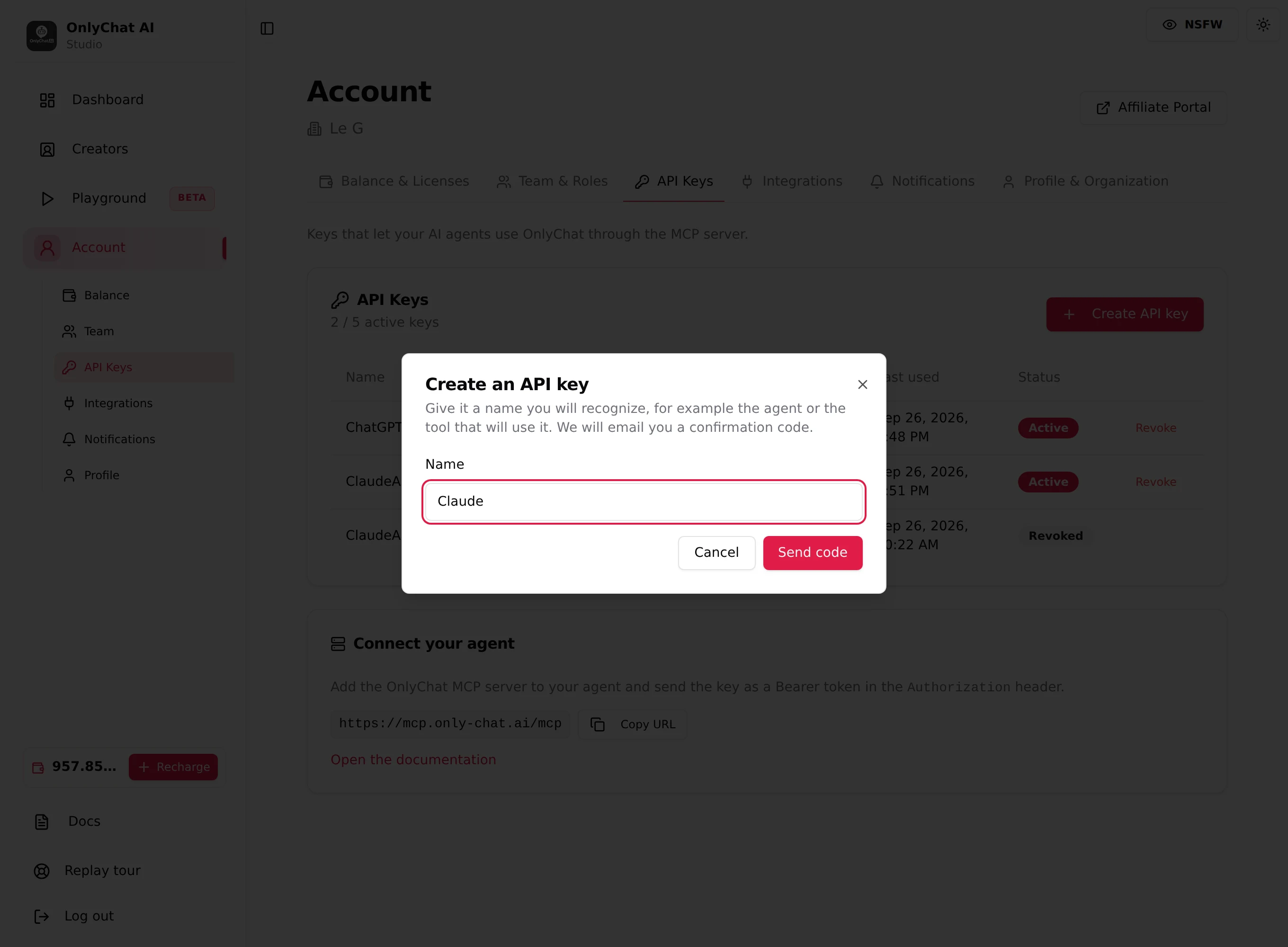
- Open Account, tab API Keys, and click Create API key.
- Give it a name you will recognize, for example the agent or tool that will use it.
- Click Send code. OnlyChat emails a confirmation code to the address on your account.
- Enter the code to confirm. The key is then generated and shown once.
Copy it now
The full key is shown a single time, right after you confirm. Copy it straight into your assistant, or into a password manager. If you lose it, you cannot see it again: revoke it and create a new one. A key always starts with oc_live_.
Manage your keys
The table shows each key's name, a masked preview, when it was created and by whom, when it was last used, and its status.
| Action | What it does |
|---|---|
| Create API key | Adds a key, up to five active at once. |
| Revoke | Disables a key immediately. The agent using it stops working at once. Use it the moment a key might be exposed, or when you retire an assistant. |
Keep it safe
The key is tied to your organization, not to one creator, so whatever holds it can see and act on all your creators. Never commit it to code you share, never paste it in a public chat, and give each teammate or agent its own key so you can revoke just that one.