Dropp.fans
Connect Dropp.fans to OnlyChatAI to send trackable checkout links from your Telegram scripts.
Dropp.fans lets your AI send trackable checkout links from your Telegram scripts — instead of, or alongside, paid media — with every sale recorded automatically.
This guide walks you through connecting a Dropp.fans account to OnlyChatAI, syncing your payment links, and using them inside your Telegram scripts.
Before You Start
You'll need an active Dropp.fans account with payment links already created there. OnlyChatAI doesn't create Dropp.fans links for you — it connects to your existing ones.
Generate an API key on Dropp.fans:
On Dropp.fans, go to Settings → API and generate a key. When creating it, grant all six of these permissions — OnlyChatAI checks for every one of them and will refuse to save a key that's missing any:
links:read · links:write · webhooks:read · webhooks:write · orders:read · transactions:read
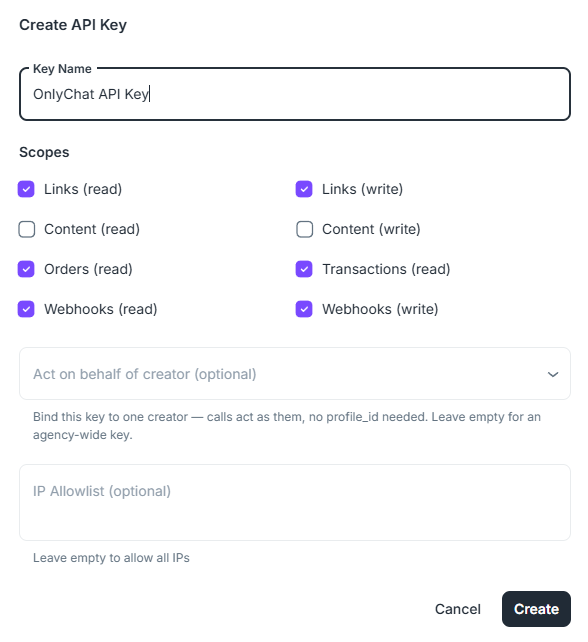
Keep the key somewhere safe until the next step — Dropp.fans won't show it to you again.
Part 1 — Agency Setup
Done once per agency. This connects your whole OnlyChatAI organization to Dropp.fans. One agency admin does this once — every creator's bot will then be able to use it.
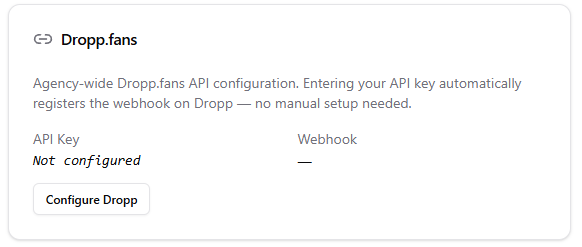
Open your Dropp.fans settings
Go to Account in OnlyChatAI, then find the Dropp.fans section. Click Configure Dropp.
Paste your API key and save
Paste the key you generated on Dropp.fans into the API Key field, then click Save.
OnlyChatAI verifies the key's permissions and connects it live — there's nothing else to configure on Dropp.fans' side. Saving can take a few seconds while this happens.
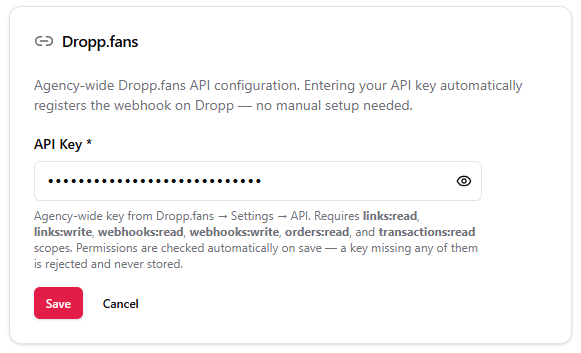
🧠 What "connects it live" means: OnlyChatAI registers itself with Dropp.fans so it's notified the instant a fan completes a purchase — that's what lets a Telegram message get marked as paid automatically, with no manual step.
Reading the Status
Once saved, the page shows two indicators:
| Indicator | Meaning |
|---|---|
| API Key | Shows the last 4 characters of your saved key, so you can confirm which one is active. |
| Webhook — Active | Sale tracking is live. Fans purchasing through Dropp links will be reflected in OnlyChatAI automatically. |
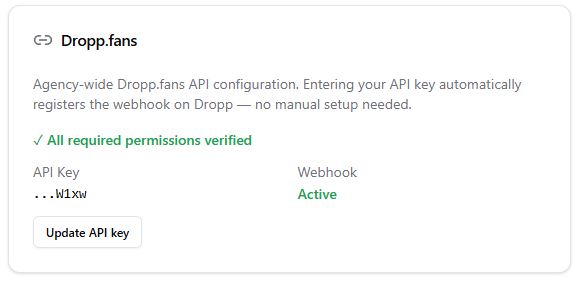
If Webhook shows 'Not registered':
Click Update API key and save again — this re-attempts the connection. Sale tracking and link syncing stay off until this shows Active.
Part 2 — Creator Setup
Repeat for each Telegram creator. Do this once per creator/bot you want selling through Dropp.fans. You'll find all of this under the creator's Dropp tab.
Link the Dropp.fans profile
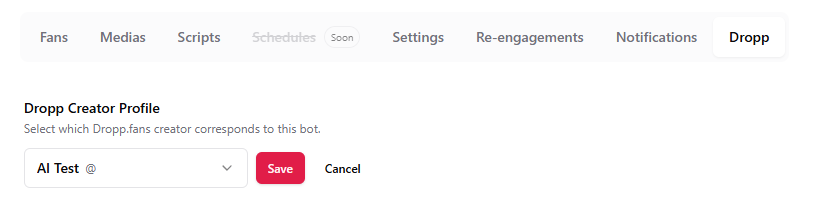
Under Dropp Creator Profile, click Select Profile and choose the Dropp.fans seller this creator sells as. This is what tells OnlyChatAI which links belong to this creator.
Fetch and choose folders (optional)
Click Fetch Folders to pull in your Dropp.fans folders. If you use folders to organize your links, tick the ones this creator should pull from.

💡 Tip: Leave every folder unchecked to sync all of this creator's links instead of filtering by folder.
Sync your links
Click Sync Links. Every link from the selected folders (or all of them, if none are selected) is imported into the Dropp Links table below — name, price, content, and active status included.

💡 Tip: Re-run this any time you add, price-change, or archive a link on Dropp.fans, to keep OnlyChatAI in sync.
Add a description to each link
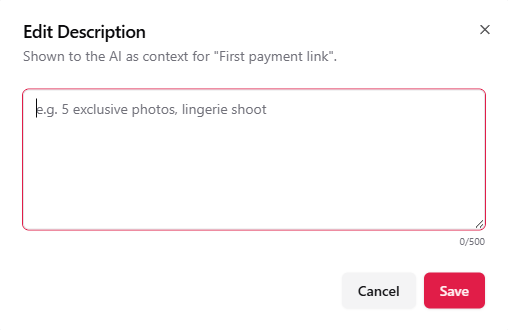
Click a link's description (or the pencil icon) to open the editor. This text — up to 500 characters — is what your AI reads to understand what it's selling, so describe the content the way you'd want the AI to talk about it: "5 exclusive photos, lingerie shoot", for instance. If left blank, the AI falls back to the link's plain name.
Remove a link, if needed
Use the trash icon on a link's row to remove it from OnlyChatAI. This only detaches it here — the link itself stays untouched on Dropp.fans, and you can re-sync it back in later.
Part 3 — Using Dropp Links in Your Scripts
Once a creator has synced links, any step in their Telegram scripts can send one instead of paid media.
Attach a Dropp link to a step
In the step editor, use the Dropp.fans link picker to choose a synced link. Once set, the AI appends a unique, trackable checkout URL to that step's message — every open and sale on that link is then tied back to this exact conversation.
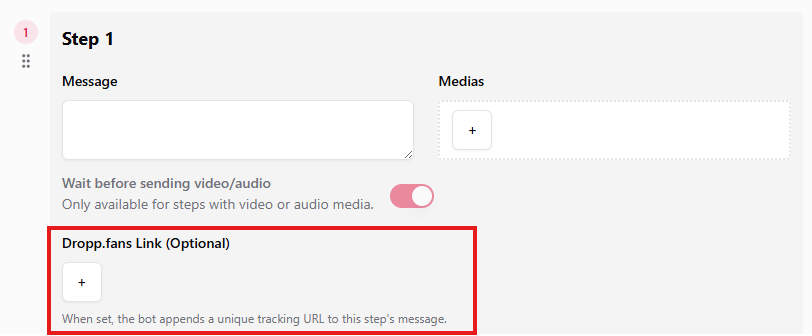
⚠️ About pricing: when a step has a Dropp link, its price fields are locked to free — the fan pays on Dropp.fans, not through a Telegram payment.
Add a discount link and control the link preview (optional)
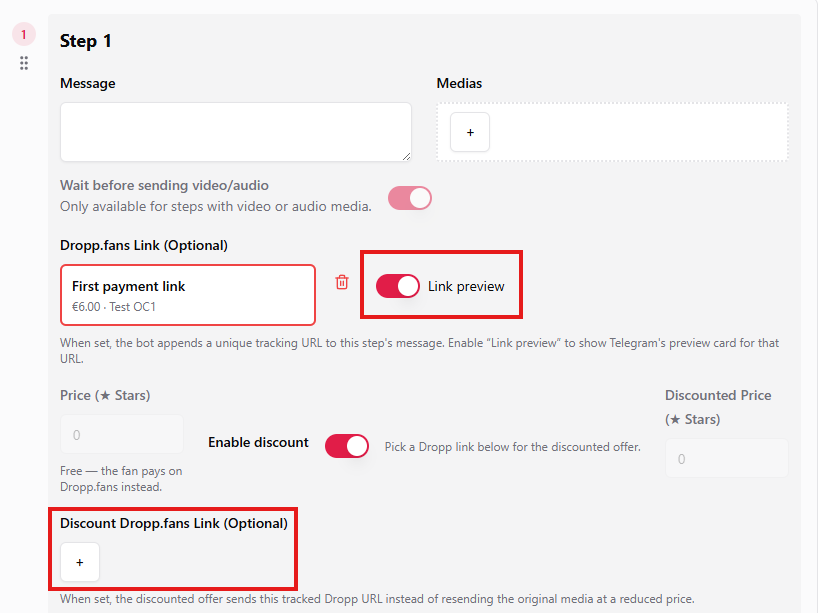
With Enable discount turned on for a step that already has a main Dropp link, a second picker appears for a Discount Dropp.fans Link. If the fan hesitates, the AI sends this link after the original one — useful for a lower-priced version of the same content.
Next to the link picker, the Link preview switch controls whether Telegram displays its preview card for the checkout link. It's on by default; turn it off if you want a cleaner, text-only message.
What happens automatically from here:
When a fan completes a purchase, OnlyChatAI marks that conversation's message as paid and records the sale — no action needed from you. Revenue shows up on your Dashboard, under the Dropp and Total views, converted to USD alongside your Telegram Stars sales.

Troubleshooting
Messages you might see, and what to do about each one.
| Message | What to do |
|---|---|
This Dropp API key appears to be invalid — it was not saved. | Double-check you copied the entire key from Dropp.fans → Settings → API, with no missing or extra characters. |
This API key is missing required permissions — it was not saved. | The message lists exactly which permissions are missing. Generate a new key on Dropp.fans with all six scopes granted (see Before You Start), then save again. |
Dropp webhook is not active | Shown on a creator's Dropp tab. Sale tracking and link syncing are paused until this clears. Go to Account → Dropp.fans and save your API key again to re-establish the connection. |
Dropp API key not configured | No agency key has been saved yet. An agency admin needs to complete Part 1 — Agency Setup before any creator can use Dropp.fans. |
Frequently Asked Questions
Can two creators share the same Dropp.fans seller profile?
Yes — for instance if you run separate bots for different markets under the same Dropp.fans account. Each creator gets their own independent copy of the synced links, so descriptions, folder filters, and script usage stay separate.
What currency do Dropp.fans sales show in?
Dropp.fans sales are recorded in whatever currency the link is priced in on Dropp.fans (typically EUR), and converted automatically to USD for your OnlyChatAI Dashboard, alongside your Telegram Stars revenue.
I removed a link on OnlyChatAI by mistake — is it gone?
No. Removing a link only detaches it from OnlyChatAI. It's untouched on Dropp.fans, and syncing links again for that creator brings it right back.
Does a Dropp.fans sale count toward my usual revenue split?
Yes — sales made through a link your AI sent are treated the same as any other AI-generated sale for billing purposes.
Questions about a specific error not covered here? Reach out to your OnlyChatAI contact with a screenshot of what you're seeing.